

Google Sheets
Introduction
Orai robotics integration hub allows integration with external applications to provide added functionality to portal users to build their bots. Integration of google sheets specifically has facilitated storing the data collected during the bot flow for a user. Typical use cases where sheets can be used are saving booking information, Saving information of leads from the bot flow, saving meeting schedules/appointments and logging support request information/ticket information for the support team.
Access
Google Sheets Integration is available with the Business Plan and higher.
You can add your sheets account by clicking on the Integrations tab on your left panel and selecting Google Sheets.

Connect your Google Account
Steps to authorize sheets node to access your Google Sheets
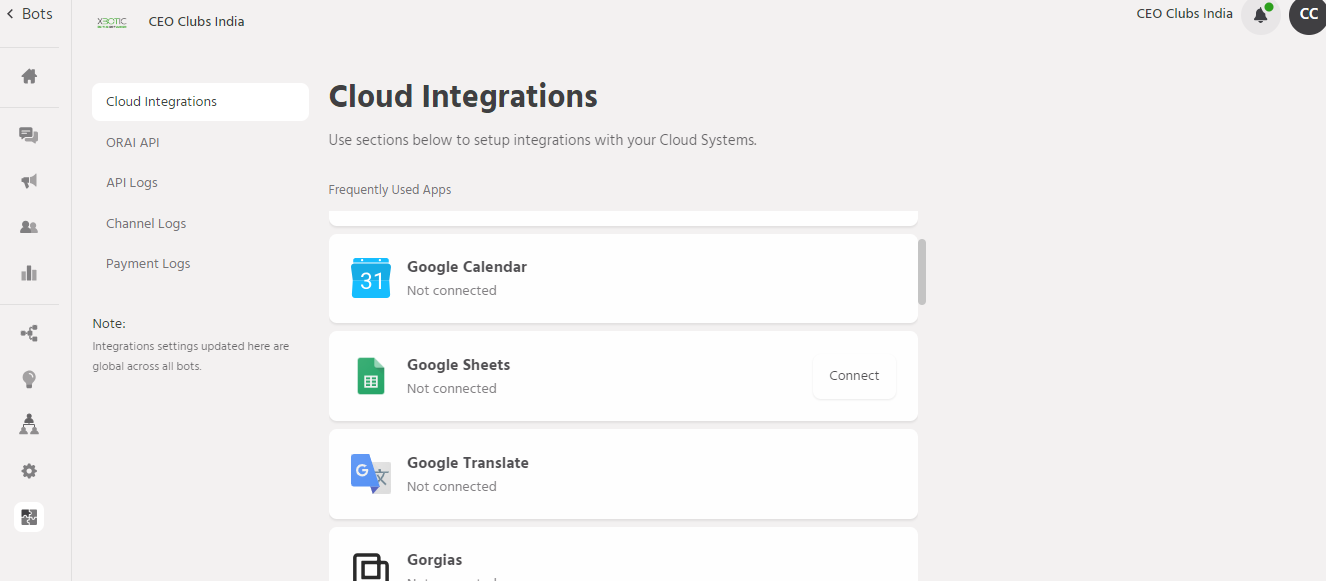
Step 1: Integrations>Google Sheets>Add Account
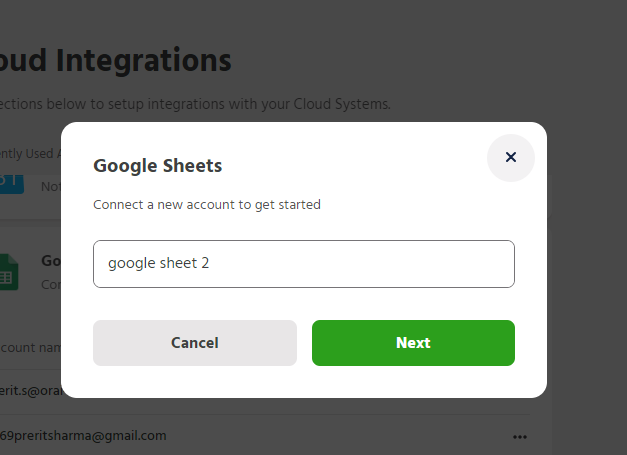
Step 2: Enter the Google Account ID to add and authorize
Using the Sheets
Capabilities
Orai Robotics allows the bot builders to get information from the sheet or modify the existing data or add new data.
Search Value
This feature will allow the bot builder to search a cell with a particular value in the sheet and retrieve any of the other data points for the record. These values can be set as attributes to be used in the bot flow.
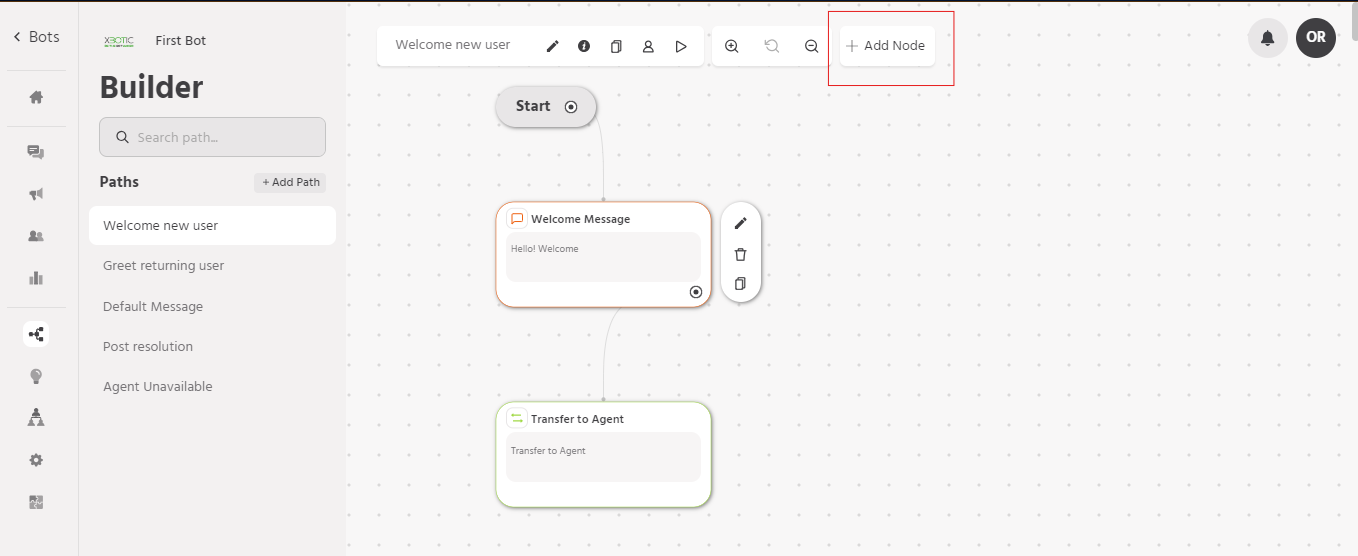
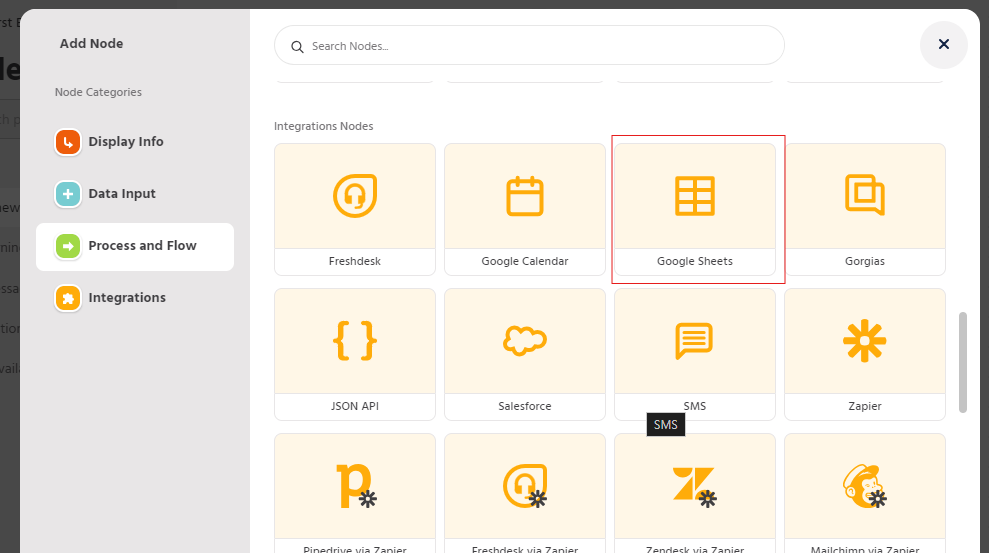
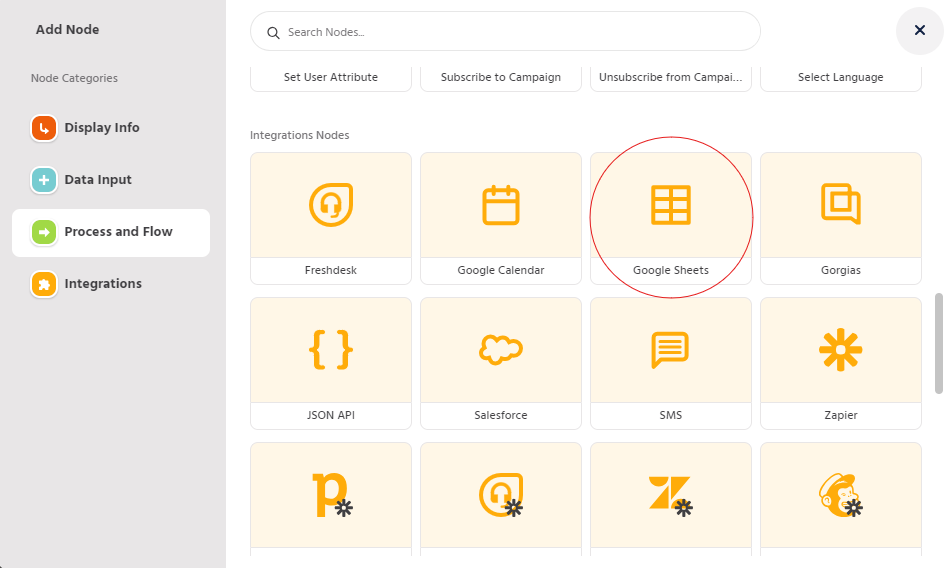
1. While adding a new node select Google Sheets under Integrations in the Builder tab.
2. You can now choose an already connected account or authorize a new Google Sheets account.
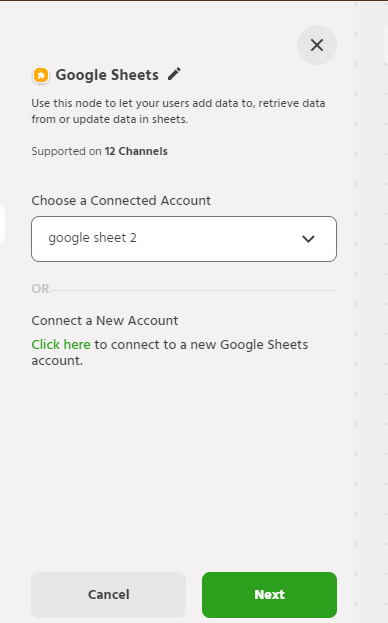
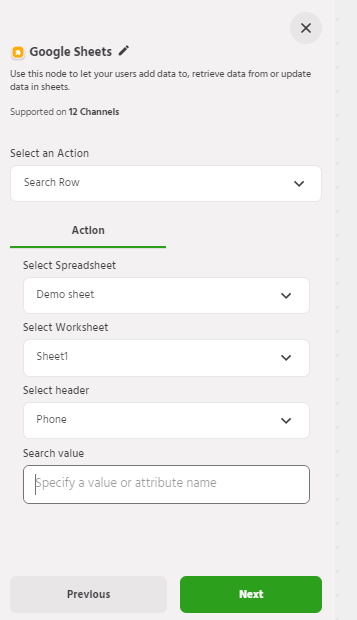
3. In the ‘Select and Action’ field, select Search Row.

4. Select the Spreadsheet and the Worksheet.
5. Select a header from the selected sheet (This would be the title of the columns)
6. Search the value in the selected header. This is will give the row in which the searched information is present.
7. Single Search: Once you select the Header you want to search the value in you will be able to see the retrieve tab where you can retrieve any value from the row found in the search.
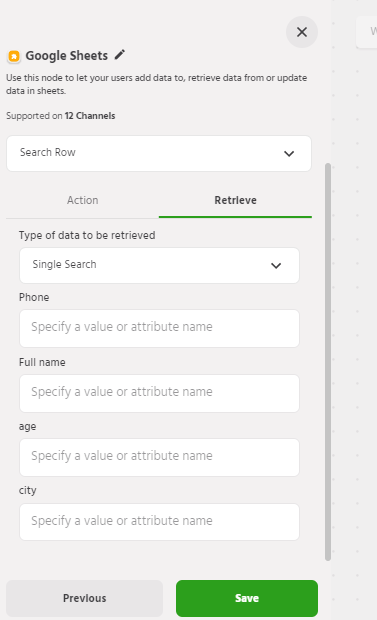
8. Add an attribute to which the selected information is to be added.
9. You can access these attributes in the subsequent flows.
10. Multi Search: In case the searched value matches in more than one row, all the cells data matching with the search crieteria will be added to predefined attribute {googlesheet.search}. You can use this attribute to further filter the search results.
Add Information
This feature allows the user to add certain information to a google worksheet row.
1. While adding a new node select Google Sheets Under Integrations in the Builder tab.
2. Select the connected account or add a new account and select the add row option from the drop-down menu.
3. Select the Spreadsheet and the Worksheet that you’d like to use.
4. The column headers should be predefined in the worksheet. Add the attributes in which the information that needs to be passed is stored in the bot flow.
Update Information
This feature allows the user to search for a value and update the information in that row.
1. Click on Add new node and select Google Sheets Under Integrations.
2. Select an already existing account or authorize a new account.
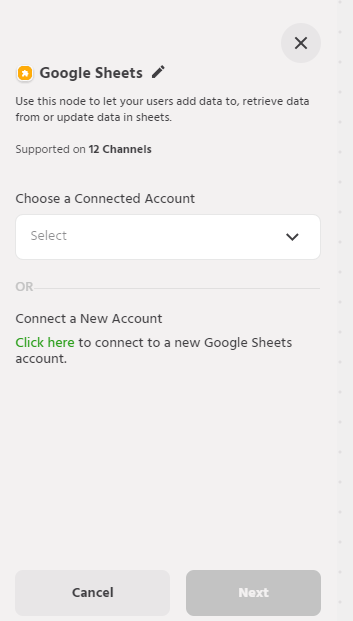
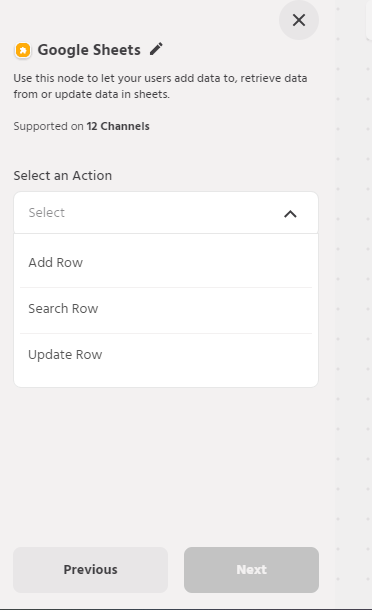
3. Select the Update row under the Select Action field.
4. Select the Spreadsheet and select the worksheet.
5. Select a header from the selected sheet (This would be the title of the columns)
6. Search the value in the selected header. This is will give the row in which the searched information is present.
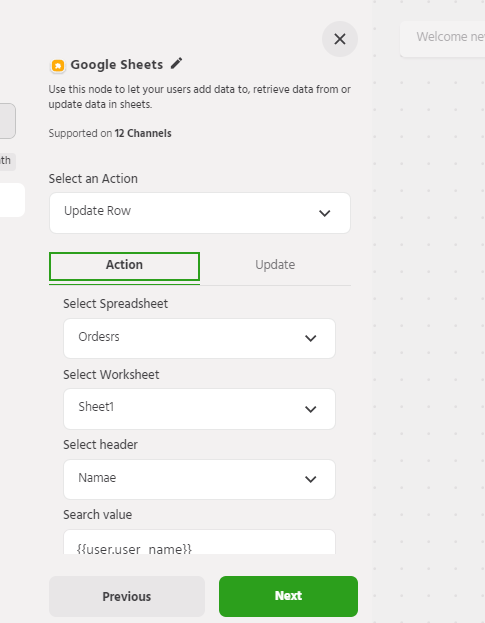
7. Select the header under which you want to change the value
8. Add the new value to be updated from the update tab, this could be an attribute or a static value
Note: If there is more than one row where searched information matches. The new information will be updated in all the rows