

Introduction
Instagram as a channel is currently in beta-phase and hence, has certain pre requisites that need to be met before deploying a bot on Instagram.
Visit the documentation to ensure that your Instagram account meets all desired conditions set by Facebook.
Note: Instagram setup will not work, if all the pre requisite conditions are not met. Also multiple pages on the same bot is not supported. Feel free to contact us on https://help.orai-robotics.in/ for any issues.
2. Availability
Instagram as a channel will be available for customers who have subscribed to Pro plan and above for platform customers and Growth Plan for E-commerce.
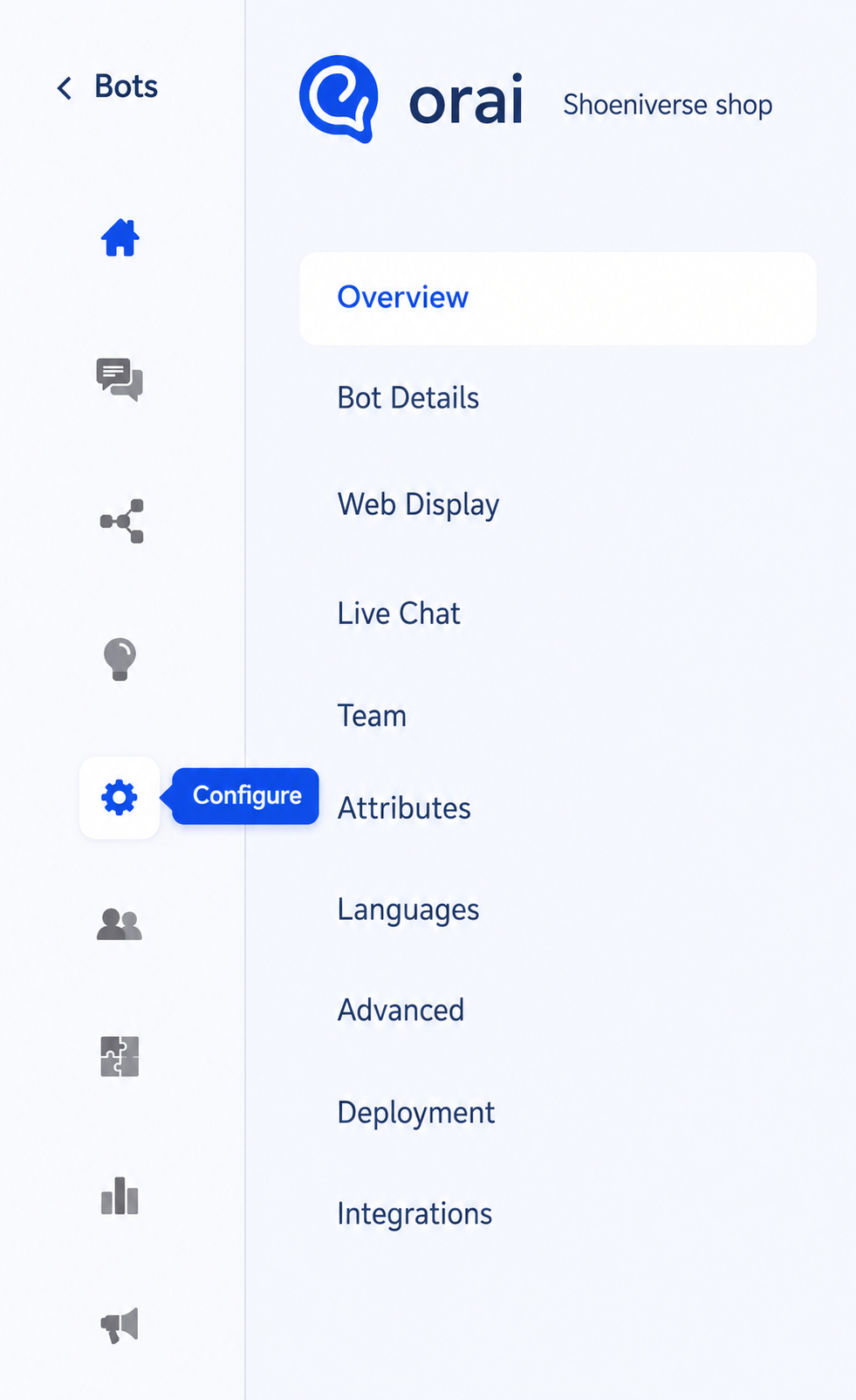
Customers can navigate to Configure > Deployment and then, click on Connect button besides Instagram to setup the account.

3.Setup
Follow the setup wizard to connect your chatbot to Instagram,
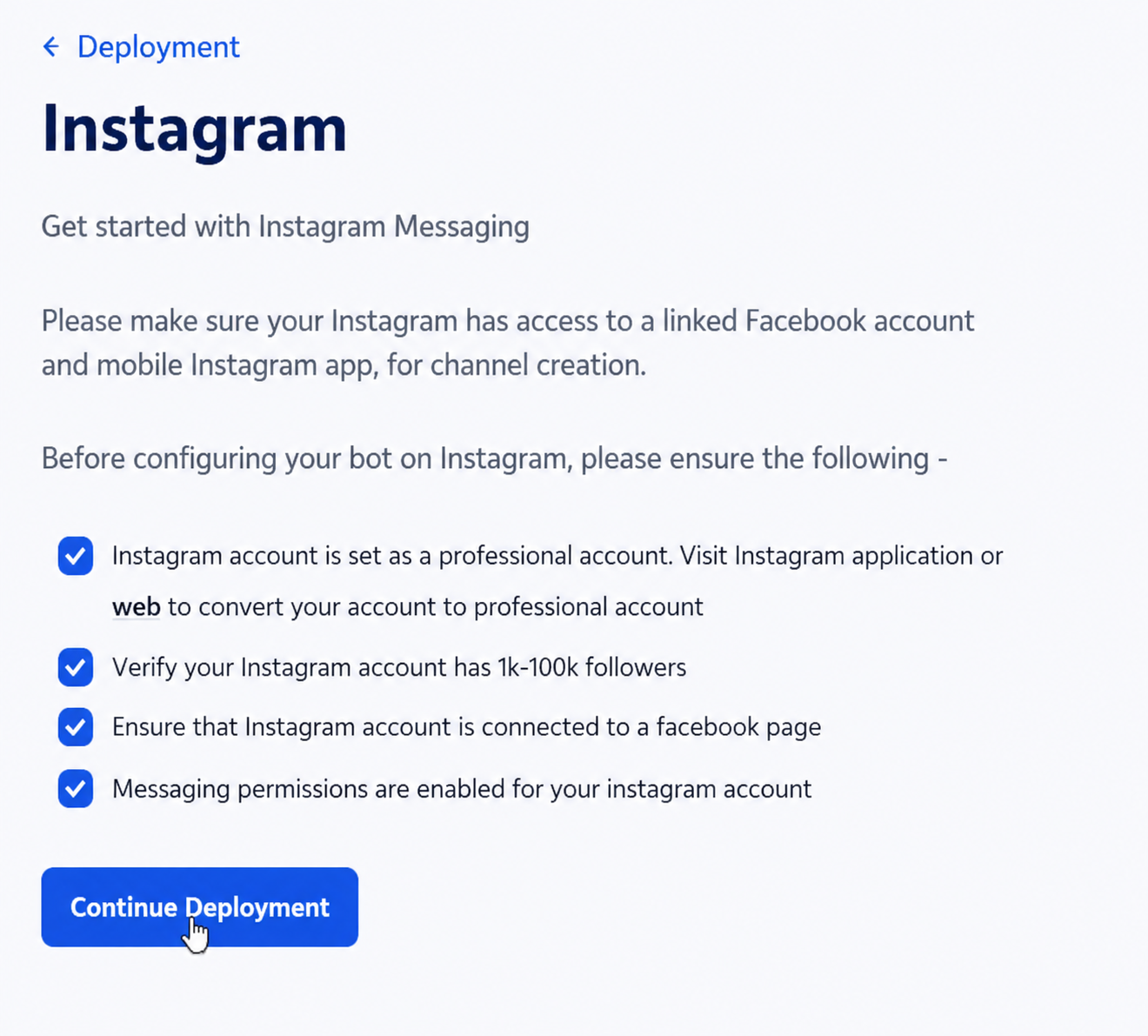
1.Follow the setup wizard to connect your chatbot to Instagram. Before proceeding, check that all the required prerequisites are met. Refer to the documentation for more information.
2.Click Continue Deployment to proceed with the Instagram chatbot deployment. give it proper
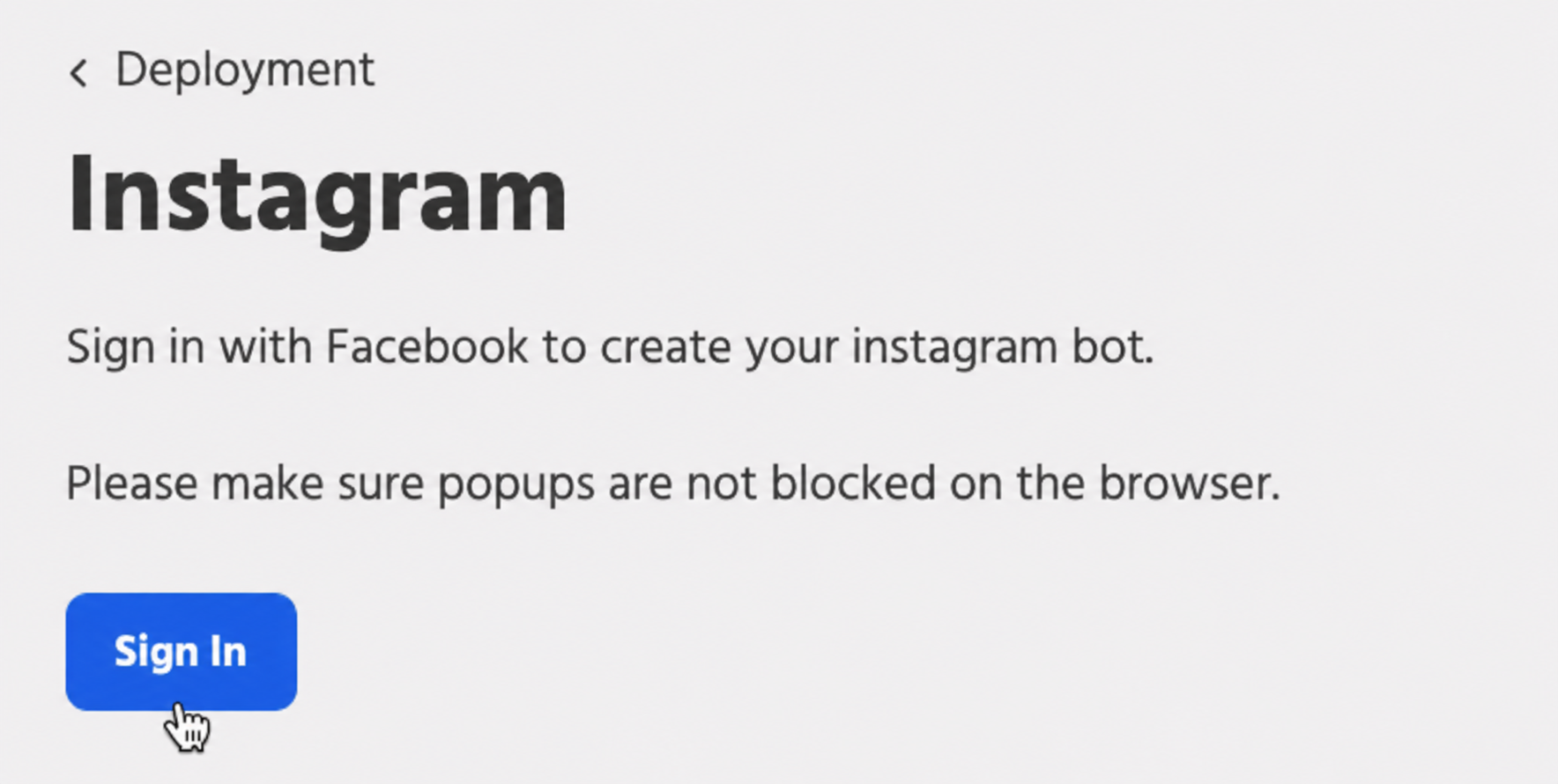
• Click on Sign In and you will be redirected to Facebook OAuth
Login with Facebook username, that has been connected to Instagram Business Account. Please check and unblock pop ups from your browser settings besides the URL name on top right.

• Give permissions to instagram business accounts to be connected. Click on Select All
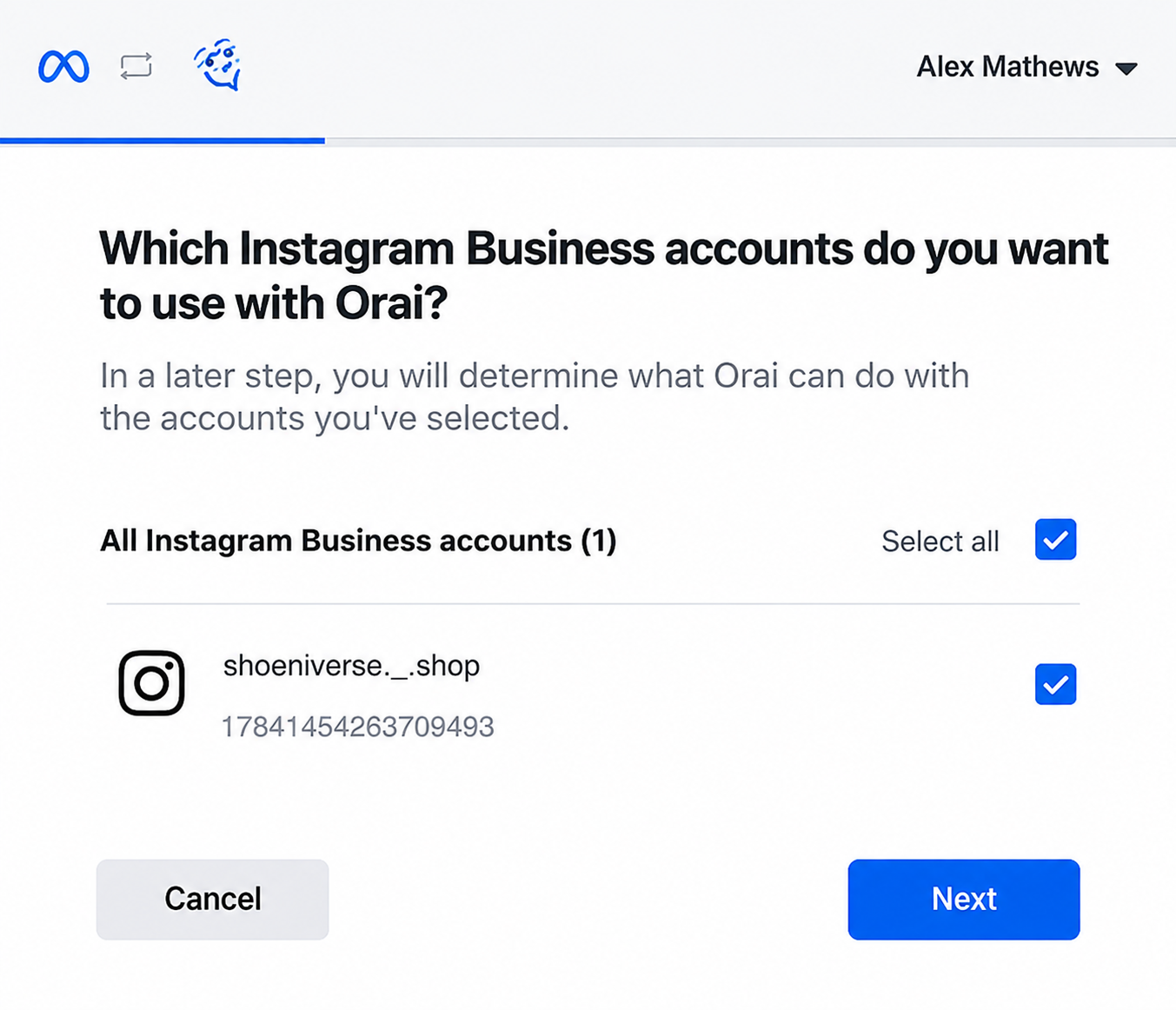
Select the page(s) that have been connected to an Instagram business account. If already integrated, click on ‘Edit Settings’ to add more pages
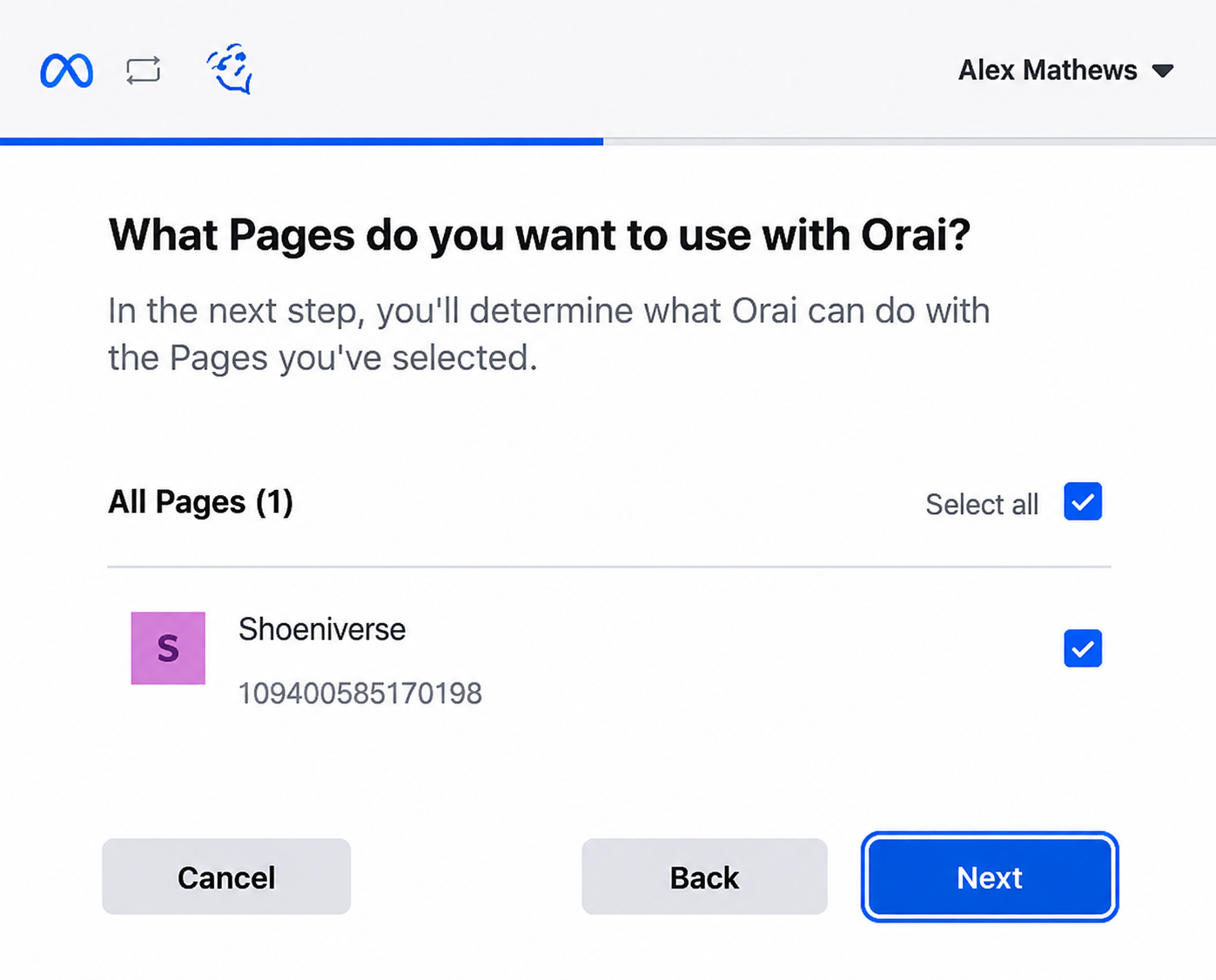
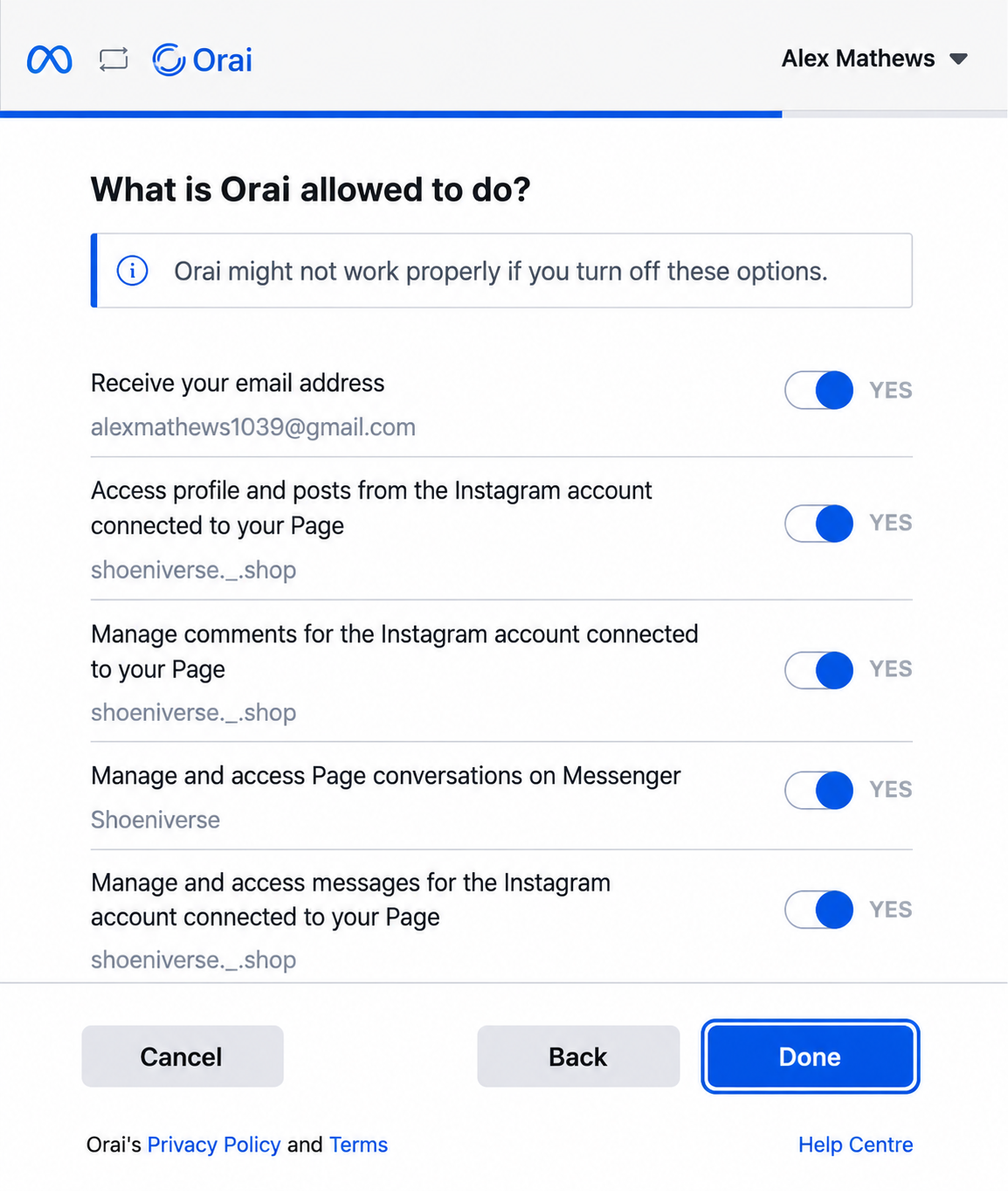
• Click on Next, grant the requested permissions and click on Done
• You will be redirected back to the Orai portal, where you will see the connected pages. Irrespective of the pages selected, only the pages which have the Instagram account connected will be displayed.
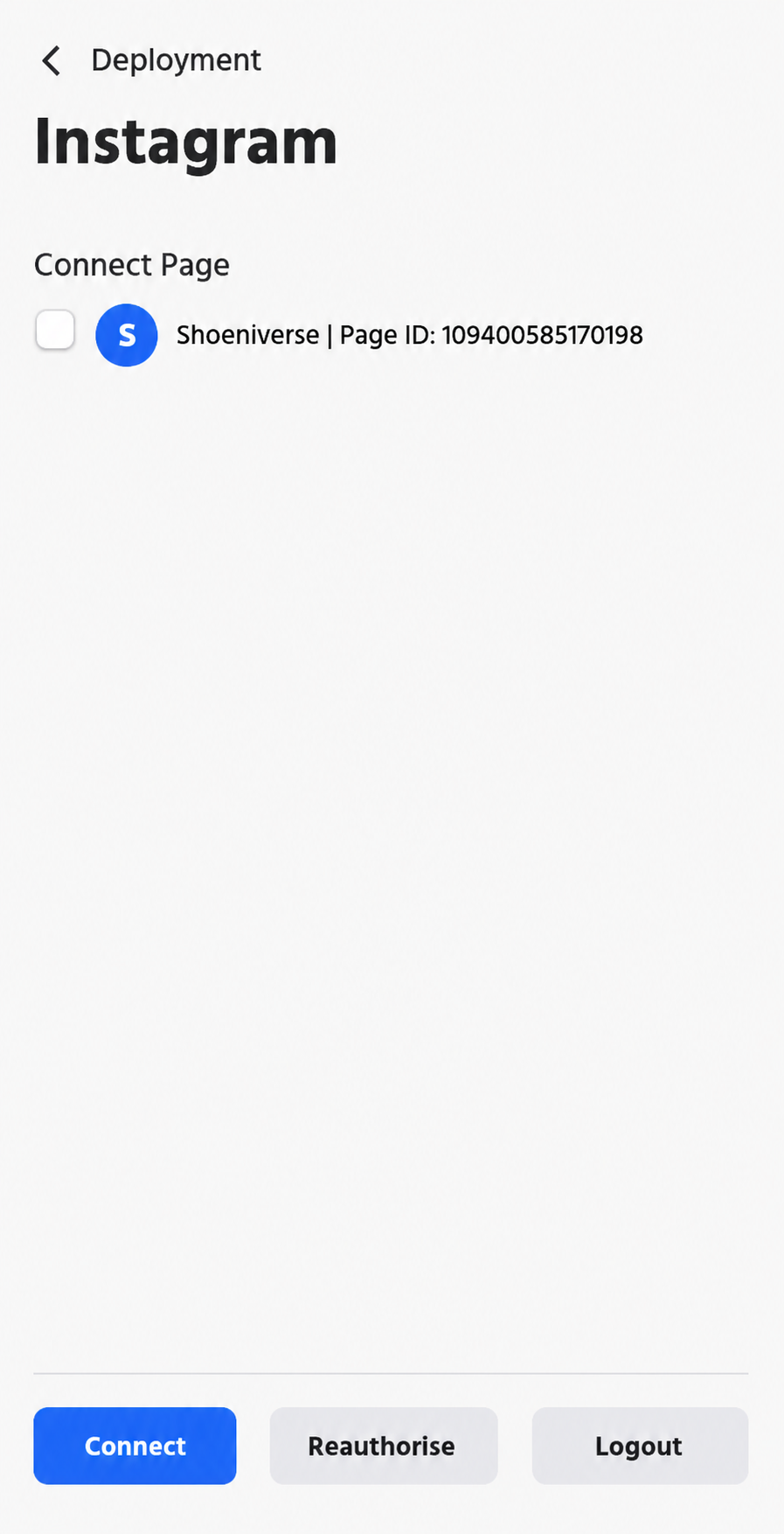
• Check one page and click on Connect button
• A Confirmation message will be shown and the page will be shown under Connected Pages
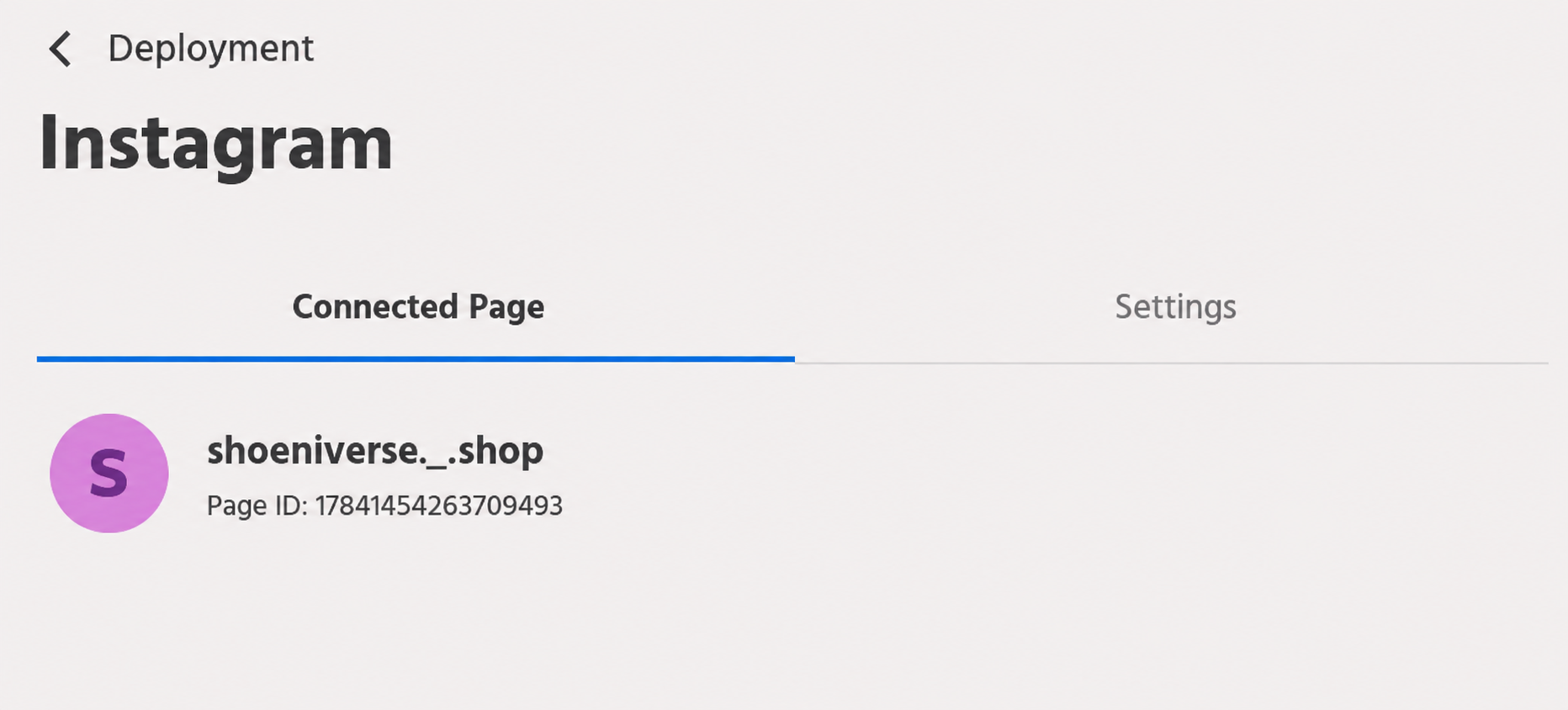
• You can Reauthorize if the password is changed or if you need to grant permission for any additional pages.
• Clicking on Change Page will allow the user to select another page on which the bot is to be deployed. The Change Page option will be disabled if only one page is available.
• The bot can be disabled by hovering over the connected page and clicking on the Disable button.
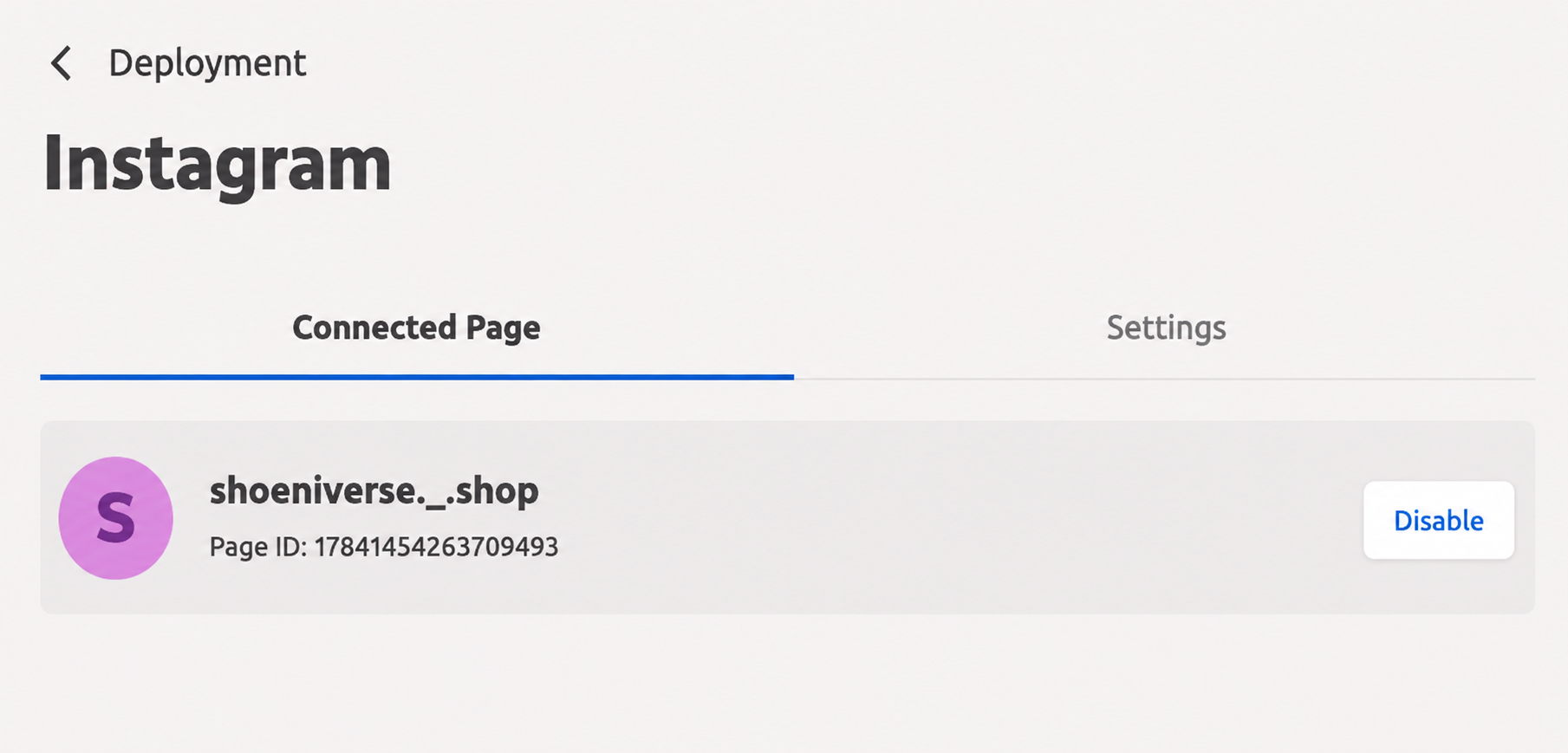
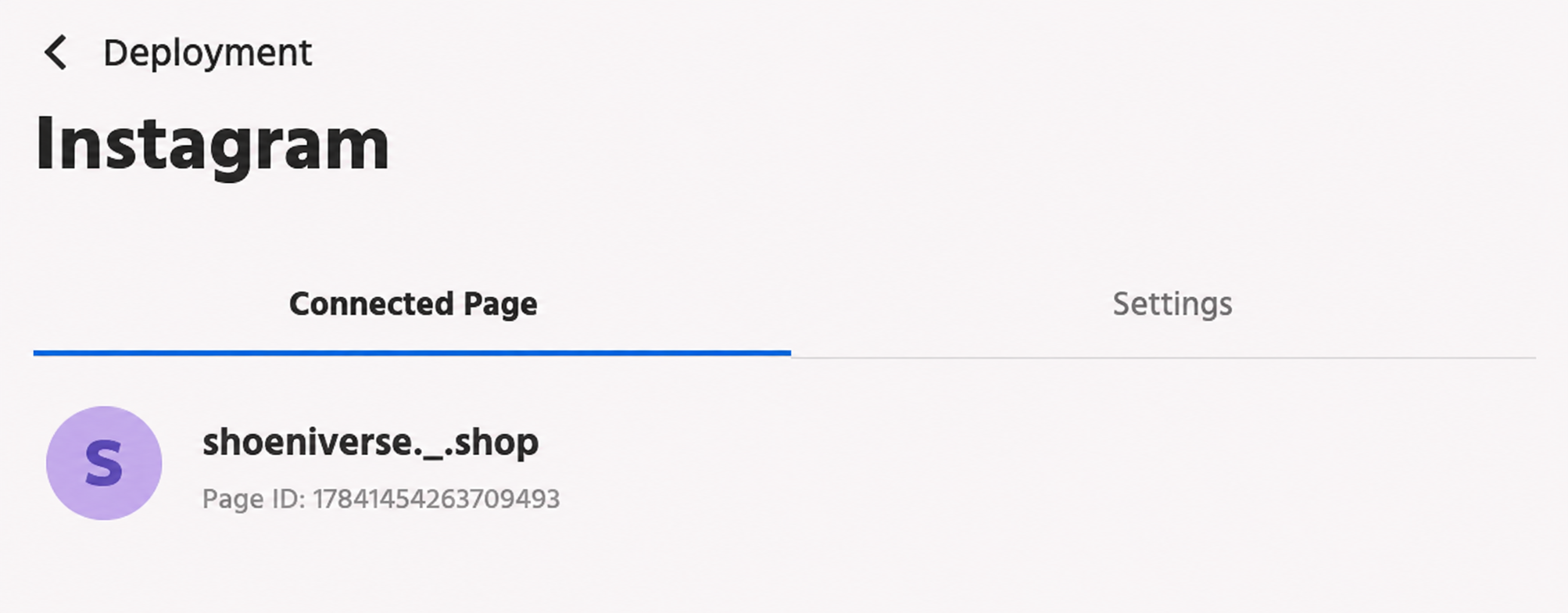
• Clicking on Enable will activate the bot and no data will be lost and configuration will be lost
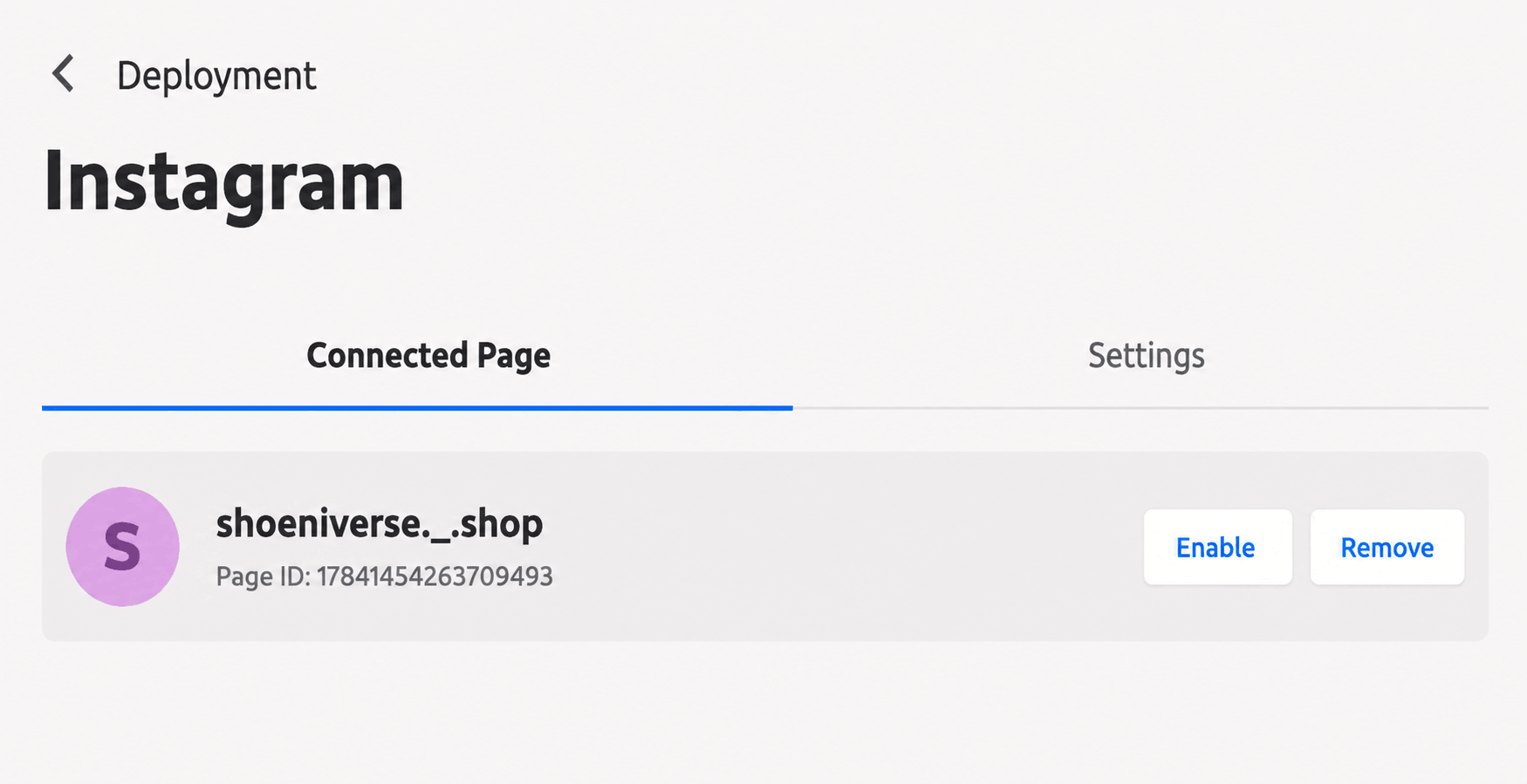
• Clicking on Remove will delete the configured user data and context
• You can also Logout and remove the page and Sign in again from a different account
4. Other Settings
4.1 Story Mention Setup
Follow the steps to enable Story Mentions on your chatbot to Instagram,
• Check and ensure that all the pre-requisite conditions are met. Refer to the documentation here to know more
• Go to Deployment, and click on “Edit Settings” on the Instagram channel

• Click on the Settings tab, to setup story mentions
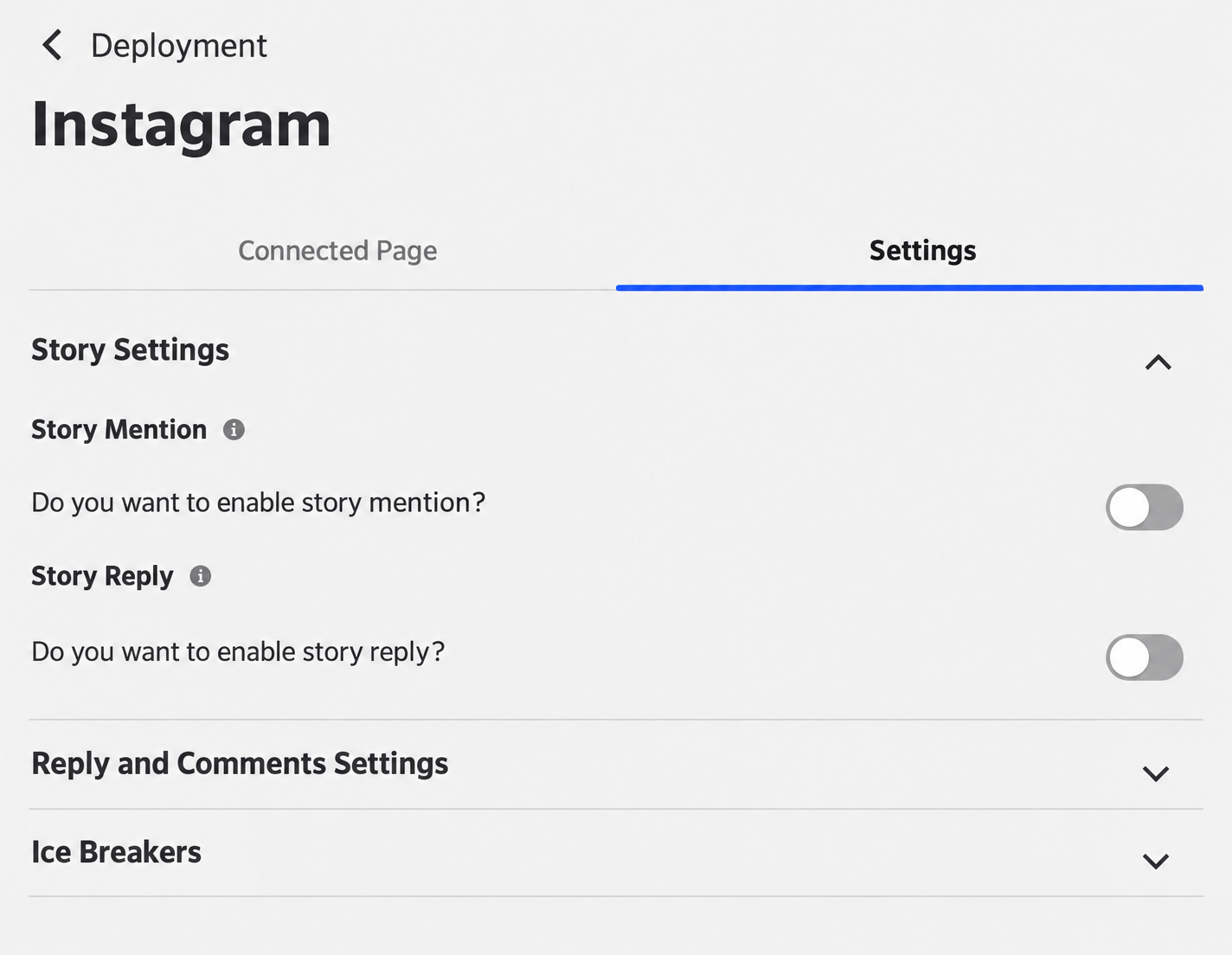
• Select the path to be triggered, when the Instagram user mentions the Brand/Customer on their Story. The bot will then trigger the path selected.

• Click on the “Save Changes” Button, to enable the Story Mention.
4.2 Story Reply Setup
Follow the steps to enable Story Reply on your chatbot to Instagram,
- Go to Deployment, and click on “Edit Settings” on the Instagram channel
- Click on the Setting tab, to setup Story Replies
- Select the Reply type as
1. Trigger a Path
If selected, when the Instagram user replies to the Brand/Customer’s Story, the bot will trigger the selected path.2. Smart Response
If selected, all Story replies will be redirected to FAQs. Navigate to Train → FAQ to train the bot to recognize specific keywords and trigger a particular path or message. If no keyword matches, the default path will be triggered.

• Click on the Save Changes button to enable Story Replies.
• When an Instagram user replies to a story, the following attributes are captured as custom attributes, which Bot Builders can use to build flows:
• {{user_instagram.story_media_url}} – Media URL of the story.
• {{user_instagram.story_media_type}} – Media type of the story.
• {{user_instagram.story_caption}} – Caption of the story.
4.3 Reply to user comments and mentions setup
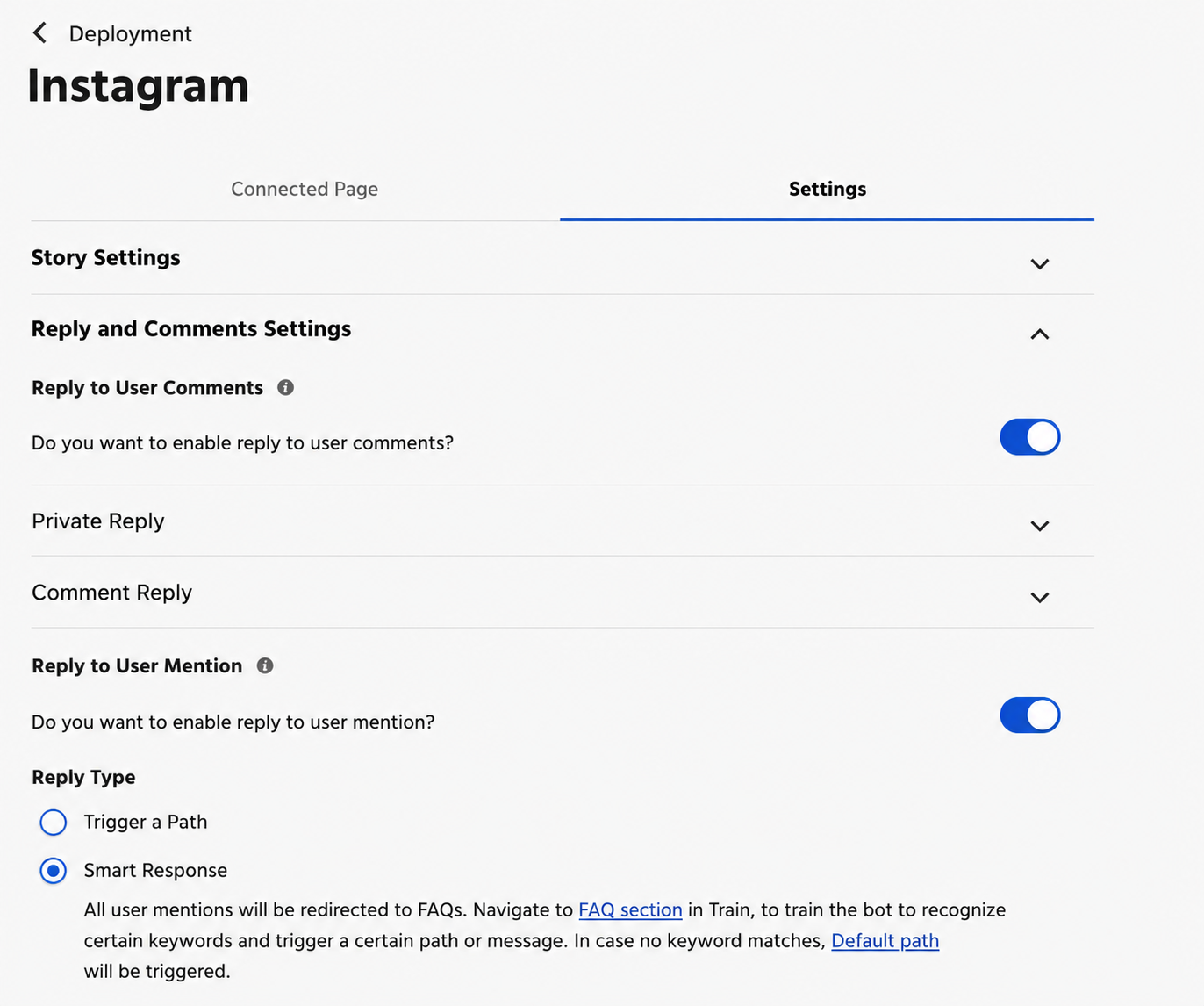
• Select the Reply type:
For ”User Comments”, you have both ‘Private‘ and ‘Comment‘ Reply that you can configure the replies as:
• Trigger a Path – If Trigger a Path is selected as the reply type, when an Instagram user comments on or sends a private message for a business post, the bot will trigger the selected path.
• Smart Response – If Smart Response is selected as the reply type, all user messages will be redirected to FAQs. Navigate to the FAQ section under Train to train the bot to recognize specific keywords and trigger the relevant path or message. If no keyword matches are found, the default path will be triggered.
• Static Reply – If Static Reply is selected as the reply type, you can enter a default message that will be sent as a response.
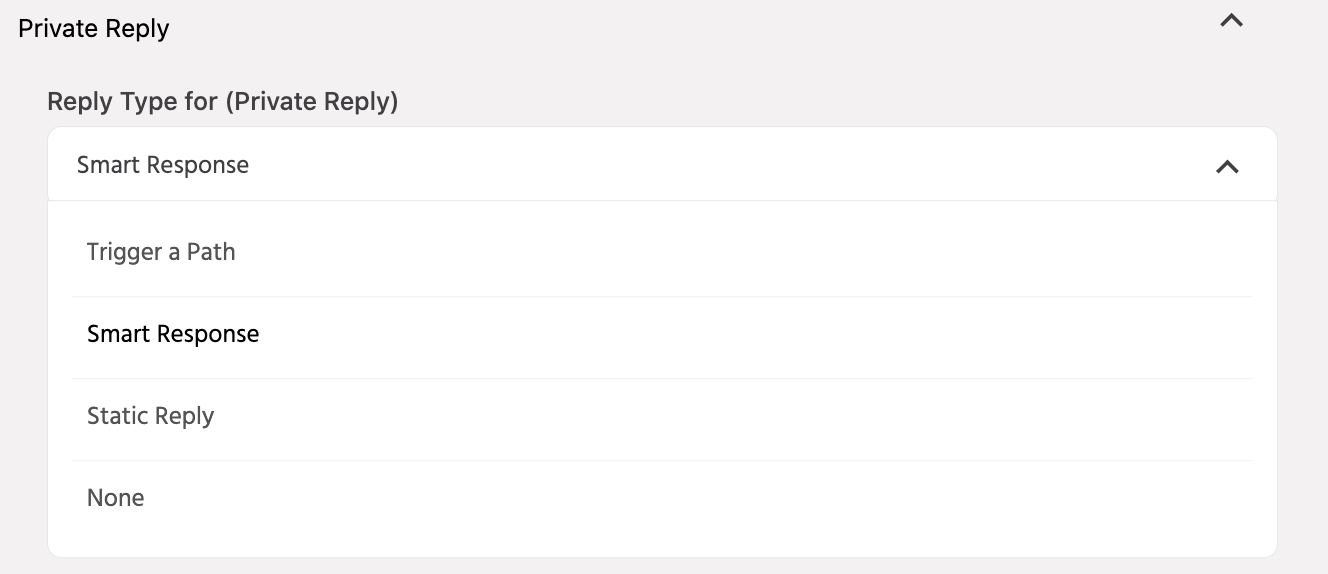
Note: if ‘Smart Response’ is selected for IG Comment Reply, IG Private Reply or IG Story Reply, the category is limited to comment, private or story replies respectively and the queries trained in this category will not applicable for any other FAQ-based responses.
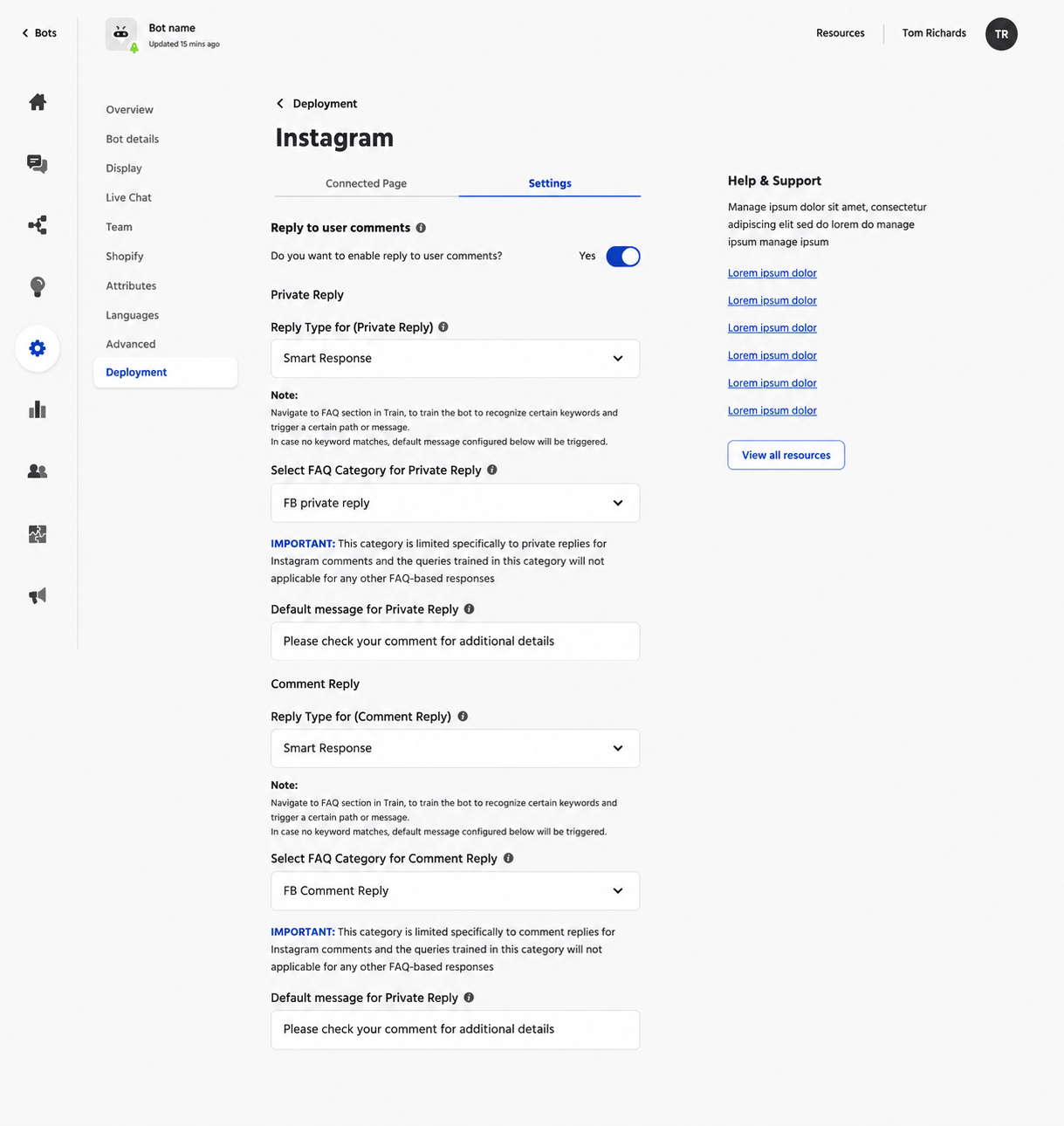
- When an Instagram user replies to a story, the following custom attributes are captured. These attributes can be used by the Bot Builder to create and manage conversation flows.•
{{user_instagram.story_media_url}}– URL of the story media•{{user_instagram.story_media_type}}– Type of media used in the story•{{user_instagram.story_caption}}– Caption added to the story
- Enable Reply to User Mention.
- Select the Reply Type.
- For User Mention, you can configure the following reply types:
- Trigger a Path – If this reply type is selected, whenever an Instagram user comments on or sends a private message related to a business post, the bot will trigger the selected path.
- Smart Response – If this reply type is selected, all user mentions will be redirected to FAQs. Navigate to the FAQ section under Train to train the bot to recognize specific keywords and trigger the relevant path or message. If no keyword matches are found, the default path will be triggered.
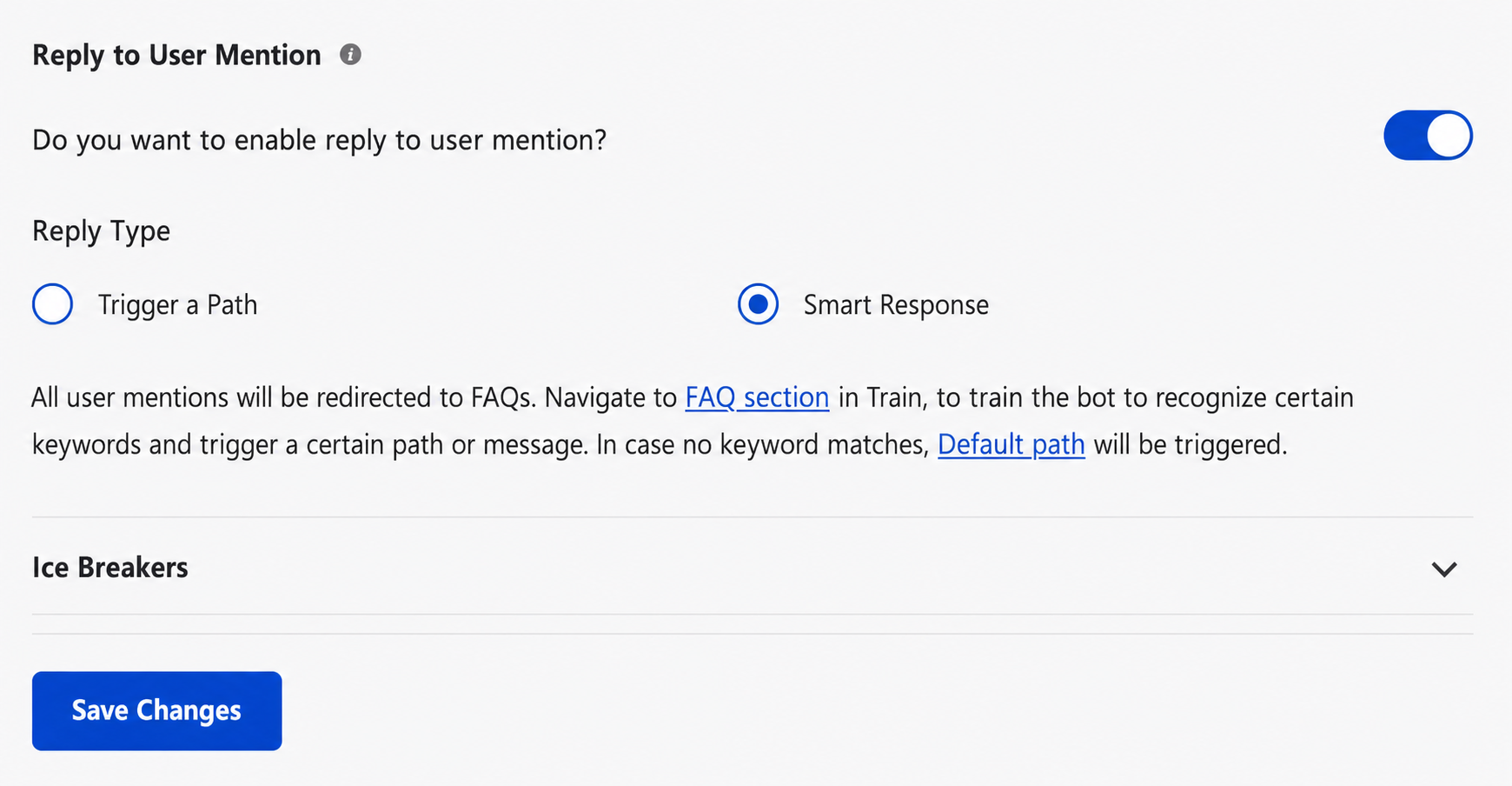
• Click on the “Save Changes” Button, to Enable the Reply to User Comments or User Mention.
4.4 Instagram Ice Breakers
The Instagram Ice Breakers feature allows businesses to display a list of frequently asked questions (FAQs) to users, helping them start a conversation easily. You can configure a maximum of 4 questions as ice breakers.
This feature is available only for Instagram Business accounts and helps simplify the process of answering common customer queries.
Setup
• This feature is available only if the bot is deployed on the Instagram channel. You can set up this by navigating to Configure > Deployment > Instagram > Settings.
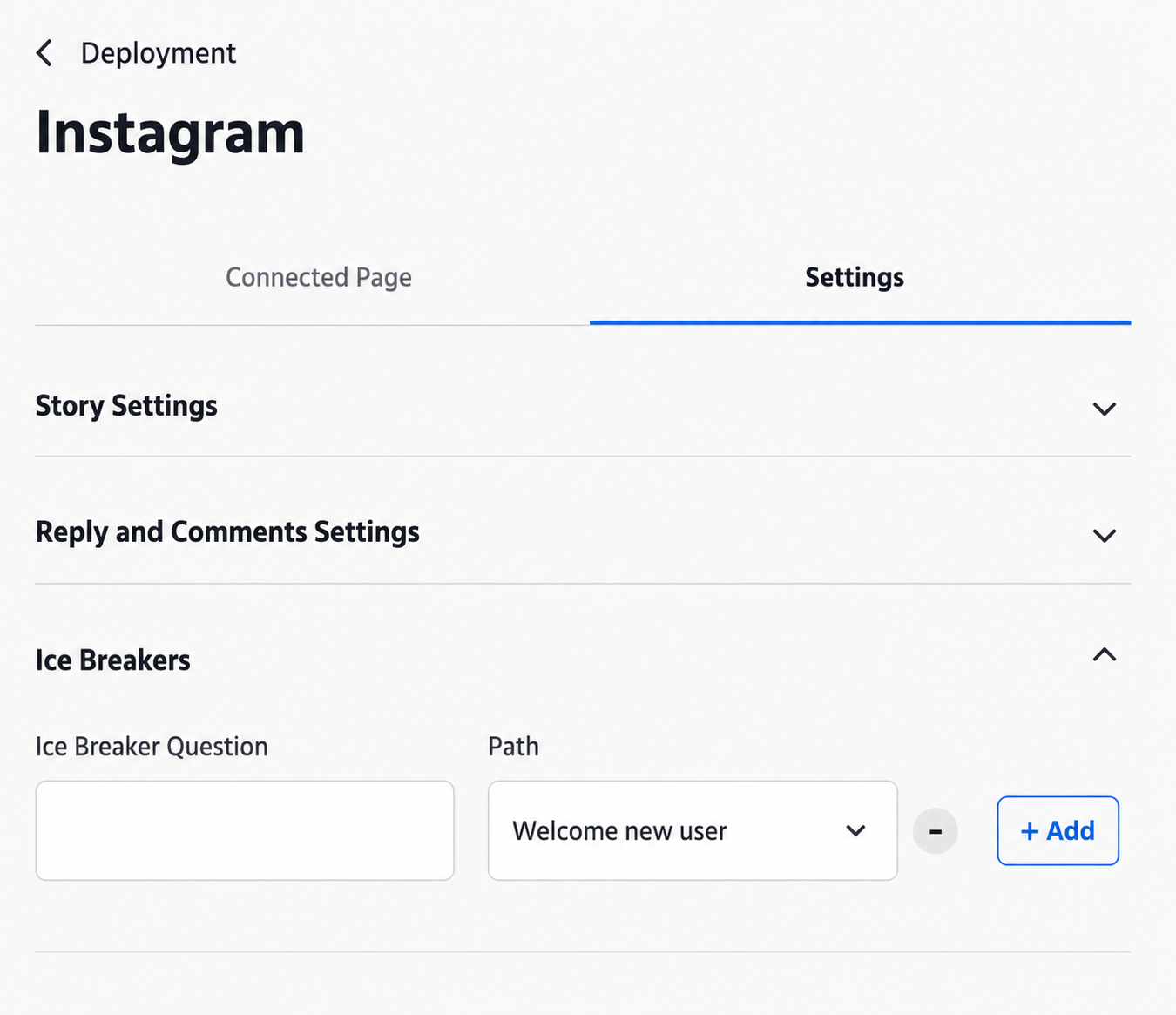
As a Bot Builder, you can configure the following options in the Ice Breakers field:
1. Ice Breaker Question
Enter a question related to your business profile that helps customers understand your business and the services you offer.
2. Path
Select a path from the drop-down menu. The selected path will be triggered when the user clicks on the corresponding Ice Breaker question. These paths are the same paths that you create using the Path Builder.
Note: You can add a maximum of 4 Ice Breaker questions.
3. Delete an Ice Breaker
To delete an Ice Breaker question, click the (-) action button located next to the Path drop-down menu.

5. Validation
- Open this link while accessing their
- FB account : https://www.facebook.com/settings/?
- tab=pages&setting_id=advanced_messaging
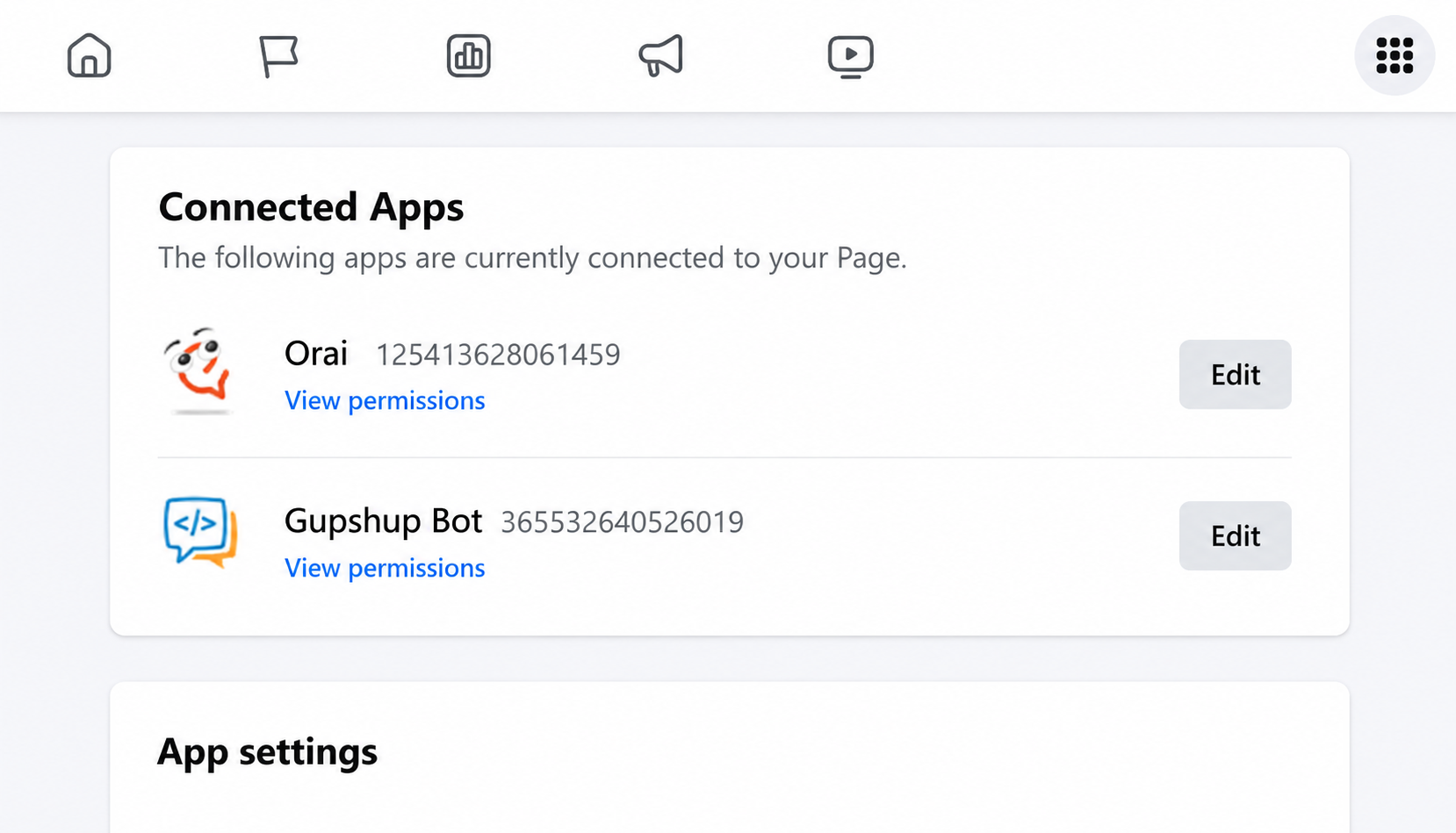
- Go to Advanced Messaging > Connected Apps

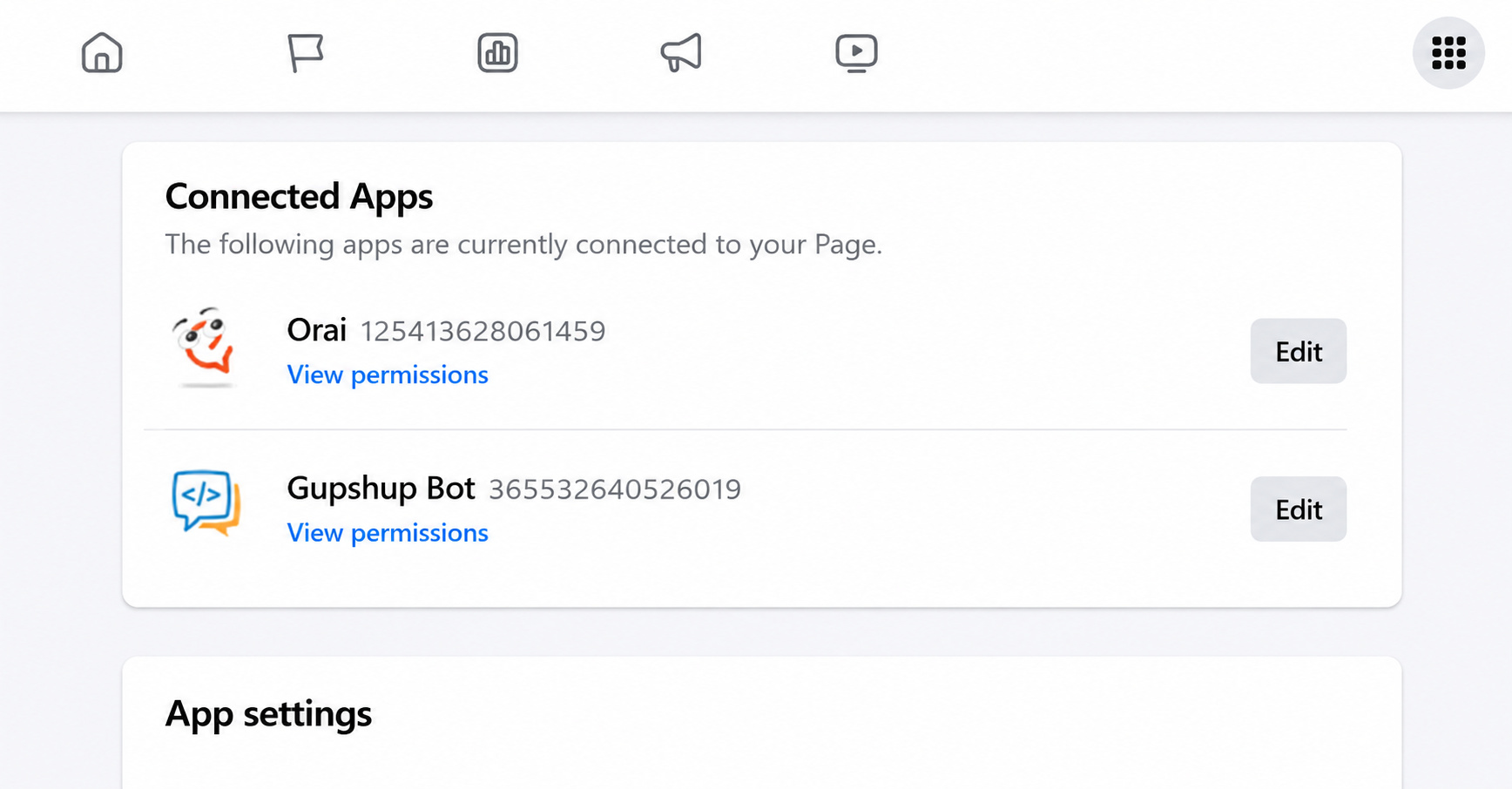
In the Instagram receiver and Messenger receiver,choose Orai
6. Enable/Disable Automation
6.1 To prevent the automatic triggering of the bot when a user submits a new query for the second time following their initial conversation with an agent, we have implemented a safeguard.
6.2 In a case where the agent is responding to a user query directly through the Facebook messenger or Instagram app, Orai’s one-view inbox provides the option for an agent to activate bot automation for that specific conversation. To enable it, they can simply click on the ‘Enable automation’ button.
6.3 Additionally, the name of the channel is visible under the agent’s message to identify its source. This helps differentiate between agent responses from various channels.