

LeadSquared Connector
1. Introduction
Orai integrates with LeadSquared to enhance customer engagement by enabling the following:
-
Sending notifications from LeadSquared to users via Orai.
-
Sending marketing template messages from LeadSquared via Orai.
Marketing and Notifications from LeadSquared
Part 1: Setting Up LeadSquared with Orai
-
A bot must be deployed on WhatsApp. If not, complete the bot deployment before proceeding.
-
An API key will be generated by 360Dialog for billing and usage tracking.
-
Navigate to the Cloud Integration page in your Orai account.
2. Click on on the Leadsquared Connector integration.

3. Enter your Account Name and click Next
4. Create a separate path to be triggered for LSQ and add the following script on the path:
var to = {{to}};
var temp_template = {{template}};
process({“data”: {“type”: “template”, “payload”: temp_template, “targetWhatsAppNumber”: to}});
6. A pop-up appears with the following fields:
-
-
HTTP Endpoint – Copy this URL; you will need to paste it into LeadSquared.
-
Delivery Report Callback URL – Leave this blank for now; it will be copied from LeadSquared later.
-
Authorization Header:
-
Key (Prefilled)
-
Value (Prefilled) – Copy this value; it will be pasted into LeadSquared.
-
-
7.Do not click “Save” yet. Open a new tab and proceed to Part 2.
Part 2: Setting Up Engati with LeadSquared
2.Navigates to Apps -> Apps Marketplace and selects WhatsApp Business -> Settings-> Configure.
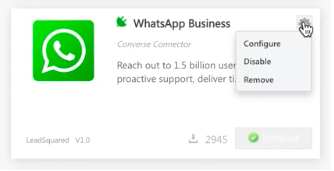
3. If you have already added your WhatsApp Business number, select it. If not, follow these steps to add one:

-
Click on + Add WhatsApp Number in the top right-hand corner of the pop-up.
-
Enter your WhatsApp Business number and Account Name

-
Click Next.
-
You will be asked to select a service provider. Choose Orai as your service provider.
4. Proceed to Authentication.
5. A pop-up appears requiring:
-
Send Message URL – Paste the HTTP Endpoint copied from the Orai portal.
-
Permanent Access Token – Delete the prefilled token and paste the Value copied from the Orai portal.
-
Authentication Header Templates – Copy these from the Orai integration setup.
-
6. Click Save.
Adding Delivery Report Callback URL
-
Once saved, go to the configured WhatsApp Number on LSQ under WhatsApp Business.
-
Click on Authentication -> Copy the Notification Webhook URL.
-
Paste this into the Orai portal under Delivery Report Callback URL.
Pointers to Note Before Creating an Automation
-
Template Creation:
-
The template has to be created on Orai and the same template has to be created on LSQ.
-
-
Language Selection:
-
If the template is created in English on Engati, on LSQ, select the language as English (US).
-
-
Button Templates with Quick Reply:
-
Under Payload in LSQ, mention flow_<provide postback to trigger a path> where provide postback to trigger a path is the path key.
To verify the integration in your Engati account, go to My Integrations, located next to the All Integrations page.
For further assistance, please contact support@orairobotics.zohodesk.com.
-