

Zoho CRM
1. Overview
ORAI is a Global Conversational AI Platform to build 1:1 instant conversation with customers over text, Voice, and Messenger apps. ORAI is a result of highly experienced and driven experts who understand AI, ML, Design Thinking, and Robotics. ORAI’s Conversational AI “Oshi” is a virtual assistant created with state-of-the-art technology to be indispensable, sustainable, and scalable in the global customer outreach, conversion, and retention market. Zoho CRM Extension for ORAI Robotics Chatbot is developed by Dhruvsoft, a Zoho Authorized Partner, and available in Zoho Marketplace for all Zoho users to deploy as an extension for Zoho CRM.
Using this extension, Zoho CRM users can easily synchronize the data from ORAI to Zoho CRM unidirectional. ORAI Leads will be added as Leads into the Zoho CRM account.
This User Manual document provides step-by-step instructions to install this extension from Zoho Marketplace, how to configure and use the integration functionality within your Zoho CRM account.
1.1. Install the ORAI Robotics Chatbot Extension
Go to Zoho Marketplace and search for “ORAI Robotics Chatbot Integration for Zoho CRM” to locate the extension and install it directly from the Marketplace. Alternatively, you can install the ORAI Robotics Chatbot Integration by logging in to your Zoho CRM account and follow the installation instructions below.
To install the OARI Robotics Chatbot Integration Extension from Zoho CRM:
❖ Go to Setup > Marketplace > All. By default, all the Zoho Extensions currently installed within your Zoho CRM account are listed. Go to the “All Extensions” tab to view all available Extensions.
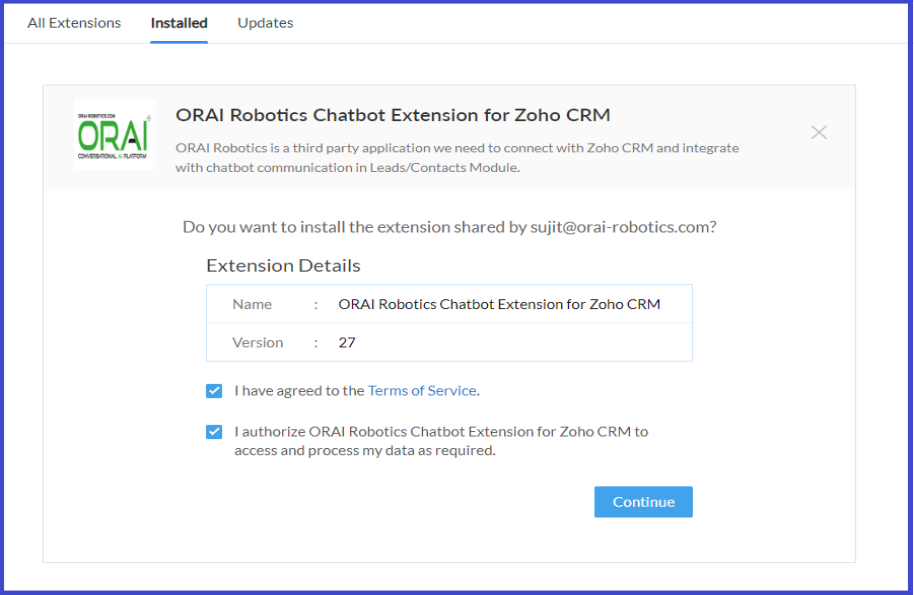
❖ Click All Extensions, browse/search for ORAI Robotics Chatbot for Zoho CRM, locate and then click Extension. The details about the Extension will be shown as per the screenshot below.
- Clickthe Install button.
- Makesure you check the “Agree to the Terms of Service” checkbox and click Install.
- Readthe Privacy Declaration and Click Agree and Continue.
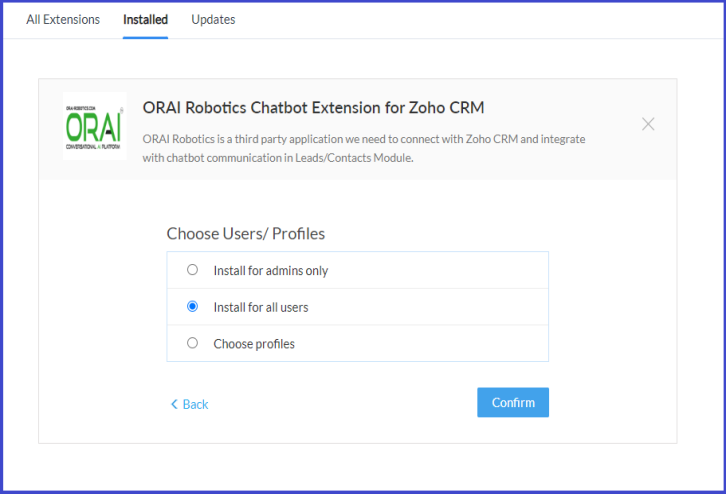
- Selectthe users/profiles for which the extension needs to be installed and click “Confirm.”
1.2. Finding Your ORAI Robotics Chatbot Credentials
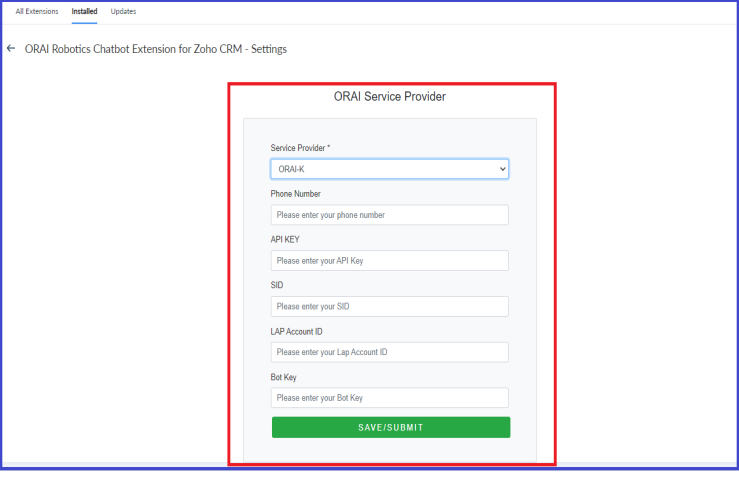
To activate ORAI Robotics Chabot Integration for Zoho CRM. The below mentioned credentials are mandatory. This section explains each of the credential information that must be entered while installing the extension as shown below.
For ORAI – K:
- PhoneNumber
- API Key
- SID
Names Space
- For ORAI – D:
- API Key
For ORAI Configuration:
- BotKey
- LapAccountID
Uninstalling this extension from the Zoho CRM will delete all its associated data. To uninstall ORAI Robotics Chatbot Extension, please follow the below steps:
❖ Go to Setup > Marketplace > All > Installed tab. All the installed Extensions will be listed.
- Browsefor ORAI Robotics Chatbot and click on the Uninstall
- ClickOkay to confirm in the confirmation pop-up that The Extension will be uninstalled.
2. Settings – ORAI Service Provider Configuration
After installing the extension in Zoho CRM, the ORAI Service Provider Configuration. There are two service providers
(a) ORAI – D
(b) ORAI – K
❖ Service Provider : ORAI – D
❖ API KEY : <Provide your valid API KEY>
❖ Name Space : <Provide your valid Namespace>
❖ LAP Account ID : <Provide your valid LAP Account ID>
❖ Bot Key : <Provide your valid Bot Key>
3.PushLeads from ORAI
After installing the extension in Zoho CRM, the ORAI Leads will be synchronized to the Zoho CRM account. The data are synchronized Unidirectional (ORAI –> Zoho CRM).
After initial data synchronization, any data changes in Leads from ORAI, Lead will be updated or created in Zoho CRM instantaneously (Real-time sync).
3.1. Sync Leads from ORAI to Zoho CRM
After the successful installation of the ORAI Chatbot Extension, the following fields are mapped in the Leads module of Zoho CRM.
- FirstName : Text Field
- LastName : Text Field
- Company :Text Field
- Phone :Number Field
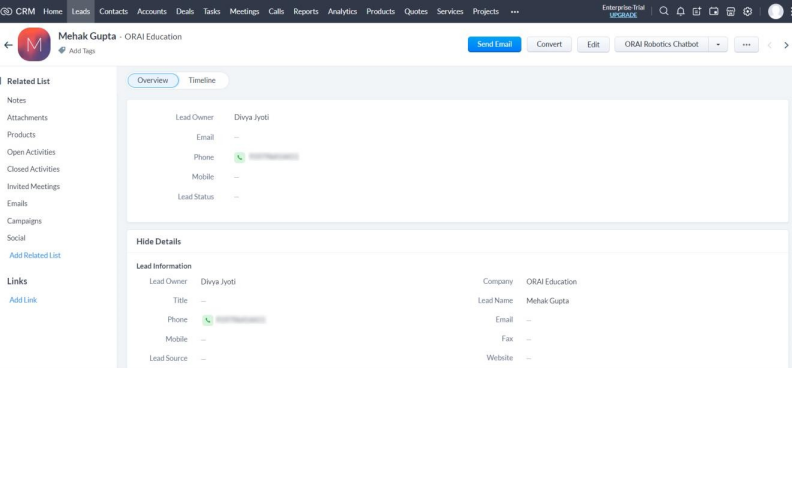
The Leads data from the ORAI will be created/updated as Leads in the Zoho CRM Leads module.
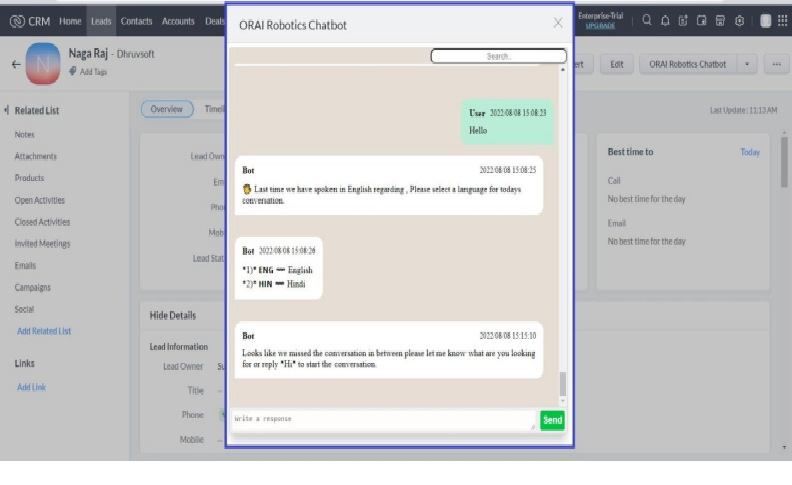
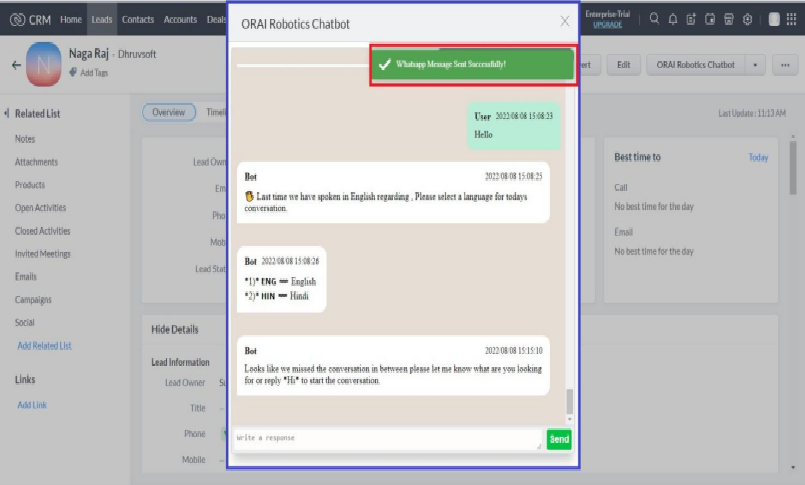
4.ChatbotHistory
ORAI Robotics Chatbot is a widget (UI) that will fetch the conversation response from the ORAI by using a phone number and displaying itself. And we are sending WhatsApp messages by entering the text message in the text field or choosing the template option to send the message.
Once you click the “Send” button the message will be received in WhatsApp.
For fetching & storing the conversation history by using the API that will be given by the ORAI.
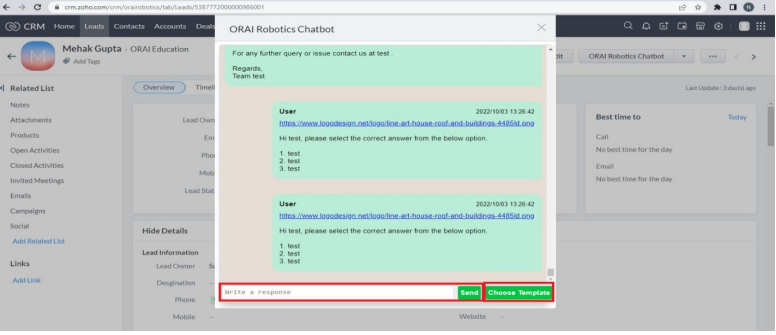
For a Text message is sent within 24 hours, write the message in the field, and click the “Send” button to send the message.
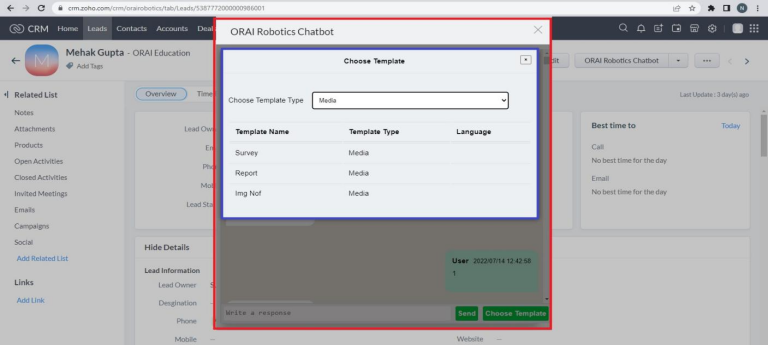
For a Template message is sent 24 hours is crossed from the last conversation chat. The popup screen is enabled from the chat window and selects the template option to click and enter the required parameters to send the message.
Choose the template button option is available if its client wants to send the message before or after 24 hours crossed the click the button to choose the one of the options from the template list and type required parameters to send the message.

5.SendBulk WhatsApp Message
“ORAI Send WhatsApp” this button is available from the lead list page, Once clicking the checkbox option select the multiple leads (one or more). The button will be displayed at the top of the center page. Clicking the “ORAI – SendWhatsApp” button to open the UI.
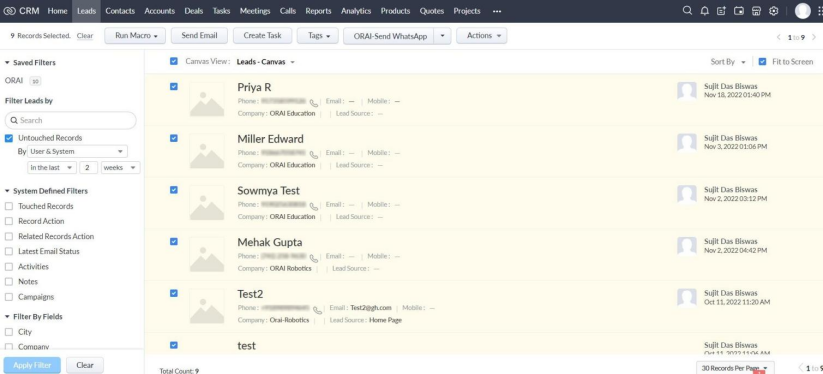
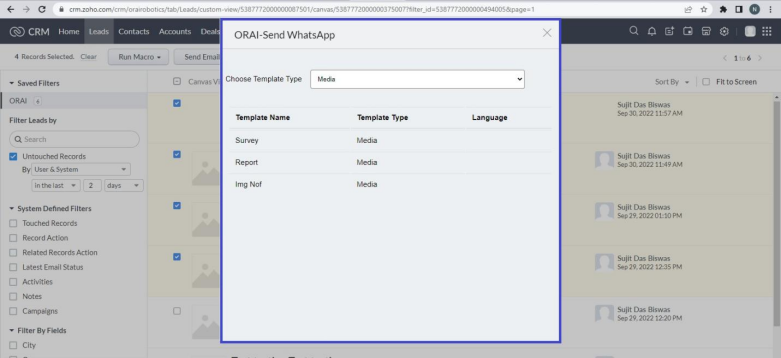
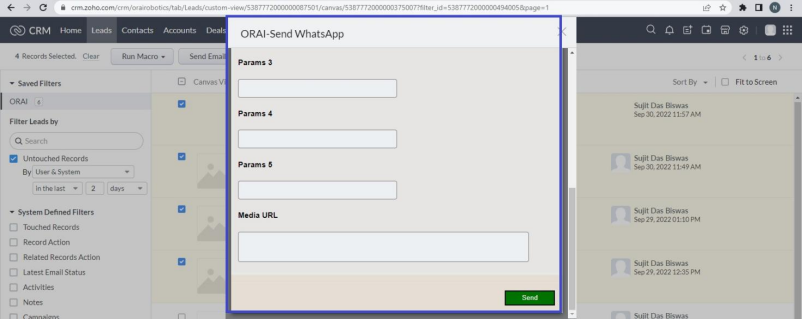
The widgets are showing like choose the template type. Selection of template type based on the template option is displayed on the screen. Selection of template to enter the required parameters to send the bulk messages for every leads.
6.Support– ORAI Robotics Help
Thank you for installing the ORAI Robotics chatbot. If you have any questions or are facing installation issues, please contact ORAI Robotics support Desk for Zoho extensions via email at support@orairobotics.zohodesk.com.