

WhatsApp Flow
We recognize that entering information via WhatsApp chats may be challenging and time-consuming for users, potentially leading to a drop in engagement.
To make things smoother, you can use WhatsApp Flows to schedule appointments, and reservations, book a service, or schedule a consultation within WhatsApp or any other form-based use case where structured interactions are more relevant for your business.
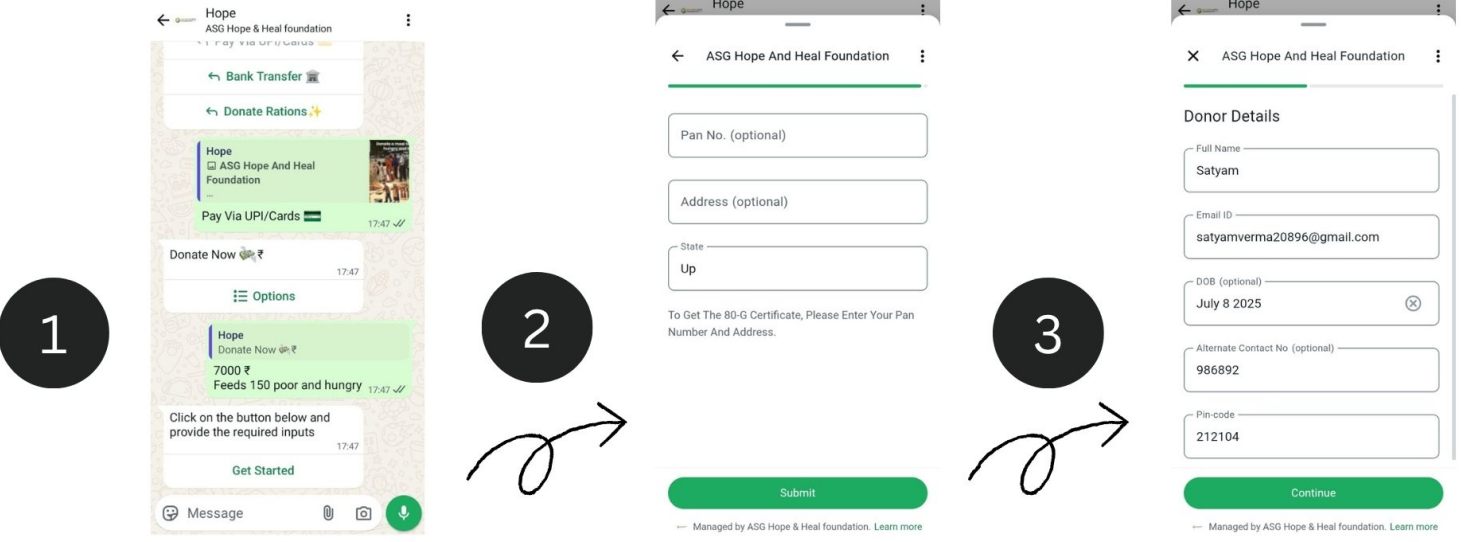
Availability
Ensure that your bot is deployed on WhatsApp using 360dialog as the provider by following these steps: Navigate to Configure > Deployment > WhatsApp > Provider, and select 360Dialog.
To locate the node, go to Bot Builder > Add Node > Data Input Nodes > WhatsApp Flows
Setup
To display your flows on the ‘WhatsApp Flows’ node, it is essential to initially create these flows on Facebook Business Manager (FBM).
How do you create flows on FBM?
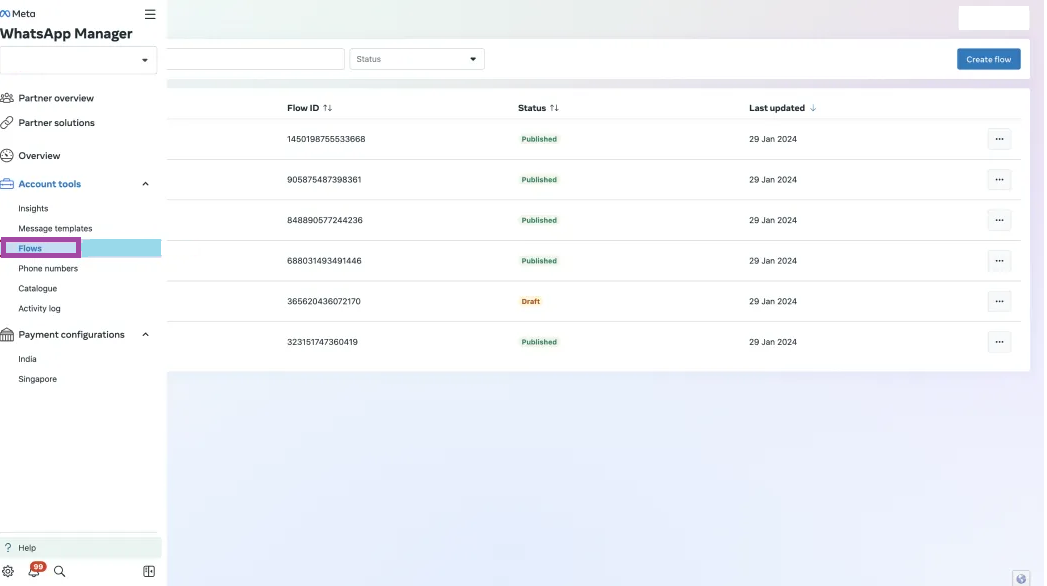
1. Select WhatsApp manager from FBM & select the business account that we need to manage & select the flows option
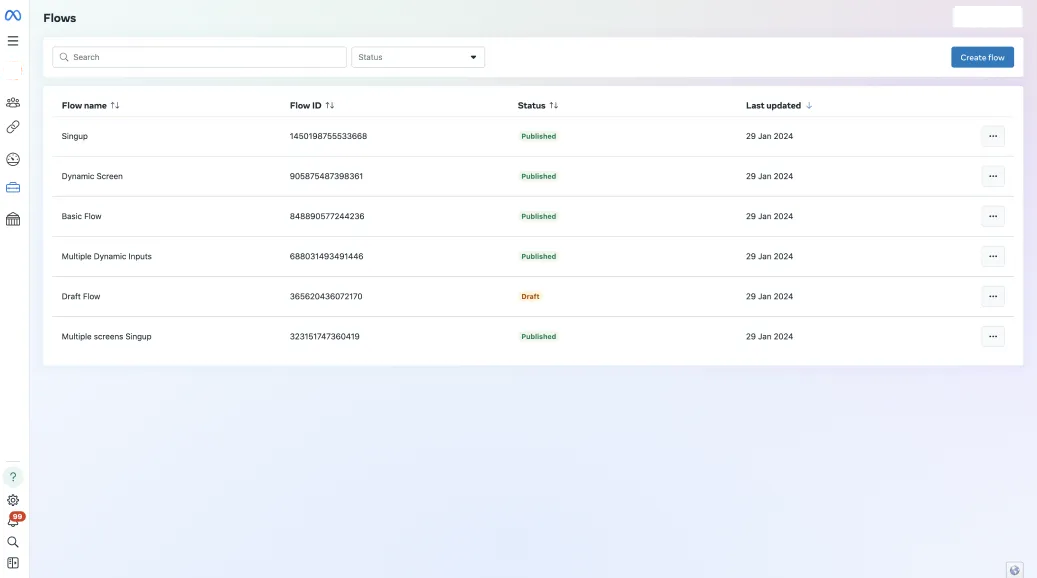
 2. Select the flows option & this will display a list of the flows
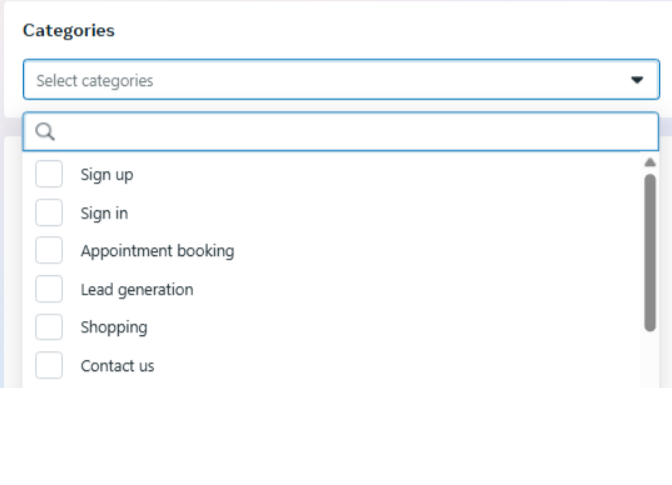
3. Click on Create New Flow. Fill in the flow name & categories for which flow is being used
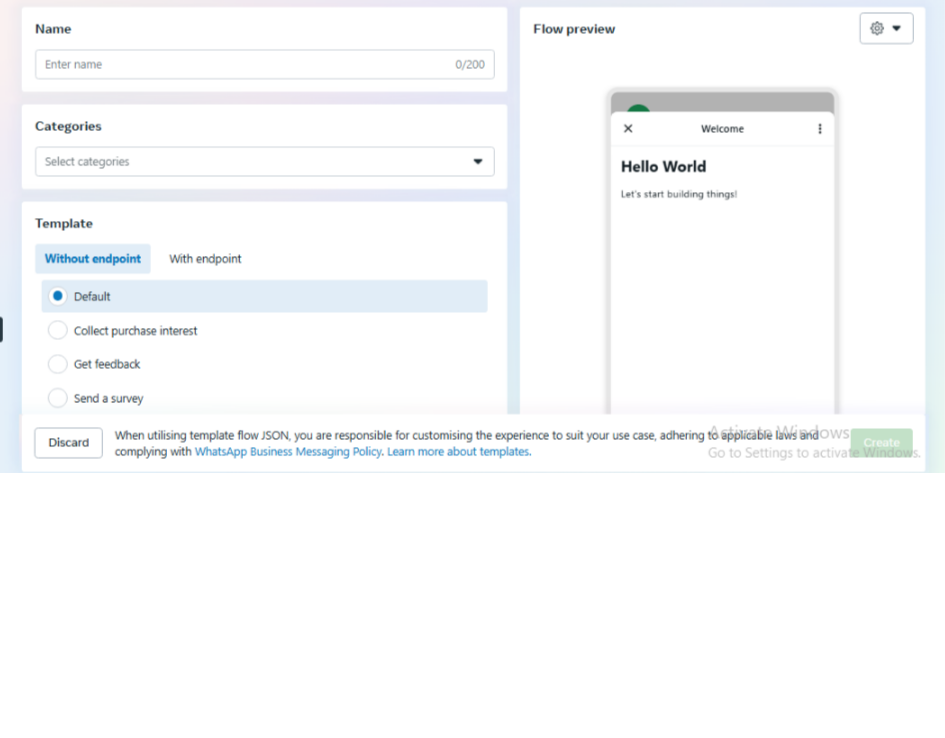
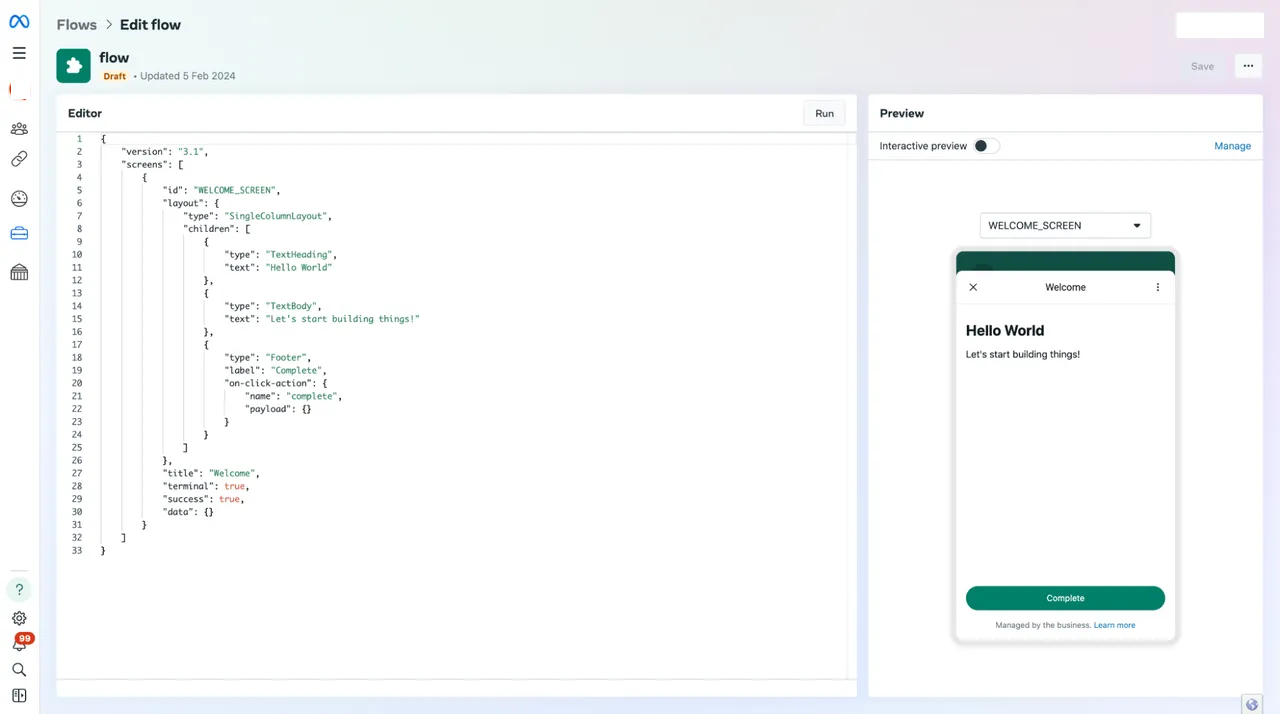
4. Once the new flow is created, it is created with the default script. We can update the script accordingly to create different flows with multiple screens.
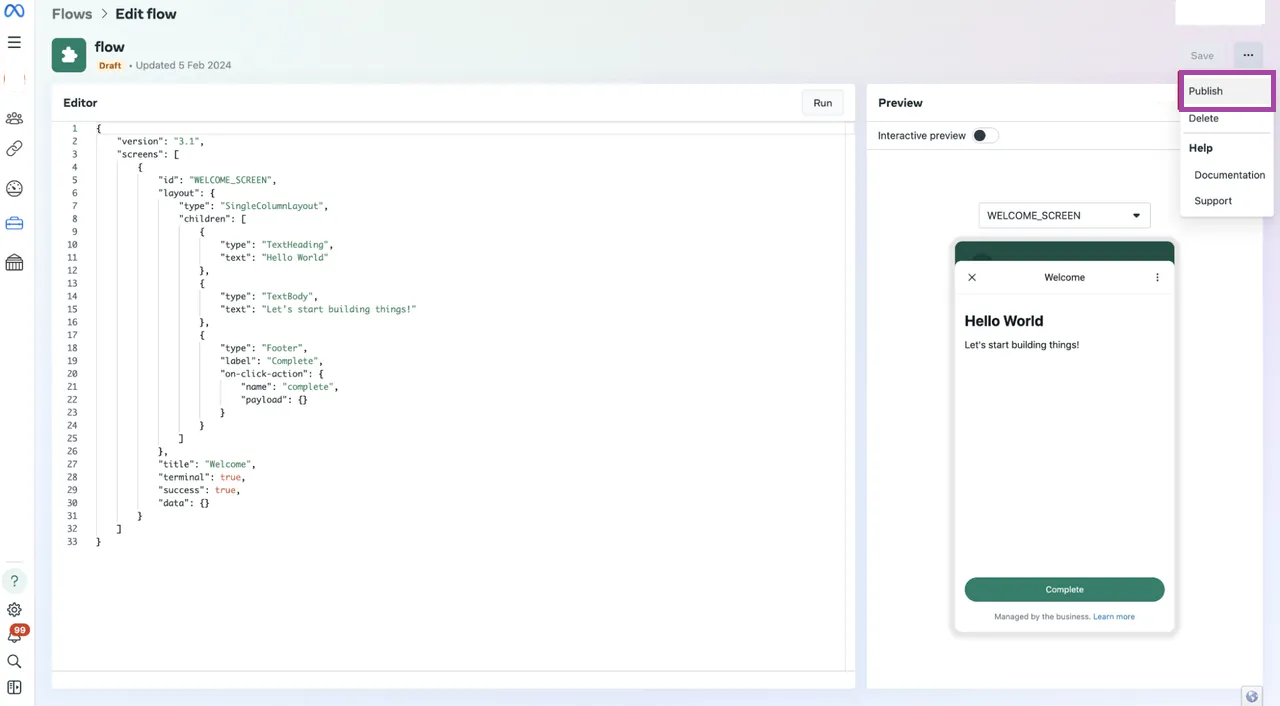
 5. Once the flow is created, publish the flow.
6.You can also refer to the Meta’s official documentation on WhatsApp Flows – https://developers.facebook.com/docs/whatsapp/flows/gettingstarted/creatingaflow
WhatsApp Flows
Once the flow is created in FBM, you can configure it in Orai via the WhatsApp Flows Node.
Dynamic WhatsApp Flows
To allow flexible and personalized automation in conversations, Orai supports Dynamic WhatsApp Flows using two methods:
- Attribute-Based Dynamic Flows
With this method, you can pass dynamic attribute values into your flow fields. These values are retrieved from user attributes already captured in the conversation.
Supported Attribute Types:
- string (default)
- number
- boolean
- array
- object
Benefits:
- Pre-fill form fields using known data like user name, phone number, selected product, etc.
- Reduce typing effort and errors.
- Build personalized experiences for each user.
How to Configure:
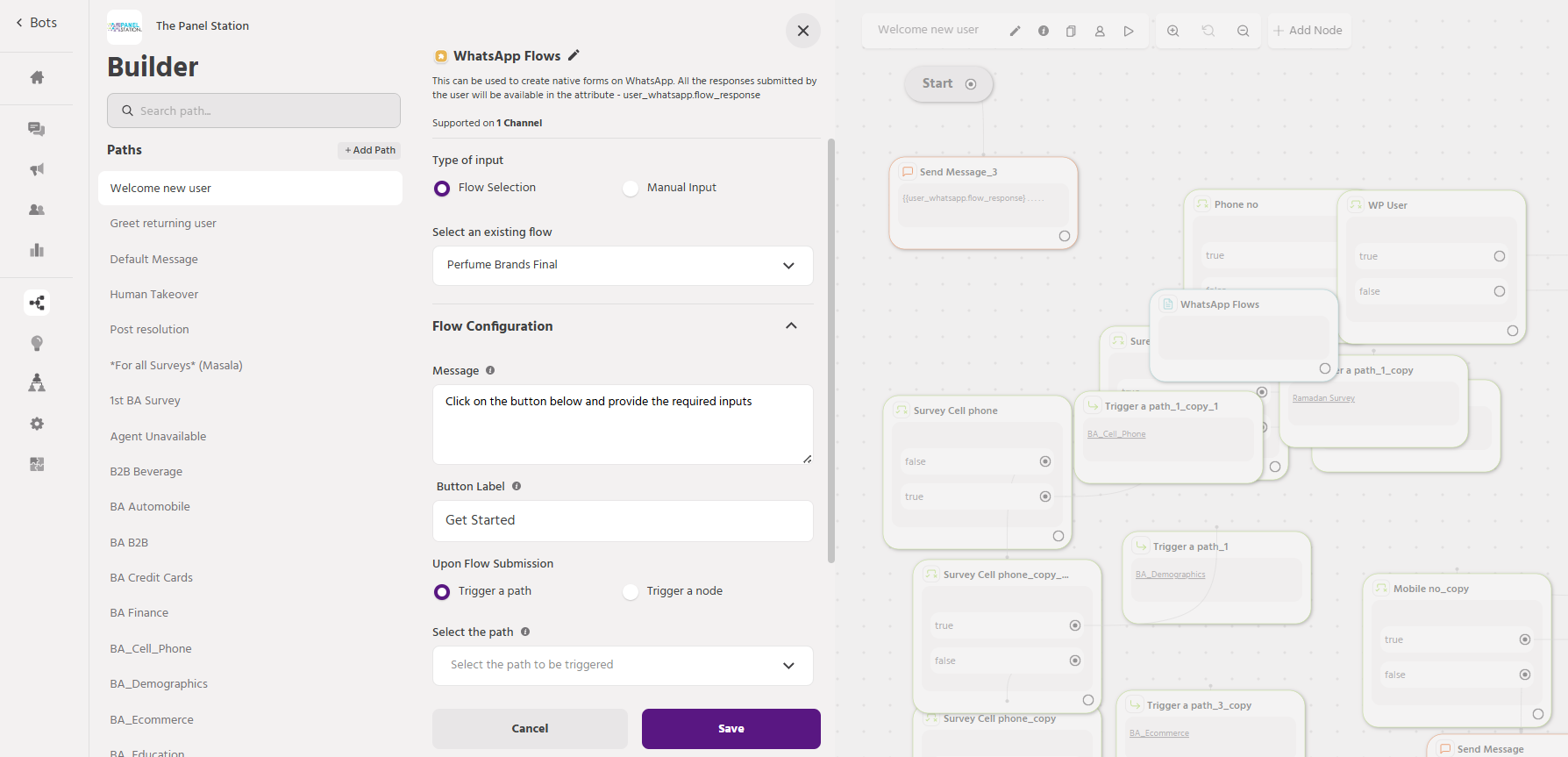
- Navigate to Bot Builder > Add Node > WhatsApp Flows
- Select your flow created in FBM.
- In Attribute Values for Dynamic Fields, add attribute references like {{user_name}}, {{user_email}}, {{selected_product}}, etc.
- Save and connect this node to your bot path.
Example: A previously saved {{appointment_time}} can be auto-filled in the WhatsApp Flow form.
- Endpoint-Based Dynamic Flows
This method enables you to fetch live data from a backend API and inject it into your WhatsApp Flow in real-time.
When to Use:
- Flow input fields depend on real-time data (e.g., available slots, stock info, pricing).
- You need to render different options based on user segments or preferences.
How to Configure:
- Create the flow in FBM.
- In flow configuration, specify a valid Endpoint URLto fetch the dynamic data.
- Ensure the endpoint response follows Meta’s expected format.
- On Orai, select this flow in the WhatsApp Flow node.
Example: Fetch and display service slots based on the user’s pin code or service category.
Screenshot
- BSP Compatibility
Dynamic WhatsApp Flows are now supported across all major BSPs:
- 360dialog
- Karix
- Sinch
Previously, only 360dialog supported dynamic flows using static strings. Now, all supported types (string, number, boolean, array, object) and both flow methods (attribute and endpoint-based) are available across the platforms.
Flow Templates
1.Multiple Screens (Login)
{
“version”: “3.0”,
“screens”: [
{
“id”: “LOGIN”,
“layout”: {
“type”: “SingleColumnLayout”,
“children”: [
{
“type”: “Form”,
“name”: “flow_path”,
“init-values”: {
“path”: “happy-find-ap”
},
“children”: [
{
“type”: “TextInput”,
“name”: “name”,
“required”: true,
“input-type”: “text”,
“label”: “Name”
},
{
“type”: “TextInput”,
“name”: “email”,
“required”: true,
“input-type”: “text”,
“label”: “email”
},
{
“type”: “Footer”,
“label”: “Continue”,
“on-click-action”: {
“name”: “navigate”,
“next”: {
“type”: “screen”,
“name”: “CONFIRMATION”
},
“payload”: {
“name”: “${form.name}”,
“email”: “${form.email}”
}
}
}
]
}
]
},
“title”: “Login”,
“data”: {}
},
{
“terminal”: true,
“data”: {
“name”: {
“type”: “string”,
“__example__”: “John”
},
“second_name”: {
“type”: “string”,
“__example__”: “Kane”
}
},
“id”: “CONFIRMATION”,
“title”: “Confirmation”,
“layout”: {
“type”: “SingleColumnLayout”,
“children”: [
{
“type”: “TextHeading”,
“text”: “Confirm details”
},
{
“type”: “TextSubheading”,
“text”: “Name”
},
{
“type”: “TextBody”,
“text”: “${data.name}”
},
{
“type”: “TextSubheading”,
“text”: “email”
},
{
“type”: “TextSubheading”,
“text”: “${data.email}”
},
{
“type”: “Footer”,
“label”: “Continue”,
“on-click-action”: {
“name”: “complete”,
“payload”: {
“name”: “${data.name}”,
“second_name”: “${data.email}”
}
}
}
]
}
}
]
}
2.Ticket Booking
{
“version”: “3.1”,
“screens”: [
{
“id”: “SIGN_UP”,
“title”: “Finish Sign Up”,
“data”: {},
“terminal”: true,
“success”: true,
“layout”: {
“type”: “SingleColumnLayout”,
“children”: [
{
“type”: “Form”,
“name”: “form”,
“children”: [
{
“type”: “TextInput”,
“name”: “firstName”,
“label”: “First Name”,
“input-type”: “text”,
“required”: true
},
{
“type”: “TextInput”,
“label”: “Last Name”,
“name”: “lastName”,
“input-type”: “text”,
“required”: true
},
{
“type”: “TextInput”,
“label”: “Email Address”,
“name”: “email”,
“input-type”: “email”,
“required”: true
},
{
“type”: “Footer”,
“label”: “Done”,
“on-click-action”: {
“name”: “complete”,
“payload”: {
“firstName”: “${form.firstName}”,
“lastName”: “${form.lastName}”,
“email”: “${form.email}”
}
}
}
]
}
]
}
}
]
}