

Authentication WhatsApp Message Templates
Introduction
Using message templates, you can add login or OTP messages to your WhatsApp campaigns. This will boost user trust and promote easy communication among users.
Availability
You can navigate to the section through:
- Go to the Broadcast menu -> Message Template page -> Click New Template.
- Choose between creating the template from scratch or importing it from the template library based on your industry and use case.
- Select “Create the Template from scratch”, then click on
Setup
You can create an OTP/Authentication template in three steps:
- Define your Template.
- Select “OTP/Authentication” under “Purpose of your Template”.
- Add Contents in Your Templates.
Step 1 – OTP/Authentication Message template:
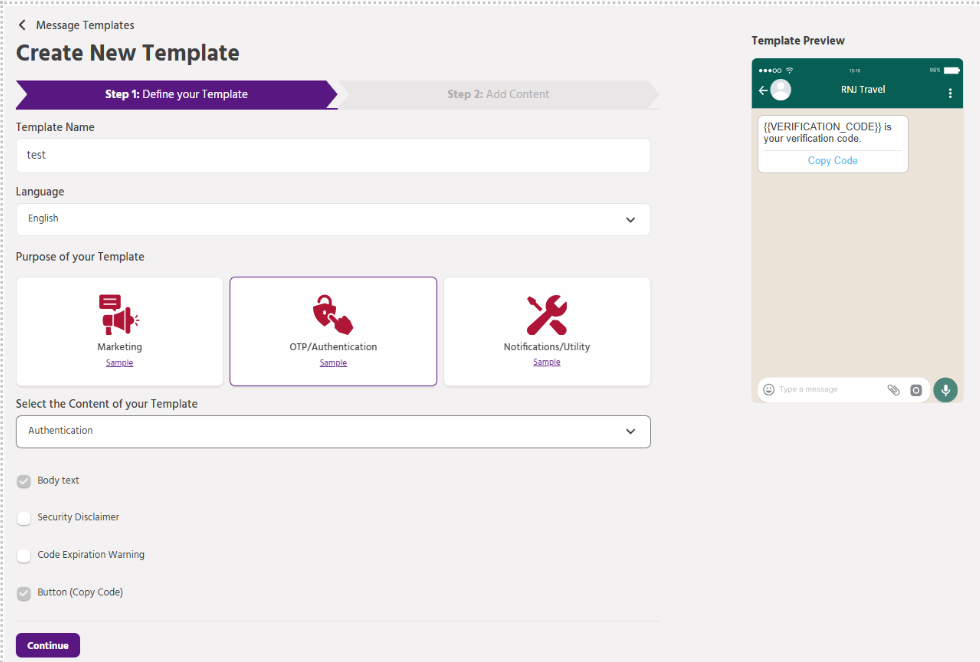
- Template Name: Add a name to identify your template through search easily. Use lowercase alphanumeric characters [a-z,0-9] and underscores (_) for template names without spaces.
- Language: Choose the preferred language.
- Purpose of the template: OTP/Authentication – This category is used for sending OTP or Authentication codes
- Select the Content of your Template: Authentication is a default selection for this selection.
• Body Text: Cannot be Edited.
• Code Expiration warning: You can set an expiration time with a warning message that can’t be edited. This is optional.
• Security Disclaimer: This is optional, and the disclaimer text is not editable.
• The remaining fields are mandatory – Body Text, and Buttons
Click ‘Continue’ to proceed to Step 2.
Step 2-Create WhatsApp OTP/Authentication Message template:
- If a Code Expiration Warning was selected in the previous step, then the Code Expiration Warning timeline could be set with the help of the toggle
- Body Text: This is the text that is followed by your verification code, which cannot be edited
- Button Label: this is the name of the button (eg: Copy, Copy code, etc.)
- Finally, click ‘Request Approval‘
- After requesting approval, a pop-up screen will prompt you to enter a sample value for VERIFICATION_CODE. Enter as required.

Note: Meta approval typically takes around 24-48 hours.