

Web Engage
Introduction
There can be multiple use-cases for integrating WebEngage to Engati. The ones where event-based integrations are needed for instance sending a template when a booking event is done, then we can follow the below instructions.
Connect API Trigger URL in WebEngage
URL to be set : https://<API-DOMAIN>/bot-api/v2.0/customer/<CUSTOMER-ID>/bot/<BOT-KEY>/flow/<FLOW-KEY>
Sample – https://api.engati.com/bot-api/v2.0/customer/70698/bot/5c7d35037d244b0c/flow/F722EFF2E80F4E3BA0FD8BC195A7B8DB
This has to be set in the following place in WebEngage –
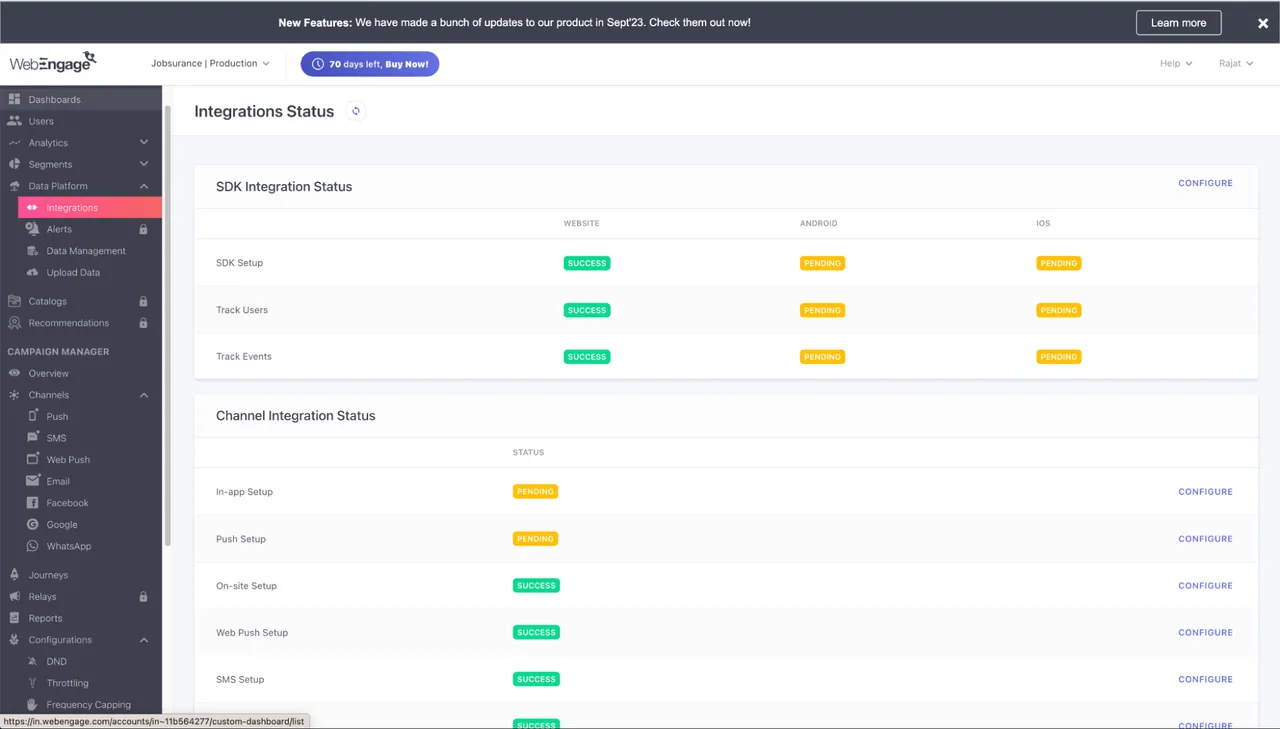


- Build the flow in the particular account, bot, and flow where the integration is needed.

JS
var whatsAppData = {{whatsAppData}};
var templateData = whatsAppData.templateData;
var templateName = templateData?.templateName;
var namespace = ‘980c3243_2d2a_4d2d_a572_b2a50552cb04’;
var headerType = templateData?.type;
var language = templateData?.language;
var mediaUrl = templateData?.mediaUrl;
var buttonUrlParam = templateData?.buttonUrlParam;
var templateVariables = templateData?.templateVariables;
var toNumber = whatsAppData?.toNumber;
var bodyParams = [];
var headerParams = [];
var buttonParams = [];
var headerComponents = {};
var bodyComponents = {};
var buttonComponents = {};
var components = [];
// Handle header
if ([‘IMAGE’, ‘VIDEO’, ‘DOCUMENT’].includes(headerType)) {
headerType = headerType.toLowerCase();
headerParams.push({
type: headerType,
[headerType]: { link: mediaUrl }
});
headerComponents[‘type’] = ‘header’;
headerComponents[‘parameters’] = headerParams;
components.push(headerComponents);
}
// Handle body
if (templateVariables && templateVariables.length > 0) {
templateVariables.forEach((val) => {
bodyParams.push({ type: ‘text’, text: val });
});
bodyComponents[‘type’] = ‘body’;
bodyComponents[‘parameters’] = bodyParams;
components.push(bodyComponents);
}
// Handle button
if (buttonUrlParam) {
buttonParams.push({ type: ‘text’, text: buttonUrlParam });
buttonComponents[‘type’] = ‘button’;
buttonComponents[‘sub_type’] = ‘url’;
buttonComponents[‘index’] = 0;
buttonComponents[‘parameters’] = buttonParams;
components.push(buttonComponents);
}
// Build final template
var template = {
namespace: namespace,
name: templateName,
language: {
code: language,
policy: ‘deterministic’
},
components: components
};
// Format phone number if needed
if (toNumber[0] === ‘+’) {
toNumber = toNumber.substring(1);
}
// Final process call
process({
data: {
type: “template”,
payload: template,
targetWhatsAppNumber: toNumber
}
});
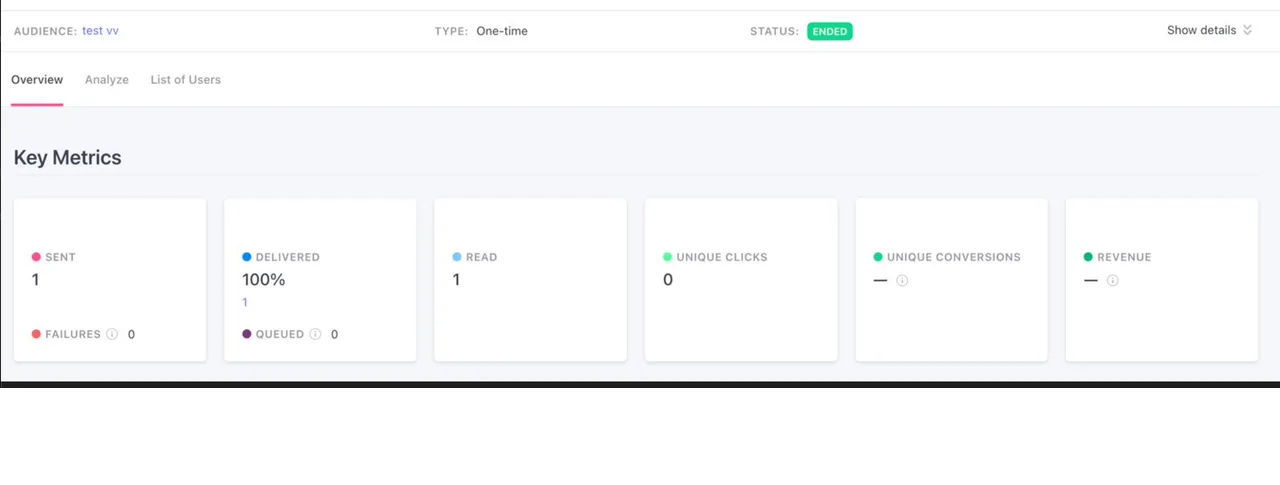


-
Once the above setup is done, We would need a webhook URL for the event, we can find it from
Data platform -> Integrations -> Channel Integration Setup -> WA Setup -> Configure -> Click on “View Webhook URL”

Share the following Event Webhook URL
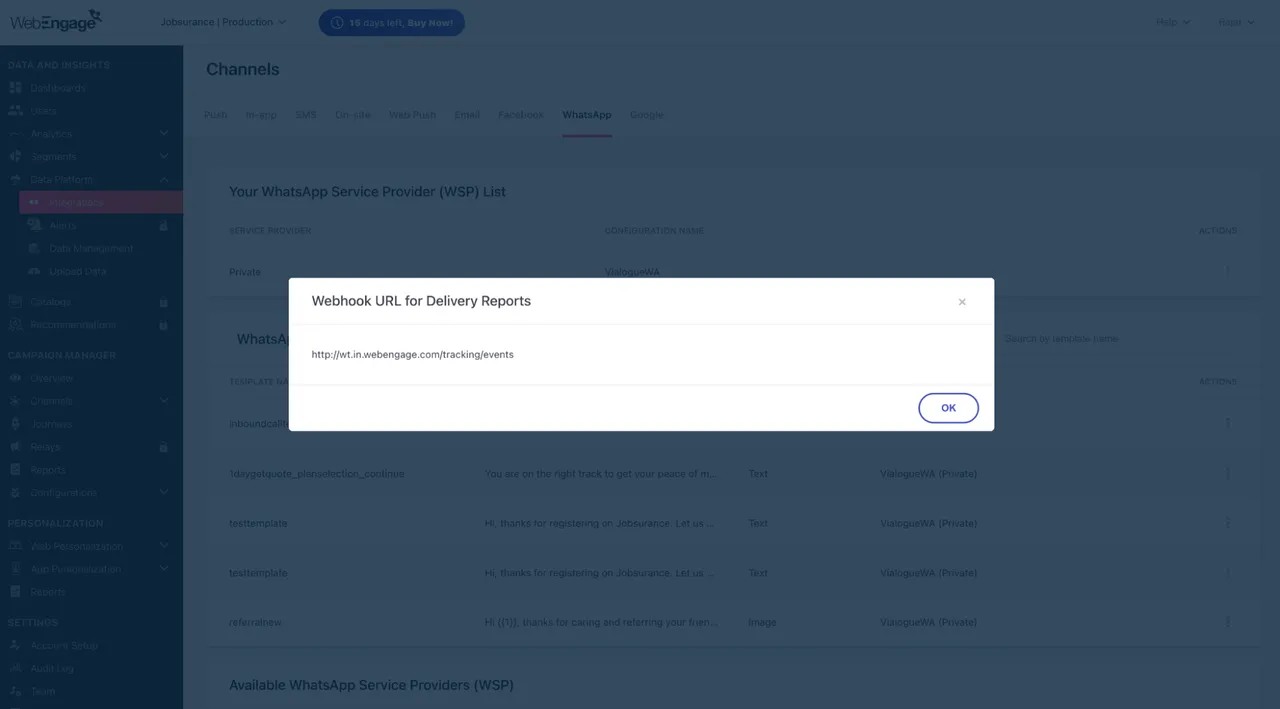
Also, along with URL we will also need AUTH_KEY_PROVIDED_BY_WEBENGAGE. If we don’t have it then send a mail to “support@webengage.com” and request for the same. This Auth key is needed to send the status packet back to webengage and complete the WhatsApp flow.

