

Start Here…
How do I login ORAI Portal?
Logging in to the xbotic portal is a simple process that grants you access to a wide range of features and functionalities. In this step-by-step guide, we will walk you through the process of logging in to the xbotic website and accessing the main page of the portal. Let’s get started!
Step 1
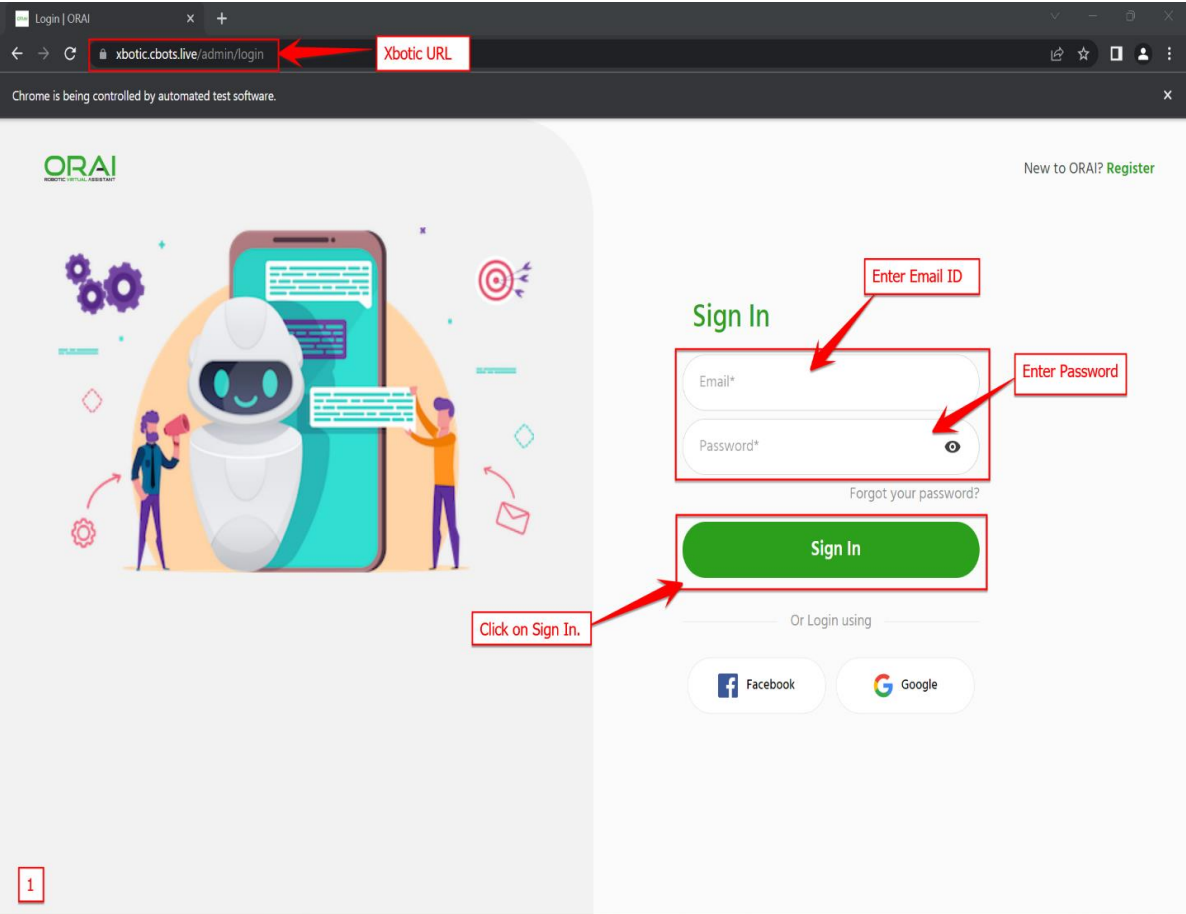
Visit the xbotic Website To begin, open your web browser and navigate to the xbotic website. You can access it by entering the following URL:
Step 2
Reach the “Sign In” or “Login” Page Once you reach the xbotic website, you will be automatically redirected to the “Sign In” or “Login” page. This is where you will enter your login credentials to access the portal.
Step 3
Enter Your Login Credentials On the login page, locate the designated fields to enter your login credentials. These typically include your username or email address and your password.
Step 4
Enter Your Username or Email Address In the appropriate field, enter your registered username or the email address associated with your xbotic account. Double-check that you have entered the correct information to avoid any login issues.
Step 5
Enter Your Password In the designated password field, enter your xbotic account password. Ensure that you type your password accurately, as passwords are case-sensitive.
Step 6
Click on the “Log In” Button Once you have entered your username or email address and password, click on the “Log In” button. This will initiate the login process and authenticate your credentials.
Step 7
Access the xbotic Portal If your login information is correct, you will be successfully logged in to the xbotic portal. You will be redirected to the main page, where you can explore the various features, access important information, and manage your xbotic account.
By following these simple steps, you can log in to the xbotic portal and gain access to its wide range of features and functionalities. Enjoy exploring the xbotic platform and make the most of its capabilities to enhance your experience and maximize your productivity.