

Send Template Message
Send Template Message gives the ability to Agent/Supervisor/Owner to send the template message to a user straight from their One View Inbox.
Availability
Sending the Template Message option is available on One view inbox for 360 Dialog is enabled as a provider. This will be available for only the WhatsApp channels conversation
Agents/Supervisor/Owners can send the WhatsApp Template messages from One View Inbox. Sending Template Message will not open the 24 hours window for standard messaging
Send Template Message post 24 hours conversation window
When agents, supervisors, or account owners log into Engati, they will land on the “Messages” page. This page shows all incoming customer chats.
To send a template message on WhatsApp, they need to select the specific WhatsApp conversation in the All tab. A “Send Template Message” button will appear if the WhatsApp provider is 360 Dialog.
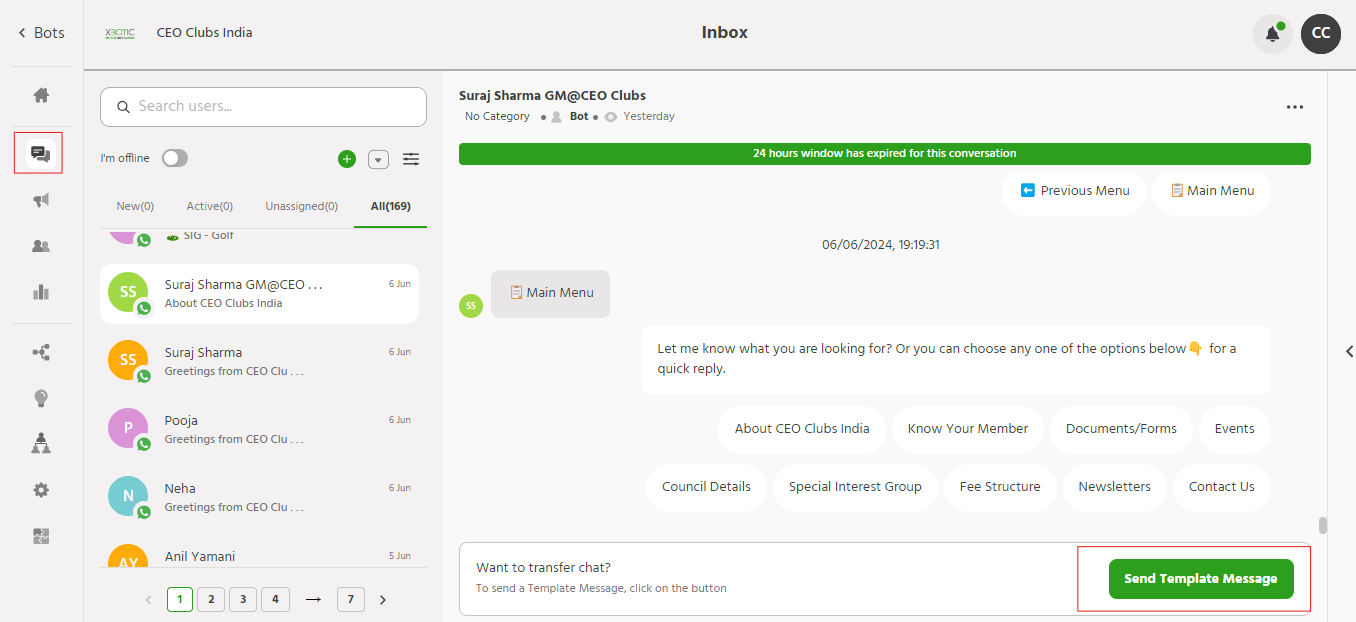
By clicking the “Send Template Message” button, a modal will open allowing them to send a template message.
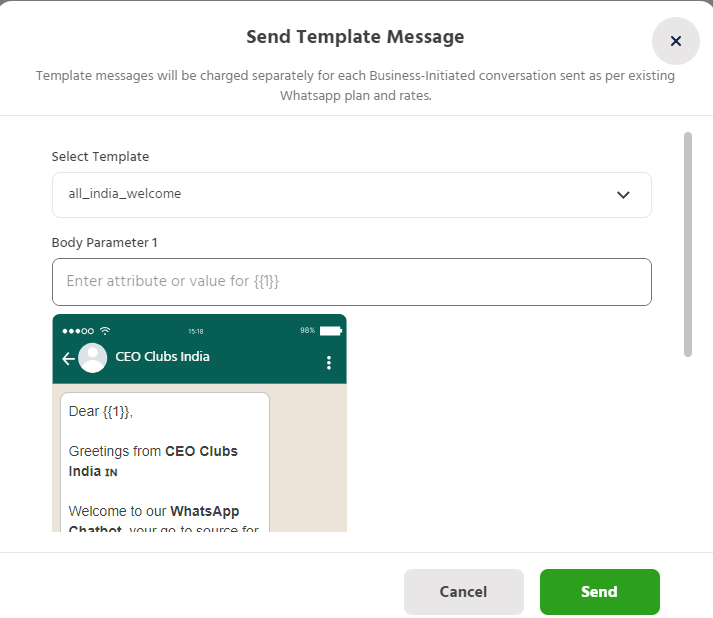
Select Template – Select the Template which has been added on the 360 Dialog
Language – Based on the selected Template, If there are More than one language then the List of Languages are shown
Header Parameter – Based on the selected Template, If there are any Header Parameters, the agents can give Values
Body Parameter – Based on the selected Template, If there are any Body Parameters, the agents can give Values
Footer Parameter – Based on the selected Template, If there are any Footer Parameters, the agents can give Values
Button – If there are any buttons added in the Template message, Then the Agent can select the path for that template message
Agents/Supervisor/Owner will have to click on the “Send” button to send the template message
Note:
- Upon sending the template message the conversation will not move from the All conversation tab to the Active Conversation tab.
- Template messages will be charged separately to each message sent as pre-existing WhatsApp plan and rates.
- The customer will not be charged if the conversation is under the Customer care window (up to 24 hours following the last message that the customer sends to the business)
- As per the platform’s standard process, when a file is selected from a device to be converted into a URL, the resulting URL typically follows the format:botref-[file name]. This is by design, to avoid overwriting existing files and ensure the original file is retained.
Thus, as a best practice we strongly recommend appending unique identifier to each file name.
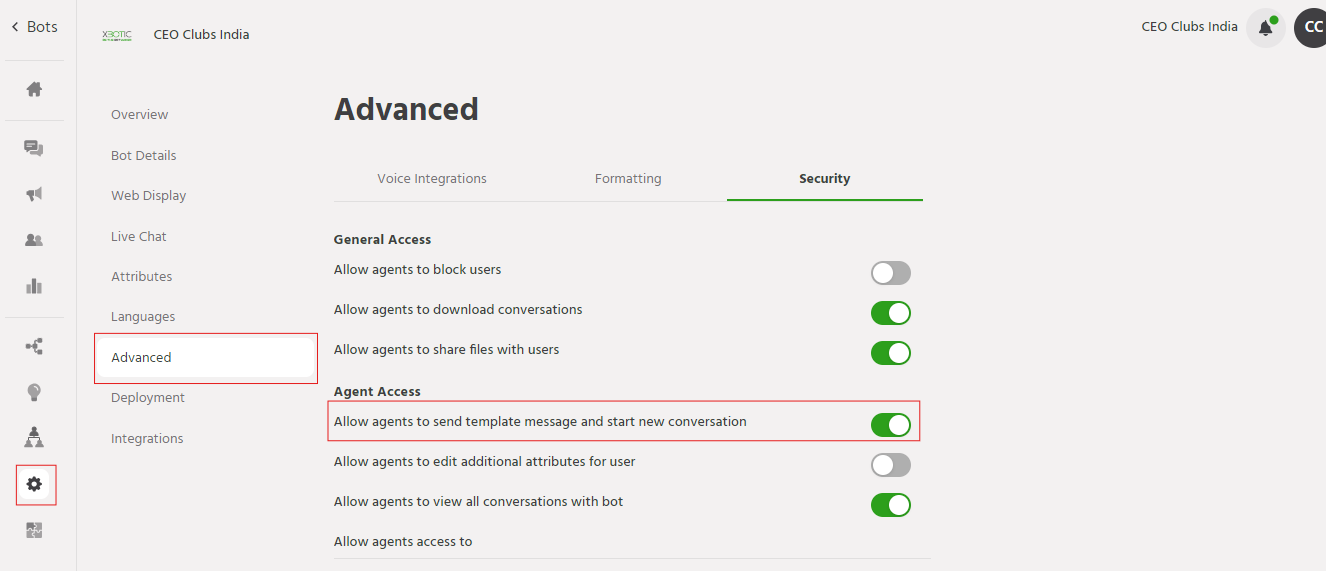
Allow agents permission to send the template message
This gives the owner of the account to control and flexibility over who on their team can leverage Engati’s templated messaging capabilities.
Note:
By default select “Only Owners can send the template messages”
Only the Owners will be able to view this security setting.
Navigate to Configure > Advanced > Agent Access.
If you face any issues or queries please reach out to us at support@orairobotics.zohodesk.com