

Razorpay
Razorpay offers a payment solution in India that enables businesses to accept, process, and disburse payments. There are many payment modes you can use including credit cards, debit cards, net banking, UPI, JioMoney, Mobikwik, Airtel Money, FreeCharge, Ola Money, and PayZapp.
With Orai’s Razorpay integration, you can provide an automated payment link to the customer to make the payment online.
Prerequisites
There are a few prerequisite steps to follow before integrating with Orai. The section covers generating API credentials, configuring a webhook endpoint, and fetching the Merchant ID.
Setup
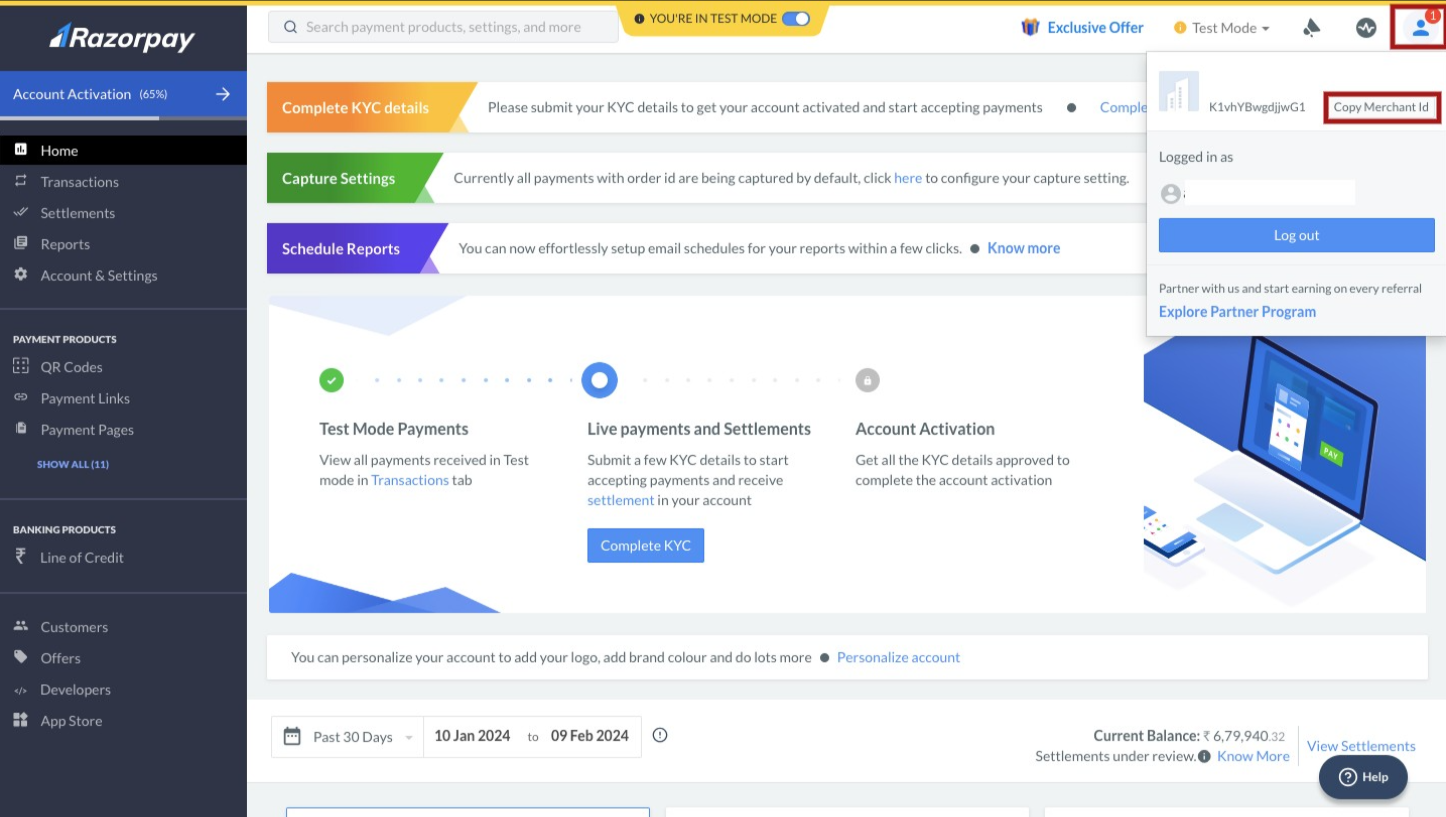
Step 1: Fetching merchant ID
a. Login to your Razorpay account
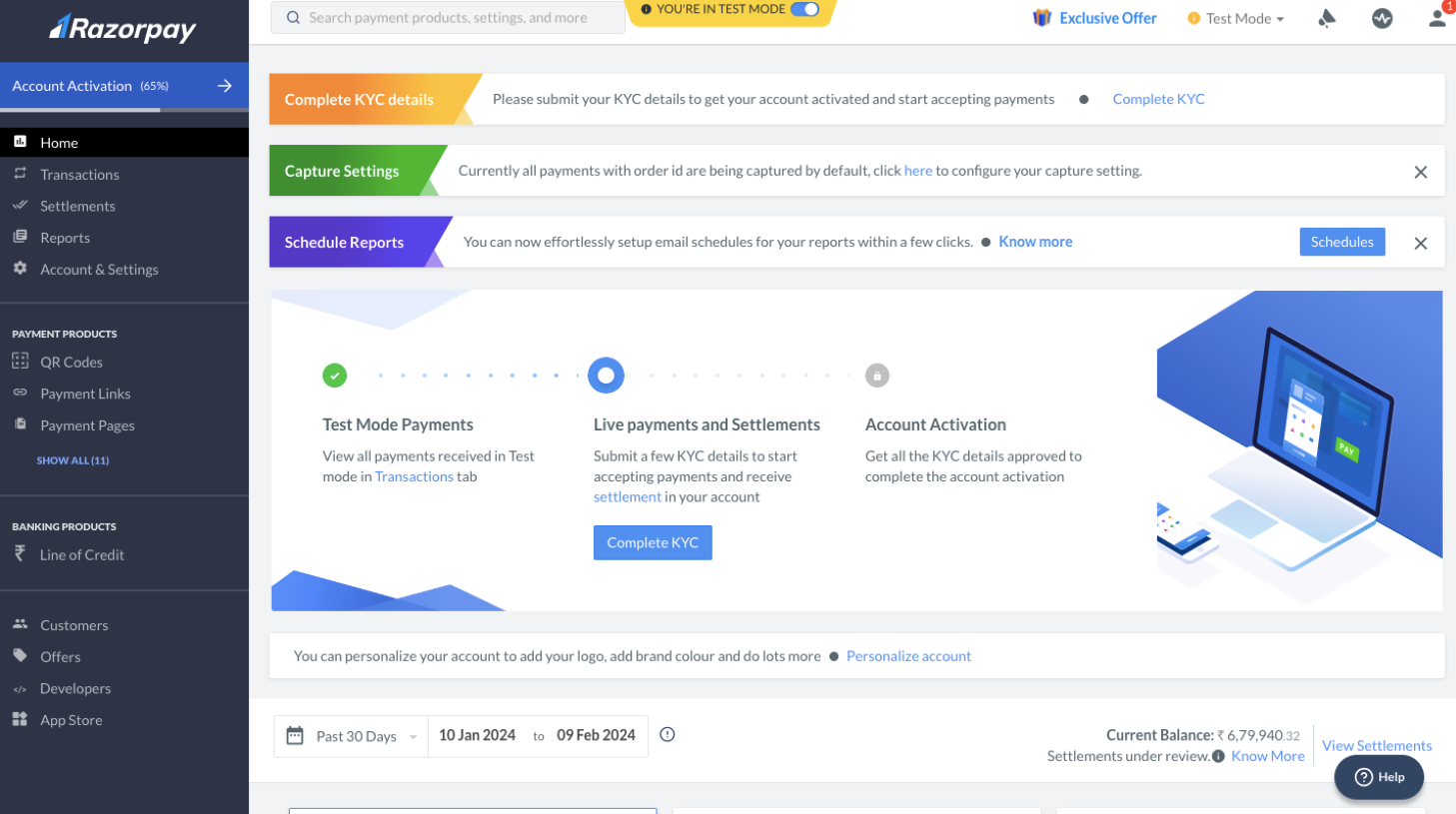
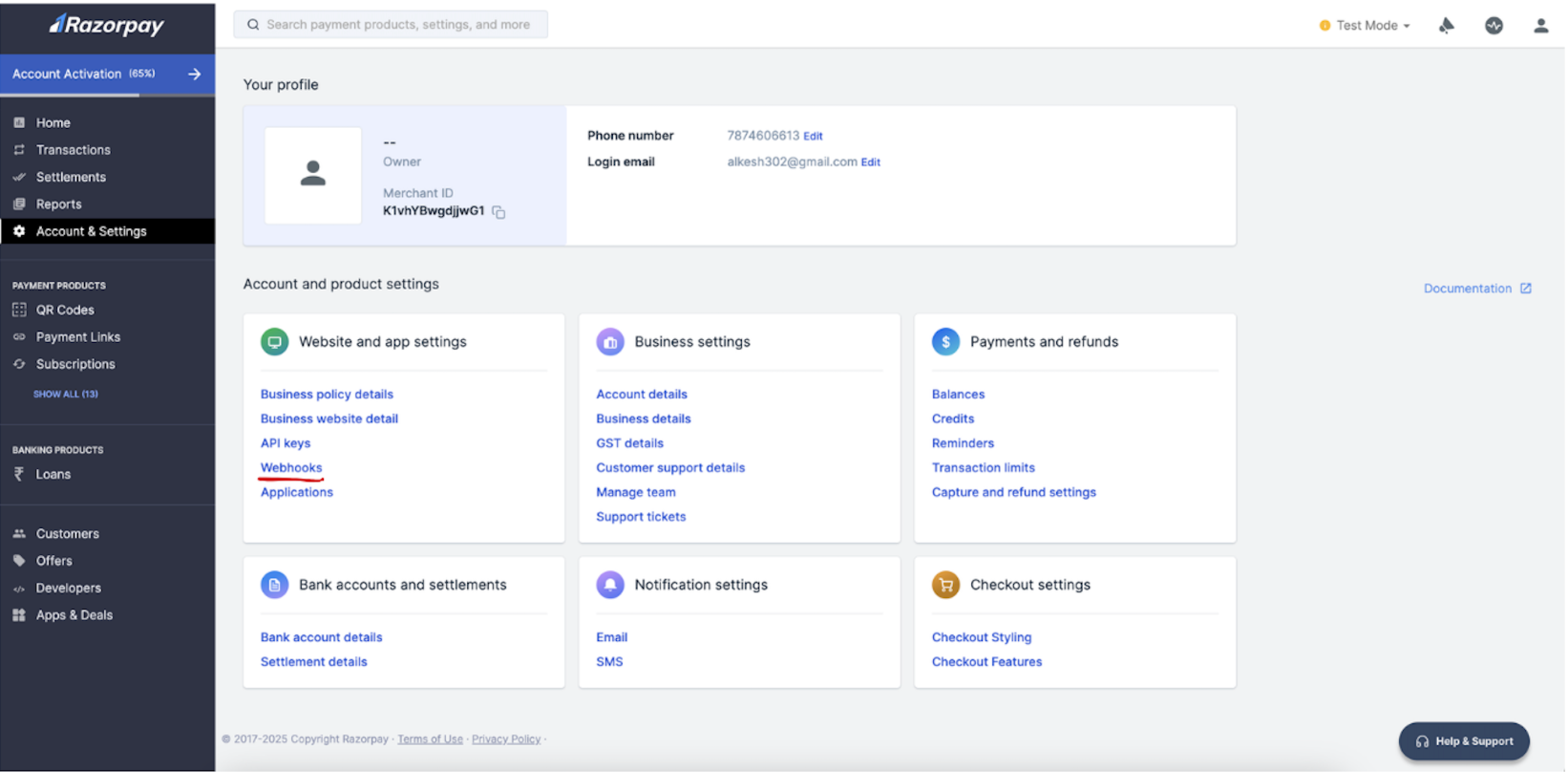
b. Click on the profile icon (present in the right top corner) and copy the merchant ID.
Step 2: Generating API credentials on Razorpay
a. Login to your Razorpay account and navigate to Account & Settings > Website and app settings > API keys
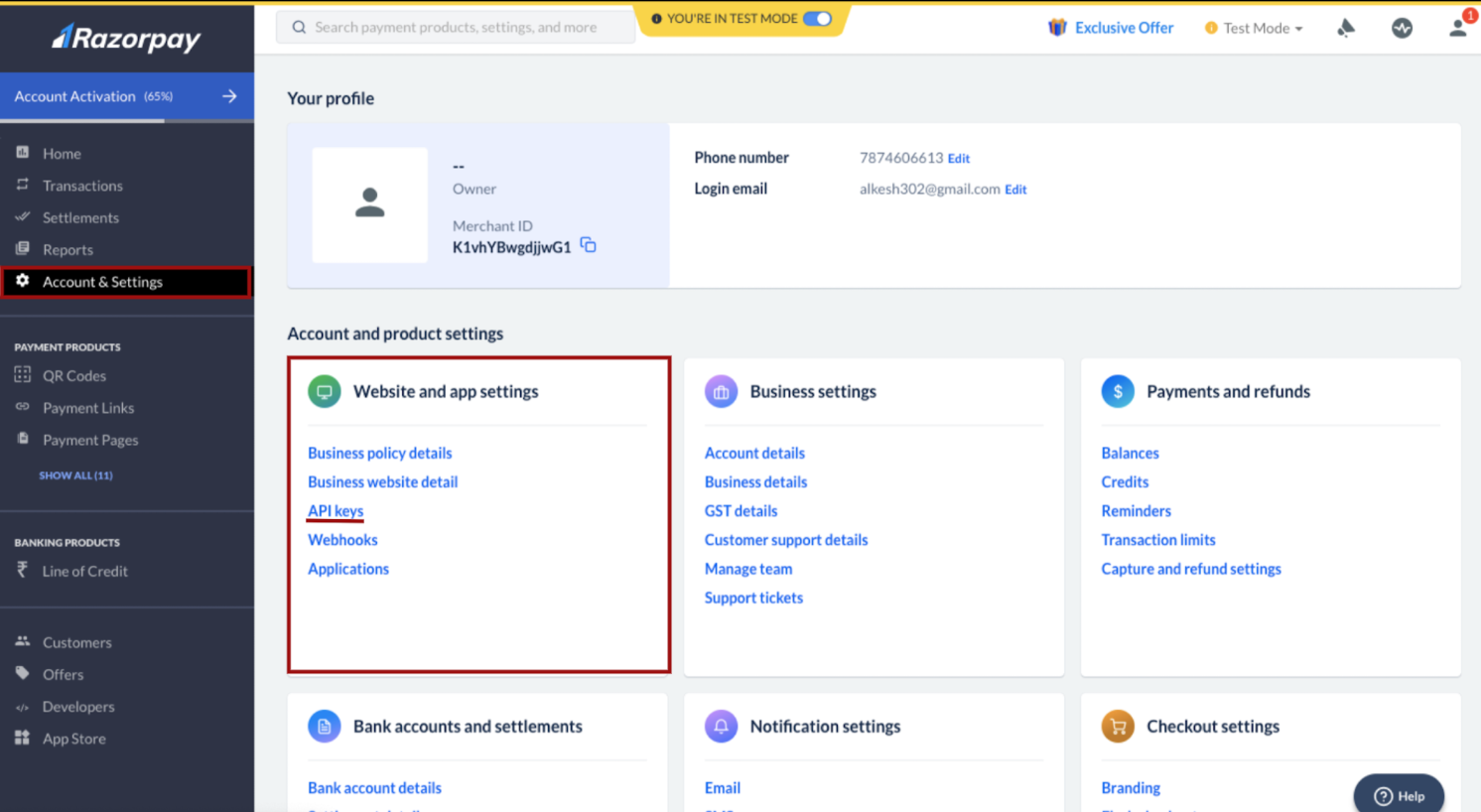
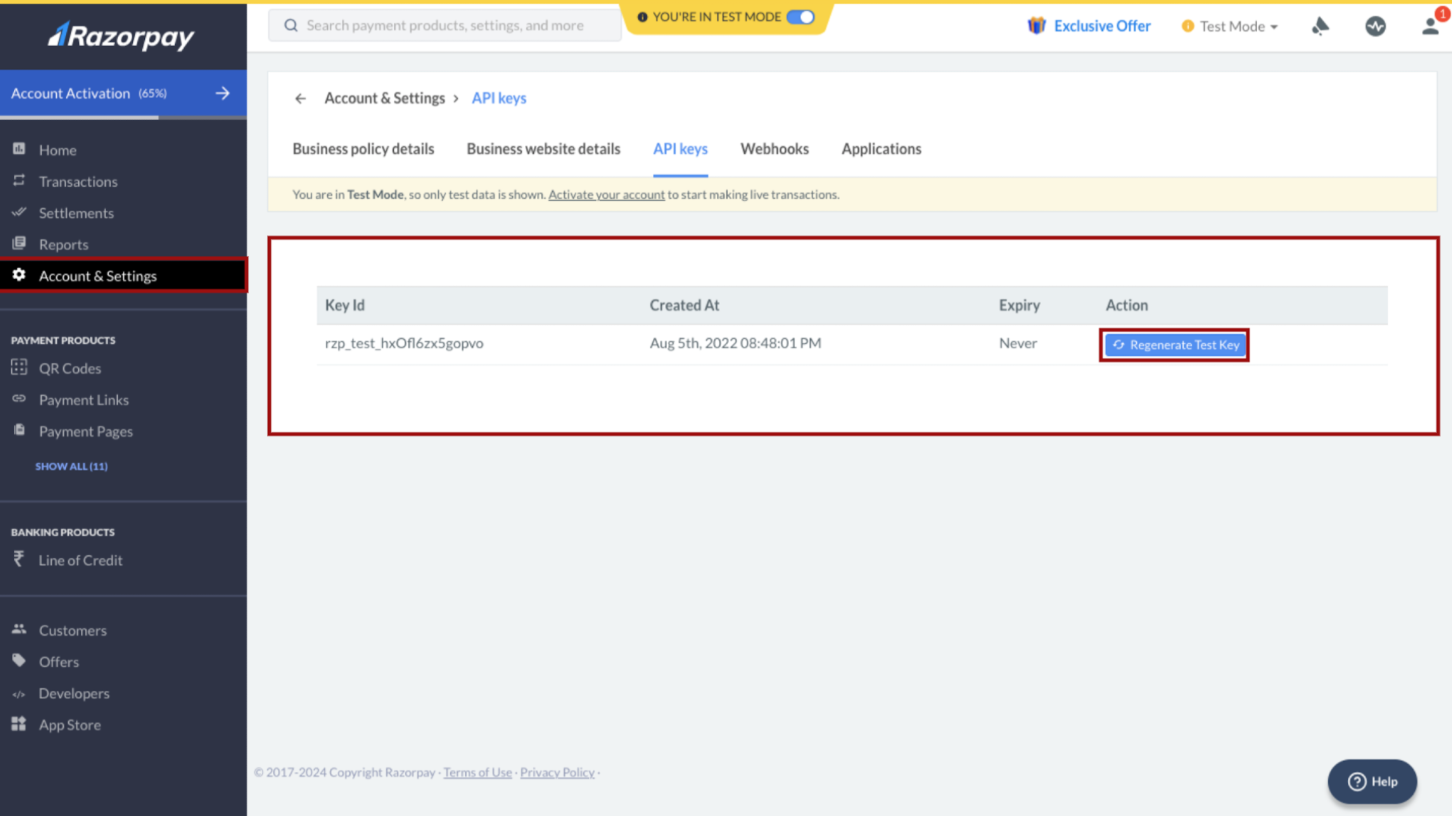
b. Click on the API keys option and then click on Generate (Mode) Key/ Regenerate (Mode) Key
Note: (Note: If it shows ‘Regenerate (Mode) Key’ either you can generate a new one and you could share with us the old Keys)
Step 3: Configuring Orai webhook point
a. Click on the webhooks option under the settings
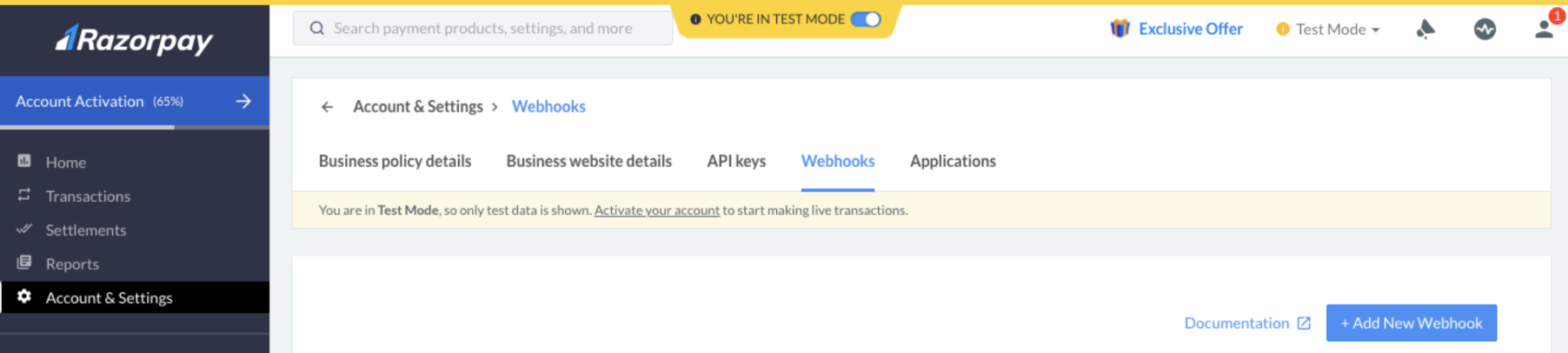
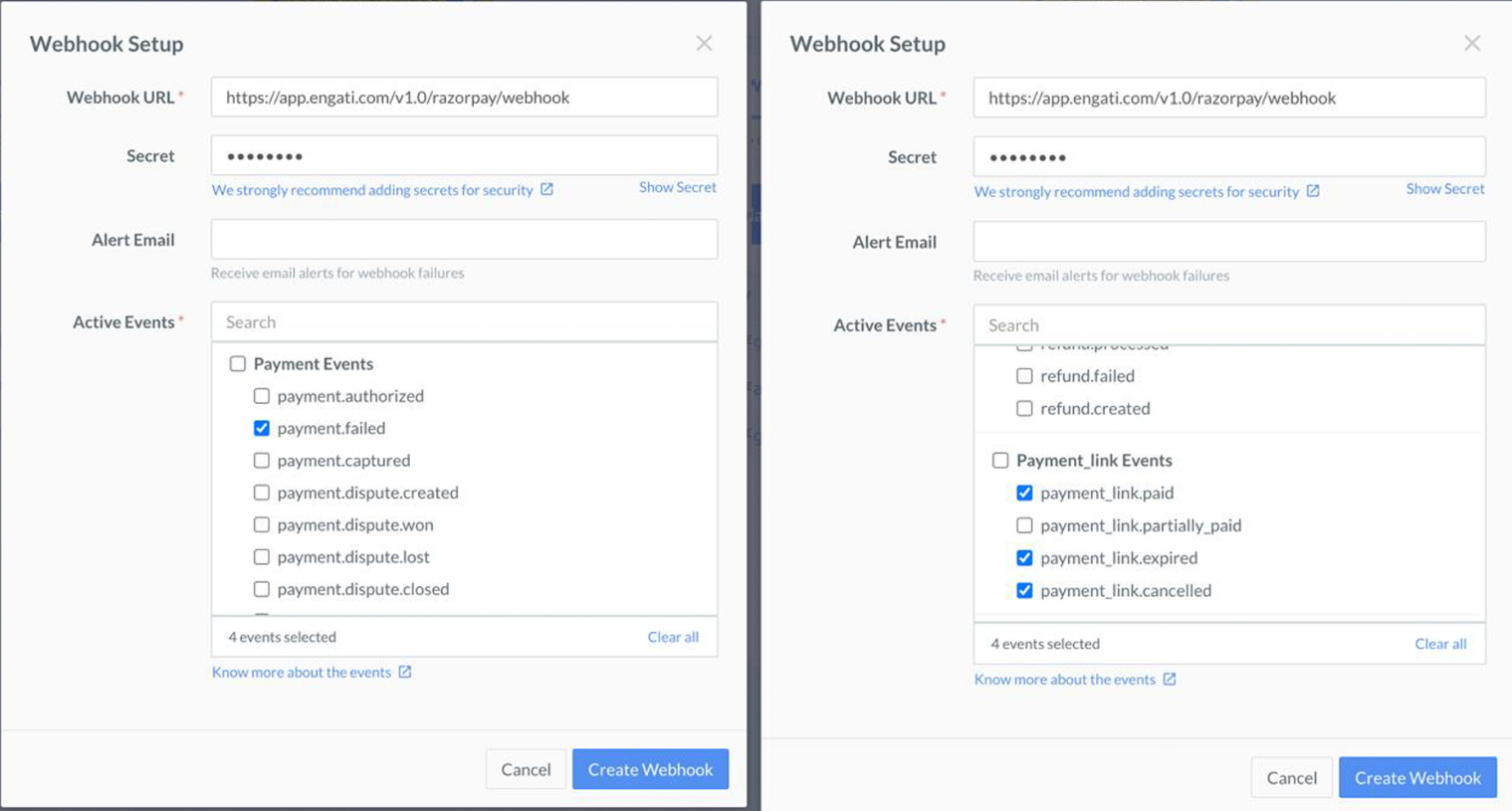
b. Click on the Add new webhook option and fill in the fields with the following details:
i. Webhook URL: https://app.orai.com/v1.0/razorpay/webhook
ii. Webhook Secret: It is an optional field however Orai expects a value. Please note that for Test as well as Live mode the secret should remain the same.
iii. Active Events:
-
Payment.failed
-
Payment_link.paid
-
Payment_link.expired
-
Payment_link.cancelled
Step 4 : Integrate with Orai
a. Once you log in to your Orai account, Navigate to the Integrations > Cloud Integrations > Razorpay. Click on the ‘Connect’ button.
b. Once you click on the ‘Connect’ button, fill in the following fields
i. Put your Razorpay Merchant ID in the account ID field
ii. Enter the Key ID and Key secret generated under Settings – API keys (Razorpay portal)
Note: Please make sure that you put the key values as per the mode selected.
iii. Enter the same Webhook secret value added under Settings -> Webhook
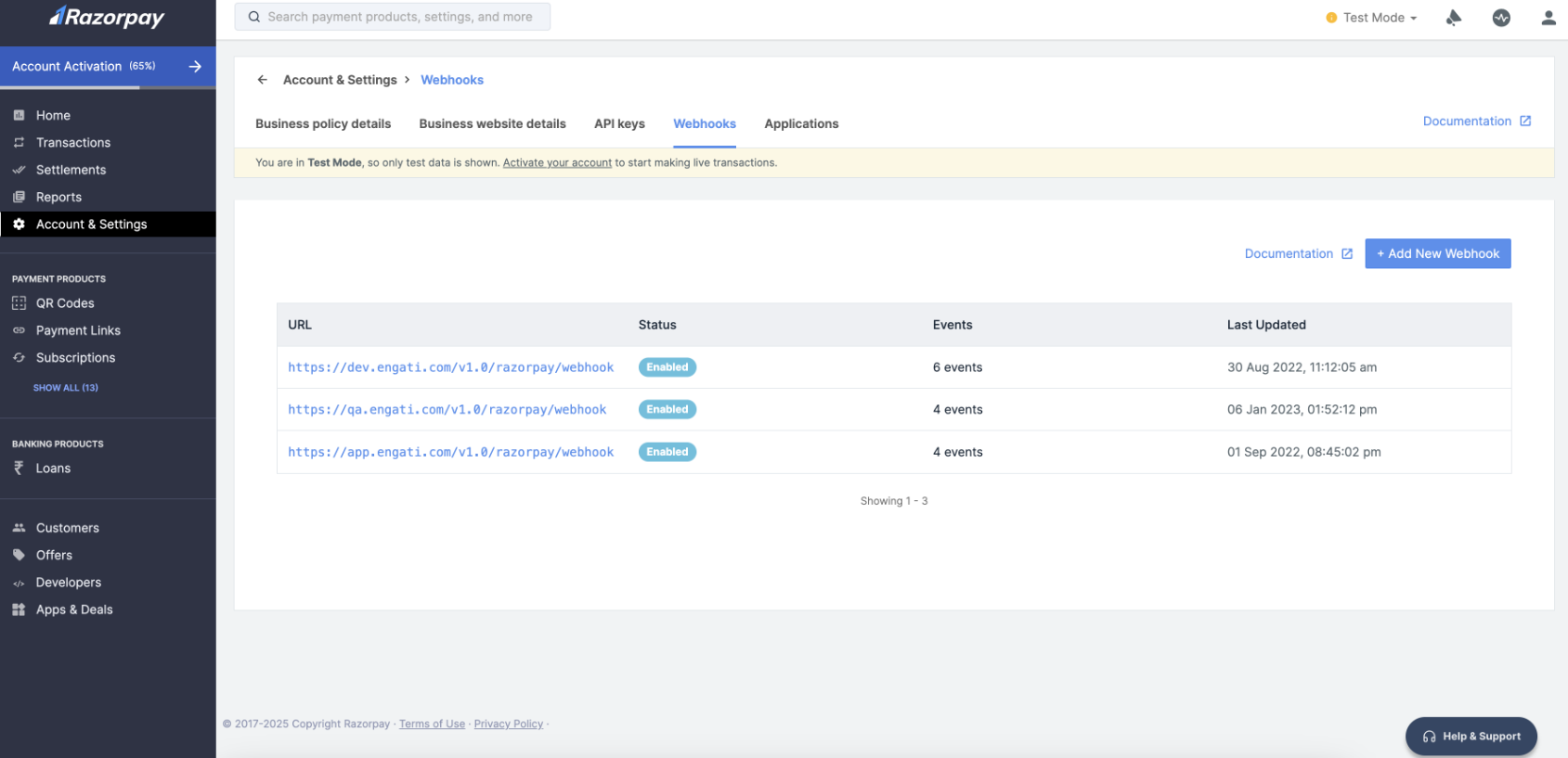
iv. Add new Webhook.
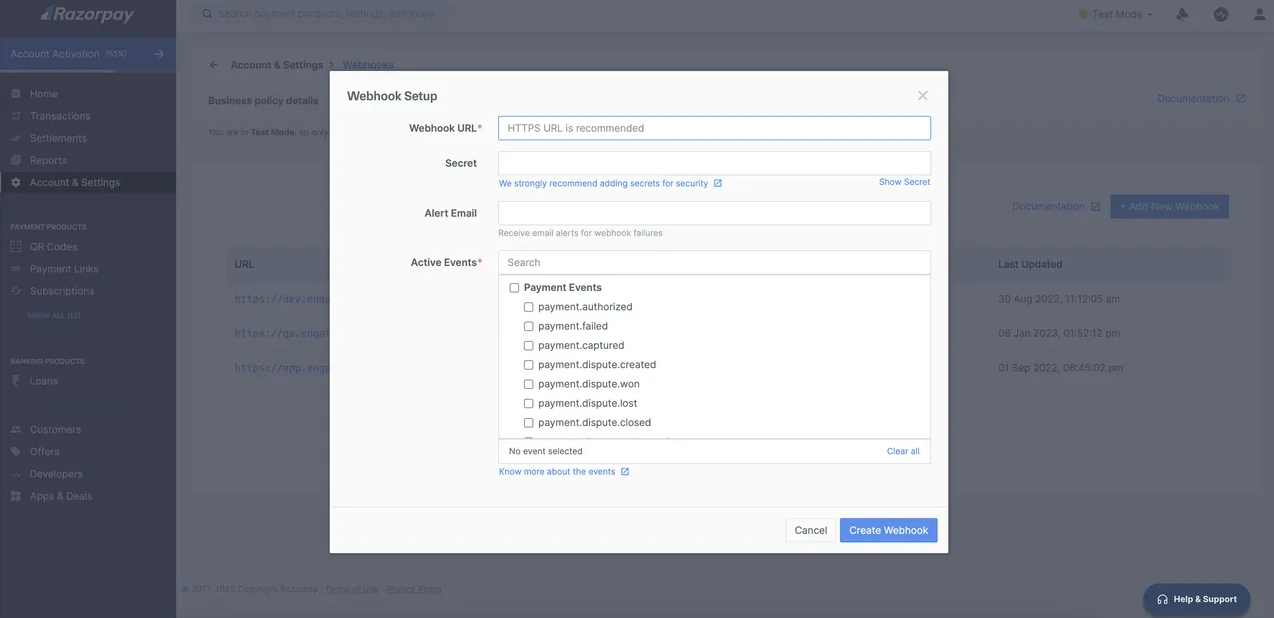
Note: Please note that for Test as well as Live mode the secret should remain the same.
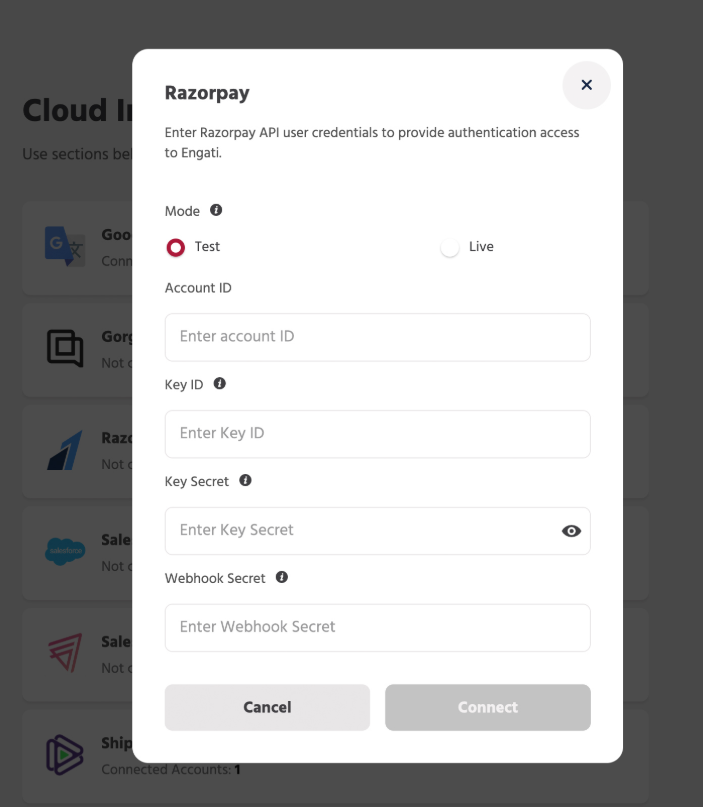
c. Once you fill in all the details, click on ‘Connect’.
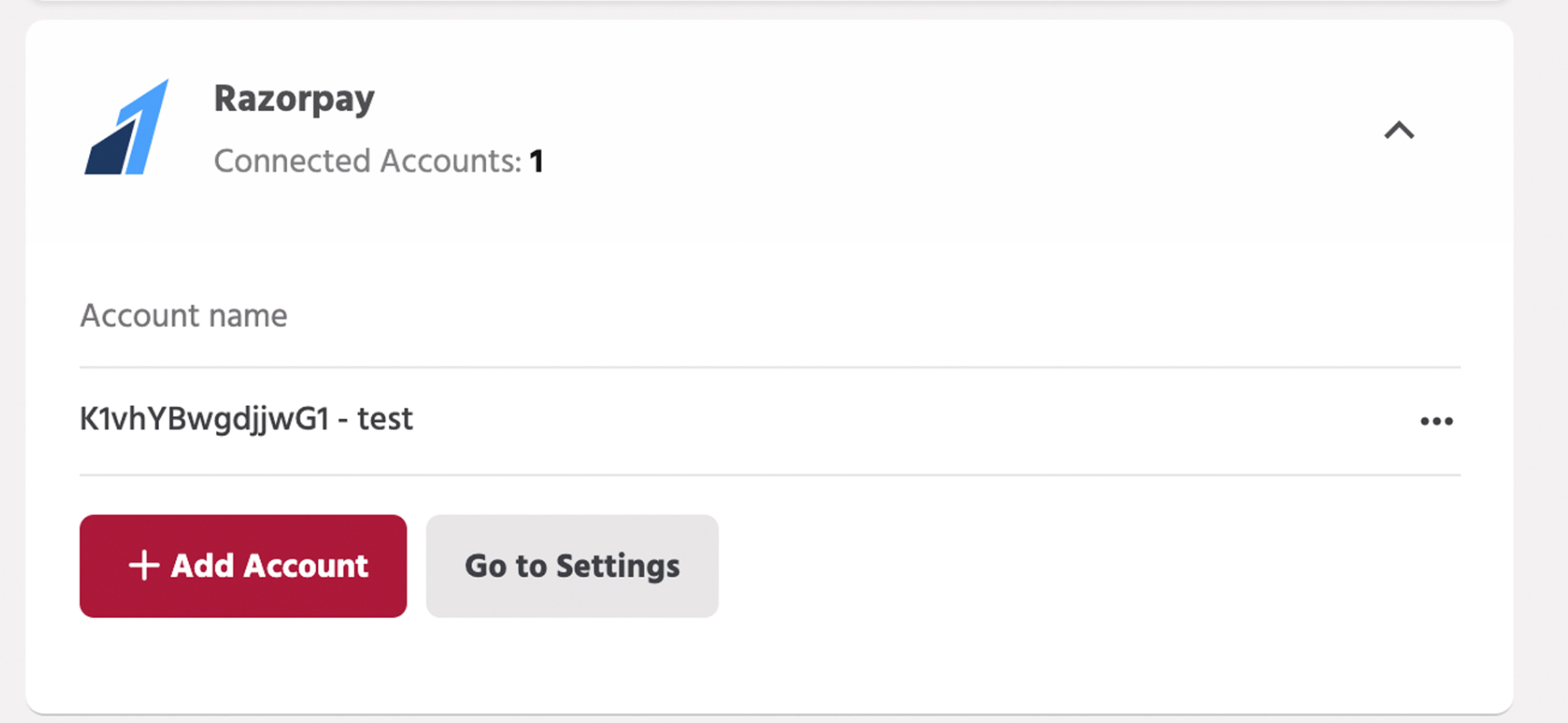
d. Now to configure your bot with the added Razorpay account, go to settings and click on integrations.
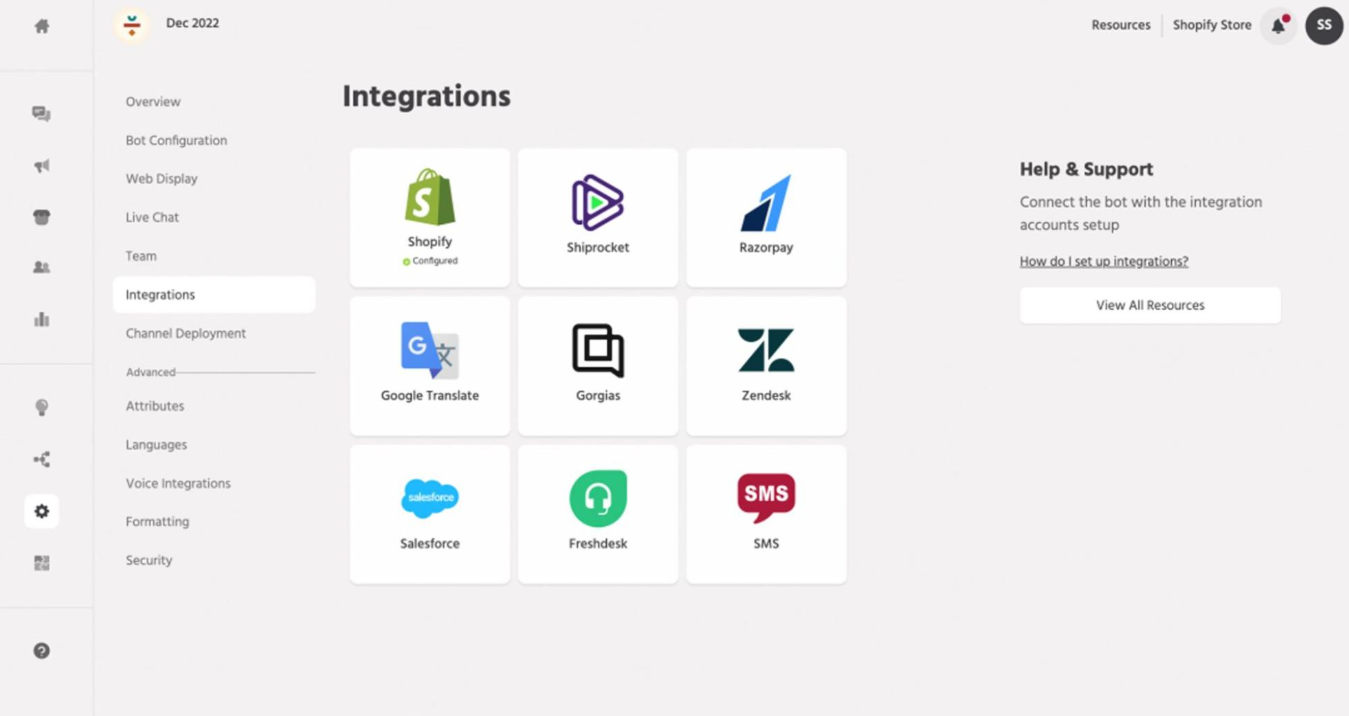
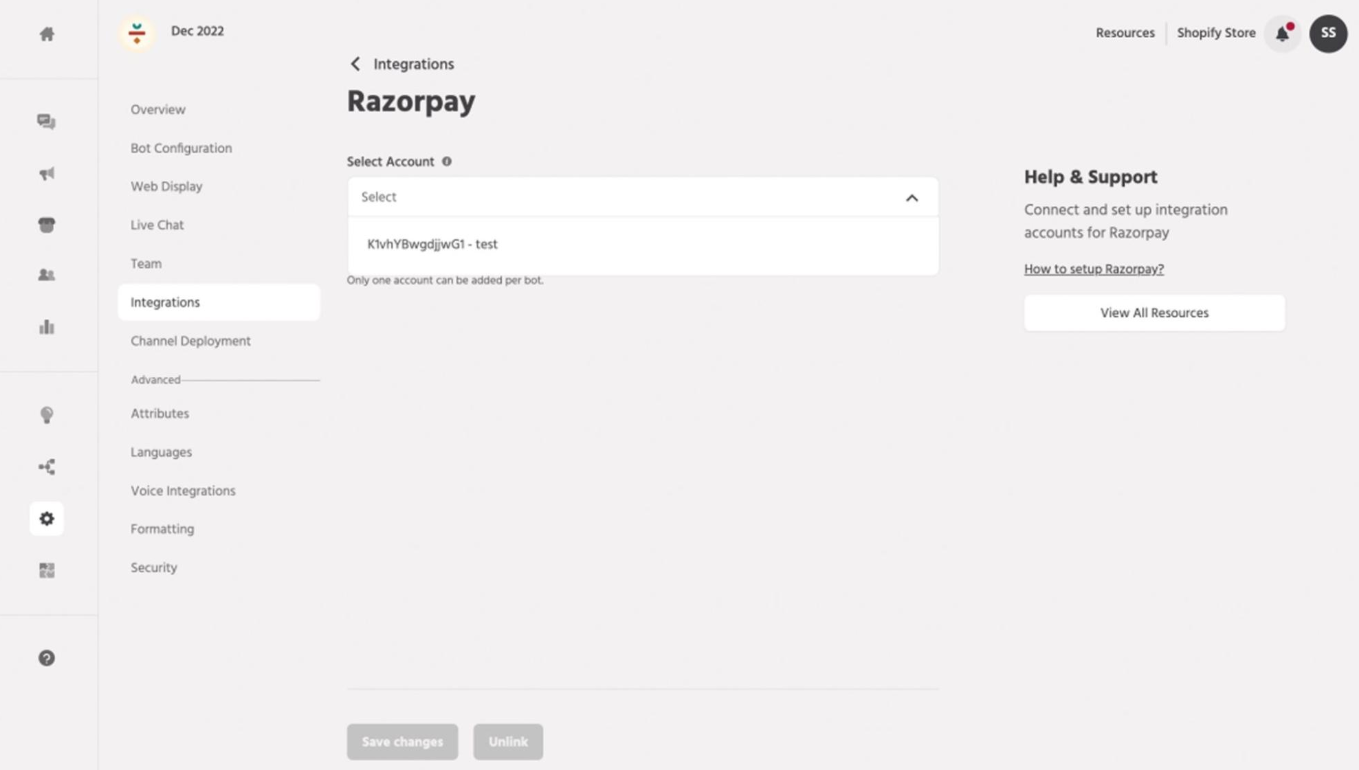
e. Click on the Razorpay option and select the account from the dropdown menu. Lastly, click on the save button.
If you face any issues or queries please reach out to us at support@orairobotics.zohodesk.com.