

ORAI Robotics Multiple Languages
Orai Robotics offers a suite of features to aid in the creation and management of multilingual bots. These features are integrated across key components of our platform, including FAQs and Intents that drive NLP (Natural Language Processing) behavior, as well as conversational flows.
Key Features:
NLP Tagging for FAQs: Assign FAQs and Intents to specific languages for improved management and to utilize language-specific NLP models. User queries are processed with language considerations.
Localized Conversation Flows: There’s no need to create separate paths for each language. Design a single flow and incorporate strings for all supported languages.
Localized Configuration Messages: Settings and configurations are managed via language property files, allowing for customization of the bot’s name, feedback messages, and other standard responses in various languages.
Language-Specific Synonyms & Stop words: Maintain distinct sets of synonyms and stop words for each language, which the system will automatically apply.
Utilizing Localization in Orai Robotics
Availability: The multilingual feature is available in our Professional plan and higher.
Activating Localization for Your Bot
Go to Configure > Languages and select “Enable”.
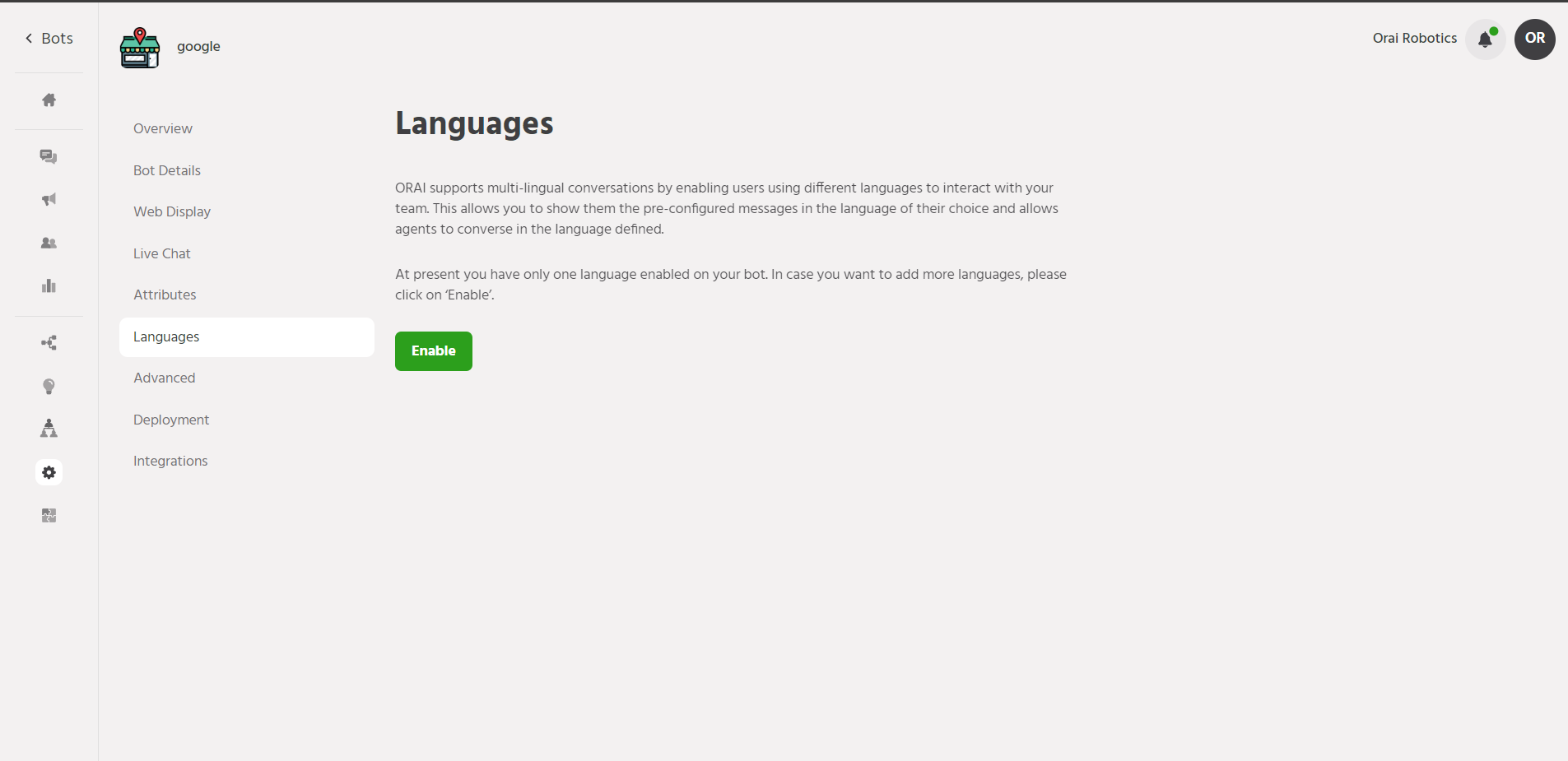
Click on “+Add New Language” and choose the desired language from the dropdown.
After selecting, click “Add Language”.
Once configured, you can view the available languages and manage the strings for paths and bot settings.
The bot defaults to English or another selected language for missing strings in other languages and for FAQ/Intent matching.
Adding Languages:
Use the “Add New” button to support additional languages in your bot.
Managing Localized Messages:
Messages from the Conversation Flow Modeler or Bot Configurations are referred to as “Keys”.

To enable multilingual communication in Orai Robotics:
In Configure > Language, download the key files for translation, starting with the English key.

Manually translate the text values in the English key file into the target language, ensuring all bot responses are covered.
Save the translated content in a separate file.

Upload each translated key file to its respective language configuration on the Orai Robotics platform.
With the keys uploaded, your bot is now equipped to interact in multiple languages.
Repeat the process to add more languages and enhance your bot’s multilingual capabilities.
Note: Avoid using characters such as “\” and “\” in the properties file, as they are not supported. Emojis and Unicode characters should also be avoided in path names, flow names, or node names due to potential inconsistencies.
FAQs & Intent Management
In the previous section, we discussed setting up multilingual support and managing messages using keys in the property files. Now, let’s focus on FAQs and Intents for Orai Robotics.
Associating FAQs with Languages:
Orai Robotics allows for FAQs to be linked with specific languages, enabling the creation of distinct FAQ sets for each supported language.
Adding FAQs in Multiple Languages:
Navigate to the FAQ workflow within the Build section.
Click on ADD FAQ to input queries and their variations.
Choose the language for the FAQ set.
Input the query, variations, and responses, then click on ADD. The FAQ will be tagged to the selected language.

Bot Behavior for Query Resolution:
The bot will search for FAQs in the user’s chosen language, set via the ‘Select Language’ node. It will also check the default locale’s FAQs if different.
Note: If the bot supports only two languages, the NLP engine will search both, regardless of the user’s choice or the bot’s default language.
Controlling User Flow:
With translated files for paths and FAQs in place, users can change their language settings as follows:
Utilize the Select Language node within the path to set the user’s language.
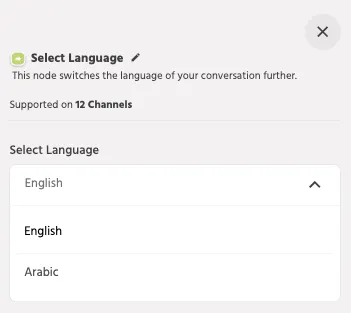
After this node, all subsequent nodes/paths will display in the chosen language, and the NLP engine will use this language for responses.
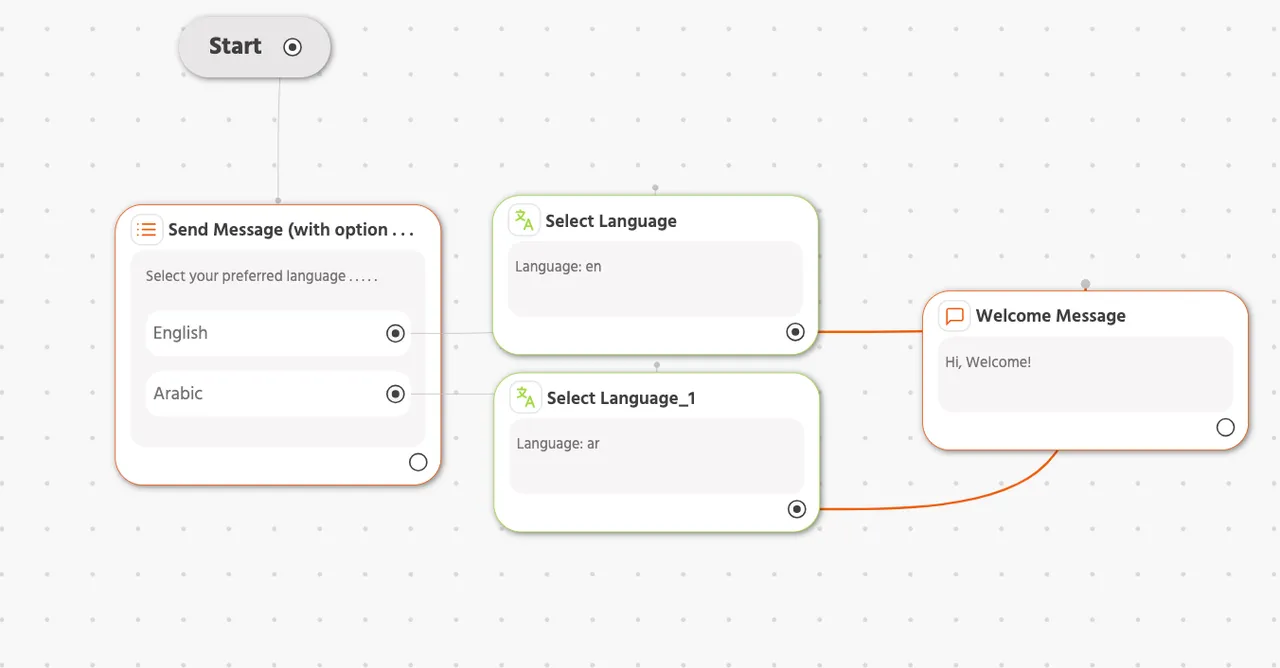
Default Language:
The default language is the initial display language for the bot, typically English, and serves as a fallback.
Changing the Default Language:
Toggle the radio button for the desired language. There are two modes:
Associate existing FAQs with the new default language and transfer missing strings.
Keep FAQs and strings unchanged.
Notes: This process effectively migrates to a new default language, ideal for initial localization setups.
Ensure all necessary strings are updated for the default language to prevent users from seeing placeholders.
Additional Localization Insights:
Business plan users can categorize Stopwords and Synonyms by language for appropriate application.
Entities remain language-agnostic. Manage them by including multiple values per entity or creating language-specific entities linked to FAQs.
CSV uploads for FAQs now support a language column with ISO639-1 language codes.
The Training workflow allows language specification, with some exceptions for close matches and search results.
Best Practices for Multilingual Bots:
Language Accessibility:
Ensure users can easily access language options. Use the Select Language node or present upfront choices.
Multilingual Messaging: Include instructions for changing languages in all supported languages, along with generic greetings and common FAQs.
Complete Translations: Review all strings and settings for completeness and accuracy to avoid displaying keys to users.
Avoid Special Characters: Certain characters can cause errors in localization. Exclude problematic characters from keys.
Unsupported Languages: If a language isn’t supported, select the closest equivalent or default to English for standard matching rules.
Supported Languages: Orai Robotics currently supports 52 languages, including but not limited to Arabic, Bengali, Chinese, Dutch, English, French, German, Hindi, Italian, Japanese, Korean, Portuguese, Russian, Spanish, and Vietnamese.
References:
NLP:
Enhance your bot with Orai Robotics’ advanced NLP capabilities.
Conversation Flow Modeler: Construct engaging conversation flows with ease.
Synonyms & Stopwords: Customize your bot’s understanding with tailored synonyms and stopwords.
For assistance or inquiries, please contact us at support@orairobotics.zohodesk.com.