

Orai for WooCommerce – Onboarding and Deployment
WooCommerce is a popular e-commerce platform allowing businesses to easily create and manage online stores. It is built on top of WordPress, which makes it easy to customize and extend with plugins and themes.
We’ve introduced a WooCommerce Integration for you to increase sales and grow your business by automating the tasks such as Sending Order notifications, Abandoned checkout reminders, Collecting Feedback, Re-ordering, etc.
Requirements for Integration
-
PHP version should be greater than 7.2 up to 8.2.1. For latest version – Click here
Store Setup via Onboarding Process
The WooCommerce onboarding wizard guides you through setting up your online store step-by-step. Follow the onboarding process to easily connect payment, select a theme, add products, configure shipping, and complete key setup tasks to get your store running quickly.
Create an account on Orai Platform
Step 1 : Go to https://app.orai.com/admin/woocommerce-get-started
Step 2 : Enter email address and set a password.
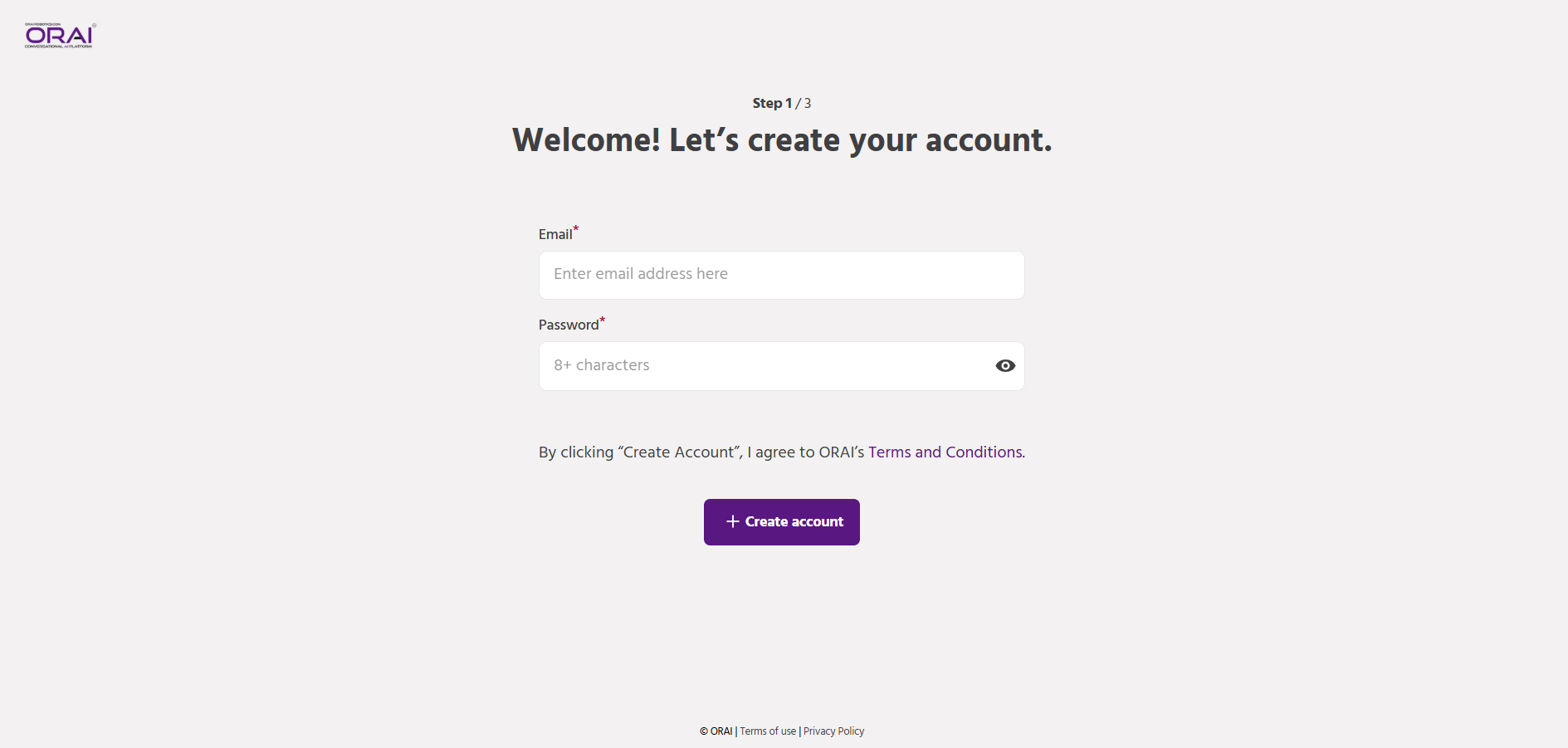
Step 3 : Click on “+Create Account”
Connect your Whatsapp API Key / Sandbox
You have two options to connect your WhatsApp with our platform.
Option 1 – Set up Whatsapp Business Account
-
Connect your number with Whatsapp business APIs to interact with your customers for customer support, to send promotional campaigns, connect your own eCommerce store to automate transactional notifications and much more.
-
Enter the API key of Whatsapp business account to complete the setup.
-
Click on “Continue” to proceed.
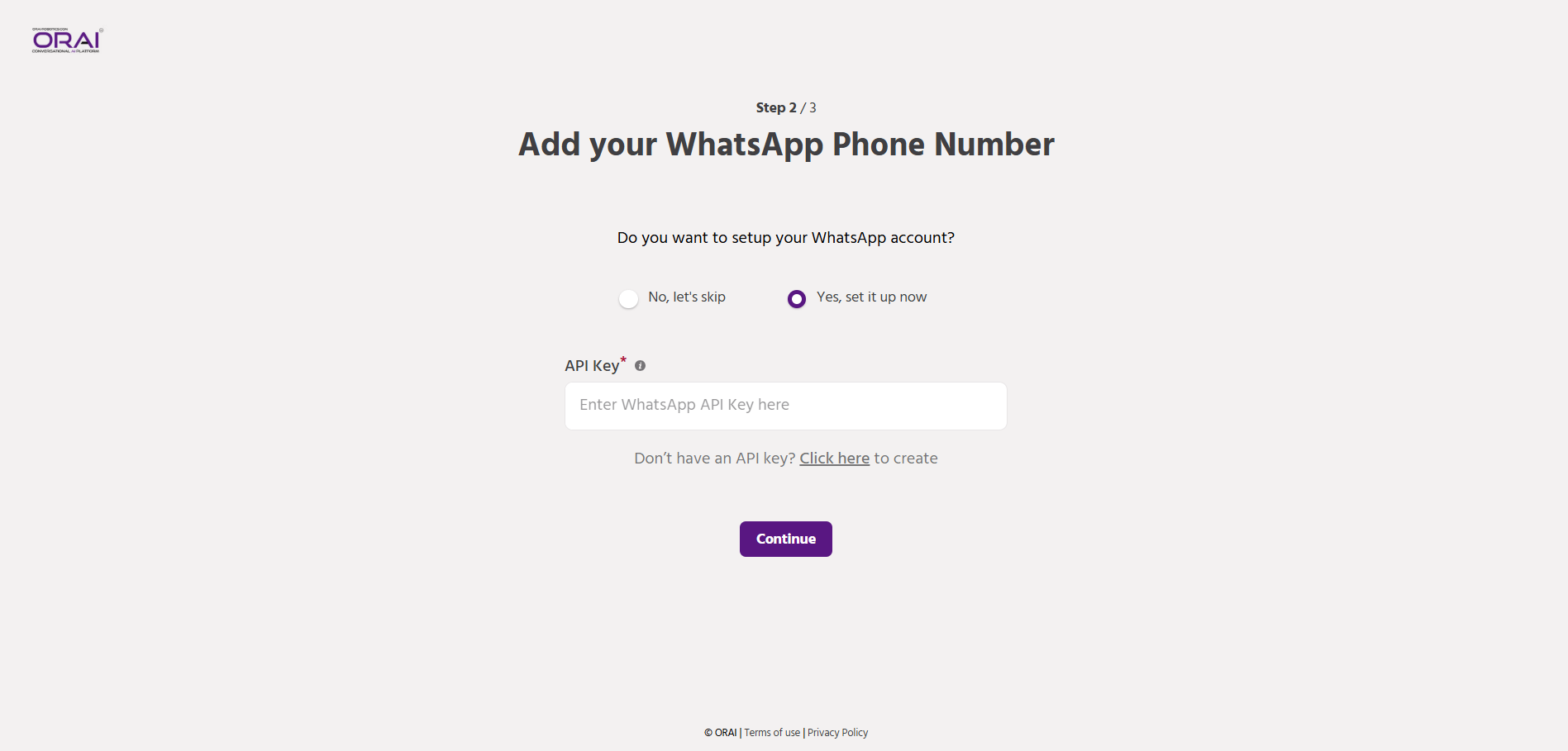
Option 2 – Connect to Orai’s Sandbox Mode
-
In case you are not ready to connect your own number right away, you can connect to the sandbox mode (test mode) to experience Orai’s features and functionalities without the hassle of connecting your number first.
-
Simply, add your personal Whatsapp number to enable the Sandbox trial mode.
-
Click on “Continue” to proceed.
-
Once the sandbox mode is activated for you, you will get an automated message on Whatsapp (on the number connected to Sandbox), where you need to tap on “Get Started” to explore campaign and broadcast templates and many more.
Setup your Woocommerce Store
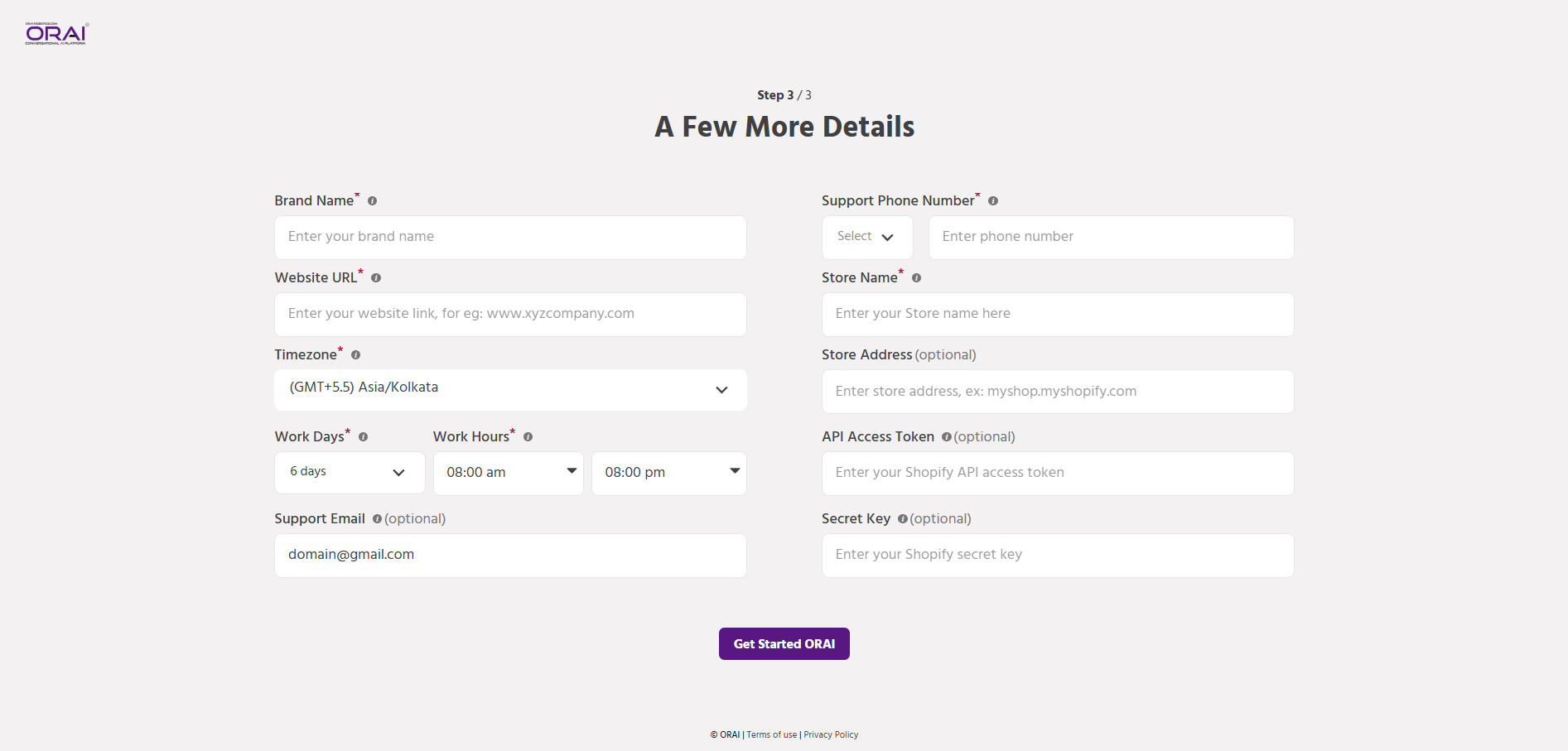
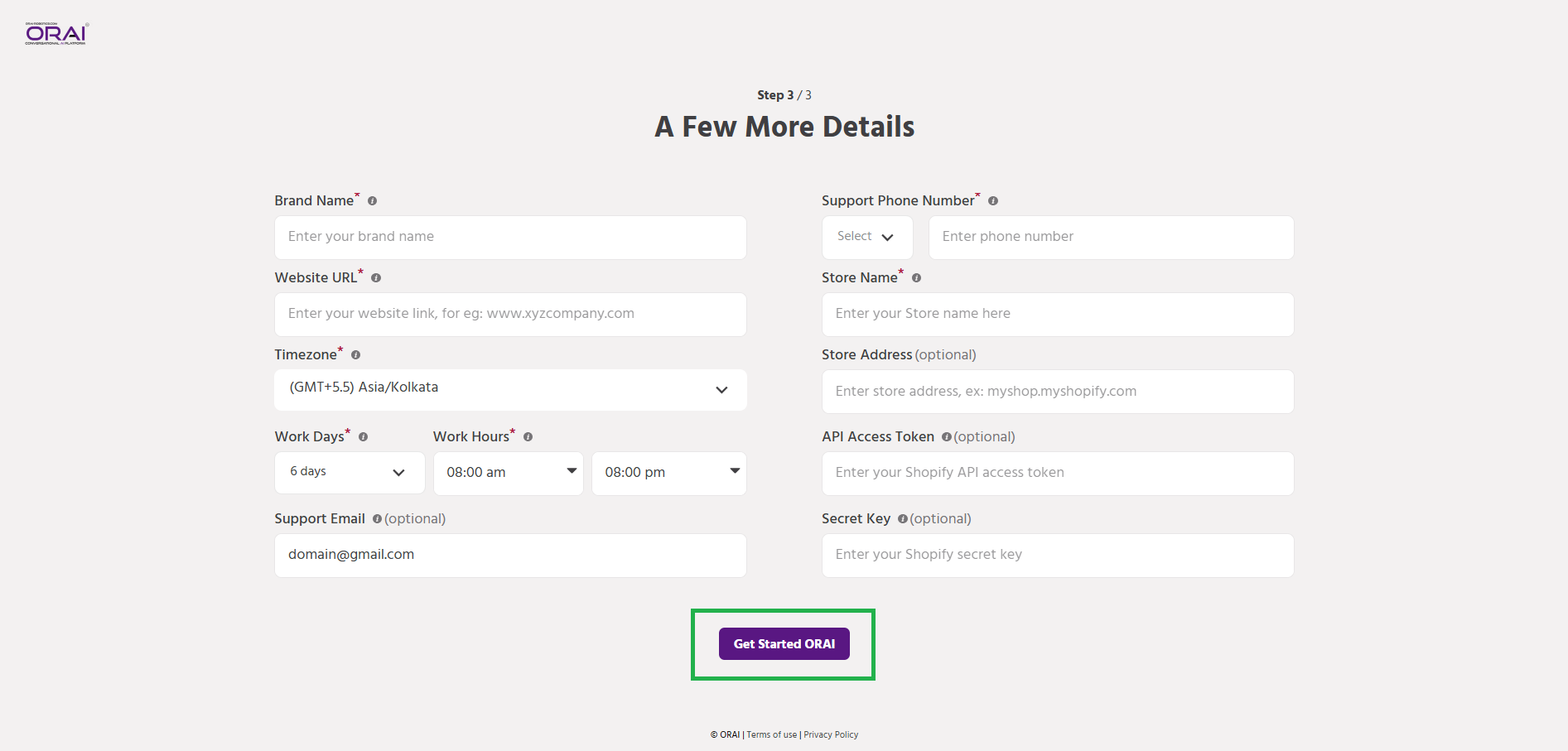
To set up your WooCommerce Store, complete the necessary fields. We have provided descriptions for each field for your convenience.
Please note – In order to auto sync your products and collections to Whatsapp via Orai, you will need to add the Store address, Consumer key and Consumer secret to integrate your Woocommerce account with Orai. Product sync will take up to 1-2 hours after completing the Three steps of onboarding.
-
Brand name : Add your brand name that will be visible to your users.
-
Timezone : Add the timezone to setup your bot
-
Work Days : Add your working days and working hours to set up the chatbot’s availability.
-
Support Email and Phone Number : Add the support email address and phone number to communicate with your business.
-
Store Name : Add your Woocommerce store name.
-
Store Address – Add your Woocommerce store address to integrate your Woocommerce account with Orai.
-
For example: https://shop.theoraistore.com/
-
Everything before wp-admin in the url needed to be added
-
Please make sure to add “/” (slash) at the end of the url
-
-
Consumer Key *–
-
Add the Consumer key generated on Woocommerce admin, after plugin installation.
-
To learn how to generate Consumer Key, go to Download Orai Plugin.
-
This field is optional. You can also connect your Woocommerce account after registration from Integrations -> Woocommerce -> Add account.
-
-
Consumer Secret* –
-
Add the Consumer key generated on Woocommerce admin, after plugin installation.
-
To learn how to generate Consumer Key, go to Download Orai Plugin.
-
This field is optional. You can also connect your Woocommerce account after registration from Integrations -> Woocommerce -> Add account.
-
Download Orai Plugin
Step 1 : Download Orai plugin from Store Setup page of Onboarding in Setup your Woocommerce Store above.
Step 2 : Click on the “Download” button on the top right to download the zip file.
Add New Plugin
Step 1 : Login to your Woocommerce wordpress admin.
Step 2 : Click on to the Plugin tab on the left panel.
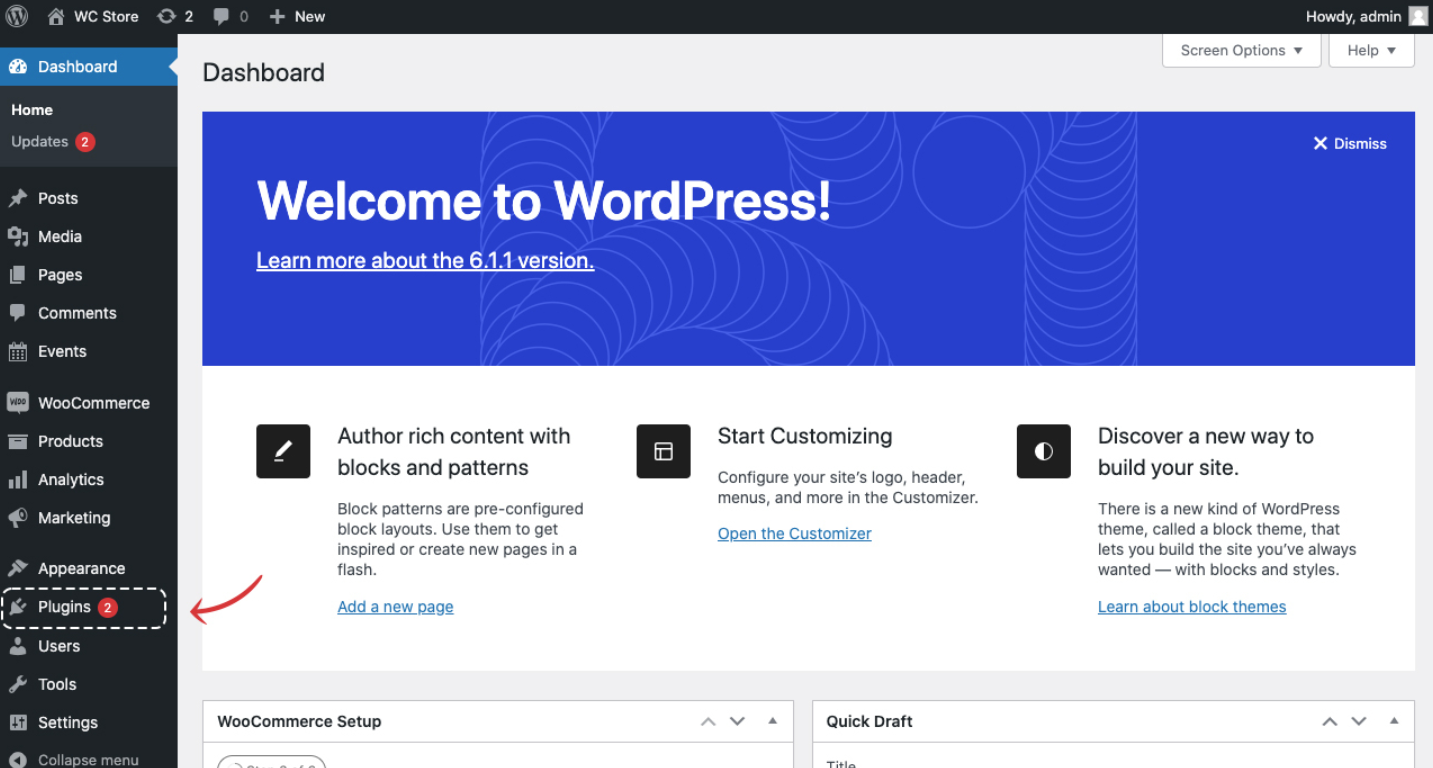
Step 3 : Click on the “Add New” button next to the Plugin heading on the top left of the page.

Upload the Zip file & Activate the plugin
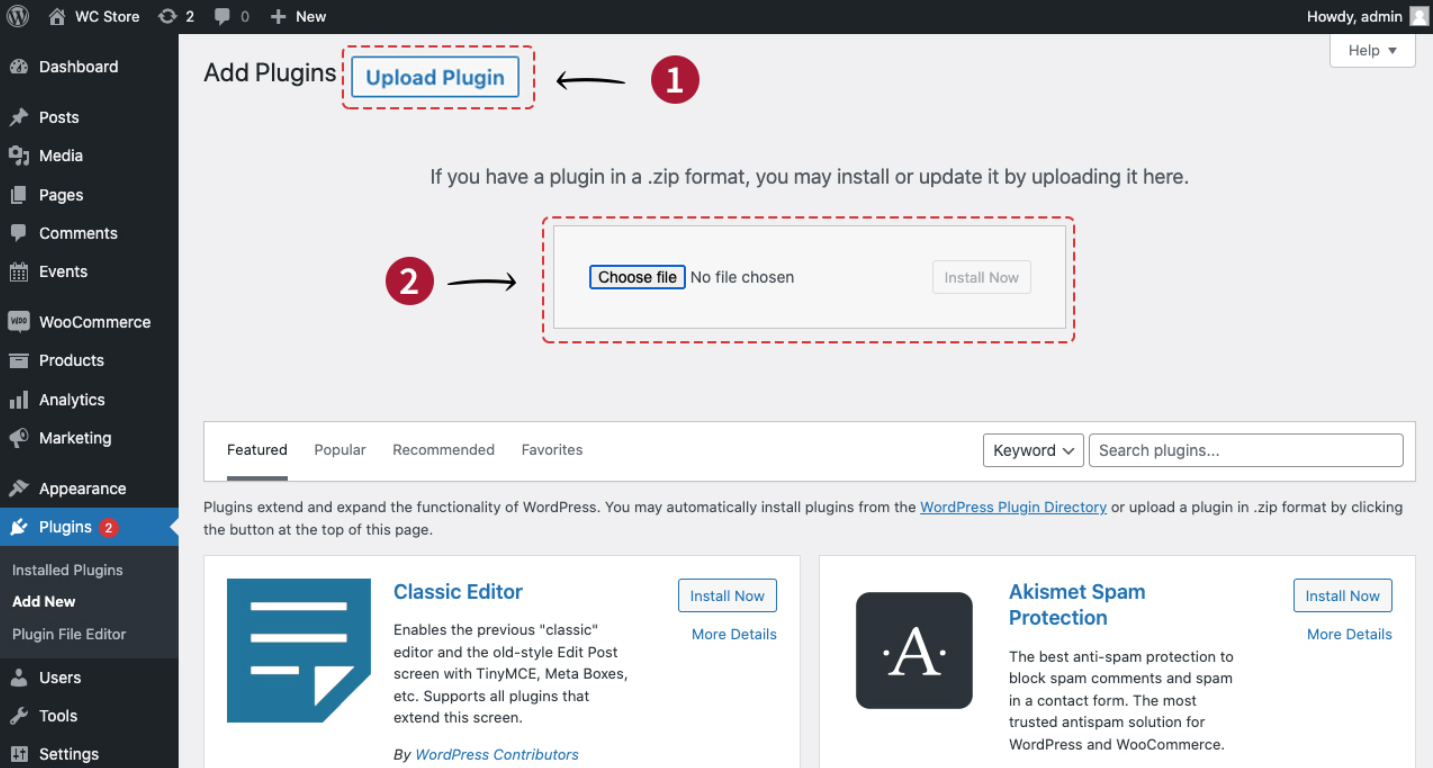
Step 1 : Click on the “Upload Plugin” button on the top left next to Add Plugins heading which will open a section to upload a file.
Step 2 : Upload the Orai plugin zip file and click on the “Install now” button. It will open a section.
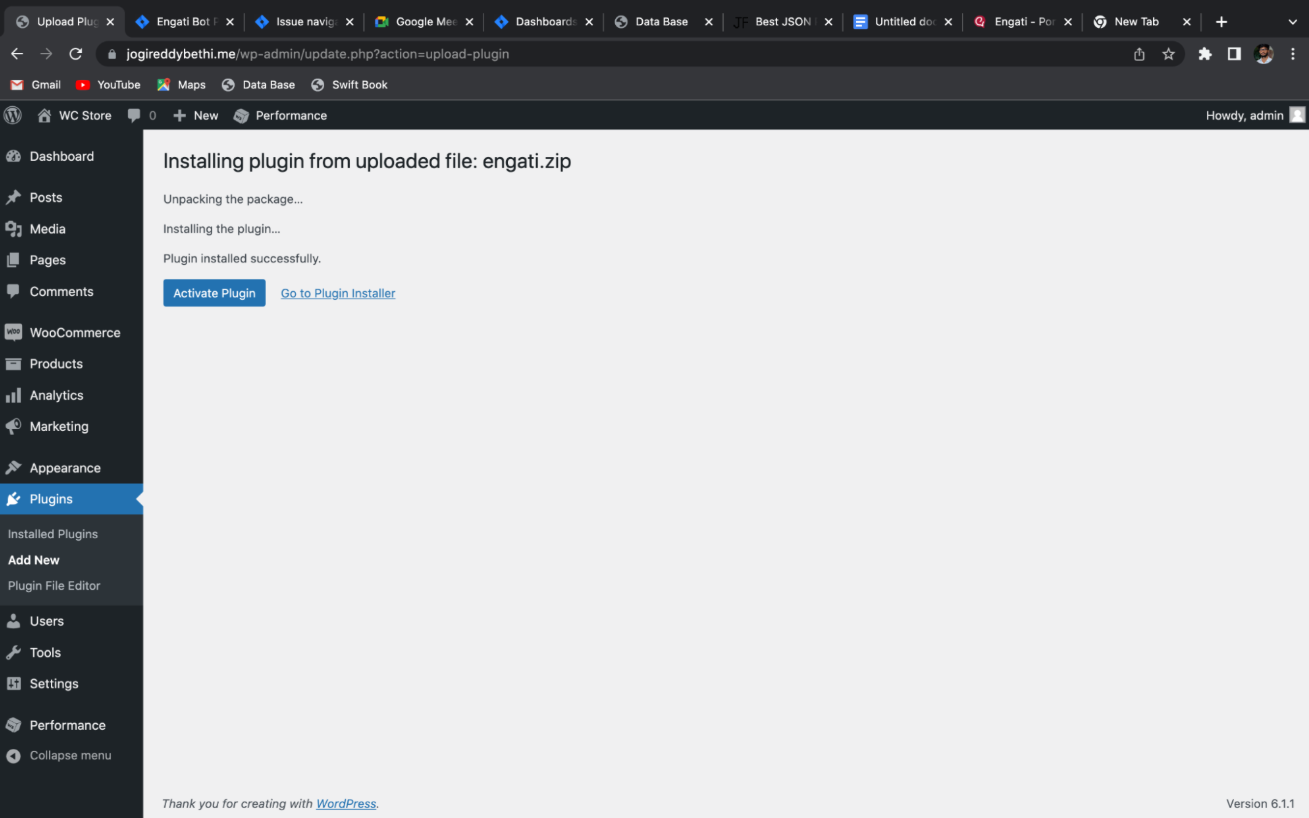
Step 3 : Click on the “Activate plugin” button after upload.
Generate Rest API Key
To create an API key, follow the steps outlined below.
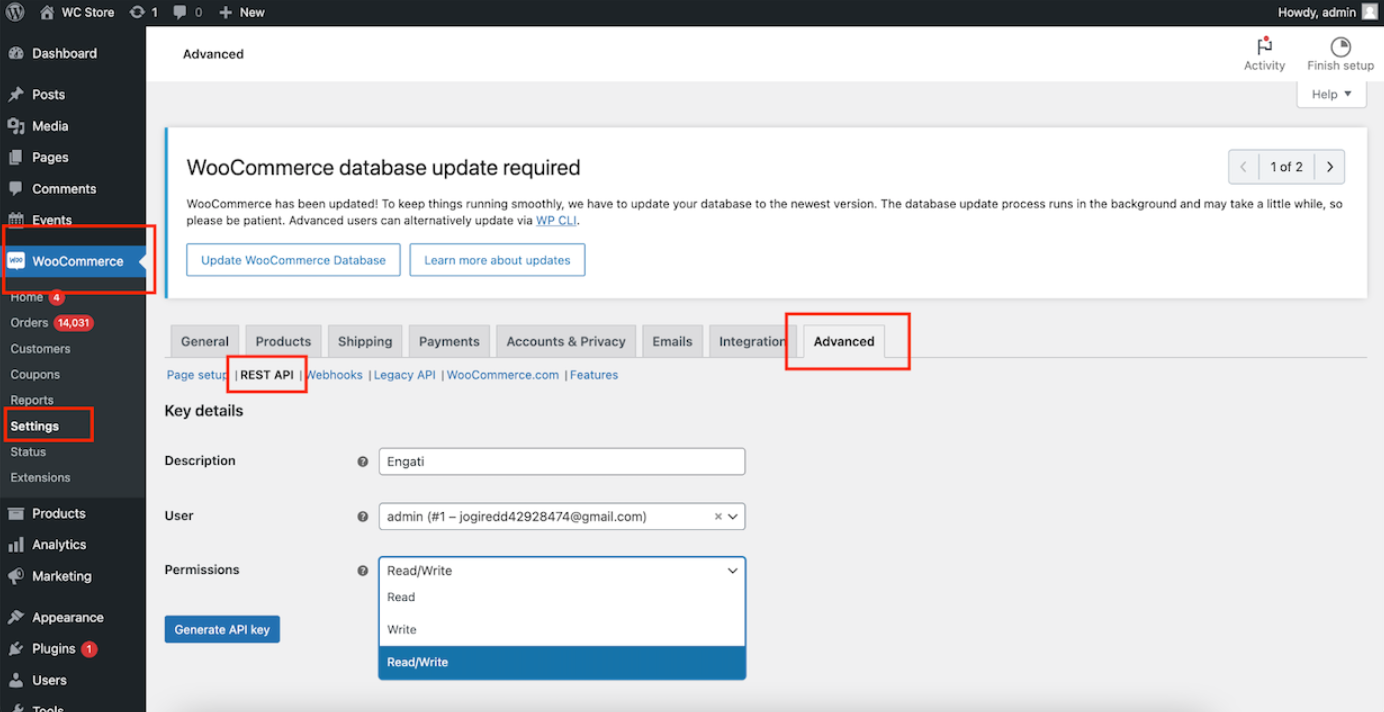
Step 1 : Go to Woocommerce > Settings
Step 2 : Under Settings, go to Advanced tab > Rest API
Step 3 : Click on the “Add Key” button where you need to enter key details.
Step 4 : It has three fields – Description, User and Permissions
-
Description : Mention “Orai”
-
User : No change needed here
-
Permissions : Select “Read/Write”
-
Click on Generate API Key
Generate Consumer Key and Customer Secret key
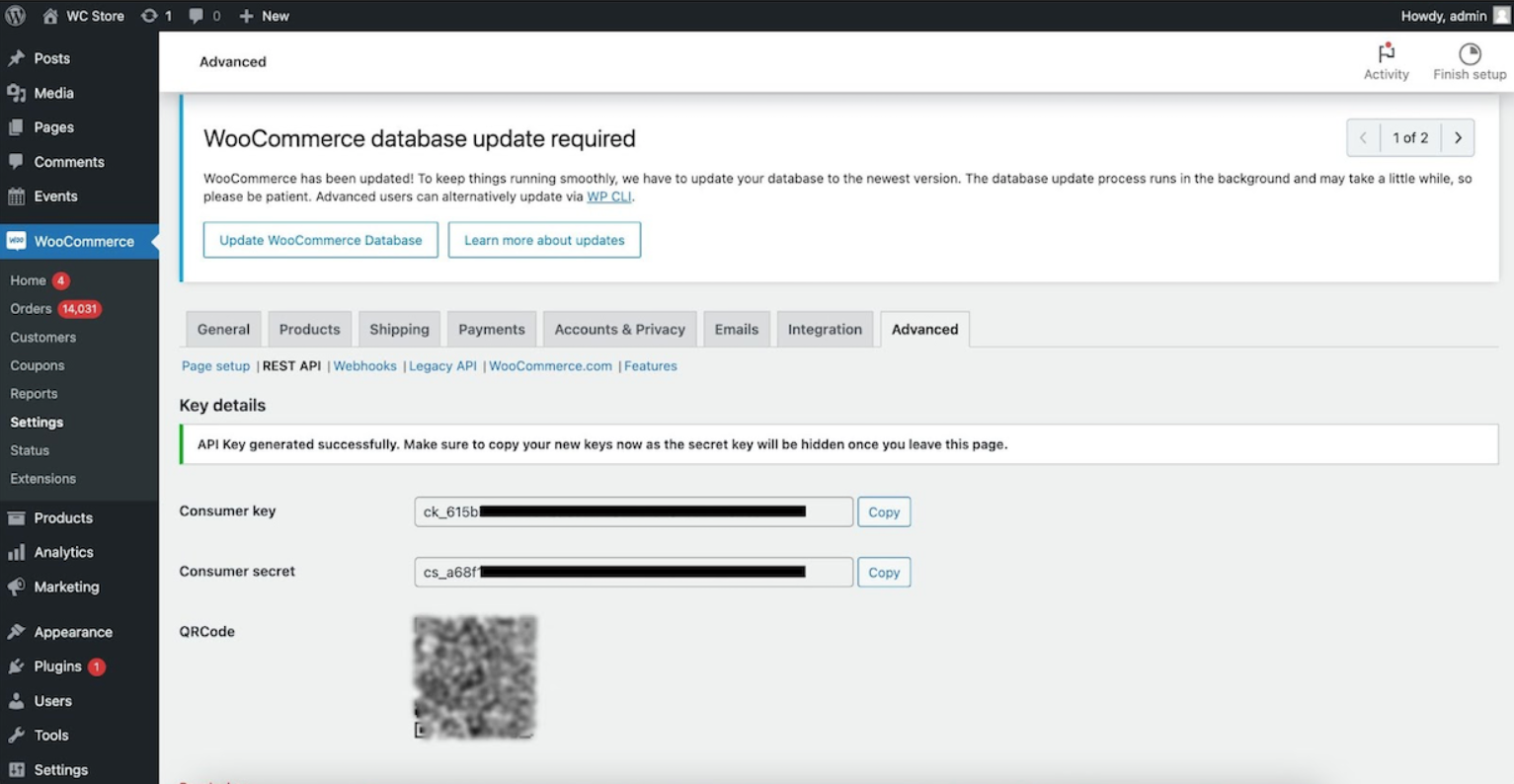
Step 1 : Copy the Consumer Key and add it on the Orai platform, follow Setup your Woocommerce Store
Step 2 : Similarly copy and add the Consumer secret on Orai.
Step 3 : Click on “Get Started”. Ensure all other fields are filled up on the Store setup page.
Manual Store Setup post Onboarding
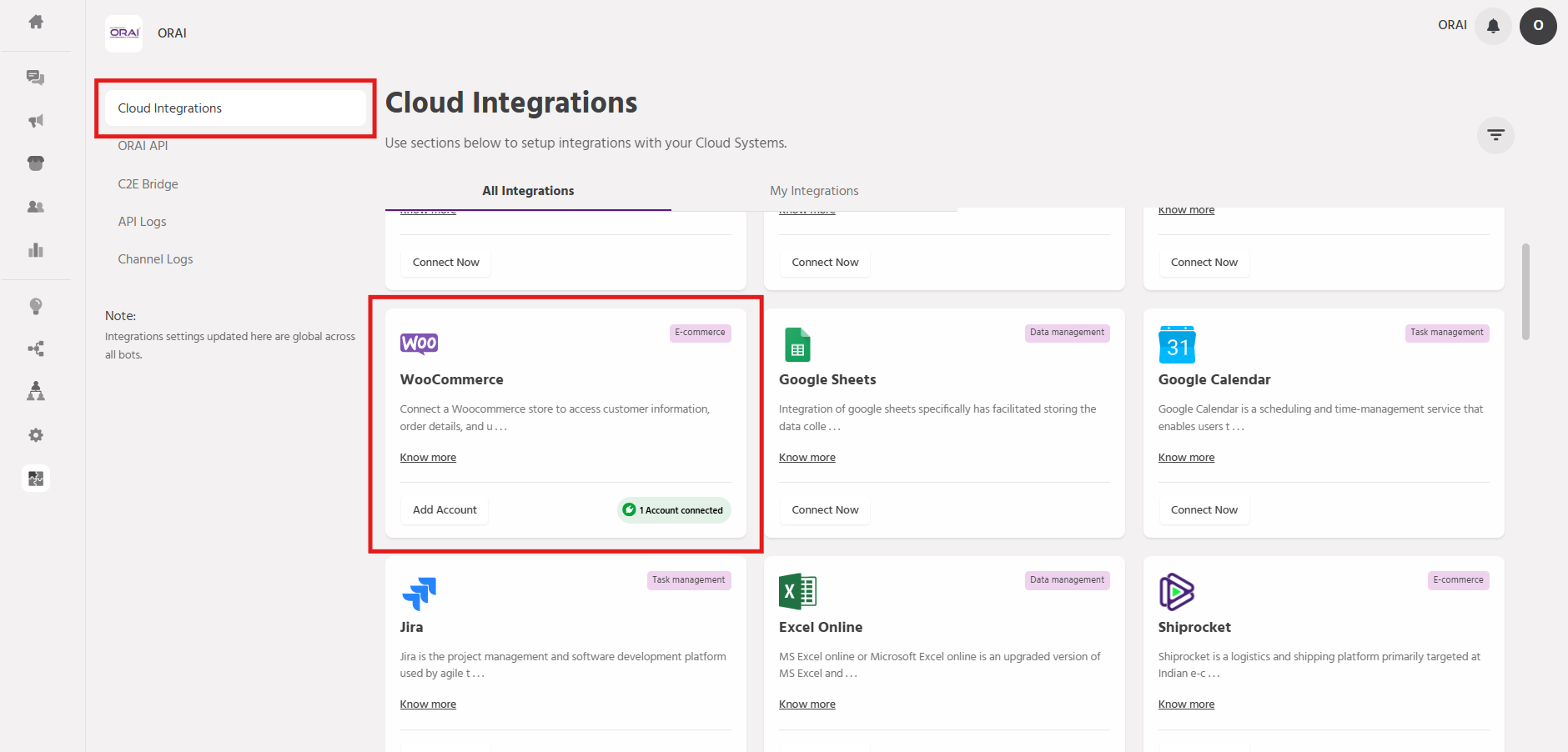
Step 1 : Navigate to Orai Bot > Integration > Cloud Integrations > WooCommerce and click on “Connect”.
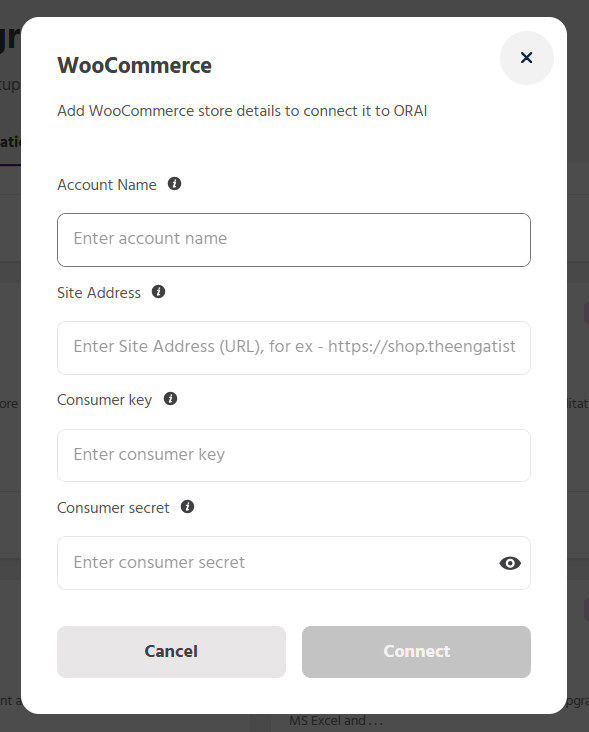
Step 2 : Enter the fields available and we have provided descriptions for each field for your convenience.
-
Account name : Can be the brand name (no restriction here)
-
Site address : Add WordPress domain – For example, in the above WordPress admin, the site address is https://shop.theoraistore.com/ – Everything before /wp-admin in the url needed to be added – Please make sure to add “/” (slash) at the end of the url
-
Consumer key : add the key obtained from the customer
-
Consumer Secret : add the secret obtained from the customer
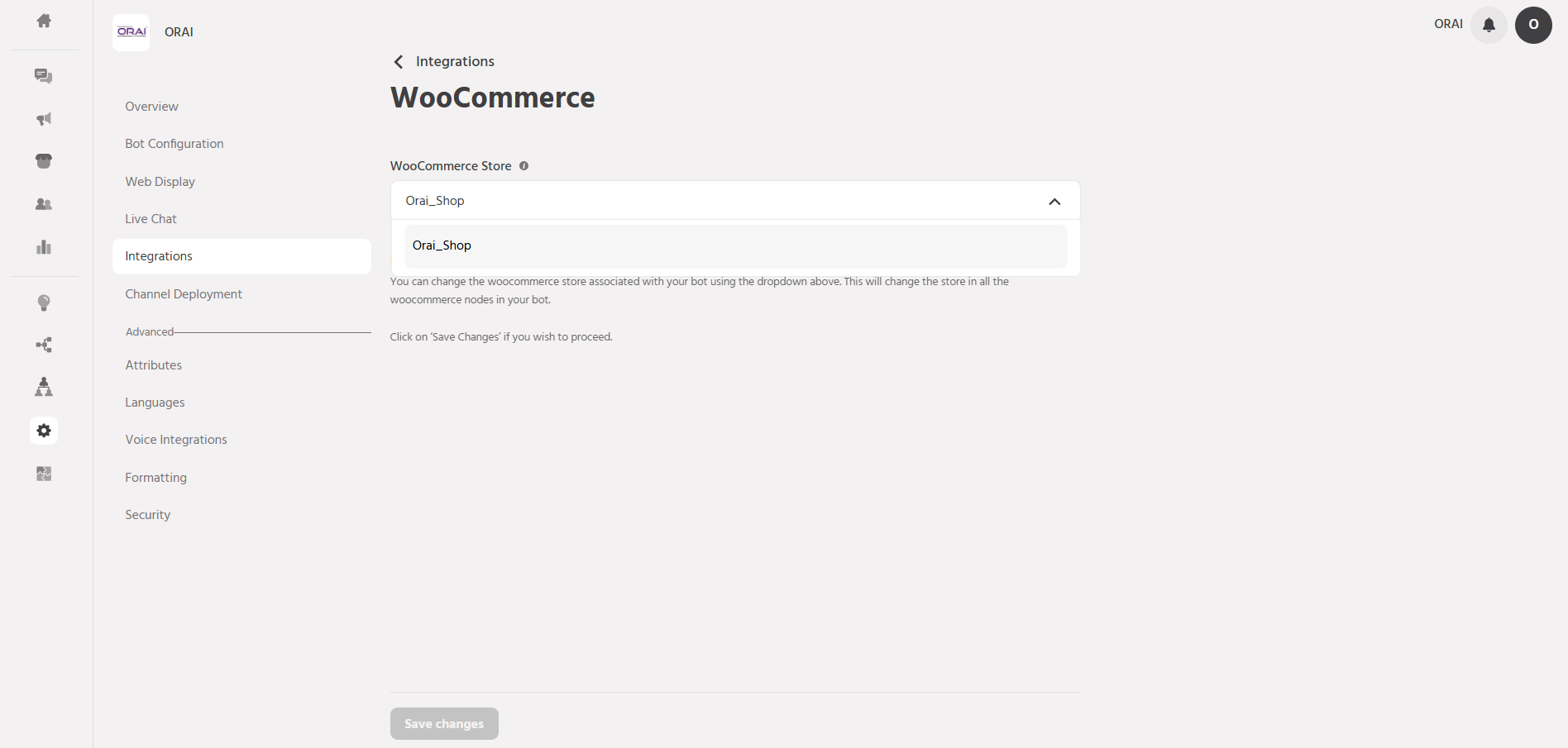
Step 3 : Navigate to Configure > Integrations > WooCommerce.
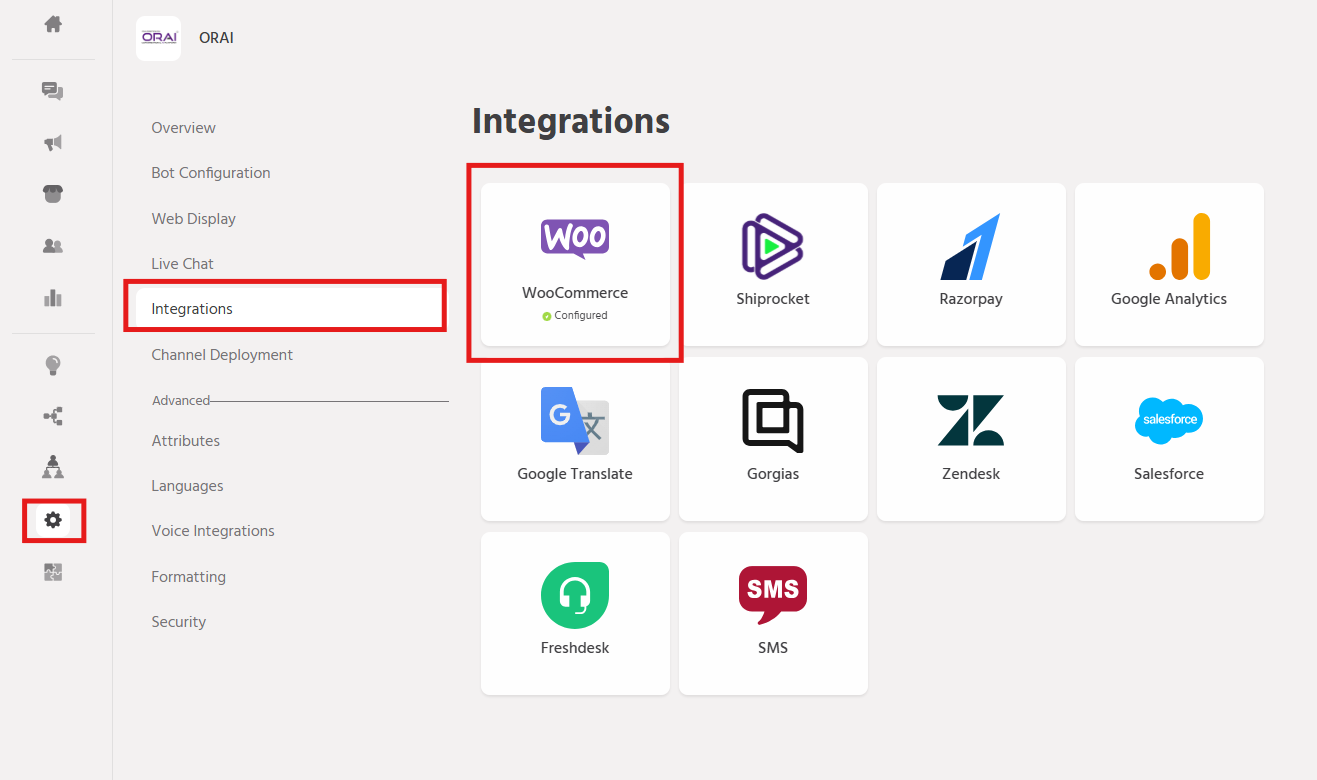
Step 4 : From the drop-down menu select your WooCommerce account.
Here’s how you can integrate WooCommerce with our platform. It establishes a basic store framework while offering flexibility for future customization as your business expands. With WooCommerce’s straightforward setup process, your store can be ready to accept orders with just a few simple clicks.
If you face any issues or queries please reach out to us at support@orairobotics.zohodesk.com