

Monthly Report
Index
| sr. no | Chapter |
| 1 | ORAI Monthly Leads |
| 1.1 | Login page |
| 1.2 | Home Page |
| 1.3 | Bot Overview |
| 1.4 | Analytics |
| 1.5 | Bot Engagement |
| 1.5.1 | Monthly details |
| 1.5.2 | Filter |
| 1.6 | Bot Response |
| 1.6.1 | Monthly Details |
| 1.6.2 | Filter |
| 1.7 | User Retention Analysis |
| 2 | User Conversation Data |
| 2.1 | User Conversation |
| 2.2 | Filter |
List of Figures
| Sr.no. | Name |
| 1.1 | Login page |
| 1.2 | Home Page |
| 1.3 | Overview Section |
| 1.4 | Analytics Screen |
| 1.5 | Bot Engagement |
| 1.5.1 | Bot Engagement Filter |
| 1.5.2 | Graphical Representation of Data after filter |
| 1.6. | Bot response |
| 1.6.1 | Bot response filter |
| 1.6.2 | Graphical representation of data
after filter |
| 1.7 | User Retention Analysis |
| 2.1 | User Conversation Screen |
| 2.2.1 | Filter Option |
| 2.2.2 | Custom Filter |
| 2.2.3 | Apply Filter Condition |
| 2.2.4 | Select “ is equal to” |
| 2.2.5 | Select the channel as required |
| 2.2.6 | Add New condition |
| 2.2.7 | Select user.joined_on |
| 2.2.8 | Select After date |
| 2.2.9 | Select the desired date |
| 2.2.10 | Add New conditions |
| 2.2.11 | Select user.joined_on |
| 2.2.12 | Select Before date |
| 2.2.13 | Select the date from custom |
| 2.2.14 | Save custom filter |
| 2.2.15 | Apply filter |
| 2.2.16 | Total number of user |
Chapter – 1
Orai Monthly Leads
Introduction
The purpose of this document is to outline the step-by-step process for logging into the ORAI Platform [xbotic]. The login process is simple and straightforward, and it will give you access to the features and functions available on the platform.
The step-by-step procedure for the logging process is as follows:
1.1 Login Page
- Go to the xbotic website https://xbotic.cbots.live/admin/login you want to log in to.
- You will be redirected to the “Sign In” or “Login“
- Enter Your ‘Login Credentials’.
- Enter your username or email address in the designated
- Enter your password in the designated
- Click on the “Log In“
- If your login information is correct, you should now be logged in and taken to the main page of the xbotic portal.
- Refer to below image.
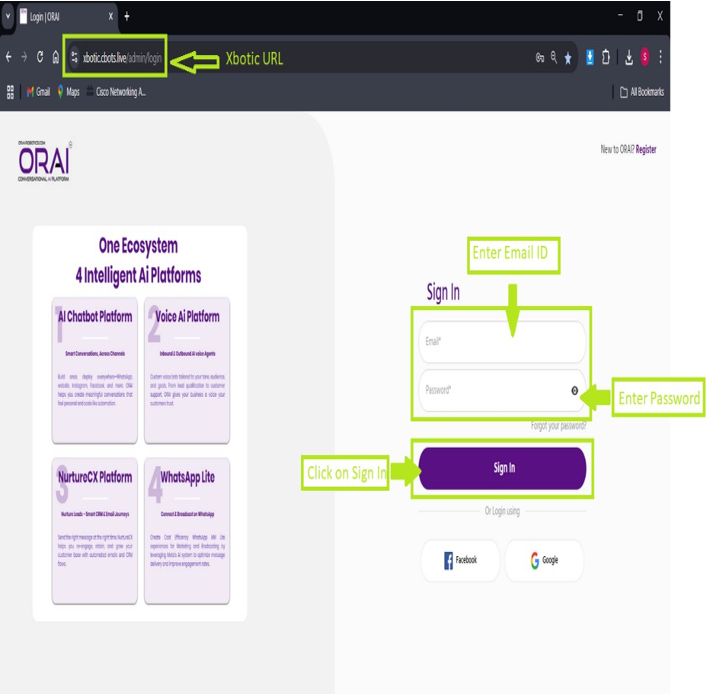
Fig. 1.1 Login Screen
1.2 Home Page
- You have now arrived at the “Home Page”.
- Your chatbot card is now
- Click on the bot card to proceed
- Refer to below image.
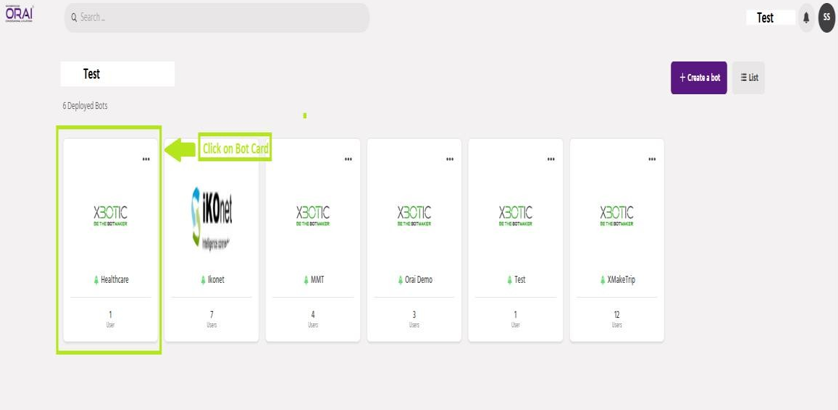
Fig. 1.2 Home Screen
1.3 Bot Overview
- You will be redirected to the “Overview page”.
- Now navigate to the ‘Analytics’ on the 2nd last option on left hand.
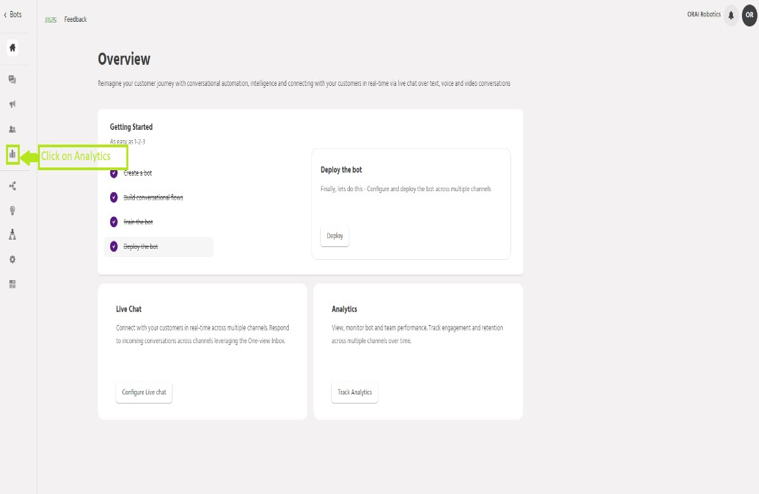
Fig. 1.3 Bot Overview
1.4 Analytics
- Analytics Screen Will Pop
- Now Select Bot Engagement
- Refer to Below image.
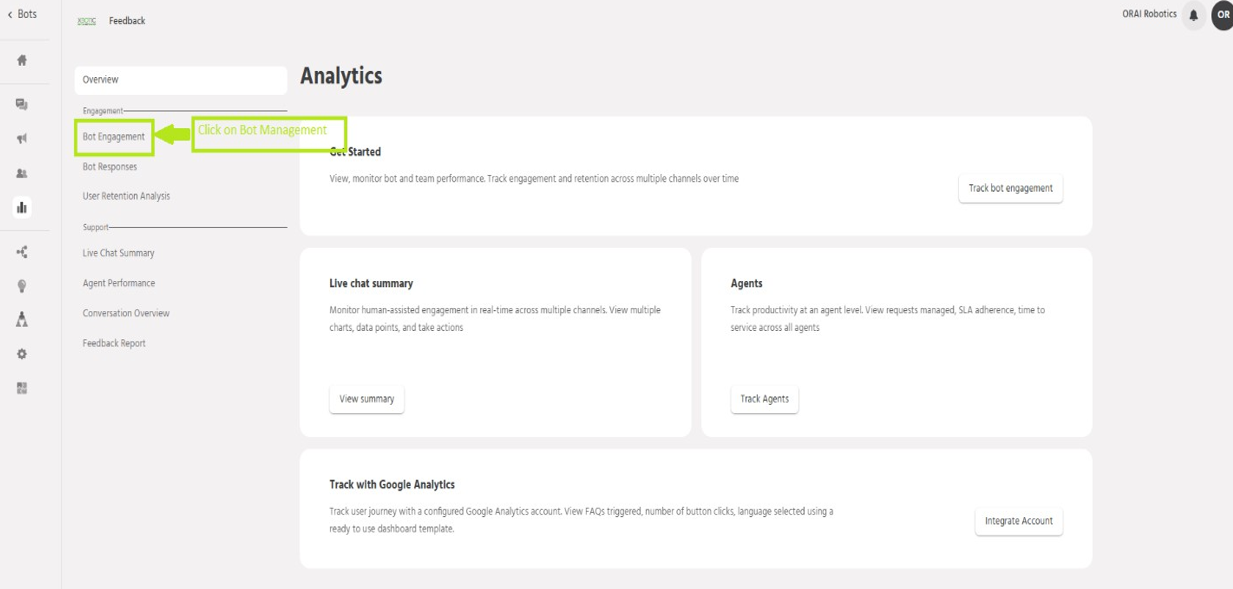
Fig. 1.4 Analytics
1.5 Bot Engagement
- Here you will find out “Active users”, “Total interactions”, and “Average interaction per user”.
- There Will be a graph that will represent the comparison between, “New users” vs “Active user”.
- At the bottom of the page you will also find the most frequent messages and total button actions performed by the user.
- Inside the button action area you will also find the total number of clicks made in graphical representation manner.

Fig. 1.5 Bot Engagement
1.5.1 Monthly Detail Fetching
- If you want to fetch details of the total users during the specific days, you can use the filter command in the right Corner.
- Now click on the filter option in the right
- You will find the timeline filter
- Here, you can specify a schedule where both the ‘Starting Point’ and the ‘Ending Point’ require the information from the bot engagement.
- Now provide inputs for ‘from date’ and ‘to date’.
- Refer to the below image.
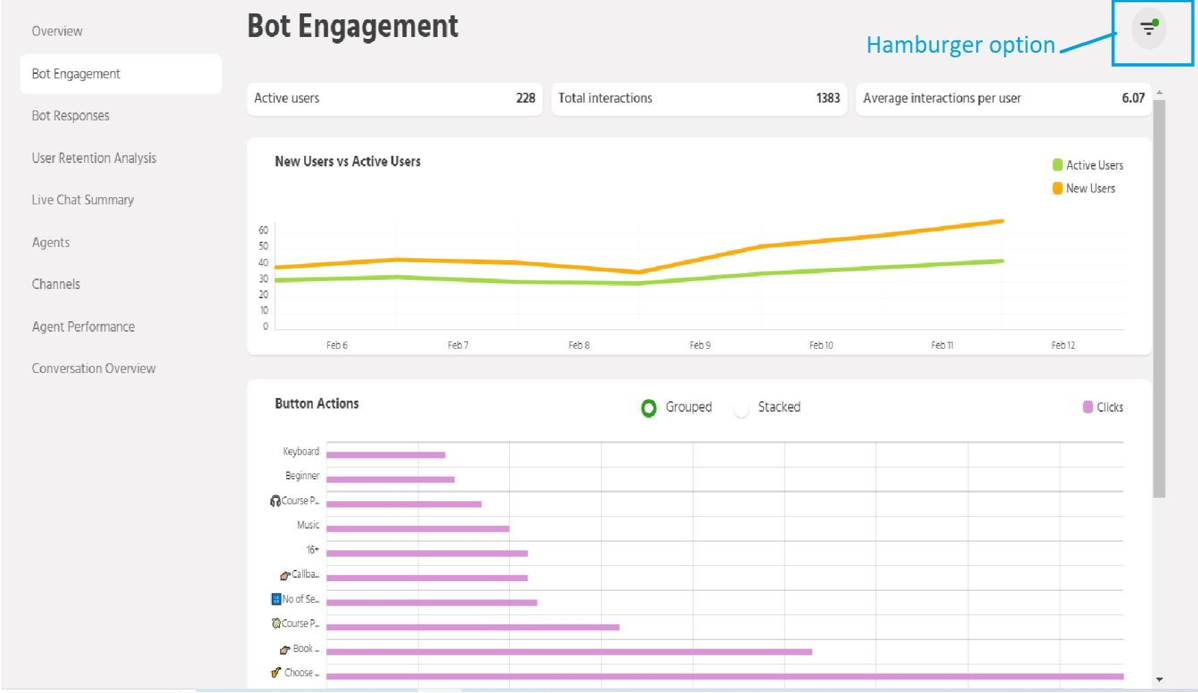
Fig. 1.5.1 Bot Engagment Filter
1.5.2 Fliter
Demonstration :
Suppose I want data for January month.
- I will click on “From Date”, then I will select month as January and Year as 2023,
- Now I will scroll down and will select dates, suppose Starting Date: 01/01/2023.
- Now select for “To Date”
- Now click on
- Here you will get the filtered data of bot engagement.
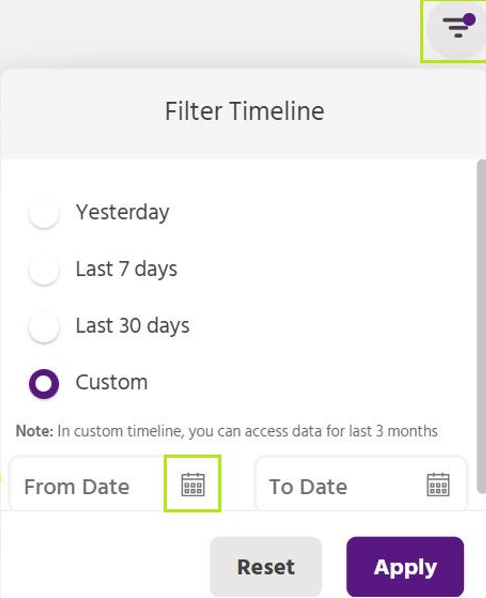
Fig. 1.5.2 Filter
Click on the filter option and select ‘From’.

- Scroll down to choose a certain date range, From date, and To
- Click on apply to proceed
- You will now notice the graphical representation of the data as per the requirement.
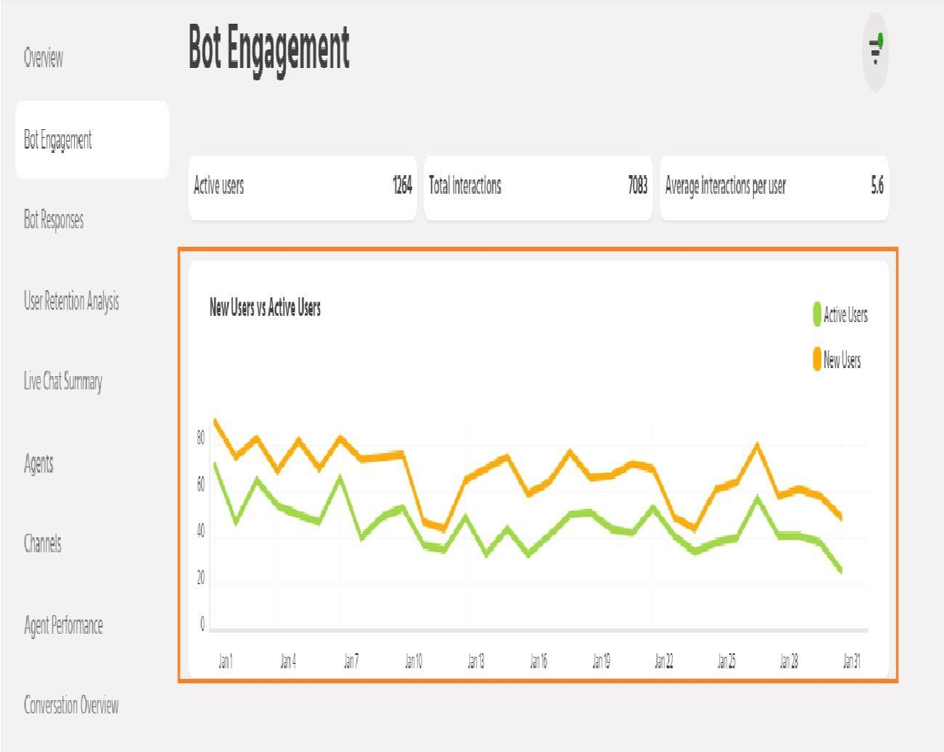
Fig 1.5.2 Graphical representation of data after applying the filter.
1.6 Bot Response
- Here you will find out “Bot Interaction”, “Total Questions Asked”, “Total Questions Answered”, and “Total Questions Unanswered”.
- There Will be a graph that will represent the comparison between, “Answered” vs “Unanswered”.
- You will get an Idea about the Gap between “Answered” and “Unanswered”
- (Refer To the below image)
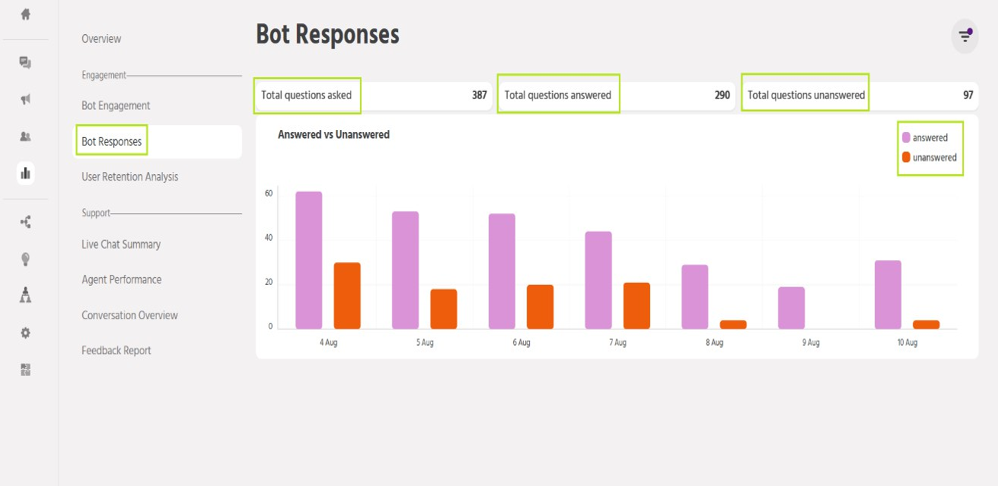
Fig. 1.6 Bot Response
1.6.1 Monthly Details
- If you want to fetch details of the total users during the specific days, you can use the filter command in the right Corner.
- Now click on the filter option in the right
- You will find the timeline filter
- Here, you can specify a schedule where both the ‘Starting Point’ and the ‘Ending Point’ require the information from the bot engagement.
- Now provide inputs for ‘From Date’ and ‘To Date’.
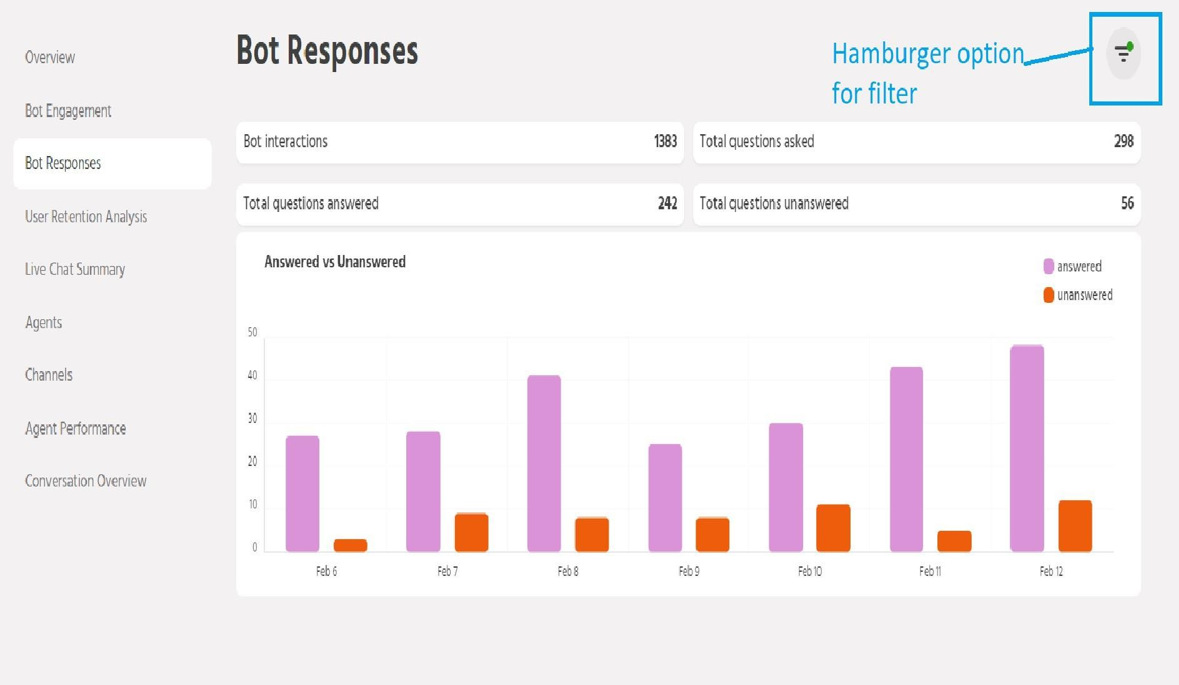
Fig 1.6.1 Bot Response Filter
1.6.2 Filter
Demonstration :
Suppose I want data for January month.
- I will click on “From Date”, then I will select month as January and Year as 2023,
- Now I will scroll down and will select dates, suppose Starting Date: 01/01/2023.
- Now select for “To Date”
- Now click on
- Here you will get the filtered data of bot engagment.
Click on the filter option and select “From Date”.
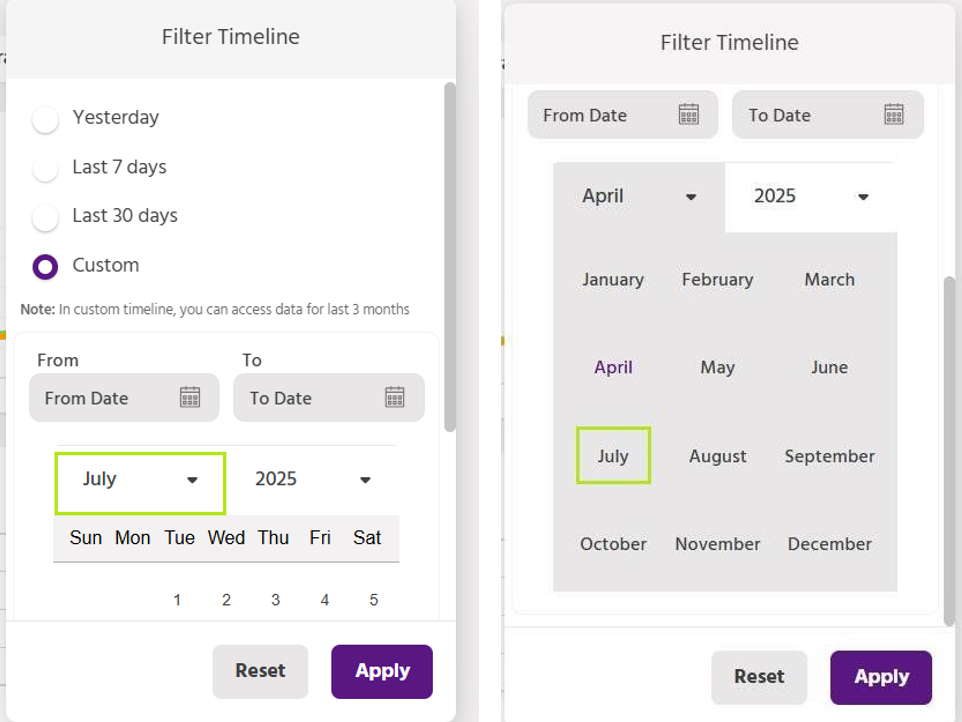
- Then Select Month from the dropdown.
- Select year if you need data for specific year.
- Scroll down to choose a certain date range, From date, and To
- Click on apply to proceed
- You will now notice the graphical representation of the data as per the requirements.
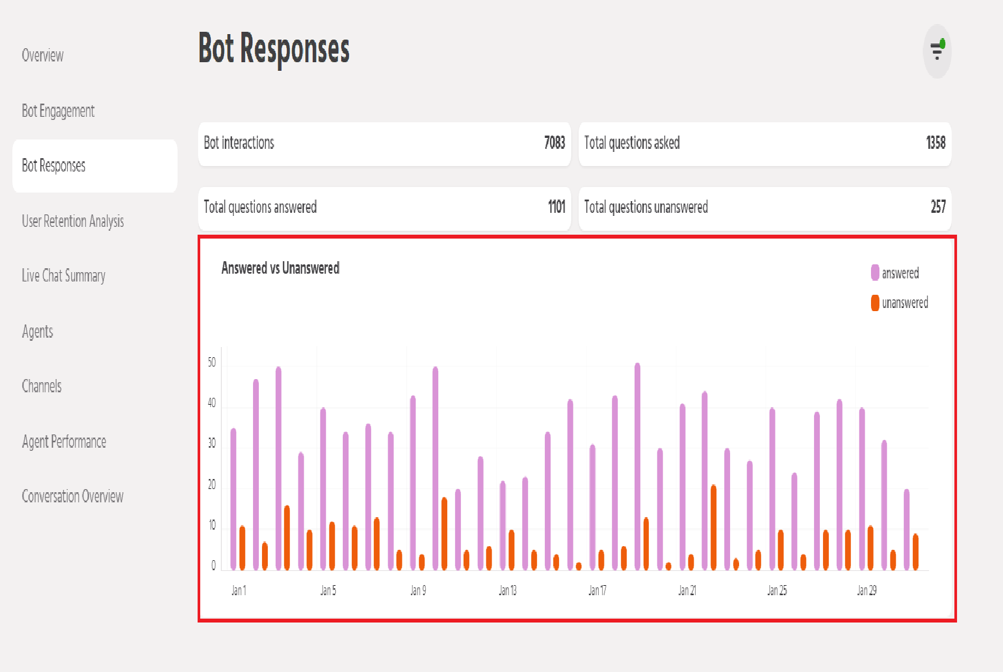
Fig 1.6.2 Graphical representation of data after applying the filter.
1.7 User Retention Analysis
- Inside the User Retention section, you will find the total number of New users who Interacted with the Bot
- Refer to the below image.
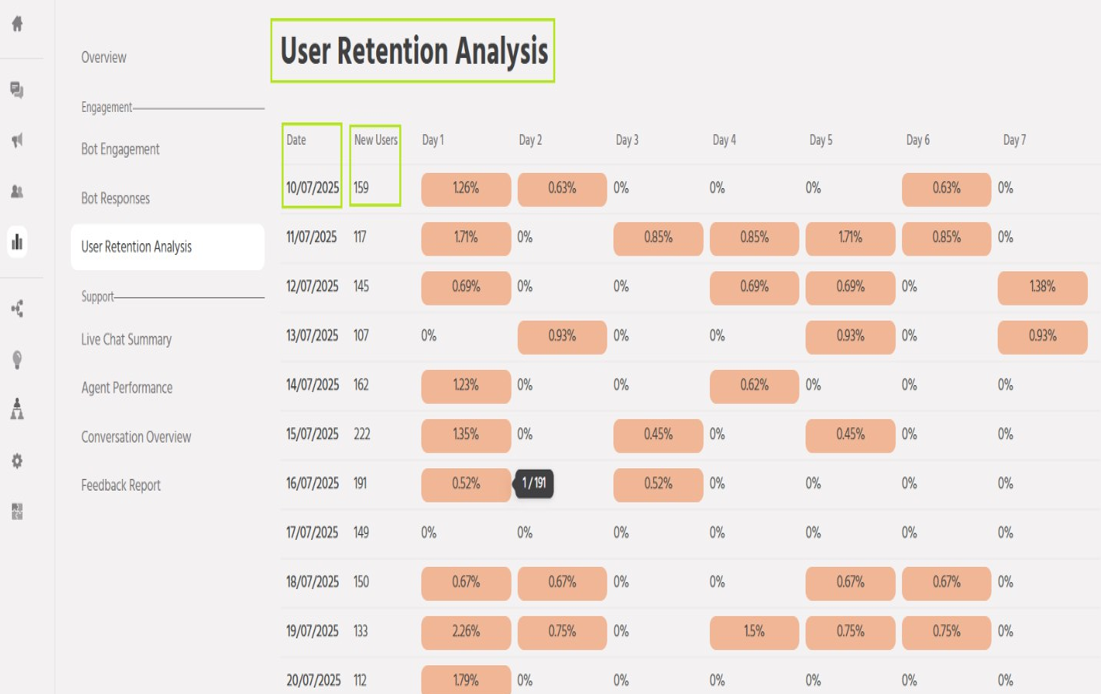
Fig 1.7 User Retention Analysis
Chapter – 2
User Conversion Data
2.1 User Conversation
- To get the User Conversation data you need to navigate to the 4th Icon from the ribbon on the left side.
- Here you will get all the user conversations who have interacted with the
- Here If you need to extract data for a specific platform Such as “Website”, “Facebook”, or “WhatsApp”,
- Then you must click on the rightmost filter option to apply the
- A User screen will open where you will find the “User list”, “Segment”, and “Export history”,
- Search will help you to find any ‘User’ from the
- At the bottom you will find the total number of users interacted till now.
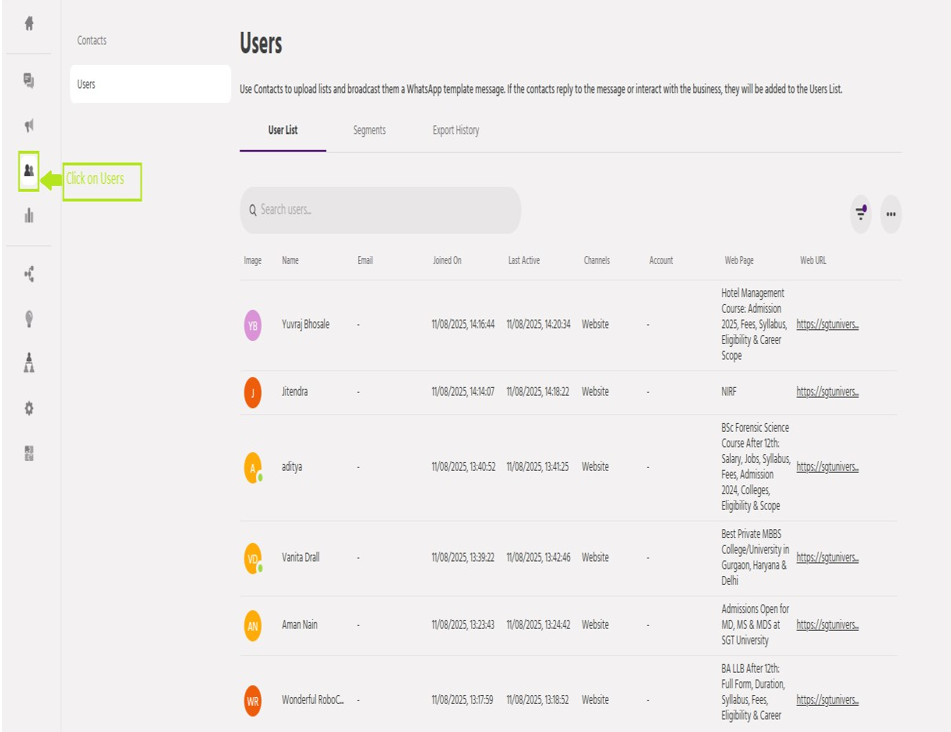
Fig 2.1: User conversation Screen
2.2 Apply Filter
- Select the custom filter after clicking on the
- You must include a variety of conditions inside a custom filter in order to collect the data you need.
- Next, select Add filter
- Now describe the conditions to obtain data that complies with the
- Please use a specific attribute connected to the customer channel as the first criterion.
- First, you must enter A1, then click on condition and then choose user.channel from the drop-down menu.
- After that, you must then select “is equal to”.
- After that please select a specific channel from the list
- For data from a website, select ‘web’, for data from WhatsApp, select ‘WhatsApp’.
- Add a second condition by adding a new one, then click on an attribute inside that attribute to define the point for which you require the data.
- joined_on must be entered inside A2.
- Now select “Before Date” (which means before any selected date how many users have joined), also select the date as per requirement.
- joined_on must be entered inside A3.
- Now select “After Date” (which means after any selected date how many users have joined), also select the date as per requirement.
- After you save the data and apply the filter, you will see the user’s information that is active for a certain period.
- Refer Below Images to follow entire procedure.
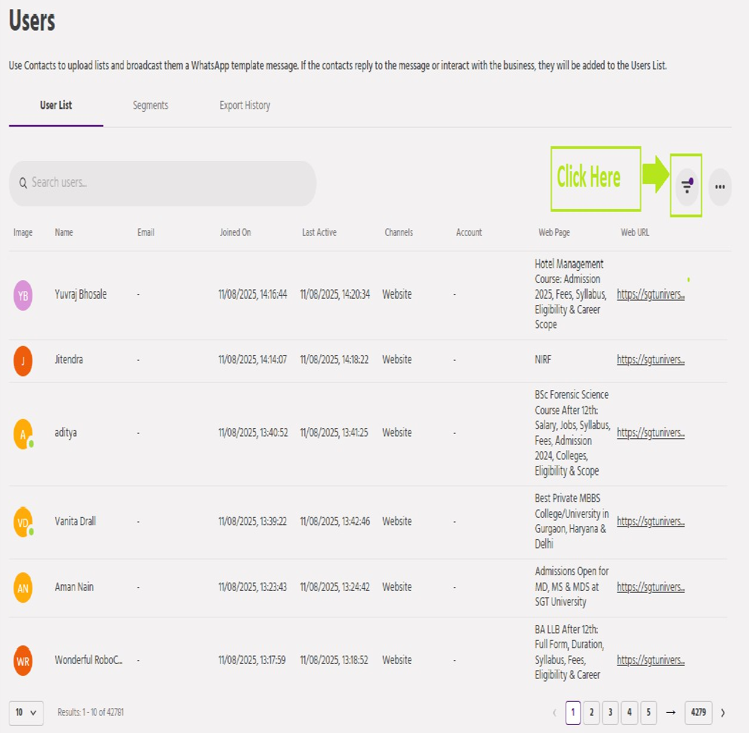
Fig. 2.2.1 Filter option
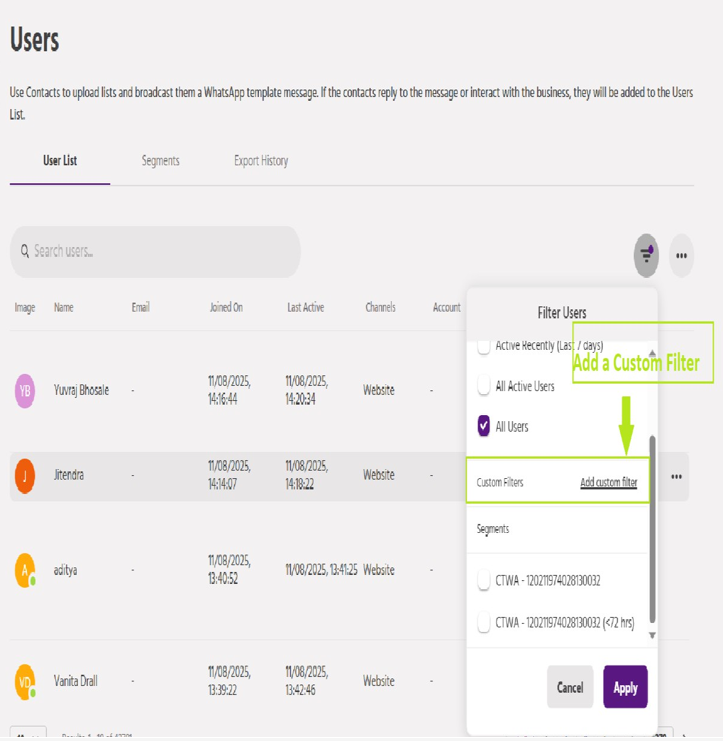
Fig. 2.2.2 Custom Filter
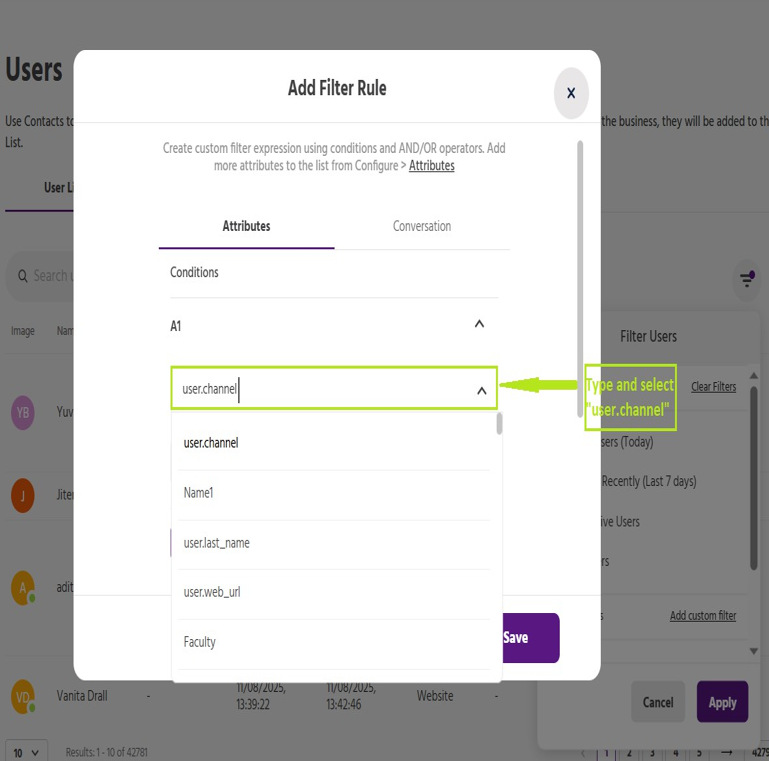
Fig. 2.2.3 Apply filter condition
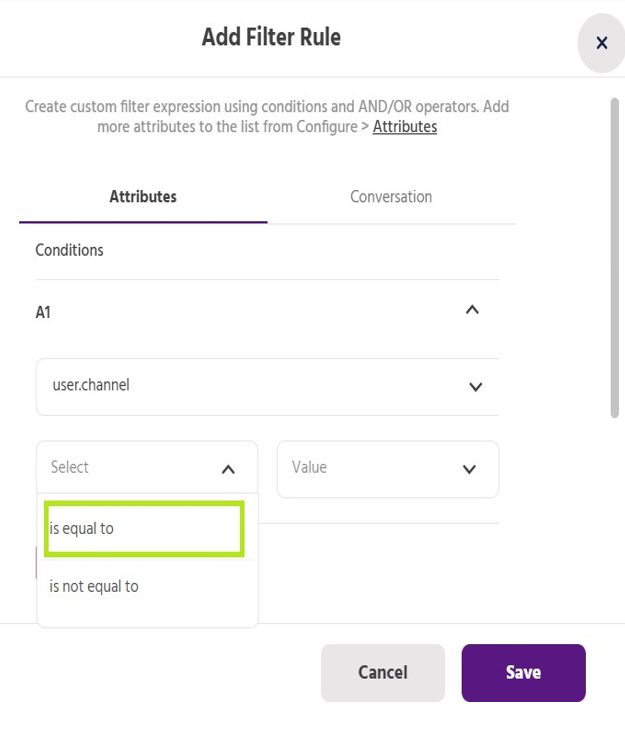
Fig. 2.2.4 Select “is equal to”
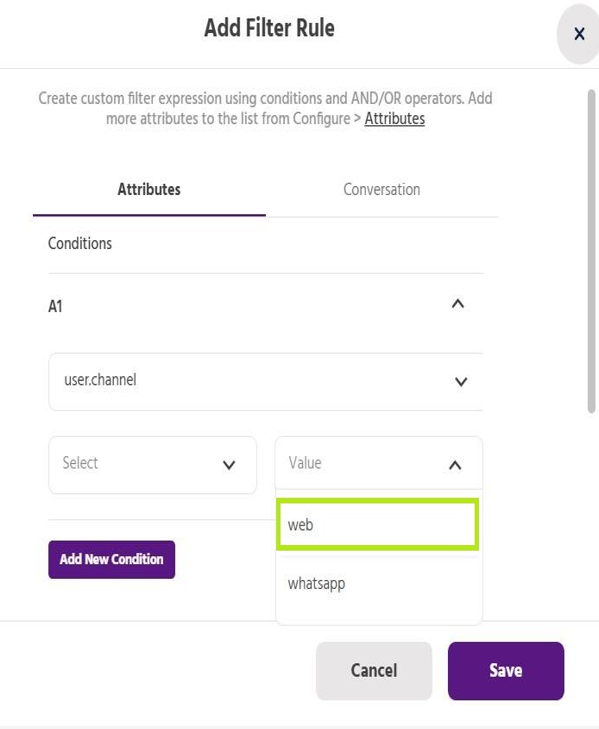
Fig 2.2.5 Select channels as required.
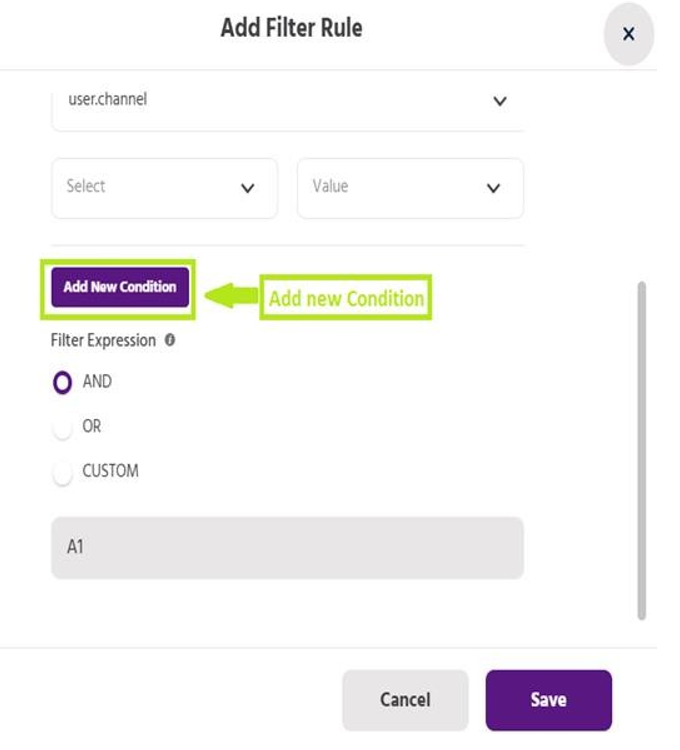
Fig 2.2.6 Add new condition
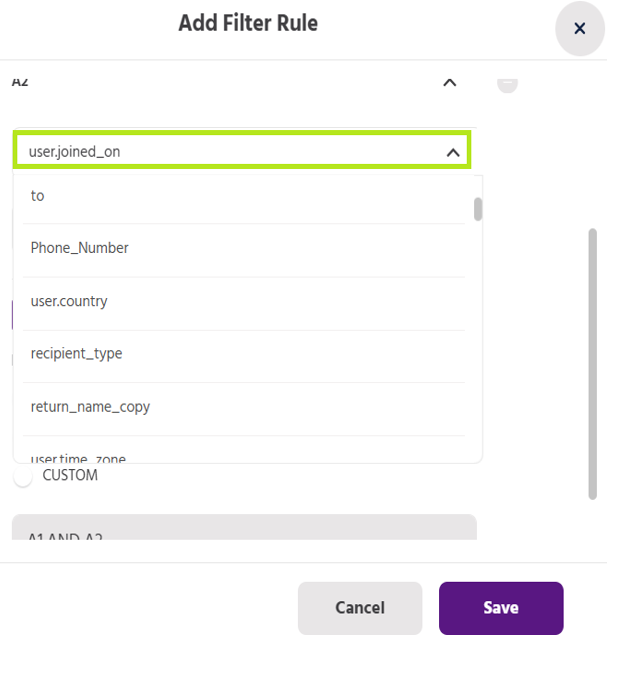
Fig 2.2.7 Select ‘user.joined_on
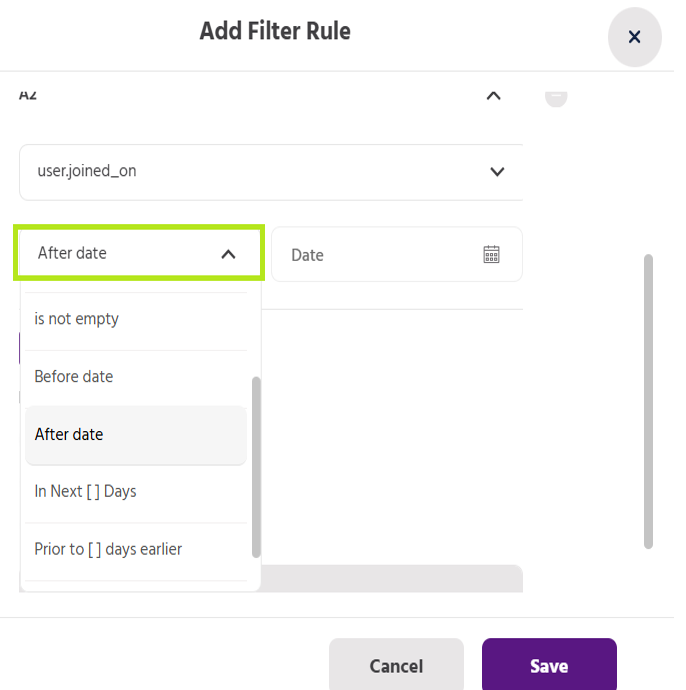
Fig 2.2.8 Select after date
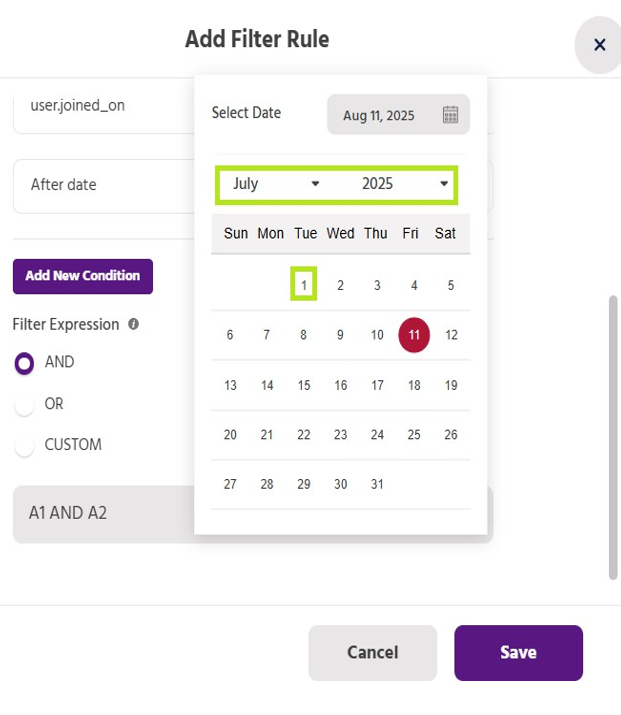
Fig 2.2.9 Select desire date
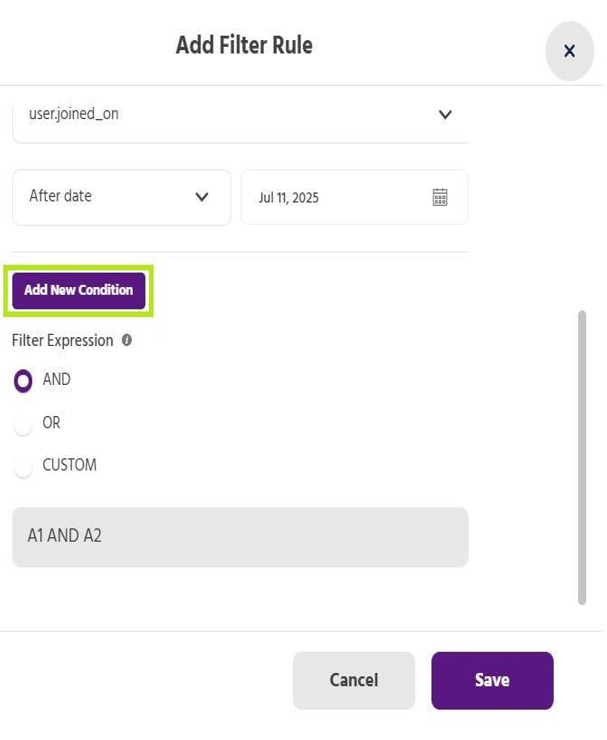
Fig 2.2.10 Add new condition
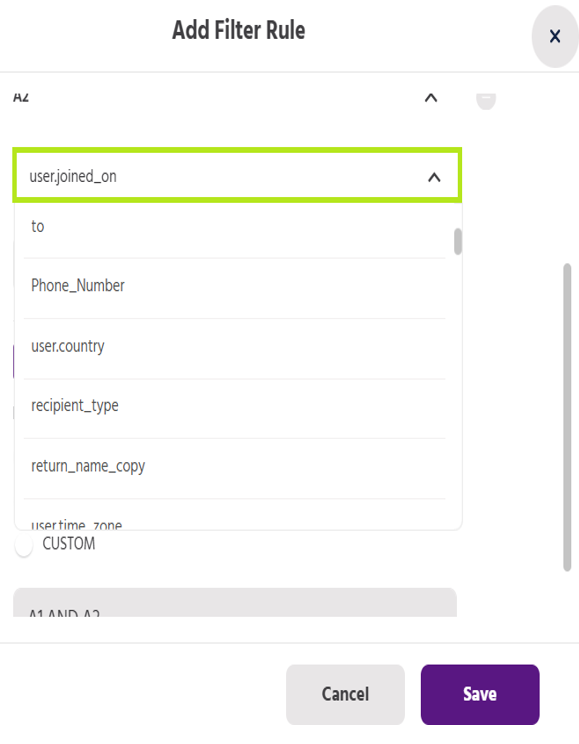
Fig 2.2.11 Select ‘user.joined_on
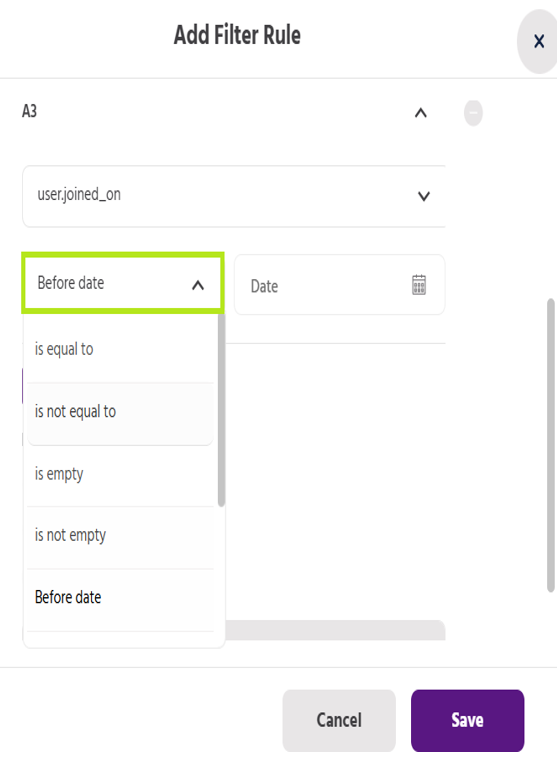
Fig 2.2.12 Select before date
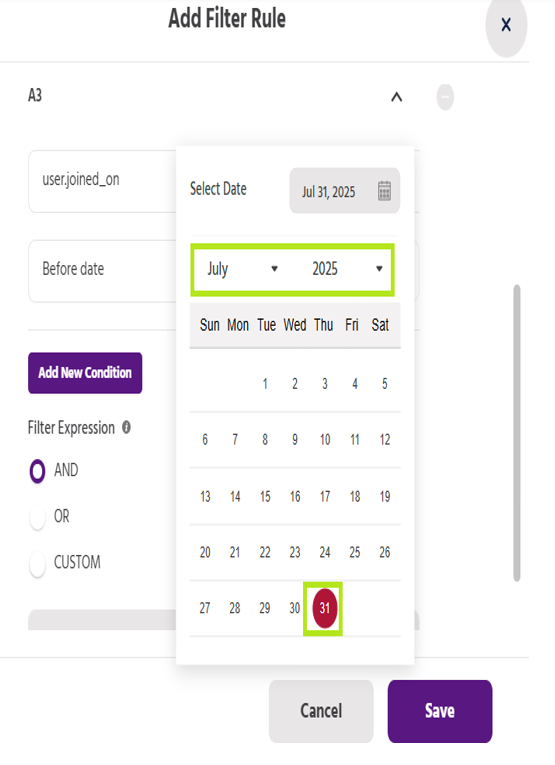
Fig 2.2.13 Select desire date
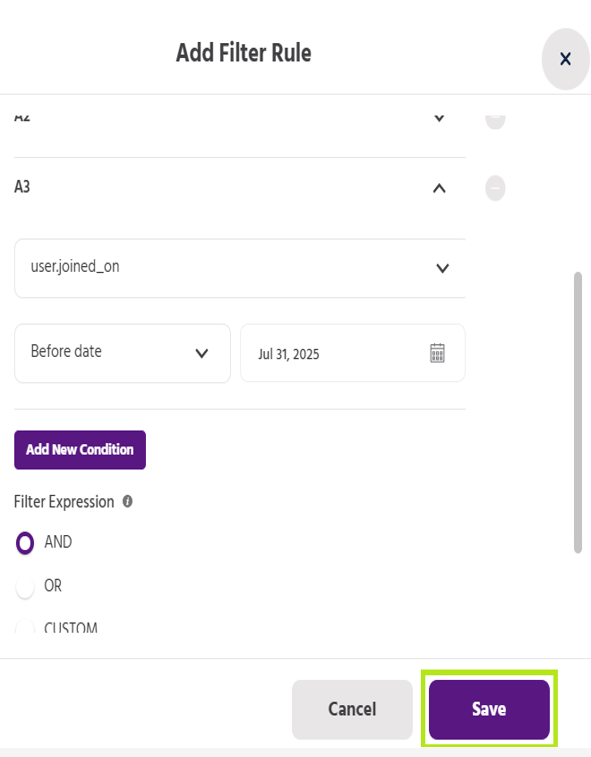
Fig 2.2.14 Save custom filter
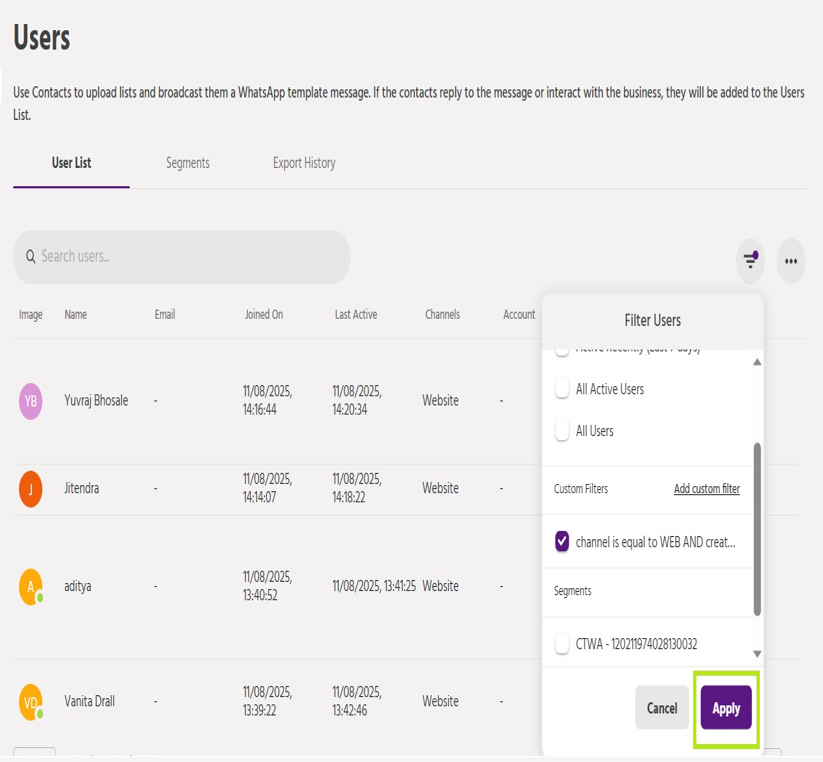
Fig 2.2.15 Apply after the filter
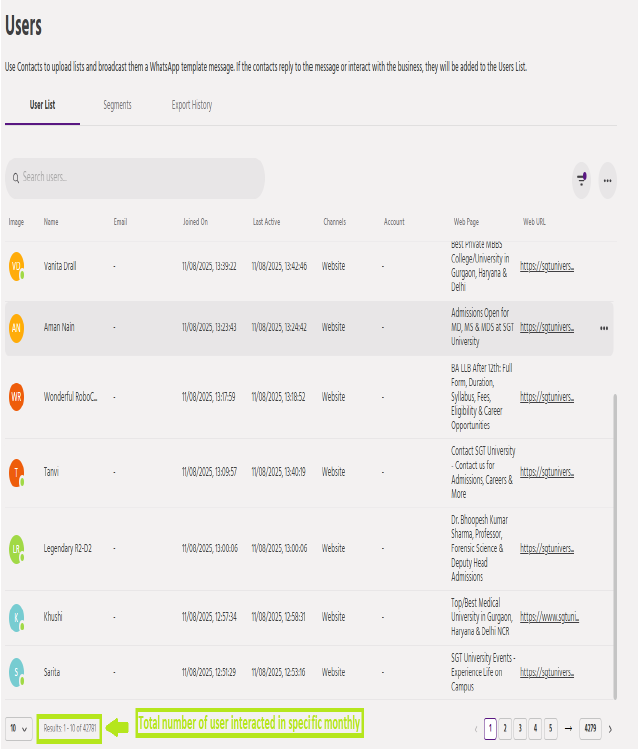
Fig 2.2.16 Total Number of user.