

MoEngage
Introduction
The MoEngage integration with Orai enables businesses to leverage MoEngage’s advanced analytics, segmentation, and personalization capabilities along with Orai’s WhatsApp automation and chatbot solutions. This integration helps businesses engage effectively with customers on WhatsApp by automating campaigns and tracking message delivery.
Availability
The MoEngage integration is available for all Orai customers with access to WhatsApp services. It is listed under the Integrations section of the Orai platform.
How to Set Up MoEngage Integration on Orai
Step 1: Adding MoEngage Integration
- Navigate to Integrations> Cloud Integrations > MoEngage.
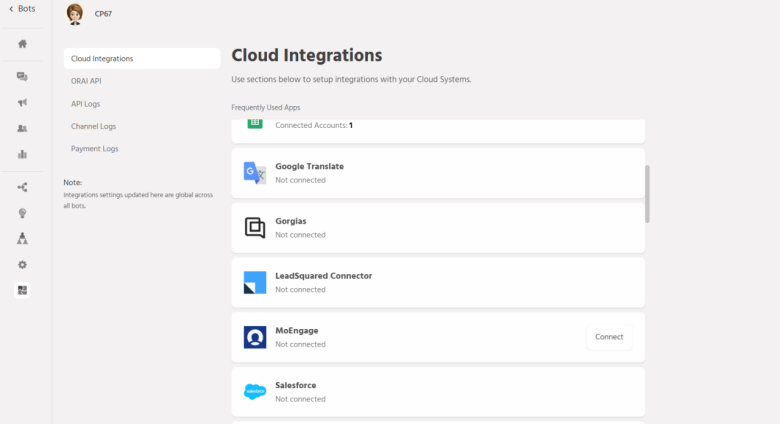
2. Select MoEngagefrom the list and click Connect.
3. Enter an integration name to identify this connection.
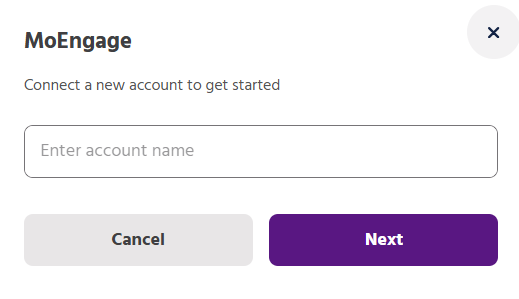
4. Enter your Account Name and click Next.
var to = {{to}};
var temp_template = {{template}};
process({“data”: {“type”: “template”, “payload”: temp_template, “targetWhatsAppNumber”: to}});
5. Configuring the Script Node on Orai
- Add a Script Nodein the selected path and connect it to the Start
- Name the script node as MoEngage.
- If adding multiple nodes, name them sequentially (e.g., MoEngage2, MoEngage 3, etc.).
- Pre-configure the script with the following code:
6. Select your bot and your path which has script node enabled, then click Next.
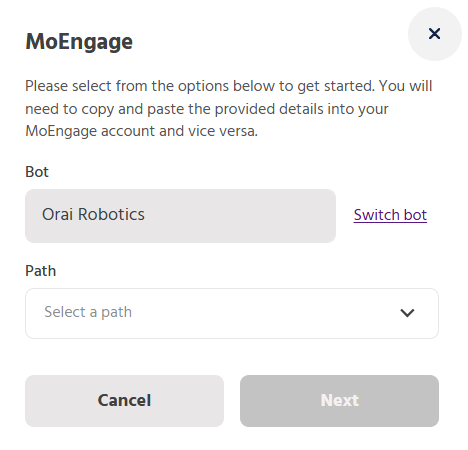
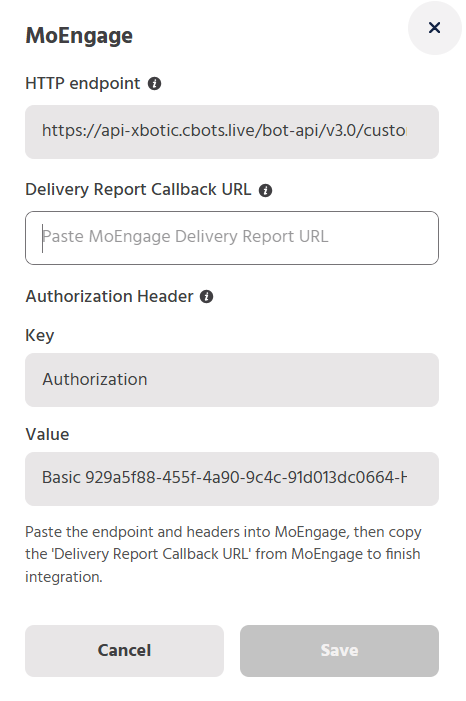
- A pop-up appears with the following fields:
- HTTP Endpoint– Copy this URL; you will need to paste it into MoEngage.
- Delivery Report Callback URL– Leave this blank for now; it will be copied from MoEngage later.
- Authorization Header:
- Key(Prefilled)
- Value(Prefilled) – Copy this value; it will be pasted into LeadSquared.
- Do not click “Save” yet.Open a new tab and proceed to Part 2.
Step 2: Configure Sender Details in MoEngage
- Log in to your MoEngage
- Enter the sender configuration details:
- Sender Name: A recognizable name for the sender profile in MoEngage (5-50 characters).
- WhatsApp Business Number: The registered phone number associated with Orai’s WhatsApp Business API (WABA number).
- Authorization
- Delivery Tracking URL: Copy and paste this from MoEngage into Orai’s dashboard.
Step 3: Update Delivery Tracking & Authentication
- Copy the MoEngage Delivery Tracking URL.
- Navigate to your Orai Dashboard.
- Paste it in the configuration window for MoEngage Integration.
- Click on Update Configurationto generate the API Secret (Authorization) from Orai.
Step 4: Finalize Authorization in MoEngage
- Copy the API Secret from Orai.
- Jump back to your MoEngage account.
- Paste the API Secret into the Authorization
- Click Save to successfully complete the integration.
Need Help?
If you encounter any issues or have queries, please reach out to us at support@orairobotics.zohodesk.com.