

Microsoft Teams
Introduction
Microsoft Teams is a communication and collaboration platform that is popularly used for workplace conversations and combines workplace chat, video meetings, file storage, and application integration in one place.
Customers can deploy the bots created on ORAI on Microsoft Teams. However, the following message types are supported by MS Teams:
Messages Supported
• Send Message
• Send Image
• Request User Data
• Send a message with options
• Send Audio
• Send Video
Messages not supported
• Identity Node
• Webview Node
• File Upload
• Send Carousel
Setup
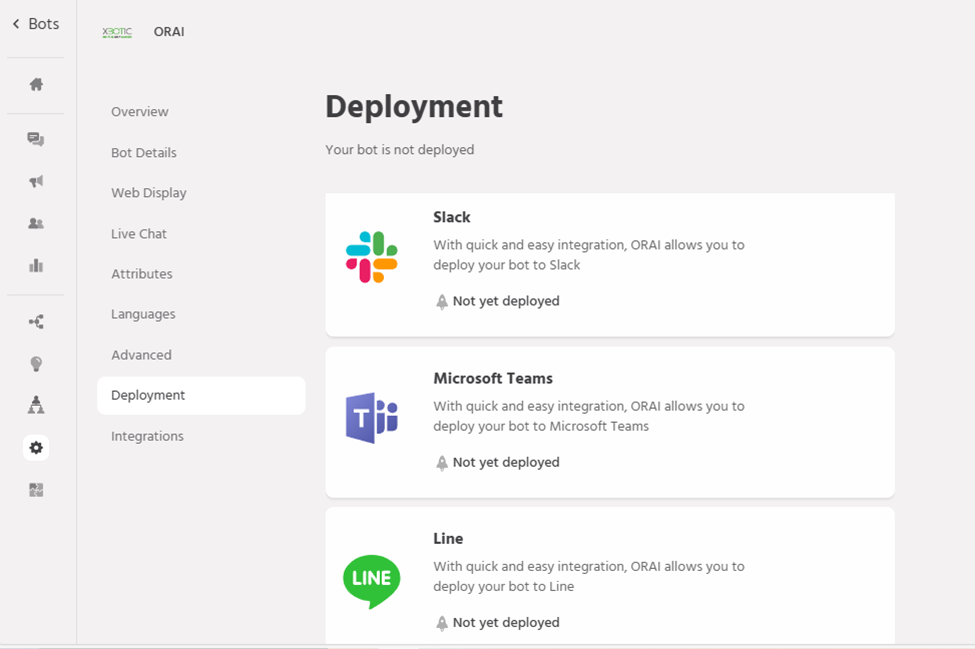
Steps to configure Microsoft Teams as a channel
-
- Create a bot on Bot Framework
- Customers should have access to Microsoft account
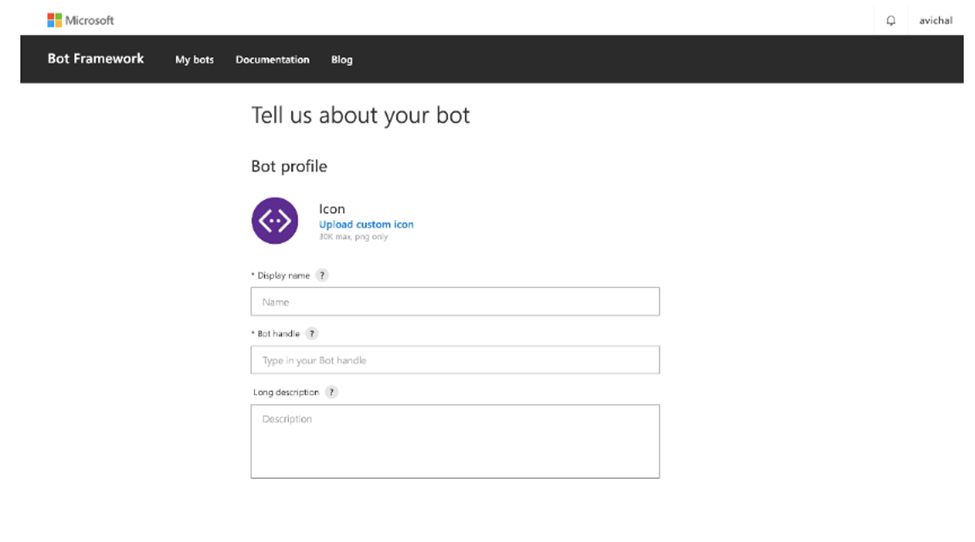
- Navigate to the URL https://dev.botframework.com/bots/new and Sign In to the Microsoft Account
- Fill in the bot details like Display Name for the bot, Bot Handle, and a description.
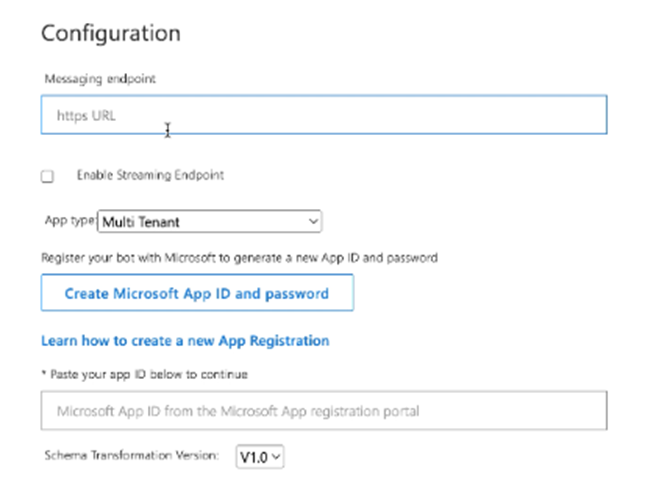
 After filling in the bot details, add the Messaging endpoint by copying the Endpoint URL from the ORAI portal. Check the Enable Streaming Endpoint box and then click on the ‘Create Microsoft App ID and password’ button.
- Click on ‘New registration’ at the top left corner of the page.

- Enter all the necessary fields. Choose the ‘Accounts in any organizational directory and personal Microsoft accounts’ from Supported account types and then click on Register, to complete the registration.
- Go to ‘Certificates & Secrets’ from the front left navigation bar and click on New Client Secret. Select the expiry date as 24 months and click Add.
- Copy the generated password from ‘Value’ and paste it into the ‘App Secret’ field on the ORAI Bot Platform.
- Navigate to the Overview tab in the top left corner, copy the Application (client) ID and paste it into the App ID field on the ORAI portal.Now click on ‘Save changes’ on the ORAI portal.
- Navigate to the developer portal (https://dev.teams.microsoft.com/apps). Click on ‘new app’ and assign a name to your app.Copy the Application (client) ID from the Microsoft Azure portal
- (https://portal.azure.com/#view/Microsoft_AAD_RegisteredApps/ApplicationsListBlade) and paste it into the Application (client) ID field on the Developer Portal (https://dev.teams.microsoft.com/apps).
- On the developer portal (https://dev.teams.microsoft.com/apps) fill in the basic information such as description fields, Developer information, and App URLs and click ‘Save’.
- Copy the Application (client) ID from the Microsoft Azure portal (https://portal.azure.com/#view/Microsoft_AAD_RegisteredApps/ApplicationsListBlade) and paste it into the Microsoft Bot Framework developer portal (https://dev.botframework.com/bots/new). You can now check the ‘I agree…’ box and click on register.
- Go to the developer portal (https://dev.teams.microsoft.com/apps), select ‘Publish to your org’ from the ‘publish menu’, and click on ‘publish’. The admin will approve this for that organisation.
- On registering you will be taken to the framework page, select Microsoft Teams from the ‘Add a featured channel’ option.Select the ‘Microsoft Teams commercial button’ and click on save.Read the terms of service and click on Agree. Your bot is ready to be used on Microsoft Teams.