

Live Chat Summary
The Live Chat Summary dashboard provides valuable insights into the overall performance of your chatbot’s conversations, including both automated bot responses and live chats with human agents. By tracking key metrics for all conversations, you can assess how well your bot and agents are handling inquiries and identify areas for improvement.
Monitoring these metrics allows you to understand the volume of conversations, response times, resolution rates, and SLA performance for both automated and human-assisted conversations. You can use these insights to optimize your bot’s accuracy, improve agent response times, enhance customer service skills, and meet SLAs.
Overall, the Live Chat Summary dashboard provides a comprehensive view of your overall conversational support, enabling improvements in both automated and human-driven experiences. The key metrics provide visibility to boost resolution rates, reduce response times, and increase customer satisfaction.
Availability
The Live Chat – Summary section is available for supervisors and agents.
Navigate to Analytics > User Retention Analysis.
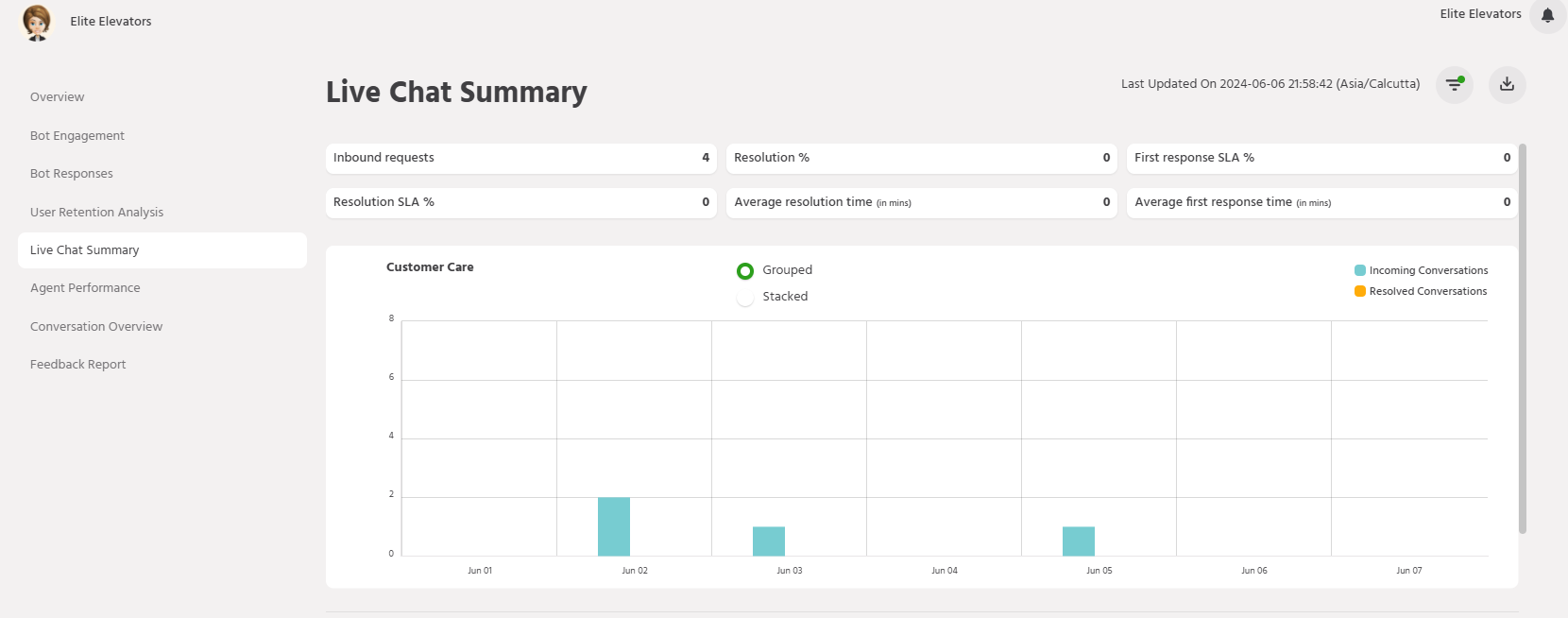
Metrics
This section shows the key metrics for tracking user engagement with the bot and the agent.

Inbound Requests: Number of inbound requests (new requests – both new conversations + re-opened conversations handled by both bot and agent) for the chosen time range.
Resolution %: Percentage of conversations resolved out of the inbound requests.
First Response SLA %: Percentage of conversations with first response within the first response SLA as defined in Configure.
Resolution SLA %: Percentage of conversations with resolution within the resolution SLA as defined in Configure.
Average resolution time (in mins): Average resolution time for incoming requests.
Average first response time (in mins): Average first response time for incoming requests.
Graphs and Charts
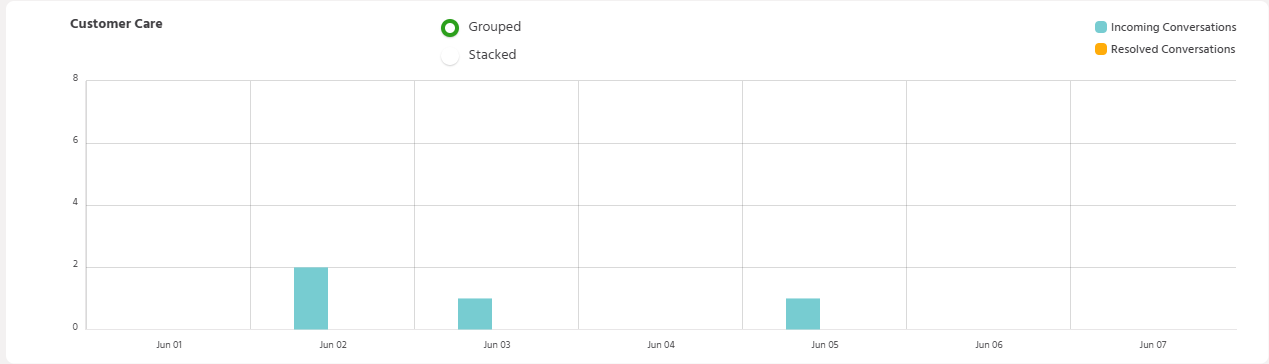
Incoming Requests vs Resolved Chats:
In this section, you’ll be able to see bar graphs showcasing incoming requests vs resolved requests. The agent/supervisor can choose Grouped or Stack view and the data shown would be according to the date filter set.
Pie Charts:
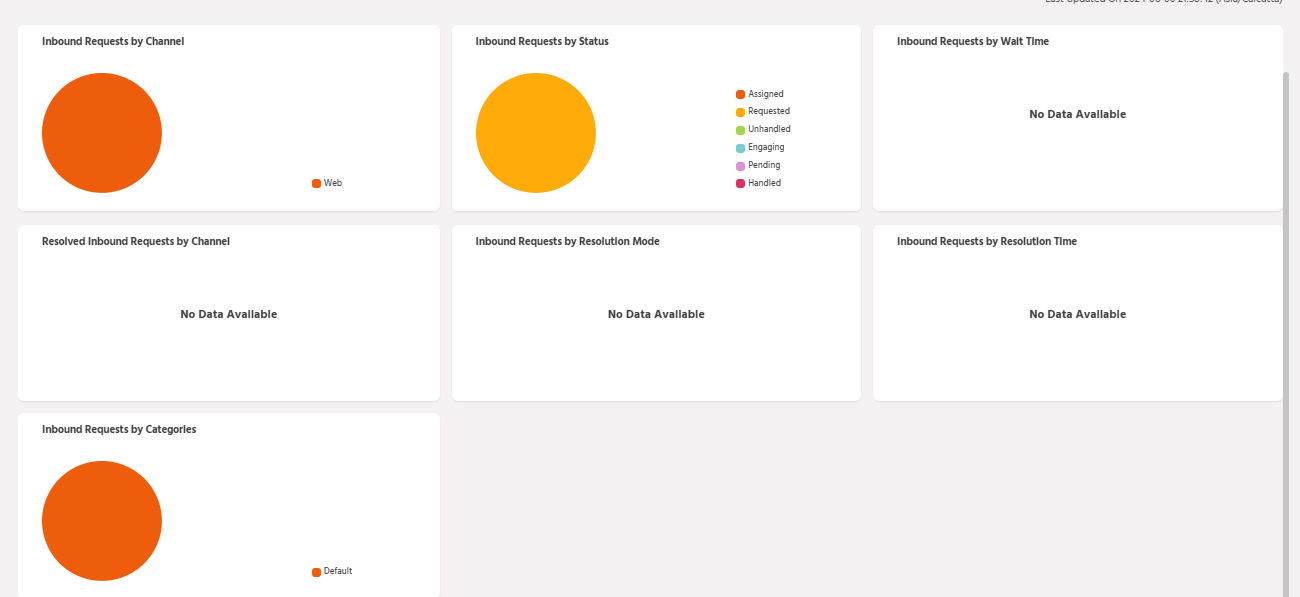
Conversations by Channel: Inbound requests categorized by channels active for the product.
Resolved Conversations by Channel: Inbound requests that have been resolved based on the user interaction channel.
Conversations by Status: Inbound requests categorized by the status i.e., pending resolution, active, resolved, etc.
Conversations by Resolution Time: Inbound requests resolved within various timeframes.
Conversations by Resolution Mode: Inbound requests resolved either by the agents or the bot.
Conversations by Wait Time: Waiting time for inbound requests before being attended by an agent.
Conversations by Categories: Inbound requests categorized by product categories.
Filter
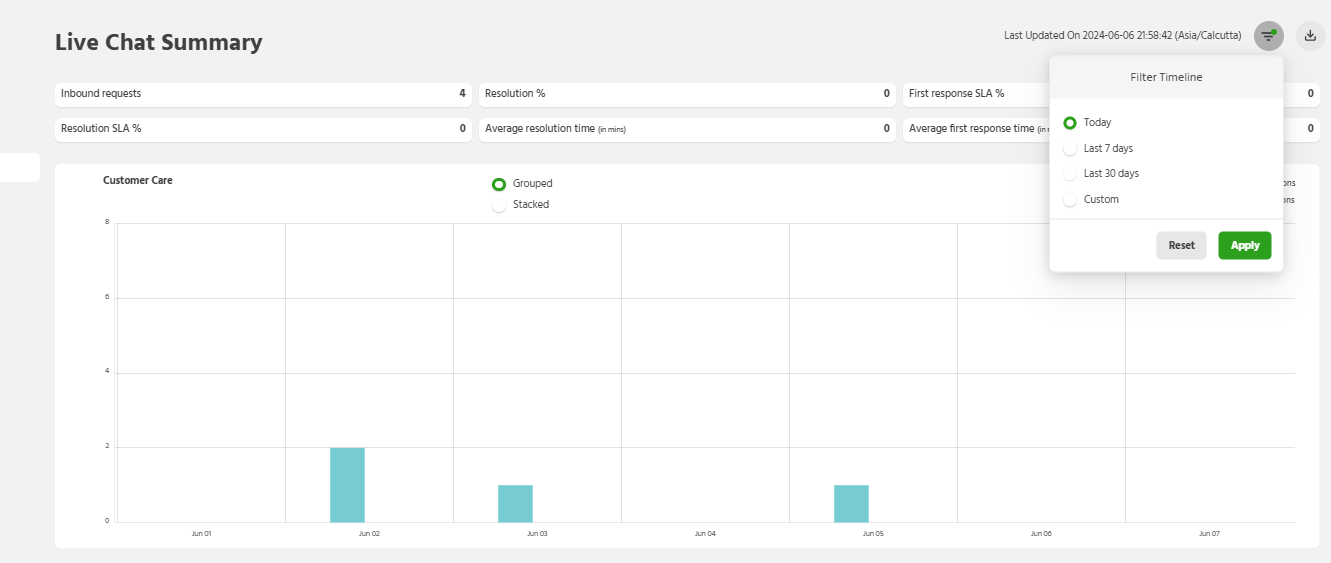
The Live Chat Summary dashboard allows you to filter the data by specific date ranges. At the top, you can select from preset filters like yesterday, last 7 days, or last 30 days.
The “Custom” filter lets you manually enter a specific start and end date to view bot responses for your desired timeframe. Using these date filters, you can analyze live chat over any period that is most relevant for understanding trends or performance.
Download Detailed Agent Performance
Some businesses require offline review or presentation of their bot statistics to analyze them in a better way.
Considering this use case, we have added an option for downloading the agent performance, allowing you to download a detailed datasheet of your agents’ performance.
It is available under Analytics > Live Chat Summary.

The data points included in the datasheet are as follows:
- User name
- User phone number
- User email ID
- Channel name
- LC conversation start time
- LC conversation end time
- Agent assigned initially
- Current agent email
- Category
- Current status
- Last updated time
- Total time spent on LC
- First response agent ID
- First response time of first agent
- FR SLA breach (Y/N)
- Business hours adjusted FRT
- Resolution agent ID
- Resolution time
If you face any issues or queries, please reach out to us at support@orairobotics.zohodesk.com.