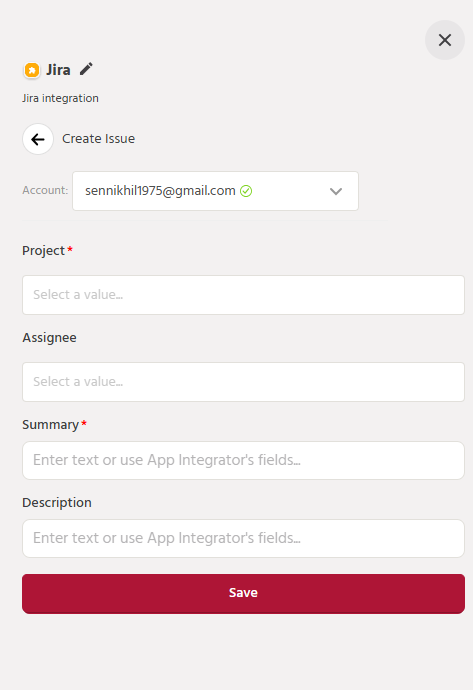
Jira
-
Introduction
Jira is a proprietary issue-tracking product developed by Atlassian that allows bug tracking and agile project management.
Customers can now integrate their Jira account with Orai. This allows you to:
- Create Issue
- Delete Issue
- Update Issue
-
Availability
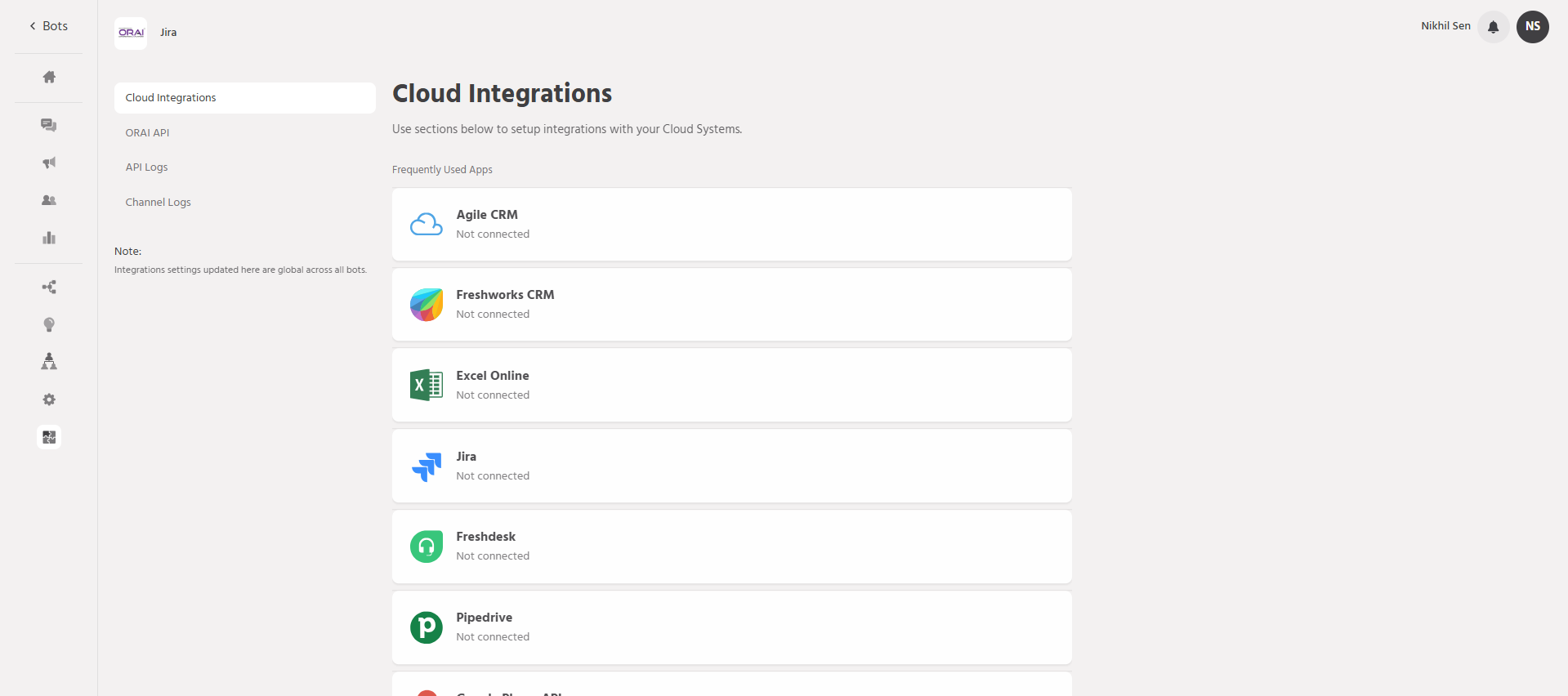
It is available under Integrations > Cloud Integrations > Jira
-
Access to Jira Integration
The Jira Integration can be set up in the Integrations workflow of Orai.
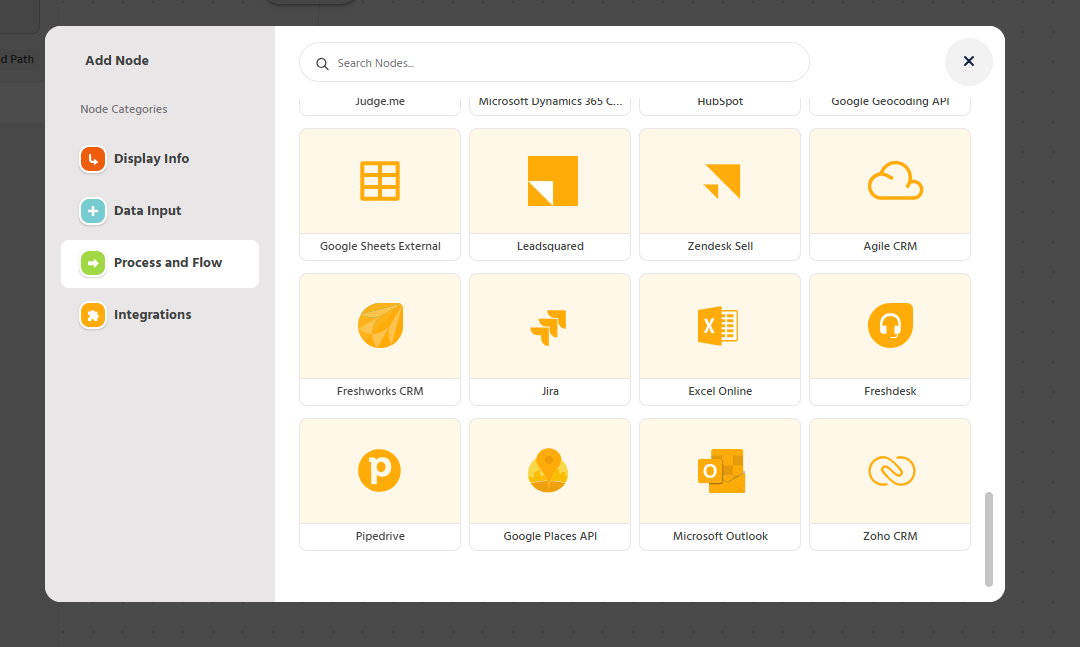
Once the Integration with an account is completed, the integration APIs can be used within the Conversation flow using the Jira Node under + Add Node > Integrations > Jira.
-
Steps to configure Jira Integration
Adding the Jira Integration
- Log in to your Orai account and go to the “Integrations” tab.

- Click on ‘Connect’
- Click on ‘Continue’ in the modal that appears requesting ‘Authorization access’
- In the modal that appears requesting to ‘Connect a new app’, choose ‘Jira’ to authenticate and add a new account for automation.
- Provide the URL, Username and Password for Jira:
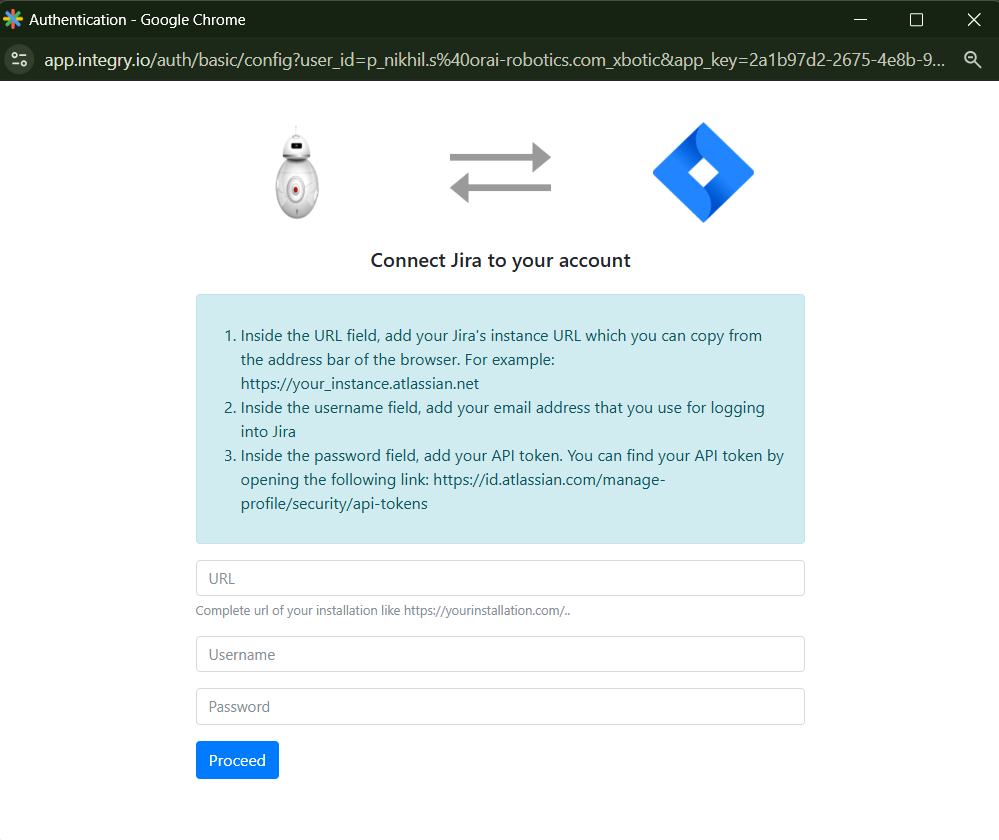
- To link your bot with your Jira account, it’s essential to have a Jira account set up. You can create a new account on Jira using any preferred method or log in with your existing account credentials.
- Inside the username field, add the email address that you use for logging into Jira.
- API Key: You can find your API Key by opening the following link: https://id.atlassian.com/manage-profile/security/api-tokens
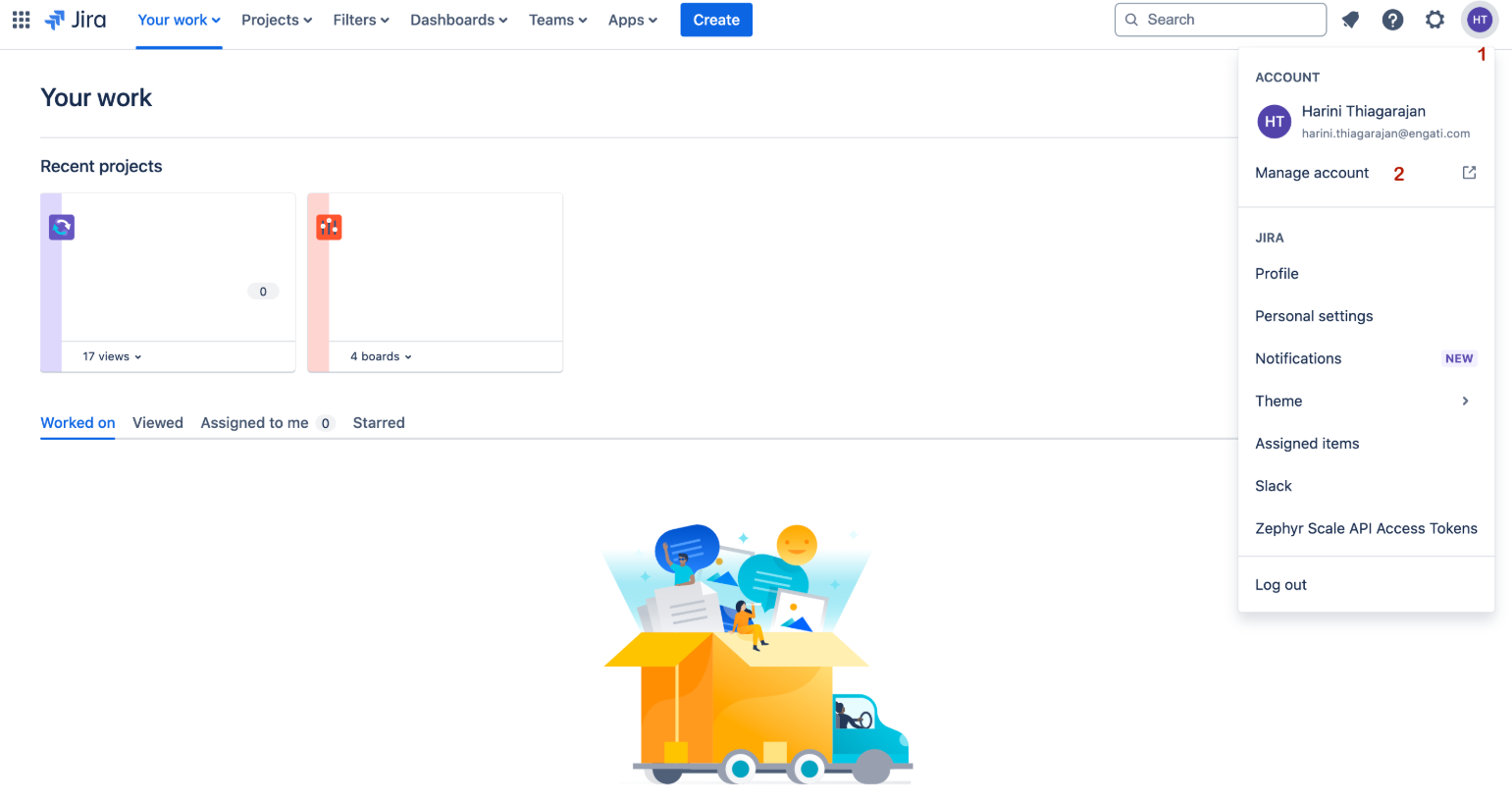
- Navigate to your Profile Icon > Manage Account. In your Atlassian Account, go to the Security tab > Create and manage API tokens.
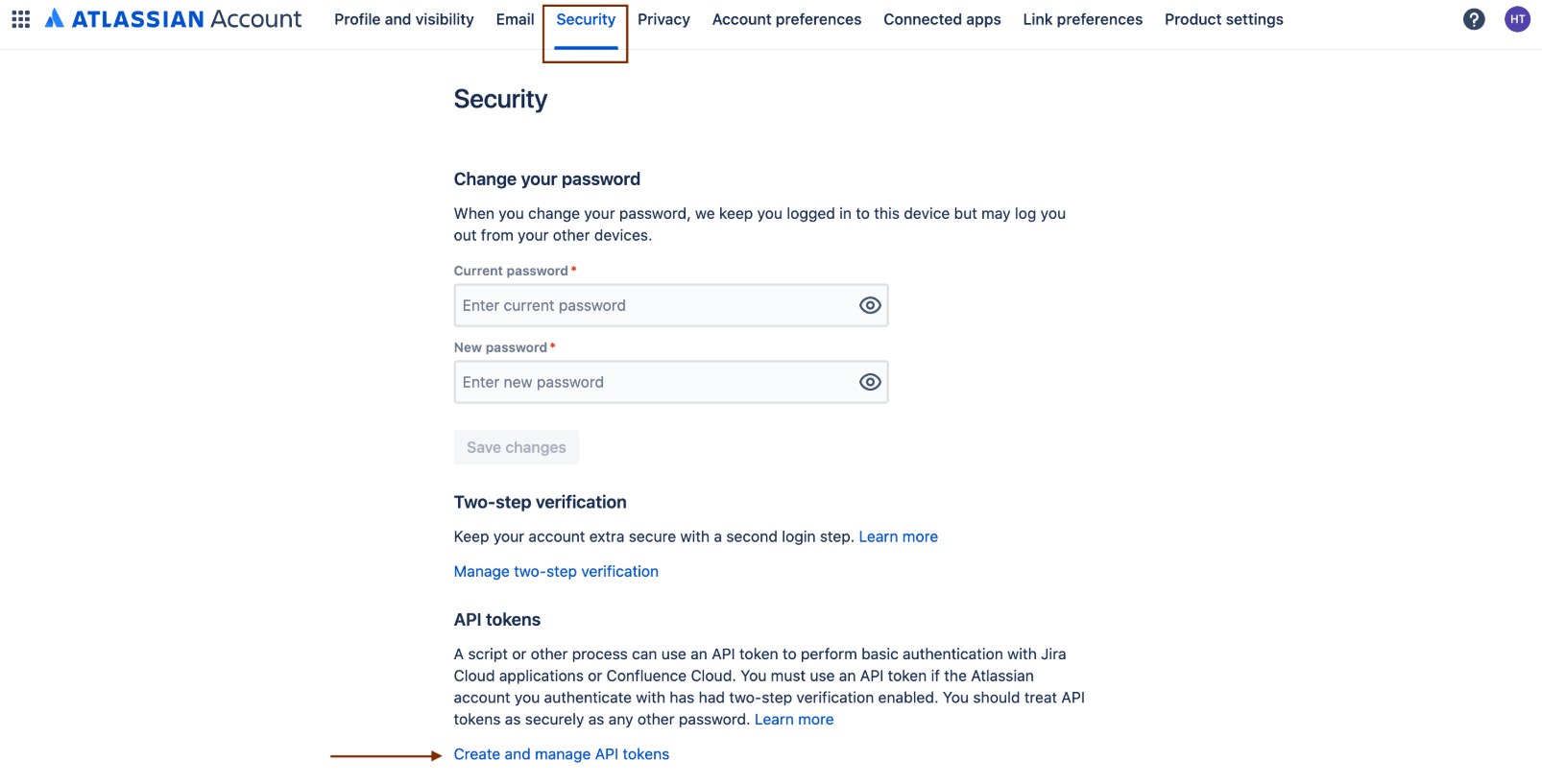
- Click on the “Create API Token” button.
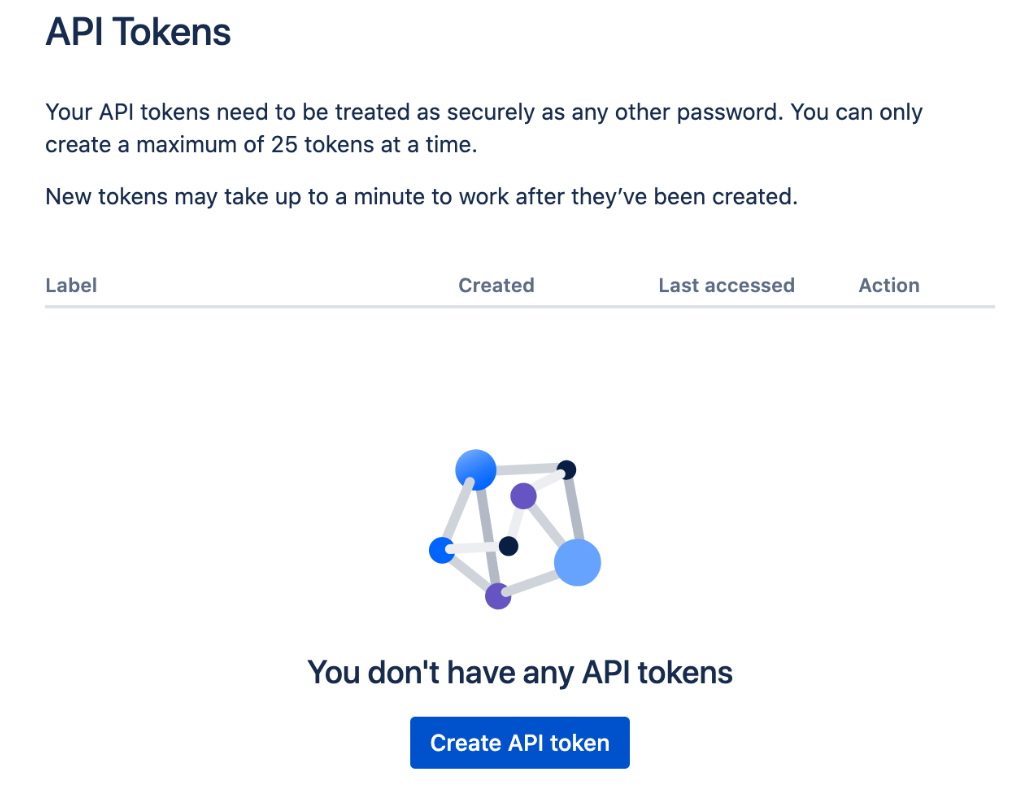
- Enter a label name for the API token and click on “Create”.
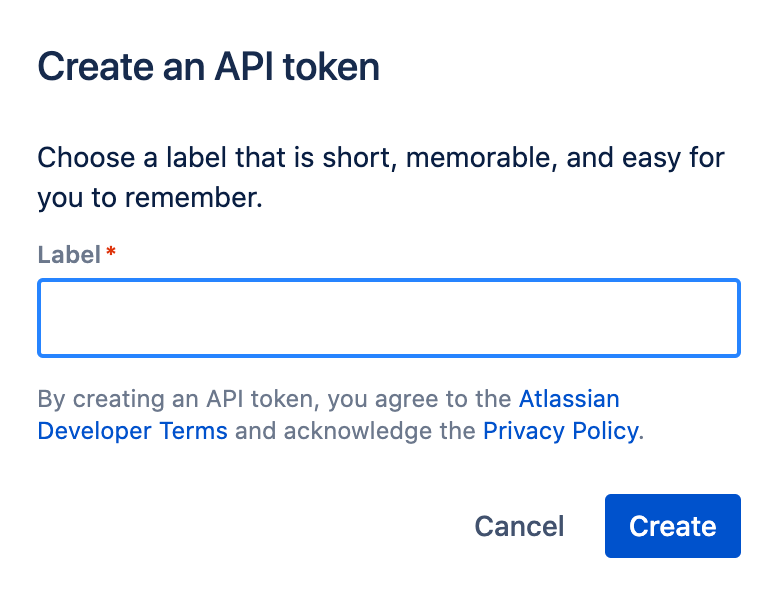
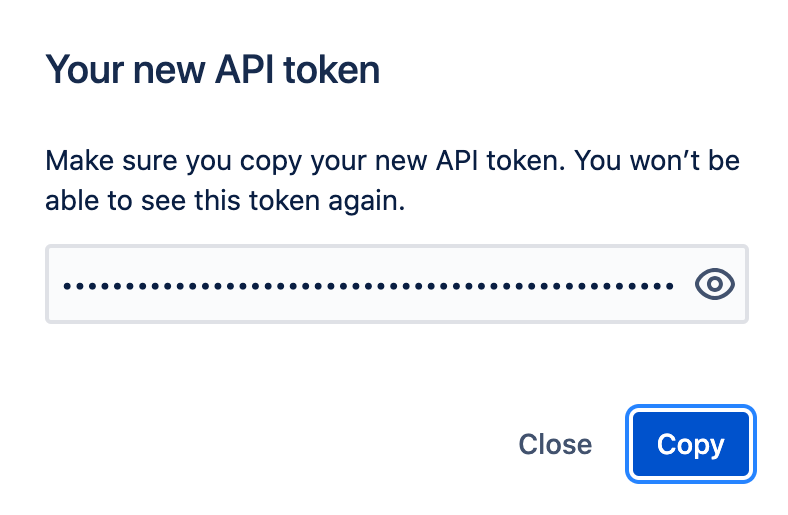
- Copy your new API token and paste it into the Password field.
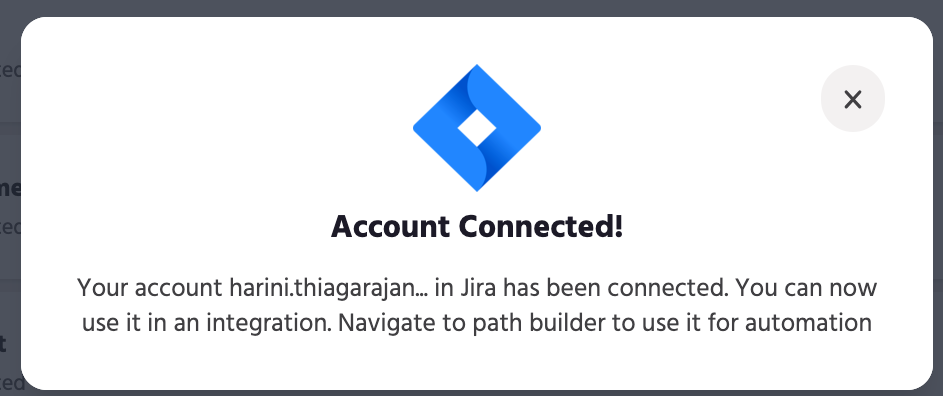
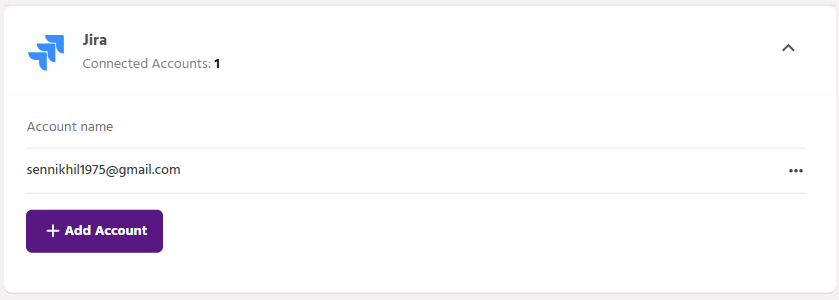
Your account should now be connected
Configuring Jira Node
- Once you have logged in, you are done with authorizing your account.
Now go to Builder > Paths and try adding a Jira node.
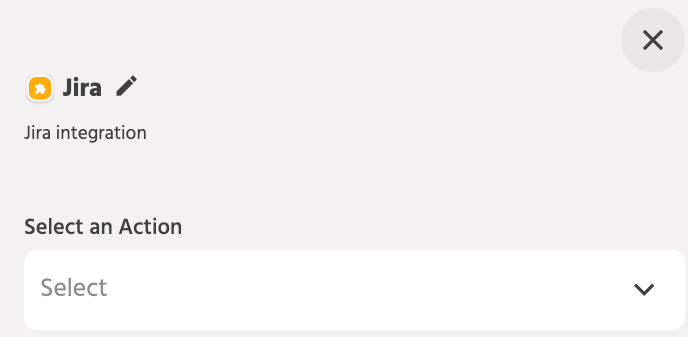
4.3 Selecting an action
- Once you select your account, you can choose an Action, from the list of Actions available, to be performed on your account.
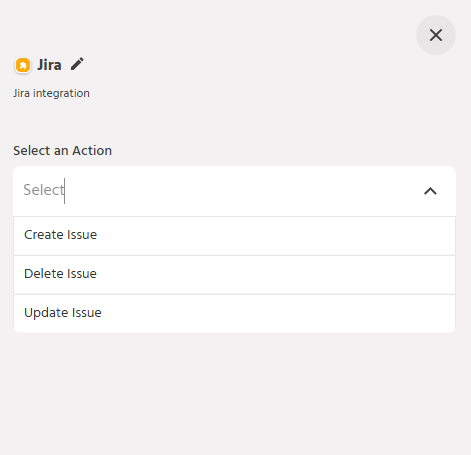
- Once you select the Action, you can also authorize a new account here or use a previously authorized account
- Once you select the Action it populates various rows that are required to complete the Actions and assign different attributes for each row concerning what information is required
- Once you have finished assigning the attributes, save the node, and your integration will be ready