

Integrations Nodes
A large number of Integration focused nodes are available ranging from JSON API Integration to standard nodes for out-of-box integration like Salesforce, Google Sheets, Google Calendar, and Freshdesk.
Google Calendar
Introduction
New-age Digital Assistants facilitate end-to-end use case requirements. Many of them are around scheduling tasks, making appointments, booking slots for technical support visits, and so on. Creating an event is one requirement and getting reminded about that is even another all these are facilitated by bots built on ORAI.
ORAI’s integration hub allows integration with external applications to provide added functionality to portal users to build their bots. Integration of google calendar has facilitated all scheduling-related use cases by providing a connection between the calendar of requestor and requestee and thus creating events/scheduling appointments and reminders.
Typical use cases where a calendar can be used are Scheduling an appointment, Booking a slot for an activity, and scheduling team meetings.
Access
Google Calendar Integration is available with the Business Plan and higher. You can add your calendar account by clicking on the Integrations tab on your left panel and selecting Google Calendar.
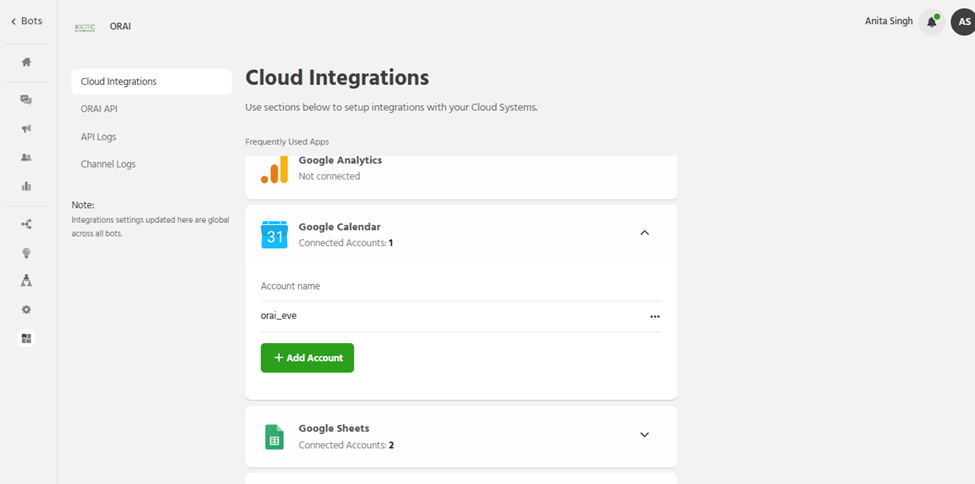
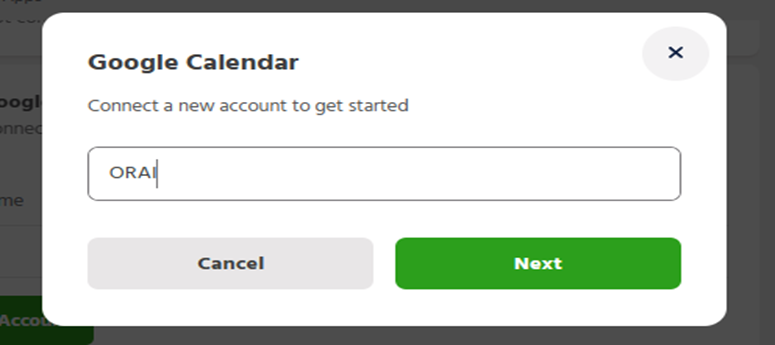
Authorize using your Google email address to add that account to Calendar.
Connect your Google account
Steps to authorize calendar node to access your Google calendar
Step 1: Integrations>Google Calendar>Add Account
Step 2: Enter the Google Account ID to add and authorize.
Using the Calendar
Steps to add Google Calendar Node to the Bot
Step 1: Builder>Required Path
Step 2: Click on the Add node button or on the bottom right corner of the node that you wish to enter the Google Calendar node after and select Google Calendar from the integrations.

Scenario I: Get Slots
One of the key scenarios in which you would expect to use Google Calendar is to be able to get available slots for the period that a user is looking to get an appointment. These options are then to be presented to the user to select a time slot of preference.
Follow the sections below to learn how to configure the node to be able to present these slots to the end-user.
Calendar Details
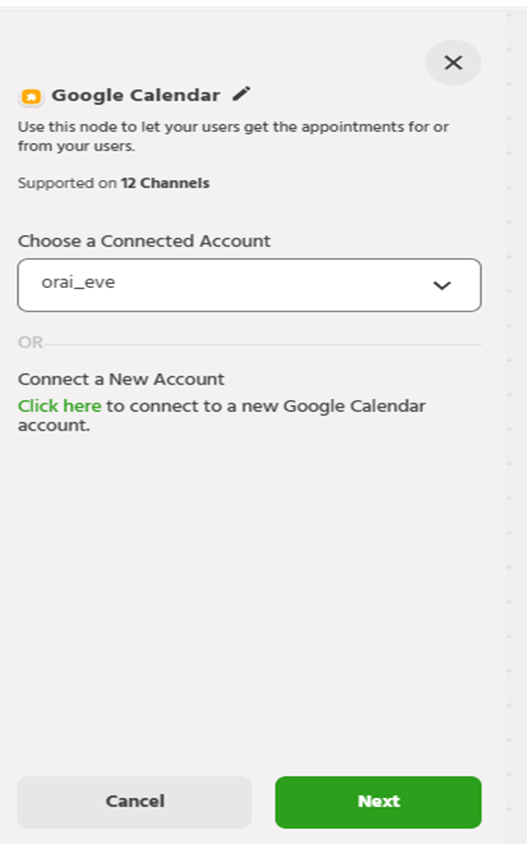
1. After selecting the Google Calendar Node, you can choose a connected account or authorize a new one
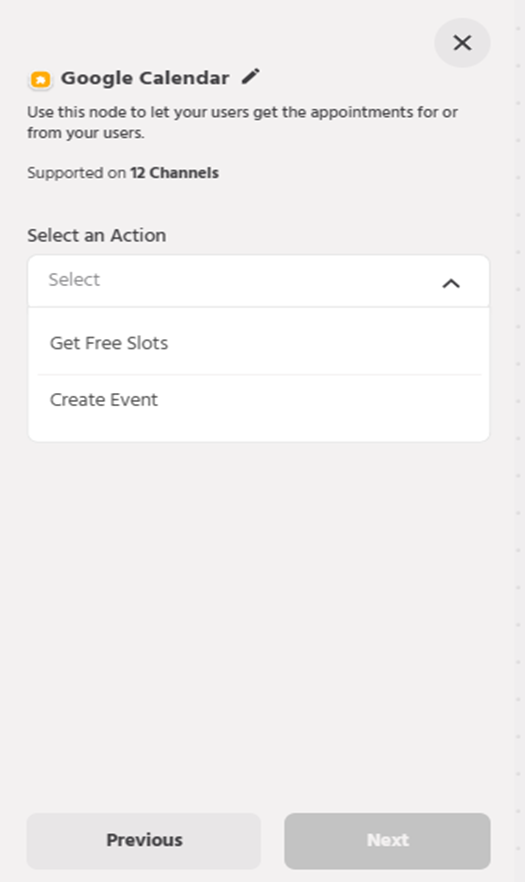
2. In the ‘Select an Action’ field, select Get free slots.
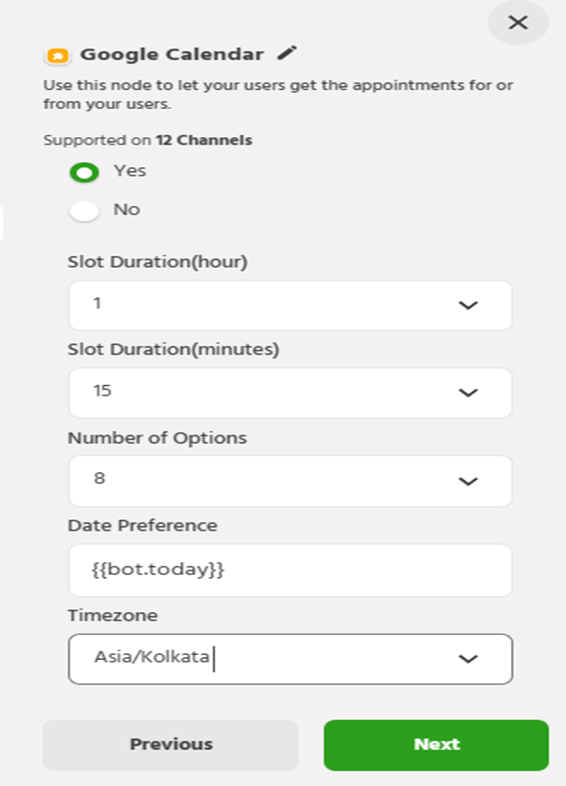
3. Configure the following fields under Slots:
a. Show Time zone: You can select whether you’d like to display the timezone to the user.
b. Slot Duration: You can select the duration of a slot in hours and minutes.
c. Number of Options: You can select the number of slots (options) that you’d like the user to see.
d. Date Preference: You can pass a date by directly inputting a value or an attribute. The slots that are fetched will be for this date.
e. Timezone: You can select the required timezone from the drop-down list.
f. Time Preference: This is the preferred time slot availability entered by the bot user as input. Slots are displayed within this time window. A user should enter the preferred time in a 24-hours format. For example: If the preferred time is between 10 am to 4 pm the user should enter 10:00-16:00.
If slots are not available for the given time it shows – No Slots Available for this date
g. Start Time Attribute: The text you enter here will be the name of the attribute that will contain the start time of the slot that the user has selected.
h. End Time Attribute: The text you enter here will be the name of the attribute that will contain the end time of the slot that the user has selected
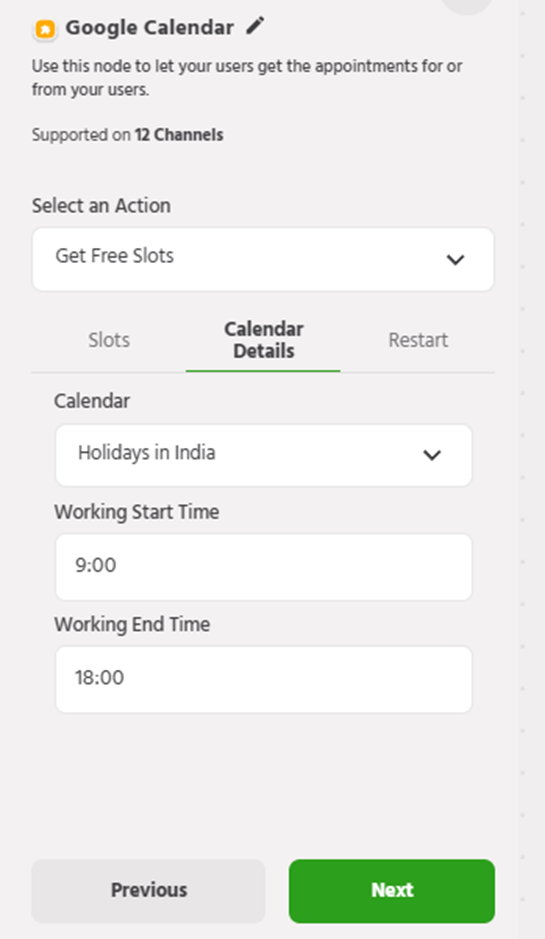
4. Under Calendar details configure the following:
a. Calendar: Select the required Calendar from the drop-down list.
b. Working start time: The time at which the organization is ready to take slot requests.No slots are generated before this time. In hh: mm 24 Hr format Example 09:00.
c. Working end time: The time at which the organization stops taking slot requests.No slots are generated after this time. In hh: mm 24 Hr format Example 18:00.
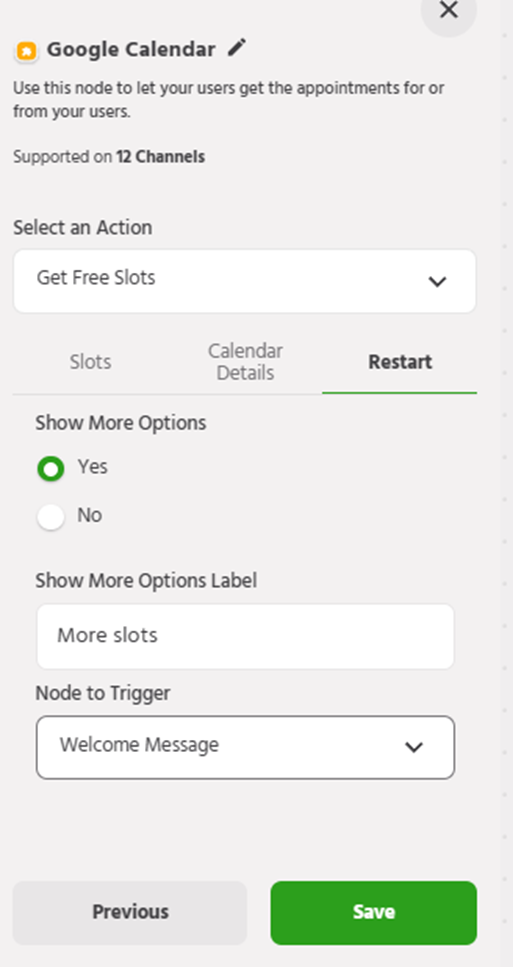
5. The restart option is available if you want to give your bot users an option to restart if their preferred tie slot is not available in the queue.
Scenario II: Create Event
This event is used to create an event in your google calendar from the Orai platform.
You can follow the below-mentioned steps in order to create an event in your Google Calendar.
In the ‘Select an Action’ field, select Create Event from the drop-down list.
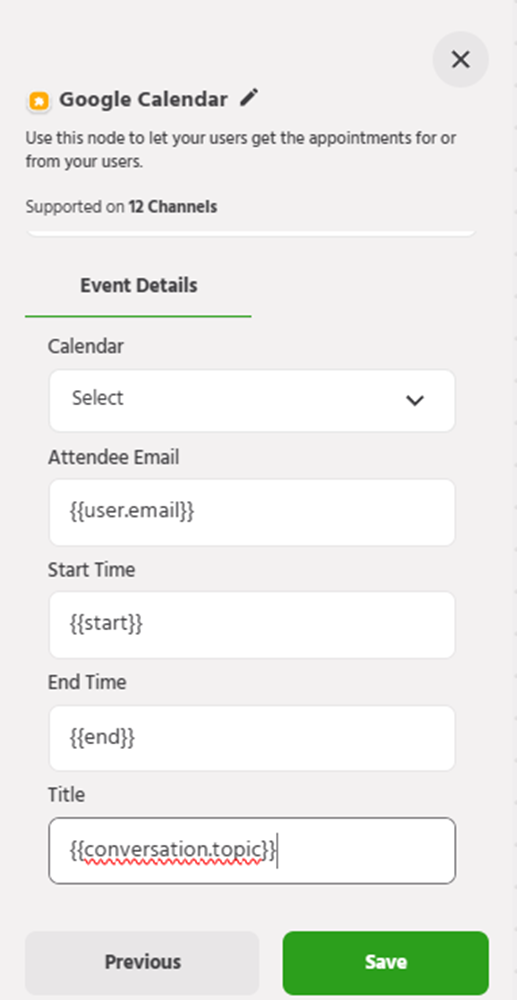
In the event details configure the following fields:
a. Calendar: Select the calendar in which you wish to create the event.
b. Attendee email: Enter the attribute that contains the user’s email id. The event will be created for the user on this id.
c. Start time: Enter the attribute that contains the time that the user wishes to start the event on.
d. End time: Enter the attribute that contains the time that the user wishes to end the event on.
e. Title: You can give a title to the event which will be communicated in the mail
f. Description: You can add a description of the event in this column
g. Location: You can add a location to the event using this field.
h. Send Notifications: You can choose whether you’d like to send the user a notification of the event.
Once the details have been configured, click on next. The node will get created in the chosen path.
Google Sheets
Introduction
ORAI integration hub allows integration with external applications to provide added functionality to portal users to build their bots. Integration of google sheets specifically has facilitated storing the data collected during the bot flow for a user. Typical use cases where sheets can be used are saving booking information, Saving information of leads from the bot flow, saving meeting schedules/appointments and logging support request information/ticket information for the support team.
Access
Google Sheets Integration is available with the Business Plan and higher.
You can add your sheets account by clicking on the Integrations tab on your left panel and selecting Google Sheets.
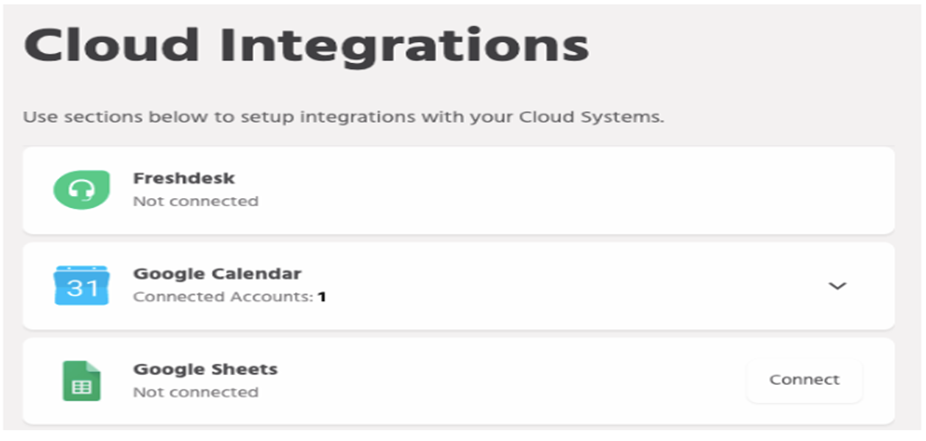
Connect your Google Account
Steps to authorize sheets node to access your Google Sheets
Step 1: Integrations>Google Sheets>Add Account
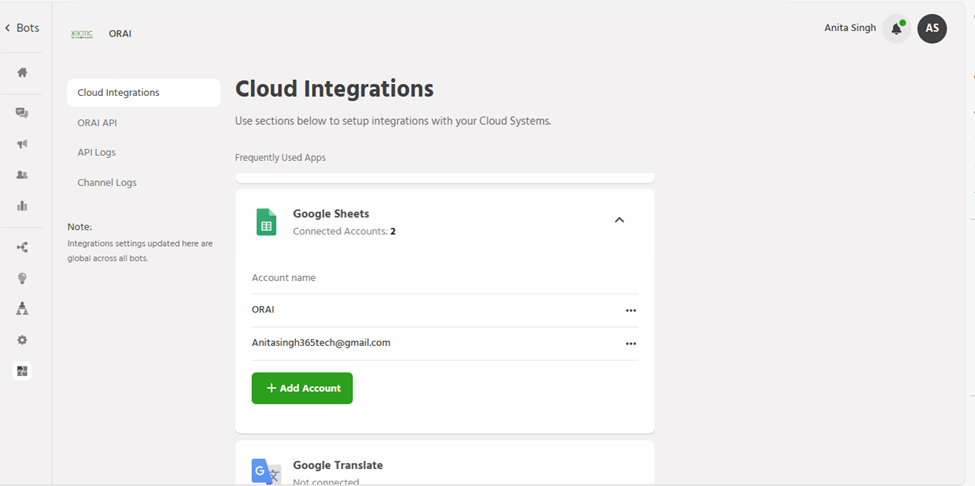
Step 2: Enter the Google Account ID to add and authorize
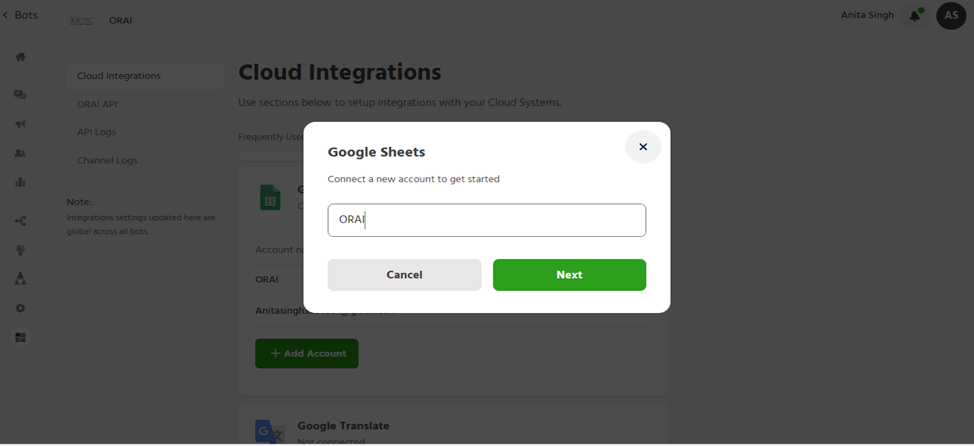
Using the Sheets
Capabilities
ORAI allows the bot builders to get information from the sheet or modify the existing data or add new data.
Search Value
This feature will allow the bot builder to search a cell with a particular value in the sheet and retrieve any of the other data points for the record. These values can be set as attributes to be used in the bot flow.
1. While adding a new node select Google Sheets under Integrations in the Builder tab.

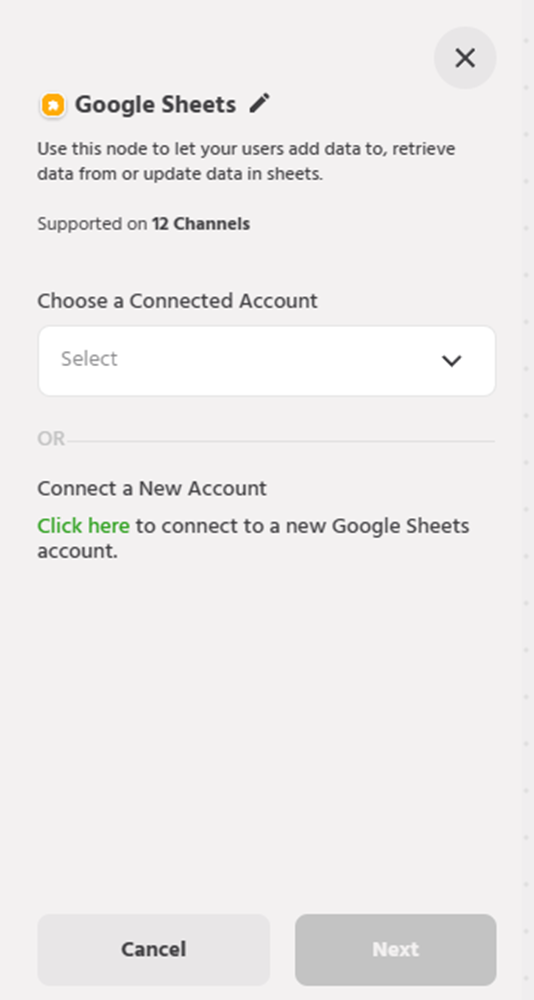
2. You can now choose an already connected account or authorize a new Google Sheets account.

3. In the ‘Select and Action’ field, select Search Row.
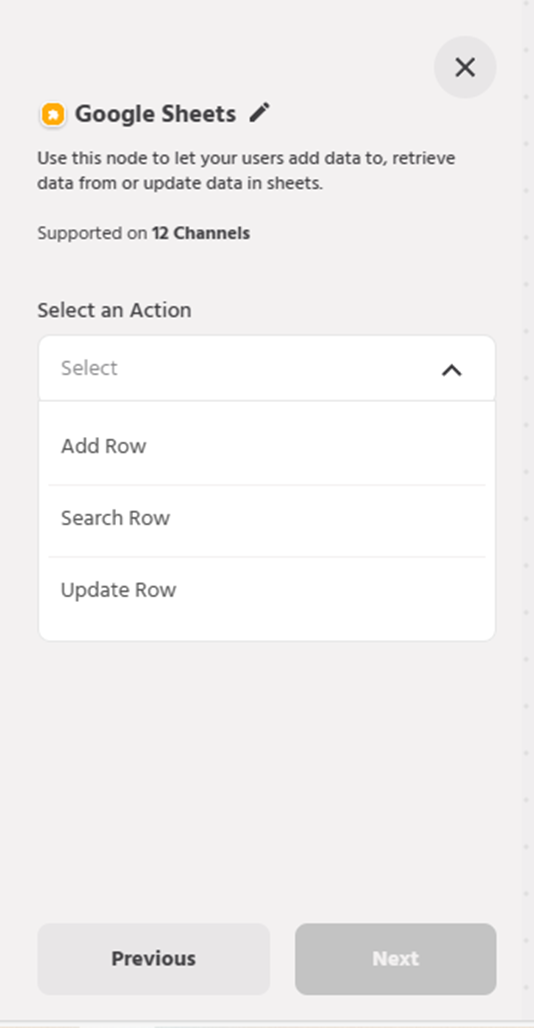
4. Select the Spreadsheet and the Worksheet.
5. Select a header from the selected sheet (This would be the title of the columns)
6. Search the value in the selected header. This is will give the row in which the searched information is present.
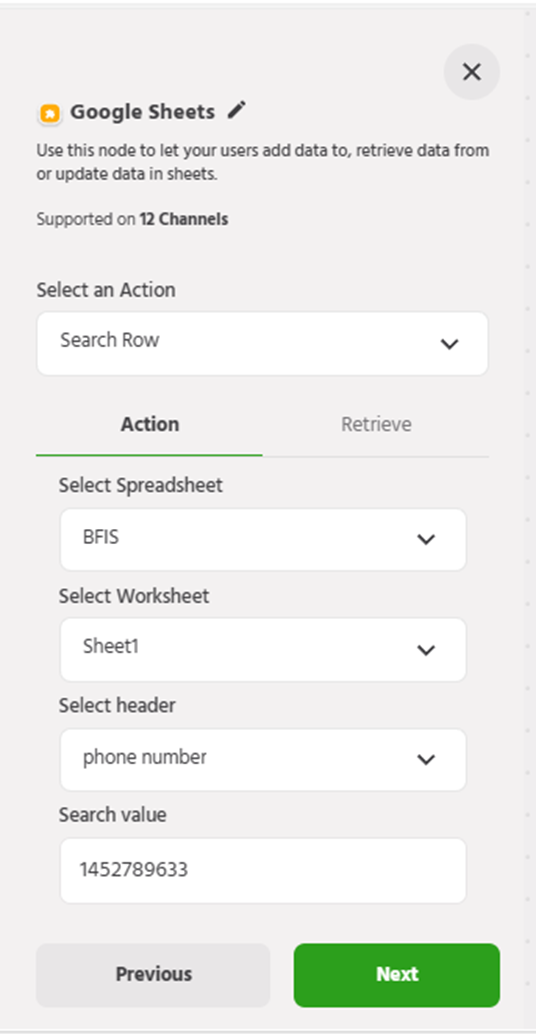
7. Once you select the Header you want to search the value in you will be able to see the retrieve tab where you can retrieve any value from the row found in the search.
8. Add an attribute to which the selected information is to be added.
9. You can access these attributes in the subsequent flows.
Note: In case the searched value matches in more than one row. The first one would be considered.
Add Information
This feature allows the user to add certain information to a google worksheet row.
1. While adding a new node select Google Sheets Under Integrations in the Builder tab.
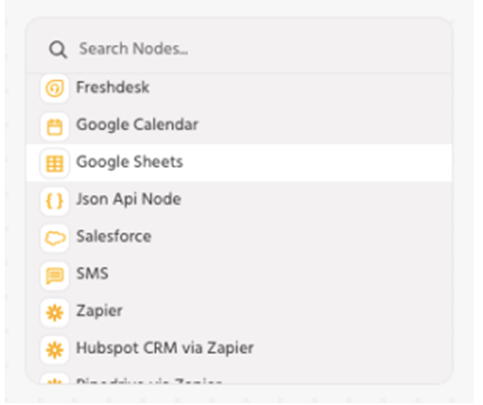
2. Select the connected account or add a new account and select the add row option from the drop-down menu.
3. Select the Spreadsheet and the Worksheet that you’d like to use.
4. The column headers should be predefined in the worksheet. Add the attributes in which the information that needs to be passed is stored in the bot flow.
Here is an illustration of how the above setup reflects in google sheets.
Update Information
This feature allows the user to search for a value and update the information in that row.
1. Click on Add new node and select Google Sheets Under Integrations.
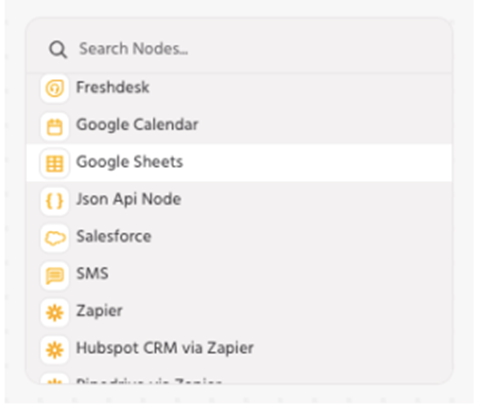
2. Select an already existing account or authorize a new account.
3. Select the Update row under the Select Action field.
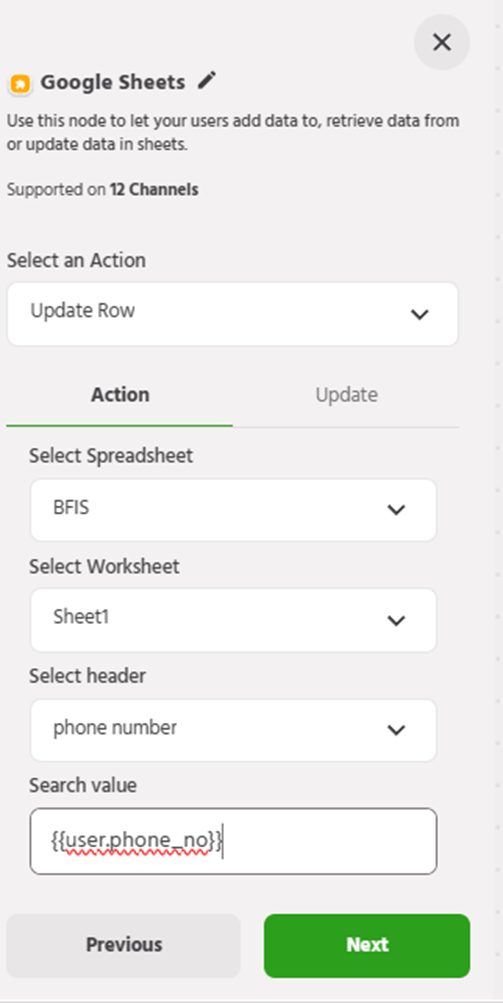
4. Select the Spreadsheet and select the worksheet.
5. Select a header from the selected sheet (This would be the title of the columns)
6. Search the value in the selected header. This is will give the row in which the searched information is present.
7. Select the header under which you want to change the value
8. Add the new value to be updated from the update tab, this could be an attribute or a static value
Note: If there is more than one row where searched information matches. The new information will be updated in all the rows