

File Upload
ORAI provides three methods in the node by which users can upload and share the files with the bot when this node is countered in the bot conversational flow.
Public Upload
Default option stores the file in ORAI cloud storage.
[Note: This URL would only be accessible for 20 mins ]
This URL will be available in the system-generated attribute {{user.fileupload.url}}
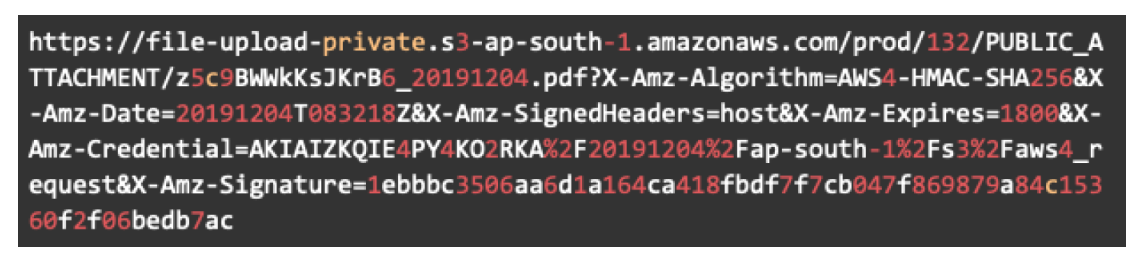
The URL generated would be in this format
Private Upload
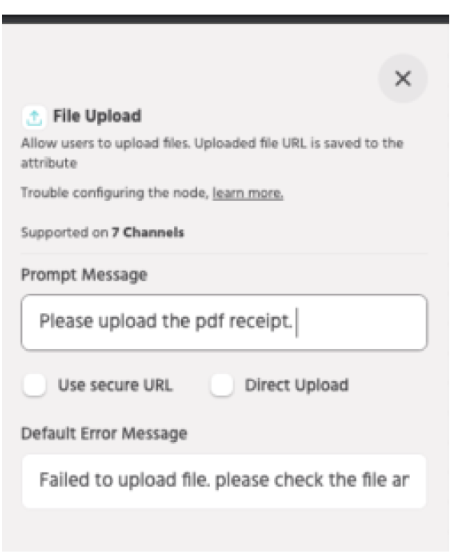
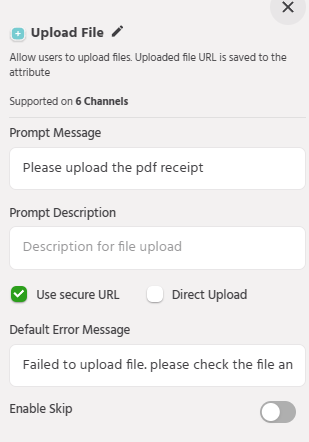
If the bot builder doesn’t want a public URL for the file user is uploading he/she can generate a secure URL by choosing the first option which is Use Secure URL.
If the bot builder chooses this option and the user uploads a file, this file will be uploaded on the ORAI cloud but the URL generated would be private and need to be accessed by using an authorization token.
The URL generated would be in this format
The auth token can be generated in the Integrations tab->ORAI APIs.
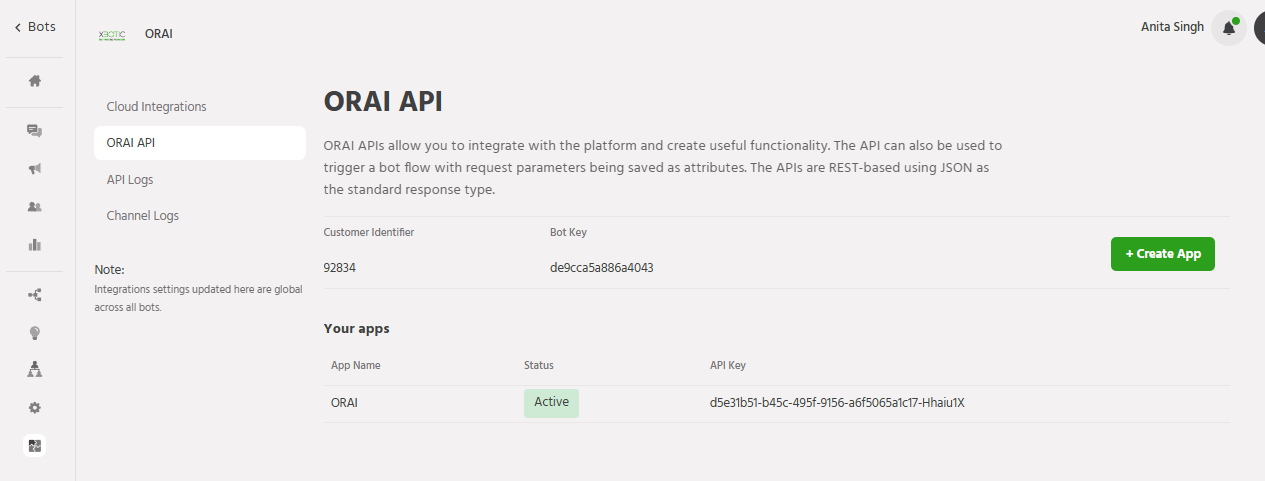
To access the file Bot builder has to make an API call using the auth token as a header.
As Authorization: Basic <API Key>
Here is the sample Curl command:
Again this Secure URL is saved in the system generated attribute {{user.fileupload.url}}
Direct Upload
If the bot builder wants to send the file to their storage, he/she can choose the second option which is Direct upload. If the bot builder chooses this option and the user uploads a file, this file will be uploaded on the API endpoint you configure in the node. Simultaneously the file is also uploaded to our cloud and a public URL is generated.
The URL generated would be in this format

Note: If both the options are selected which are Secure URL and Direct upload, the file will be uploaded on the API endpoint you configure in the node and uploaded on our cloud generating a secure URL.
This URL would be saved in the system-generated attribute {{user.fileupload.url}}
User Flow
Expected User flow on the Bot.
User encounters a path where they are expected to upload a file attachment
Users can browse and upload required files
User selects a file and clicks on “Upload”
Upload progress is displayed, o text input allowed during the upload
If file upload is unsuccessful, an error message will be shown and the File Upload node is restarted
User will be prompted to select the file to be uploaded again
Bot admin can collect relevant attributes for passing as input parameters
User can move ahead with the same path after the file is uploaded
The user needs to provide the file in the expected format to proceed further
Alternatively, the user can hit the refresh button to restart the welcome flow
Notes for Bot Builder
Here are a few important points for the bot builder to keep in mind while configuring the File upload node.
Once uploaded, a predefined confirmation message is sent to the bot user
Bot admin needs to define the Prompt Message and the Default Error Message
The file is stored by ORAI for 30 days after which the file is automatically deleted. The maximum file size is 5MB per upload
File types accepted for upload are doc, docx, pdf, jpg, png & zip
Zip files should not contain any unsupported file format
If the upload format is incorrect, or the file exceeds the size limit, then the Default Error Message is displayed
After the file upload node is created, the uploaded files can be managed using the portal attributes. The file is accessed through the following URL: {{user.fileUpload.url}}
Details on their uploaded file type can be accessed through the attribute: {{user.fileUpload.type}}
For File Upload across the platforms Facebook and WhatsApp, the URL generated is public and can be directly accessed.
Error Handling
All failed file uploads will be tracked per user
The List of failed uploads per user will be available in “Train-> Actions”, which redirects to the dashboard of failed uploads
The following information is available:
User File name
File type
File Size
Upload Timestamp
Status