

Clevertap
Availability
CleverTap integration is available for all existing and new direct Shopify/WooCommerce, Growth, Pro, and Enterprise 2024 customers, as well as WL Partners and Resellers. It is listed under the ‘Marketing’ category in the ‘New Integration V2’ section.
How to Set Up CleverTap Integration on Orai
Step 1: Adding CleverTap Integration
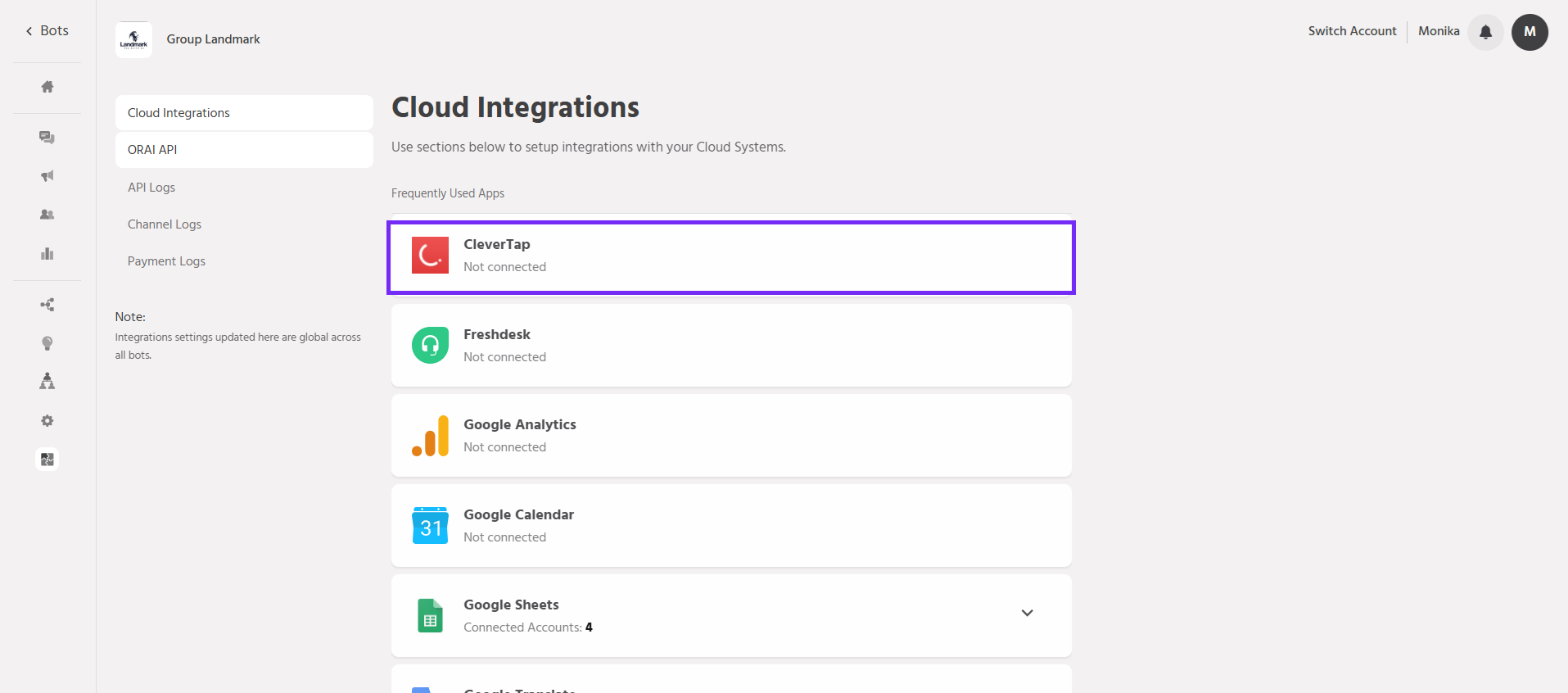
- Navigate to Integrations > Cloud Integrations > My Integrations.
- Select CleverTap from the list and click Connect.
- A modal will appear prompting you to select your bot.
- After selecting your bot, enter your preferred path for integration.
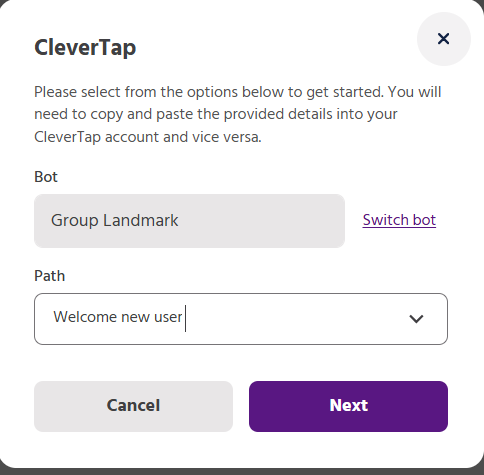
- Click Next to proceed.
Step 2: Configuring the Integration
After selecting your bot and path, you will receive the following details:
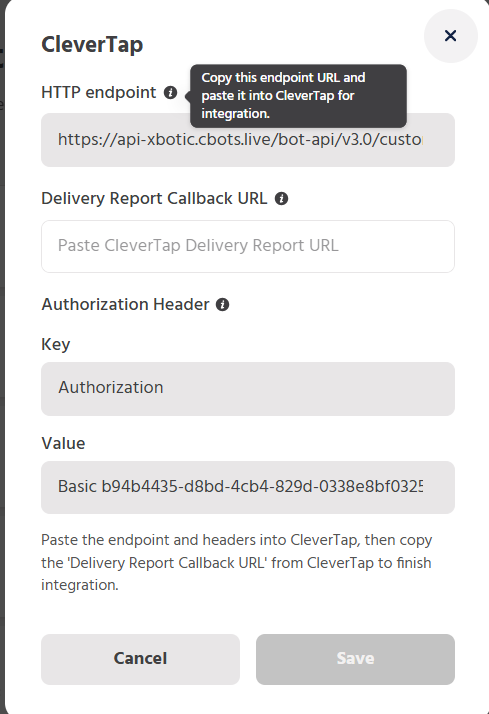
- HTTP Endpoint (Read-only, with a copy icon)
- Delivery Report Callback URL (Input field to paste CleverTap’s Delivery Report URL)
- Authorization Header:
->Key: Authorization
->Value: Basic <API Key> (This key will be generated and displayed)
Step 3: Configuring Orai as a Provider on CleverTap
- Log in to your CleverTap account.
- Navigate to Settings > Channels > WhatsApp.
- Select Provider as ‘Generic (Other)’.
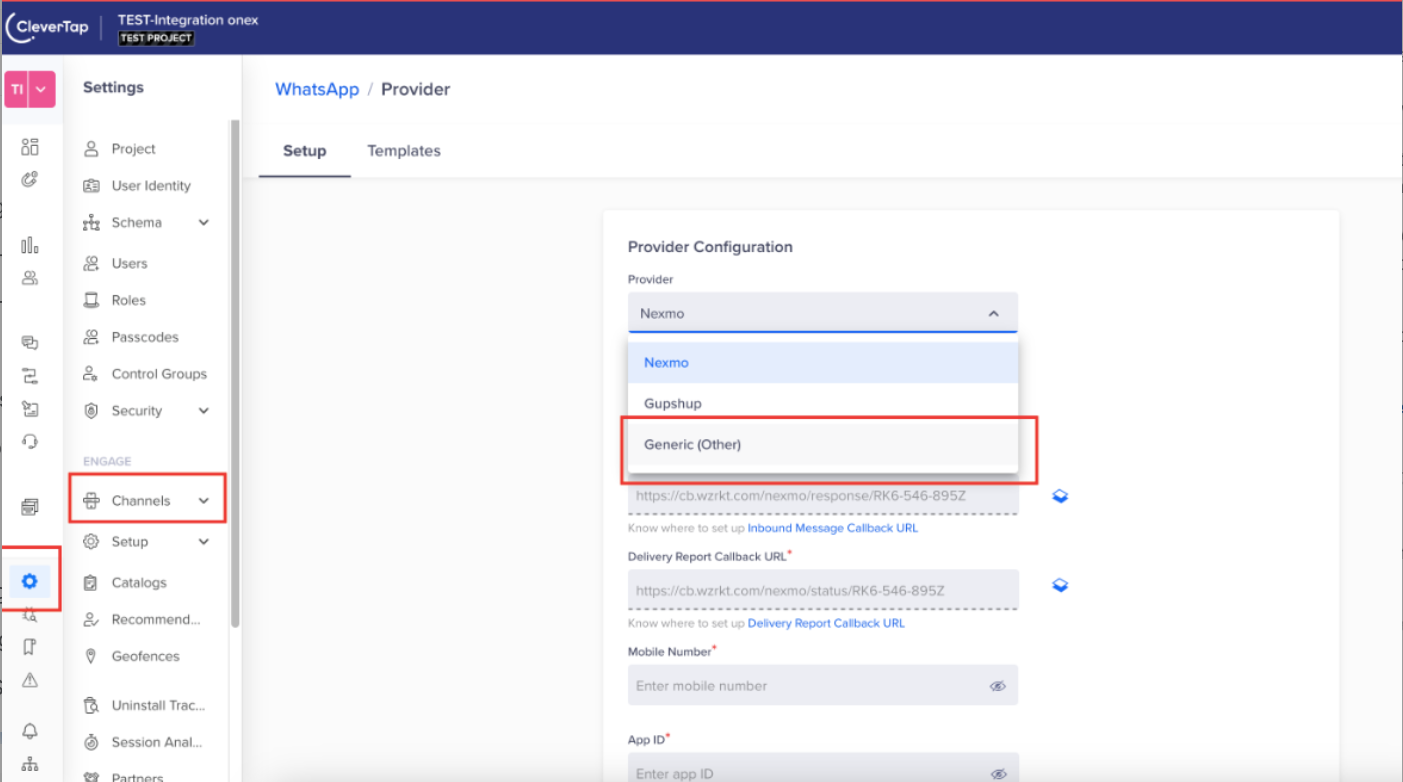
- Copy the HTTP Endpoint from Orai and paste it into CleverTap.
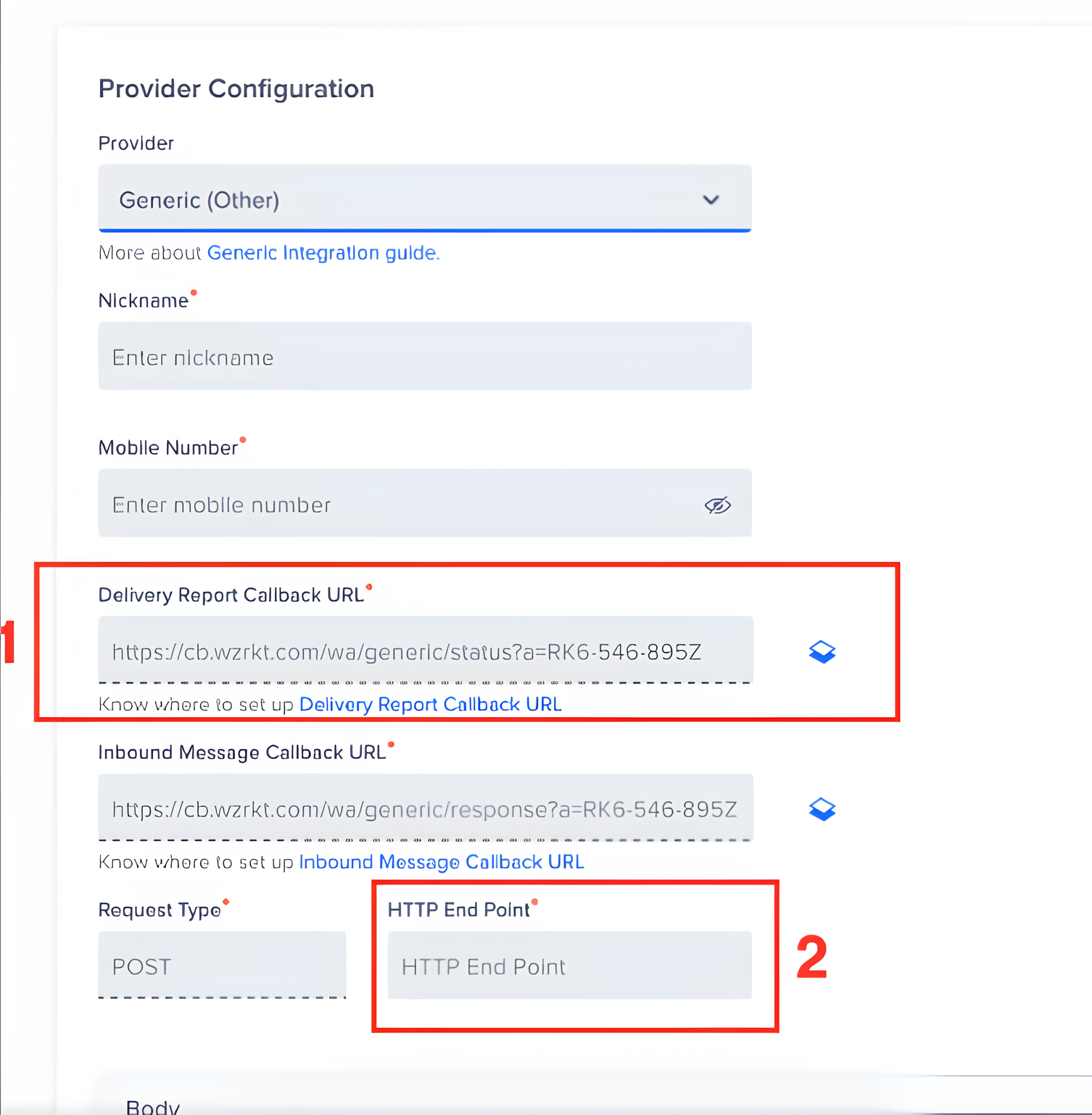
- Copy the Delivery Report Callback URL from CleverTap and paste it into Orai.
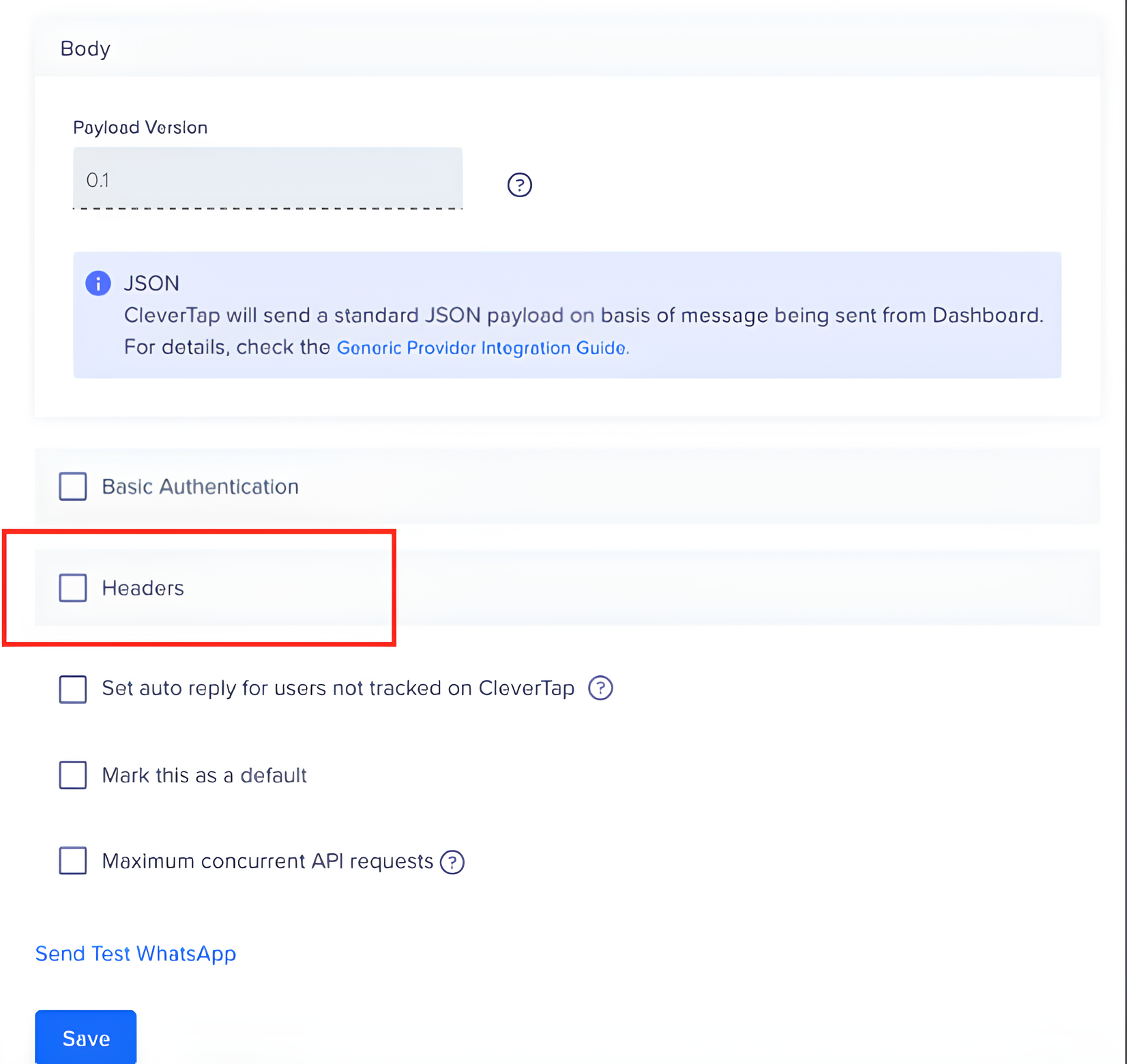
- Choose an authentication method in CleverTap:
->Select Basic Authentication or Headers.
->If using Headers, set up the key-value pair as:
– Key: Authorization
–Value: Basic <API Key> - Click Save to complete the integration.
Step 4: Creating the API Key for CleverTap
- Go to Integration > Orai API.
- Create a new API key with the App name as CleverTap.
- If the API key limit (5) is reached, the 6th API key will override an existing one.
Step 5: Configuring the Script Node on Orai
- Add a Script Node in the selected path and connect it to the Start button.
- Name the script node as CleverTap.
- If adding multiple nodes, name them sequentially (e.g., CleverTap 2, CleverTap 3, etc.).
- Pre-configure the script with the following code:
var to = {{to}}; var temp_template = {{template}}; process({“data”: {“type”: “template”, “payload”: temp_template, “targetWhatsAppNumber”: to}});
Previously connected nodes will be disconnected, and the CleverTap script node will be connected.
Step 6: Sending Campaigns from CleverTap
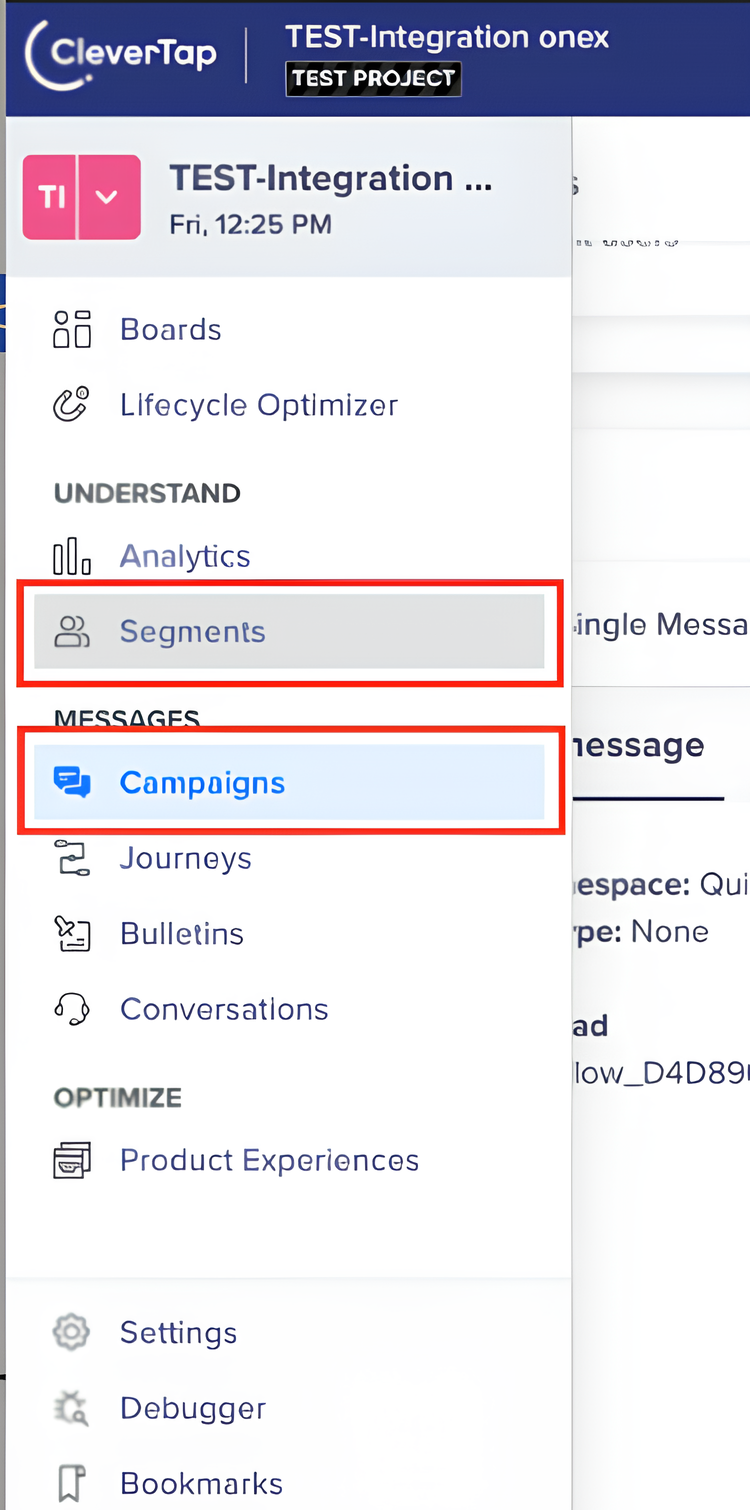
- In CleverTap, go to Segments and upload a custom segment
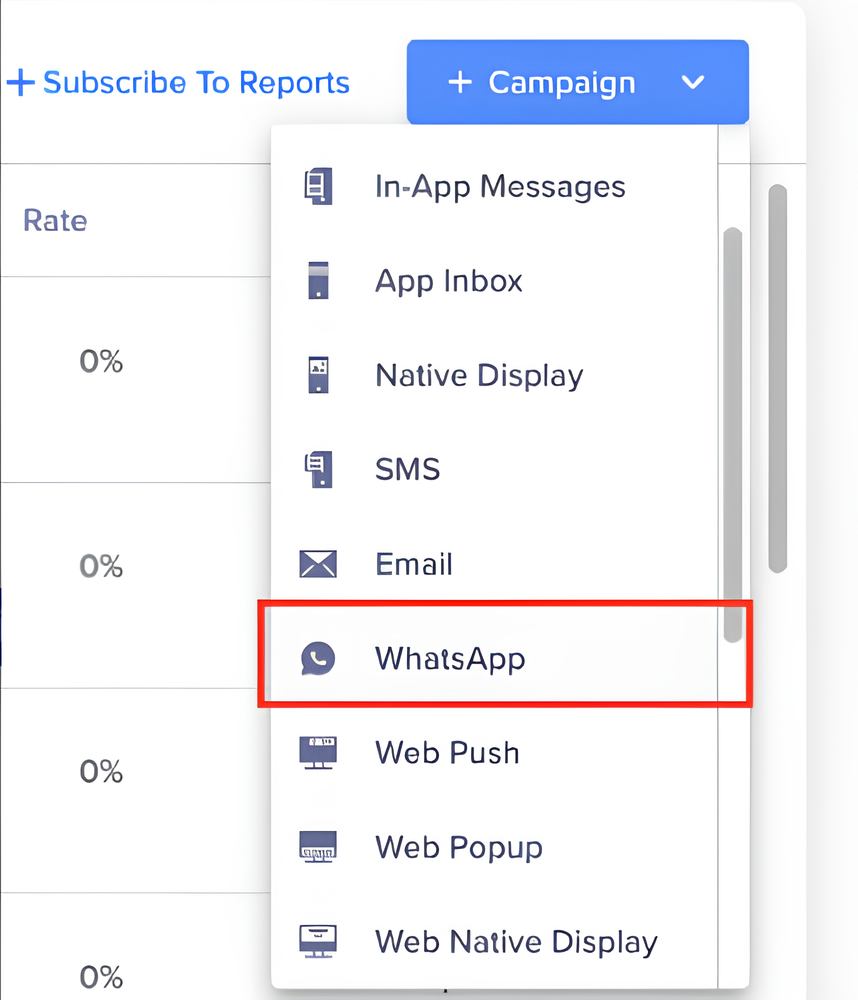
- Click Campaign and select WhatsApp as the channel.
- Click New Campaign.
- Choose the type of campaign and select the customer segment.
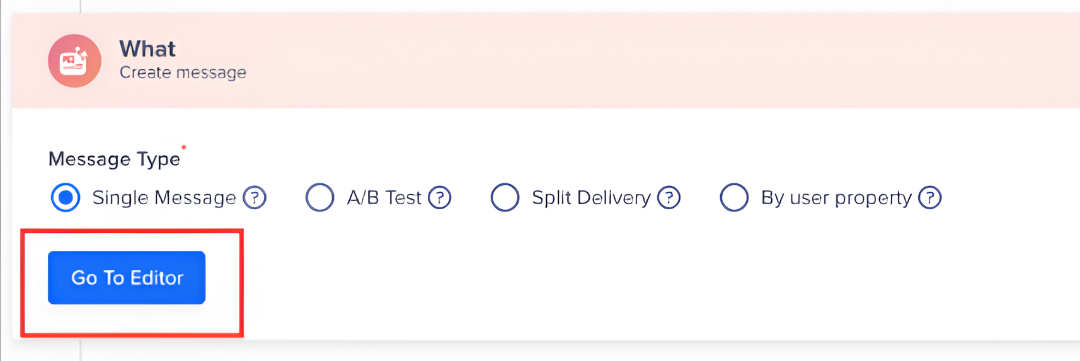
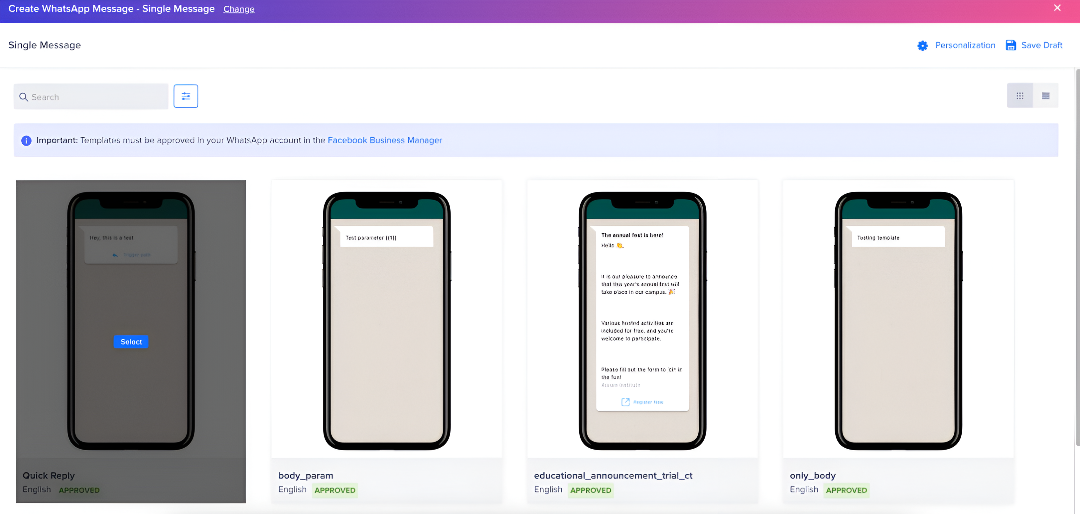
- Define the customer payload:
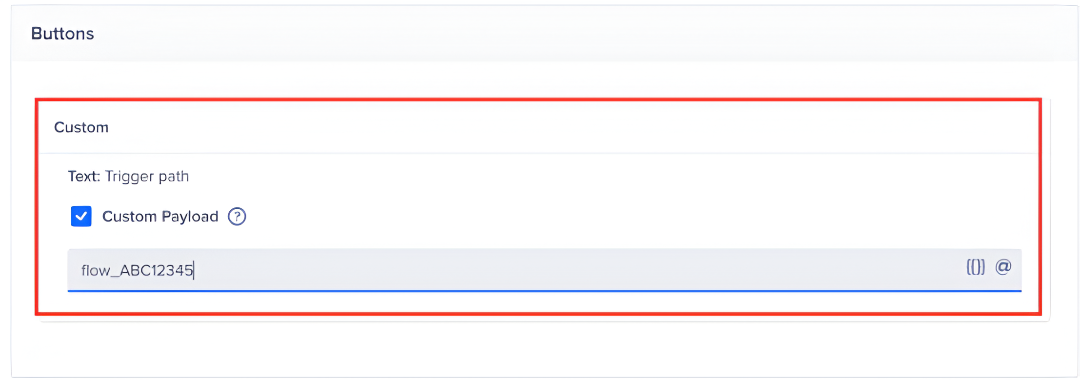
->If the template has a quick reply button, add the flow key.
->Find the flow key in Engati under Path > Path Info.
->Save the flow key in the format: flow_<flow_key>.
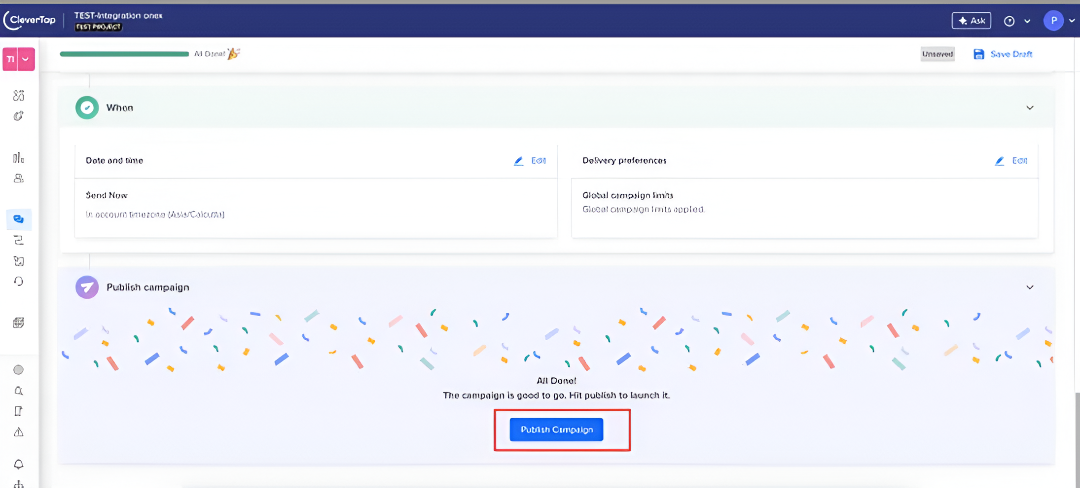
- Click Publish to launch the campaign.
- Analytics will start appearing in CleverTap to track campaign performance.
Final Steps and Notes
- Ensure the same template is created on both Orai and CleverTap.
- Paste the generated HTTP Endpoint and Authorization Headers into CleverTap.
- Copy the Delivery Report Callback URL from CleverTap into Orai to finalize the integration.
- WL Partners will not see the ‘Click here to know more’ option, whereas Direct Customers will.This completes the CleverTap integration with Orai. You are now ready to automate WhatsApp messaging and run campaigns efficiently!
Please feel free to reach out to support@orairobotics.zohodesk.com