

About Display Information
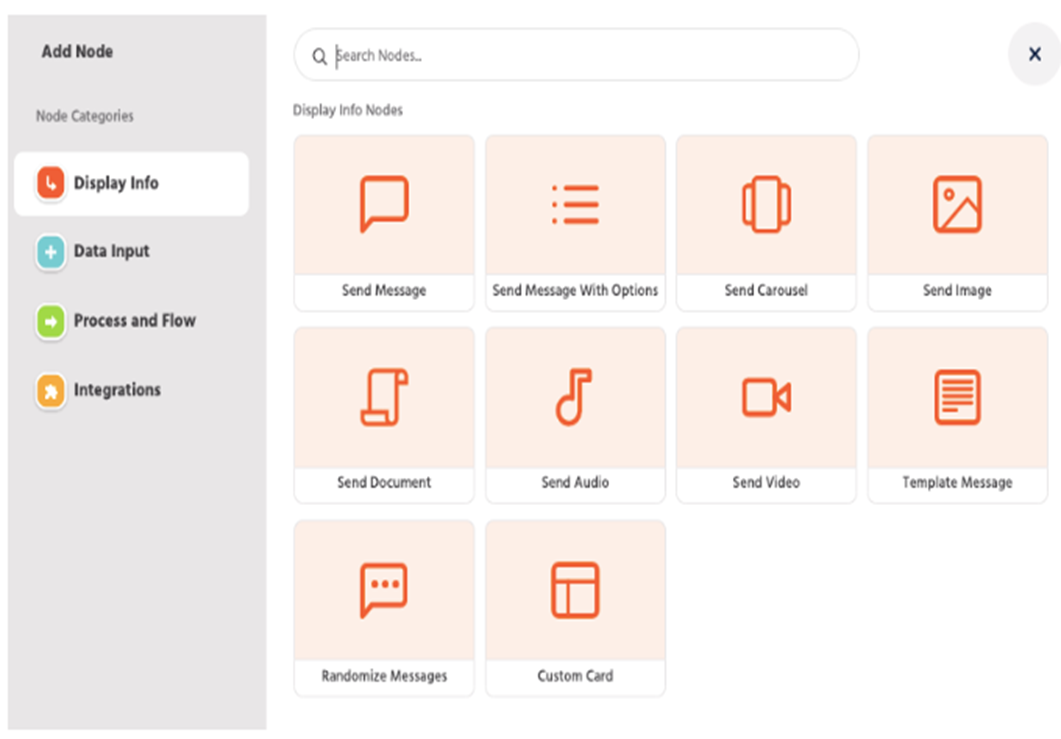
ORAI provides a number of options to present information to the end-user via the chat bot. These range from simple messages, images, carousel cards & more.
Media Nodes
Introduction
ORAI allows you to share image files, audio files, and video files based on specific workflow trigger points.
Media Nodes
Image Node
To be able to send an image to a Chatbot during a conversation flow, you can use the Send Image Node.
Note: Maximum file size is 1MB. The supported format is a jpeg, jpg, png, and gif.
Select the Send Image node from the add a node modal.
Configure the image URL or select an image from your computer and save the node.
Audio Node
You can share mp3 and m4 files on the chatbot. You can either enter the URL or upload the Audio/Video file from your local.
Note: Maximum file size is 10MB. The supported format is mp3.
Select the Send Audio node from the add a node modal.
Configure the Audio URL or select an Audio from your computer and save the node.
Video Node
ORAI has integrated video loads while setting up your logic paths on the bot. You can either enter the URL or upload the video file.
Note: Maximum file size is 25MB. The supported format is mp4
Select the Send video node from the add a node modal.
Configure the video URL or select a video from your computer and save the node.
You can also add subtitles/video captions using the URL of the track or you can use the required attribute for it.
Note: The file format for should be in “.vtt” format only. It is available for website channels only.
For Whatsapp the size limit is 16mb.
Document Node
You can upload documents that can be shared with users, users can click on the arrow button to view and download the PDF.
Note: Maximum file size is 25MB.
Supported Formats: pdf, doc(x), ppt(x), xls(x), zip, rar csv, txt
Random Message and Custom Card
Random Message
You can use the random message node to send a different reply each time the user reaches that part of the flow. This can be useful in greeting messages or default messages.
Custom Card Node
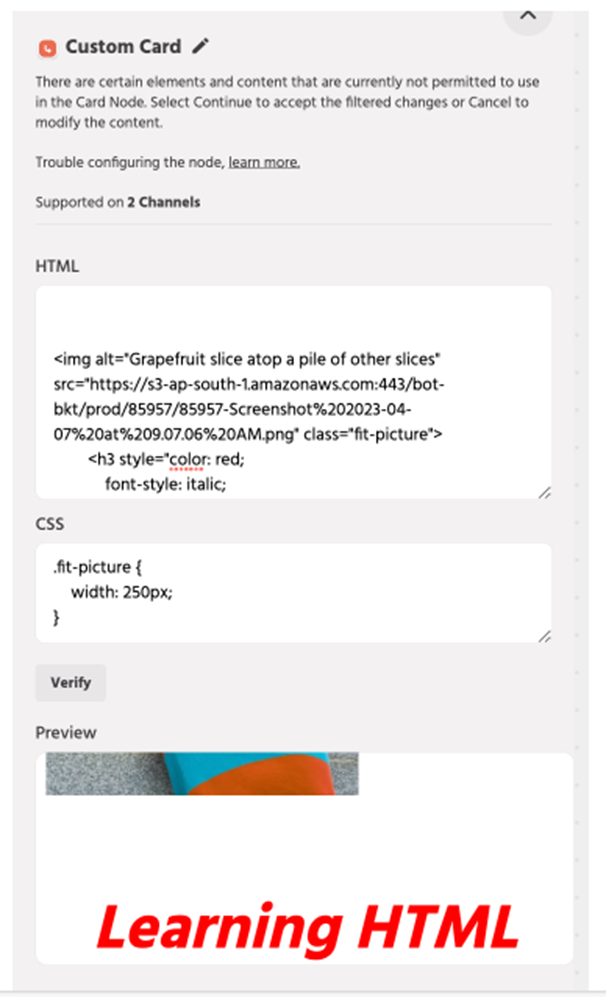
You can add an HTML-CSS styled card in the user message, making the flow it interactive.
Note : Custom Card is supported only for bot version 1. Please reach out to us.
You can add your code blocks and check how the card would look to the end-user. Custom cards are supported only on Mobile SDK and the web app.
Example :
Send Carousel
Introduction
The carousel option can be used to make interactive messages with images, text, subtext, URLs, and buttons.
Modes of Carousel
Static List – Add Individual Cards – as the name suggests, use this option when you have a known specific set of cards to be added. Each card and its details have to be specified specifically while configuring the carousel using this option.
Dynamic List – Select an Array Attribute – this option allows you to configure a dynamic set of cards. Each card would get its details from one object in an array of objects stored in an attribute.
To configure this source –
Select an Array Attribute to construct the Carousel
You can use attributes from within the array object to specify Image Source, URL, Heading, or Subheading. To refer to fields from the array object use the following notation $ARRAY.<key>$. Here, key refers to the field name in the object.
The card details configured to one card will be replicated in each card generated for all the objects in the Array Attribute (up to a maximum of 10).
If no (or incorrect) data is available in the attribute, the carousel will not be generated.
Theme Styling
Card type
Separate sections – The image, title, description, and buttons have borders, dividing them into different sections in the card
Seamless card – The image, title, description, and buttons do not have borders, making it look like a single card.
List – The cards appear one below the other, in a list
Card Layout
You can also select the layout of the card, whether you want all the cards displayed together or one card at a time. The available options are:
Continuous Scroll: In this option, you see multiple cards within the chat widget with an option to scroll through them.
Note: This is only available when the card type is Seamless cards or Separate Sections.
One at a Time: In this layout, one card is presented at a time. Users can scroll left or right using the next card button.
To move the carousel cards, click on edit and simply drag the cards as required.
Send Message and Send Message with Options
Introduction
You can use these nodes to send a message or a message with options to the user.
Send Message with option
a) Message
Add a message or a label for the options to be added below.
b) Actions
Choose the required action(s) to be taken for the selected option. This includes:
Trigger a Path – Select this option, if you would want to trigger a new path of node, on the selection of an option by the user.
Set an Attribute – Select this option, if you would want the selected option value to be saved as an attribute to be used further in the conversation flow.
If this option is selected, remember to provide an attribute name as well. This attribute will store the value of the option selected by the user.
c) Default display mode
Select a suitable display mode for the options from
Buttons – show the options as buttons to click on
Dropdown – show a drop-down in the typing area.
This option applies only to the website chatbot. For other channels, this option is ignored and the options are displayed in the standard format for the channel.
d) Additional WhatsApp setup
- Display mode
1) Numerical list
The options would be displayed as a single list and these options would be non-clickable.
2) Interactive buttons
The options would be displayed as a list with interactive buttons. You can also add some additional options such as a list header, section title, and option description to make it more interactive and informative for the user.
e) Validation
Use the options here to decide, how is a user response handled when it does not match one of the available options
Default – If selected, the bot will ignore user input if it does not match the options configured and will continue with the flow. That essentially means the next node is configured within the flow or else if none is configured then forward it to the NLP Engine for processing & response
Validate Once – If selected, the bot will show a predefined validation message (only ONE time) if the user input does not match with the configured options. Else it will continue with the flow
Force Validation – If selected, the bot will show the predefined validation message and block the conversation flow until the user provides input that matches the configured options
Few pointers:
Enabling Trigger Path and Set attribute allows you to use the Button Format.
Enabling Trigger Path and Dropdown Menu allows you to use the Dropdown Menu with two kinds of formats ( List and Import).
List View – The options added will be shown in a list format.
Import – You can import a set of options that will be presented in List format
Enabling only the Set attribute allows you to use Multi-select.
Drag and Drop buttons
You can drag and drop the option buttons in SMO/Carousel node to change the order of options.
Multi-Select Options in SMO
To enable Multi-Select kindly uncheck the “Trigger Path”, check “Set Attribute” and assign a value for your attribute:
User Prompt
The content in this option would notify your users that they can select multiple options after overtime they have clicked an option, the process would end when the User has selected the Done button which would be displayed to the user after the first option has been selected.
Done button title
You can enter a value in the “Done button title” which would indicate the user for ending the process of adding the options.
The values for the options clicked will be stored in the assigned attribute and the process would end when the user clicks on the “Done” button.
Dynamic SMOs
The dynamic SMO (Send Message with Options) node provides even greater flexibility, by allowing flow builders to construct options by using API responses. This dynamic functionality enhances the customization capabilities and makes it easier to tailor the node based on external responses.
1. Choose the ‘GET’ call in your JSON API node and Declare the array attribute. To learn more about the JSON API node, click here.
2. Select the Source as ‘Dynamic List’ in the SMO Node.
3. Choose the declared Array Attribute from the dropdown list.
4. Use the following notation $ARRAY.<key>$ in your option fields. Here <key> refers to the field name in the object.
Template Message
Introduction
Customers can now easily set up templates using the Template Message node for,
- Sending a template message in the bot flow
- Use Broadcast workflow to send broadcast using Path type and have node setup in the particular path
- Use Broadcast API with external systems to trigger a particular path as per custom logic
Availability
Template Message node will be available for customers with chatbot deployed on WhatsApp, with 360dialog as a provider.
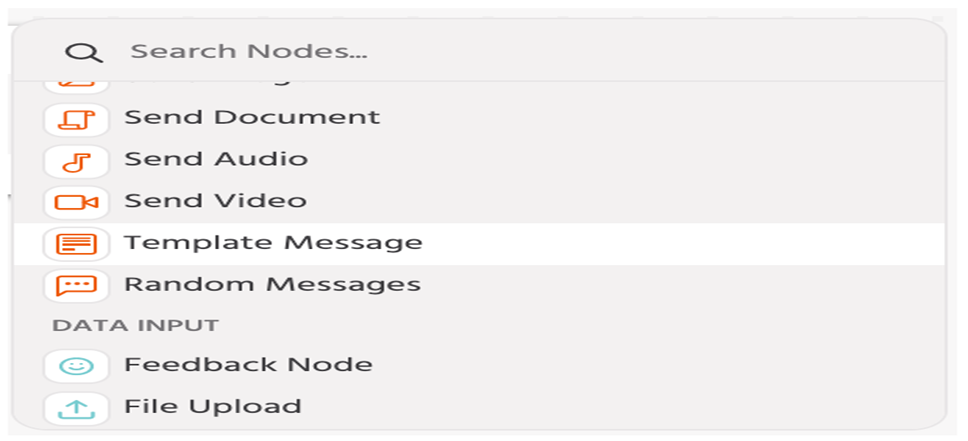
Setup Template Message Node
Select the required template. Only approved templates from the 360dialog account will be visible. Login to the 360dialog account to create or check the approval status of templates.
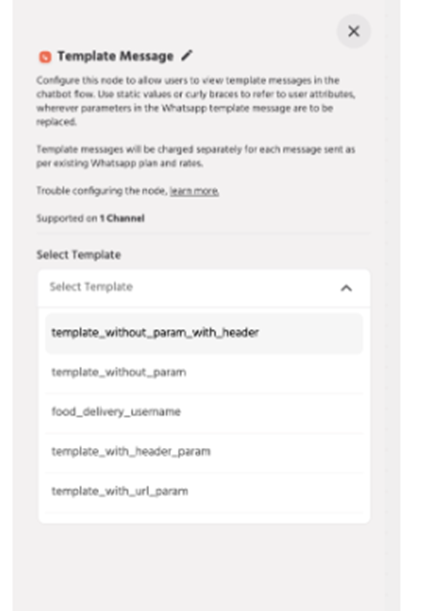
Upload document/media and provide attributes/values for parameters. If attributes are used, please ensure that attribute value is available for the user in the chatbot flow.
If quick reply buttons are available, select the path to be triggered or/and attribute to be set when the button is clicked.
To test the template, click on the ‘Test Template’ button. Input the number, only WhatsApp numbers of existing users can be used.
Click on Send to send the template. Attribute values might not be initialized while testing the template. If satisfied, click on Save to save the node.
Note: All template messages in the bot flow, broadcasts or test templates are charged as per WhatsApp pricing and agreement.