

New Messages
Purpose: The New Messages section serves as a centralized queue for incoming live chats assigned to agents, acting as their primary request queue for new conversations.
Benefits: Centralized Management: Allows agents to quickly identify and respond to new conversations requiring attention.
Pre-Chat Context: Agents can view user information and context before accepting the chat.
Availability
Visibility: The New Messages tab is accessible to both supervisors and agents within the Messages section.
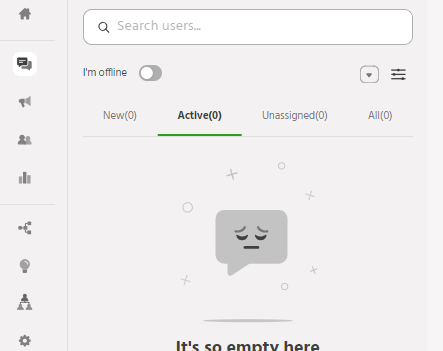
New Requests
Assignment: Chat requests from users appear in the New section and are assigned based on routing rules and agent availability.
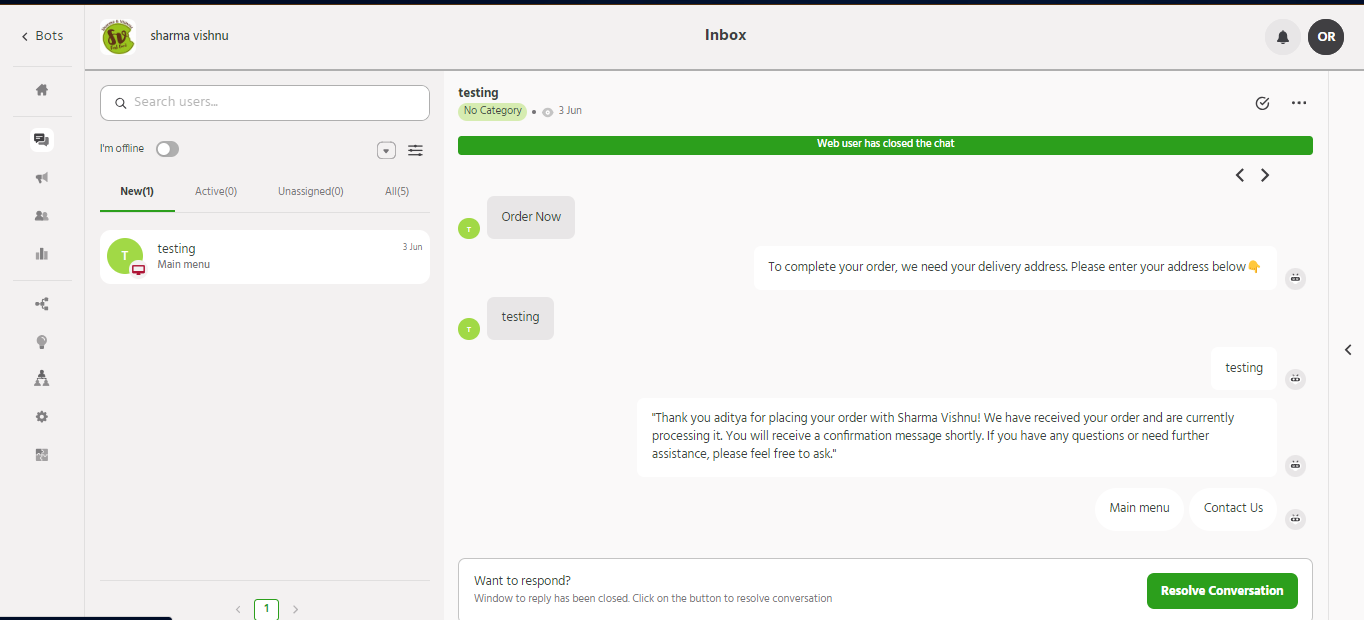
Online Status: Agents and supervisors can toggle their availability using the ‘Not Available’ option.
Incoming requests trigger a sound notification, if enabled in Preferences.
Filters
Sorting and Filtering: Agents can sort or filter new chats by clicking the icon next to the Availability toggle.
Navigate to Messages > New() and click on ☵ to access filtering options.
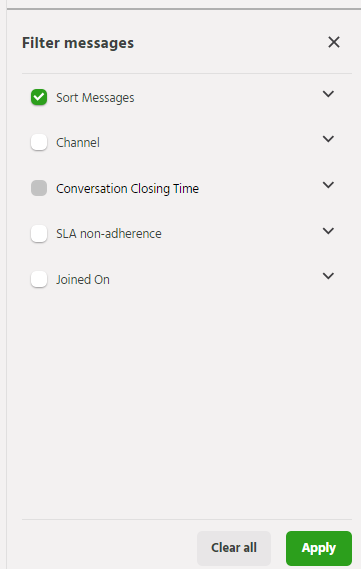
Sort Messages:
Arrange messages in preferred order with options like ‘Newest user first’ and ‘Oldest user first’.
Channel:
Filter messages by communication channel, such as ‘Website’, ‘WhatsApp’, ‘Instagram’, etc.
Conversation Closing Time:
Filter based on when conversations were closed.
SLA Non-Adherence:
Identify conversations not meeting the Service Level Agreement (SLA), with options like ‘First Response’ and ‘Resolution’.
Joined On:
Filter messages by the date the customer joined the conversation.
Quick Filters
Usage: Manage conversations based on the retargeting window closing time.
Click on the ‘Quick Filters’ icon next to the filter icon to access.
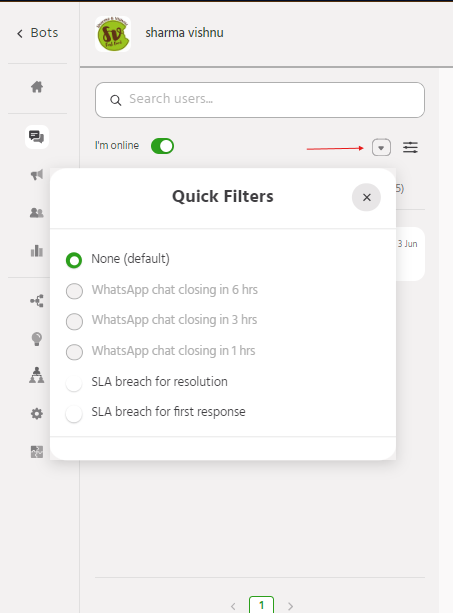
WhatsApp chat closing in 6/3/1 hrs: All the whatsapp conversations with a reachable window open time can be filtered based on the time left to respond to each conversation.
SLA breach for resolution: enables users to identify conversations where there was a failure to resolve an issue within the agreed-upon service level agreement (SLA) timeframe.
SLA breach for first response: enables users to identify conversations where there was a failure to provide an initial response to a customer inquiry within the agreed-upon SLA timeframe.
Initiating Conversation
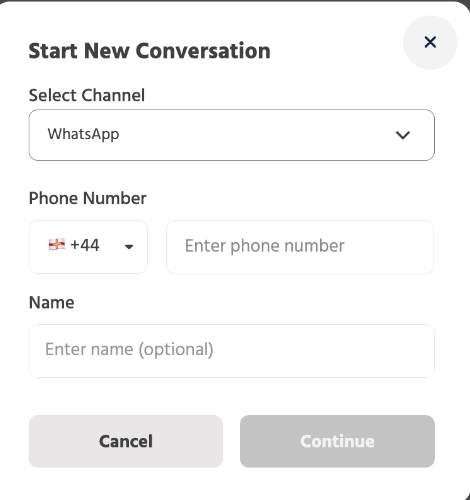
You can now initiate a new WhatsApp conversation directly from One View inbox and also search from existing users clicking on ‘Search users..’.

Here, you can search from existing users or create a new user by clicking on ‘Add New User’. New users would be those WhatsApp users who have never sent or received a message via your WhatsApp number.
The queue essentially acts as the staging area to ensure incoming chats are routed to the right agents in a timely manner before conversing with the user. This helps provide organized and responsive support.
If you face any issues or queries please reach out to us at support@orairobotics.zohodesk.com